An accountant opens a tax workbook in hosted Excel shortly before a filing deadline. A macro warning blocks the calculation tool, an add-in refuses to load, and nobody can tell whether the restriction comes from Excel, the user profile, the file location, or a policy applied by the hosting environment.
That's the practical reality of Trust Center settings. They aren't just a buried Microsoft menu or a collection of security messages. They determine what runs, what loads, what connects externally, and what stays isolated inside Word, Excel, Outlook, PowerPoint, and Access. In a cloud-hosted workflow, one poorly chosen setting can affect every session that uses the same managed profile.
A useful security program also needs a governance model behind the settings. NIST Special Publication 800-53 Revision 5, published on December 10, 2020, consolidated security and privacy controls into one catalog and distinguishes functionality, the strength of a mechanism, from assurance, confidence that it provides the intended protection. That distinction is important here. A green checkbox tells you what's configured. Evidence tells you whether the control works.

The practical target is a secure default that still supports real work. You'll need to find the settings, understand each pane, map the choices to hosted applications, and verify the outcome with configuration records, logs, and review evidence. For broader context on protecting hosted work, compare these data security best practices.
A Trust Center setting becomes important when a user needs to open a file from a client, run a signed tax utility, refresh a workbook connection, or use a document-management plug-in. The setting decides whether Microsoft treats that action as trusted, suspicious, or blocked. That decision affects both security and productivity.
Consider a tax practice receiving a workbook from a client. Excel may open it in Protected View because it came from the internet or an untrusted location. If the workbook contains macros, the macro policy may block them, show a notification, or allow them to run. If an add-in is unsigned, a separate control may prevent it from loading even though the workbook itself opens normally.
Those controls are useful because office files can carry executable content, external links, and connections to other resources. They're also easy to misconfigure. Blanket enablement makes urgent work convenient, but it removes a valuable boundary. Blanket blocking protects aggressively, but it can push staff toward workarounds, personal devices, or unapproved file transfers.
In hosted environments, the same application may be presented through a remote desktop session, a published application, or a managed virtual workspace. The configuration may follow the user profile rather than the physical computer, so a user who moves between sessions can experience consistent behavior, provided the profile and policy are managed correctly.
The right question isn't “Is the Trust Center secure?” Ask instead:
Practical rule: Treat every Trust Center choice as an access or execution control with an owner, an approved exception process, and a way to verify actual behavior.
That approach fits the broader NIST view of flexible, customizable controls. Organizations should select safeguards according to business needs, applicable obligations, policies, standards, and threat conditions, rather than copying a generic configuration.
The navigation path is consistent across the main Microsoft Office desktop applications:
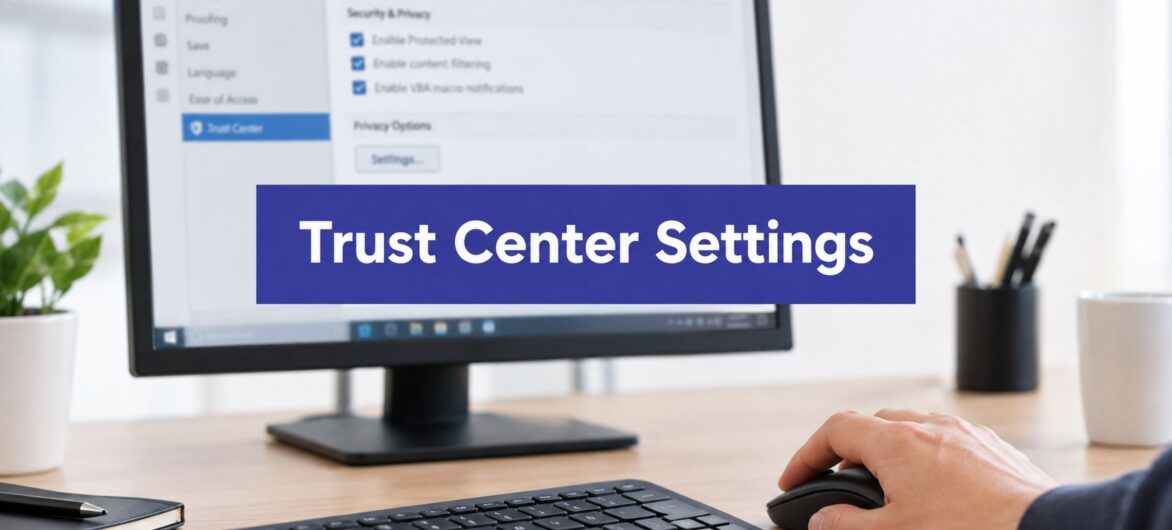
File → Options → Trust Center → Trust Center Settings
In Word, Excel, Outlook, PowerPoint, and Access, start by selecting File in the upper-left corner. This opens the backstage view, which contains document actions and application configuration. Select Options near the bottom of the left-hand menu to open the application settings dialog.

In the Options dialog, select Trust Center in the navigation pane. The right side explains that the Trust Center contains privacy and security settings, then presents the Trust Center Settings button. Select it to open the detailed configuration window.
The Trust Center window contains separate panes for different types of risk:
The labels and exact available options can vary by Office edition, update level, administrative policy, and application. If a control is greyed out, the setting may be enforced centrally. Don't treat a locked option as a local application fault until you've checked the policy source.
For a hosted Microsoft Office environment, record the application name, user profile, session type, and policy state before changing anything. This makes it easier to distinguish a local preference from a centrally enforced configuration. Microsoft applications can also behave differently depending on whether a file came from email, a browser download, a network share, or a defined trusted location.
This Microsoft Office cloud hosting overview provides useful context for environments where applications run centrally but users connect from different devices.
After opening the dialog, capture the existing values before editing them. A baseline prevents the common mistake of “fixing” a deadline problem without knowing which control changed.
The panes separate execution, content retrieval, file isolation, and notification behavior. They overlap in user experience, but they don't solve the same problem.
Macros are executable instructions embedded in Office files. The available choices generally range from blocking macros without notification, to blocking them while displaying a notification, to allowing signed or otherwise approved macros, with the most permissive options enabling macros broadly.
For a tax practice, block macros with notification is usually a defensible starting point. Staff can identify a legitimate workbook, confirm its source, and follow an approved process rather than allowing every macro automatically. Enabling all macros may remove friction, but it also turns every opened workbook into a potential execution path.
Trusted Publishers can help when a software vendor consistently signs its macros. That creates a more specific trust decision than allowing every file. It still requires publisher governance, because a trusted signature doesn't remove the need to confirm that the add-in or workbook is appropriate for the business process.
Add-ins extend Office functionality, often through document-management, accounting, tax, CRM, or workflow products. The Add-ins pane can restrict add-ins, require signatures, and apply macro security to installed components.
Unsigned add-ins create a difficult support problem. They may be legitimate, but the signature provides no reliable publisher identity for the application to evaluate. If a law firm needs a document-management add-in in a remote session, the safer path is to validate the vendor, deploy the component centrally, and document the exception rather than allowing unknown add-ins for every user.
External content includes linked workbook data, data connections, and other references that retrieve information outside the current file. A nonprofit may need a hosted spreadsheet to refresh approved financial data, while an accountant may receive a workbook containing links to a client's systems.
The trade-off is freshness versus control. Automatically updating every external connection is convenient, but it can disclose file activity or retrieve manipulated content. Restrict automatic retrieval, then approve known sources and document who owns the connection.
Protected View opens files from the internet, unsafe locations, or other risk contexts in a restricted, read-only state. It gives the user a chance to inspect the document before editing or enabling content.
Disabling it globally solves some opening complaints, but it removes a useful inspection boundary. A better fix is to identify the legitimate source, improve the approved workflow, and use a controlled trusted location only when its access and contents are governed.
The Message Bar communicates that content has been disabled or that the file opened with restrictions. Hiding these messages can make the interface look cleaner, but it also removes the user's explanation for why a macro or connection didn't run.
Trusted Locations can reduce repetitive prompts for known folders. They also create an exemption from some checks, so broad paths, user-controlled folders, and shared locations deserve scrutiny.

NIST's privacy-control guidance describes privacy controls as administrative, technical, and physical safeguards for managing privacy risk and satisfying applicable requirements. It also describes trust centers as places where customers can review policies, data-location information, data-use information, compliance frameworks, and government-request transparency. That broader context explains why these application choices belong in an overall control framework.
Don't ask whether a pane is “secure” in isolation. Ask what it permits, who can use the permission, and how you'll prove the permission was used correctly.
Cloud-hosted applications make standardization easier because administrators can manage a common environment instead of correcting unrelated desktop installations. That advantage disappears if the hosted profile resets between sessions or if exceptions are granted without ownership.
A workable baseline keeps protective boundaries in place while allowing named business applications to function. For example, an accountant using hosted Excel with a trusted tax-software macro shouldn't need unrestricted macro execution. The software should be validated, signed where possible, deployed through an approved path, and supported by a documented exception.
A law firm's document-management add-in needs similar treatment. Install it centrally, confirm its publisher and compatibility, and avoid asking every attorney to lower add-in restrictions. A nonprofit refreshing an external spreadsheet connection should have an approved source, a known data owner, and a clear response when the connection changes.
| Setting | Hosted Scenario | Recommended Default |
|---|---|---|
| Macro Settings | Tax or accounting workbook uses approved automation | Block with notification, permit approved and documented exceptions |
| Add-ins | Document-management or accounting plug-in runs in a remote session | Require trusted publishers or centrally managed deployment |
| External Content | Financial workbook refreshes approved external data | Restrict automatic retrieval and allow known connections |
| Protected View | User opens a downloaded client file | Keep enabled for internet-sourced and unsafe-location files |
| Trusted Locations | Approved application folder stores controlled workbooks | Use narrowly defined, managed folders only |
| Message Bar | User needs to understand why content was blocked | Keep security notifications visible |
| Trusted Publishers | Vendor signs macros or add-ins | Approve only validated publishers and review the list |
The defaults should be paired with identity and session controls. A secure Office setting won't compensate for shared administrator accounts, uncontrolled profile storage, or an add-in that users can install without review. Inventory the applications, users, data repositories, and supporting services before deciding that the baseline covers the full workflow.
Teams that manage many hosted applications can also benefit from IT asset management tools to maintain a current record of software, ownership, and deployment status. That inventory helps connect a Trust Center exception to the application and business owner responsible for it.
Use the organization's security recommendations as a companion reference, but don't copy a setting without testing the actual workflow. Open a representative workbook, launch the required add-in, attempt an unapproved connection, and confirm that the user receives a clear explanation when the system blocks the action.
The best default is not the most permissive or the most restrictive value. It's the narrowest setting that supports the approved process without forcing users into undocumented workarounds.
A configuration screenshot proves that someone viewed a setting at one point. It doesn't prove that the control operated over time. SOC 2 evidence practice distinguishes current configuration evidence from historical operating evidence such as logs, tickets, reports, and test results, and identifies 100% MFA enforcement for privileged and in-scope users plus documented closure of failed tests as practical success measures. See the SOC 2 evidence guidance for that distinction.
Start by recording a versioned baseline. Export or document the relevant Trust Center values, application versions, policy assignments, trusted locations, approved publishers, and exceptions. Give the record an owner and an approval reference so a later reviewer can tell which configuration was authorized.
Collect high-change evidence daily or continuously where the platform supports it. Useful evidence includes MFA status, administrative-role assignments, audit logs, configuration changes, account lifecycle events, and access reviews. Preserve enough history to compare the current state with the approved baseline.

Apply the loop to the entire hosted workflow. Check service accounts, APIs, remote-access tools, terminated users, and the logging platform itself, not only interactive Office sign-ins. For a broader perspective on determining whether a control belongs at the endpoint or server layer, review this discussion of client or server verification.
Adopt clear operating targets: full MFA enforcement for privileged and in-scope users, full attribution of privileged actions to named identities, zero unexplained orphan accounts, and documented closure of every failed test. Preserve the resulting records with your evidence preservation process, including timestamps, owners, source systems, and remediation history.
Most Trust Center incidents have a recognizable pattern. Start with the symptom, then test the narrowest likely cause before weakening a broader control.
Symptom: The user selected an enabling option, but the workbook remains blocked.
Likely cause: The file may carry a publisher or internet-origin restriction, the trusted location may not apply to the actual path, or a centrally enforced policy may override the local choice.
Fix: Confirm the file's origin, publisher status, actual storage path, and effective policy. Don't add a broad trusted location just to clear one warning. Validate the workbook in a controlled folder, confirm the business owner, and document the exception if the macro is legitimate.
Symptom: The application opens, but the document-management or accounting toolbar doesn't appear.
Likely cause: The add-in may be disabled, unsigned, incompatible with the hosted Office version, or unavailable inside the user's profile.
Fix: Check the Add-ins pane and the application's disabled-items list, then compare the installed component with the approved deployment record. Test it under a standard user account and confirm that the profile retains the required files between sessions.
Symptom: A file from a client or shared service opens read-only, even though the user expects to edit it.
Likely cause: Microsoft has classified the source or path as risky. The problem may be the transfer method rather than the document itself.
Fix: Verify the source, scan and review the file, then move it through an approved workflow. If the file belongs in a controlled working folder, define that location narrowly and monitor who can write to it. Don't disable Protected View across the environment.
Symptom: A user changes a value, but the next session behaves as though the change never happened.
Likely cause: The profile is non-persistent, a policy refresh is restoring the approved value, or the setting is being applied at a different layer.
Fix: Identify whether the value is user-based, machine-based, or centrally enforced. Capture the effective setting before and after logon, compare the profile state, and ask the hosting administrator to confirm the policy source.
Symptom: Interactive logins are controlled, but the audit trail contains unexplained actions or accounts.
Likely cause: Scope is incomplete. Guidance on audit logging warns that teams often omit service accounts, remote-access tools, APIs, terminated users, or the logging platform itself. Logging infrastructure also needs separate least-privilege read and write/delete permissions, with deletion limited to a small approved group. See the audit logging requirements guidance.
Fix: Rebuild the asset and identity scope, monitor authorization and configuration changes, reconcile accounts with HR records, and investigate drift between the approved baseline and the running environment.
Trust Center settings become valuable when they connect a user action to an accountable control. Each setting should have an owner, an approval record, an identified scope, and a review cadence. Without those details, the organization has preferences, not governance.
A mature process also keeps evidence fresh. Buyers and procurement teams increasingly want operational answers about where data is hosted, how backups are protected, how deletion works, and how third-party providers are assessed. An analysis of thousands of trust-center interactions identified those subjects, along with encryption, identity management, policy updates, training, and vulnerability management, among the most-accessed questions. The analysis also warns that a polished trust center can create false confidence when documents don't disclose service boundaries, such as whether deletion includes replicas or whether backup retention differs from primary-data retention. Review the trust-center interaction analysis for that perspective.
For each important setting, record:
This model also helps answer customer questions without overstating protection. NIST's privacy framework treats privacy safeguards as administrative, technical, and physical controls, so a trust center should explain responsibilities and operating boundaries rather than display certification badges without context.
A small practice can start without building a complicated program. Export the baseline, assign owners, schedule the first access review, and test one terminated-user deprovisioning workflow. Then select one high-risk Trust Center exception, such as a macro publisher or trusted location, and verify its approval and actual use.
For teams preparing policies and evidence, a practical 2026 data security compliance guide can provide additional planning context. Pair that material with the organization's cloud security best practices, then adapt the controls to the applications and data your users handle.
The payoff isn't a polished settings page. It's defensible confidence that the safeguards match the risk, that exceptions are visible, and that the evidence still describes the environment customers and auditors are evaluating.
If your accounting, tax, legal, or nonprofit applications run in the cloud, Cloudvara can centralize Microsoft Office and business software in a managed hosted environment where consistent settings, access controls, backups, and support are easier to govern. Visit Cloudvara to discuss your current Trust Center configuration and identify the evidence gaps before they become workflow or audit problems.