
A return is due Friday morning, but the file needed to finish it sits on an office server. Someone suggests a quick fix: “log into the router, forward port 3389, done in five minutes.” That instruction has eleven words, and following it can expose Remote Desktop directly to the public internet.
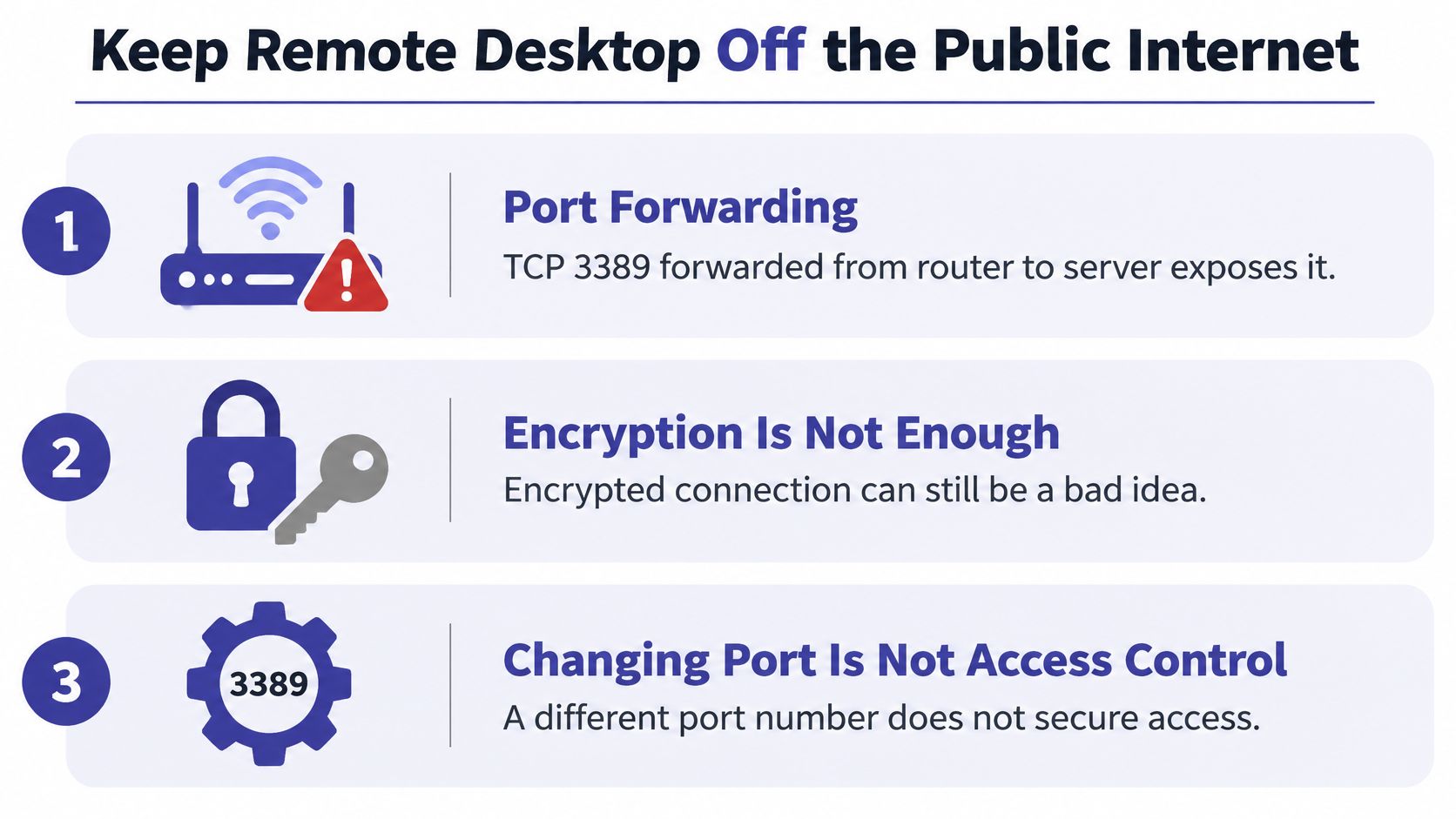
A working login is only part of a safe connection. Before the first click, confirm that access goes through a VPN or gateway, rather than opening the server's RDP port to the internet. Port 3389 is the default RDP port, and forwarding it directly may seem like the fastest route, but speed does not make it a safe boundary.
The sensible order is simple: check the connection requirements, confirm the VPN or gateway is in place, then connect. Each step has a purpose. Skipping the boundary check can leave a server exposed even when the login works.
The request always arrives in the same shape. Someone needs the machine in the back office, and the only thing between them and the ledger is a hostname nobody wrote down. Remote Desktop Protocol (RDP) is the Windows feature that draws that server's desktop inside a window on your own screen. Microsoft introduced it in 1998 with Windows NT 4.0 Terminal Server Edition and made Terminal Services an optional Windows component in Windows 2000, which is why a modern session carries clipboard, printers, drives, audio and stronger sign-in rather than just screen images, as Microsoft's history of the protocol) sets out.
Before you type a server name, confirm six things in the order below and note the result for each one. When the connection later fails, that list is the difference between a four-minute fix and a forty-minute guess.
| Check | Where to look | Ready when |
|---|---|---|
| Host is awake | Power settings on the server | Machine is on and not asleep |
| Remote Desktop is on | Settings > System > Remote Desktop, or Server Manager | Toggle is on and the PC name is recorded |
| Account is allowed | Remote Desktop Users or Administrators | The sign-in account is a member |
| Name or address works | Hostname or IP from the VPN or LAN | The name resolves or the IP is known |
| Firewall allows trusted clients | Windows Firewall Remote Desktop rules | TCP 3389 is open only to trusted networks |
| Client is current | Remote Desktop Connection or Windows App | App is installed and can prompt for credentials |
Two rows catch almost everyone. Edition matters, because a Windows Home PC can't host a session while Pro and server editions can, and the machine holding the accounting data is usually the server edition. Adding two-factor authentication for remote desktop access is part of the boundary conversation in a moment, not part of this checklist.
Reachability is not permission. A server that answers a ping, and even shows a sign-in screen, can still refuse your account.
An RDP session can be encrypted end to end and still be the wrong decision. Encryption protects what travels inside the session; it does nothing about who is allowed to knock. Forward TCP 3389 from the office router to the server and you've published a Windows sign-in prompt to every scanner on the internet, with a valid certificate and a tidy lock icon.
Inside the office, Remote Desktop between known PCs is ordinary administration. The receptionist's desktop and the file server sit on the same switch, and a firewall rule allowing 3389 from that subnet is doing exactly what a firewall should. From home, a hotel or a client site, the session crosses the internet, and that's a different design problem wearing the same software.
Treat the remote case as its own build. The session should arrive through a VPN that itself requires multifactor authentication, a private network link, or an organization gateway, and the server's firewall should accept 3389 only from those trusted addresses. Turn on Network Level Authentication (NLA) so an unauthenticated client never reaches a full desktop, and give people ordinary work accounts in Remote Desktop Users instead of one shared administrator password that everyone knows and nobody rotates. The rest of a sensible remote desktop security setup follows from those choices.
On May 14, 2019, Microsoft shipped patches for BlueKeep, officially CVE-2019-0708, an unauthenticated remote code execution flaw in Remote Desktop Services on Windows 7, Windows Server 2008 and Windows Server 2008 R2. Roughly two months later, more than 800,000 internet-connected systems were still vulnerable, and Microsoft telemetry found more than 400,000 endpoints without network-level authentication, as TechTarget's report on the BlueKeep disclosure recorded. BlueKeep didn't prove RDP is unsafe. It proved that an exposed, unpatched remote-access service becomes a large-scale operational problem, and that plenty of organizations leave one running.
Microsoft's own how-to-use Remote Desktop instructions walk through selecting the PC, switching the feature on, writing down the PC name and entering credentials. That's a recipe for a machine on your own network, not a design for internet access. CISA's guidance is blunter:
The scanning never stops. Kaspersky recorded 14,662,615 RDP attacks against businesses in Indonesia in 2024, a 25% increase over 2023, as SecurityBrief Asia's report on RDP attack volume noted. Changing the default port is a speed bump, not access control: a moved port still presents a Windows sign-in prompt, still accepts a weak password, and still has no lockout policy behind it.
The line to hand whoever owns the firewall: patch, NLA, named accounts, VPN with MFA, then RDP. Never in the other order.
Forwarding 3389 from the router is the setup to refuse, even when the connection itself is encrypted. A small firm's remote access should behave like a controlled administrative pathway, not a Windows feature somebody switched on.
Everything below assumes the six checks passed and you're already on the office network or connected to the firm's VPN. If the tunnel isn't up, stop, because no client setting will rescue it. The four steps at the top of this section cover the shape of it; the numbered path after them is the one that avoids the usual retries.
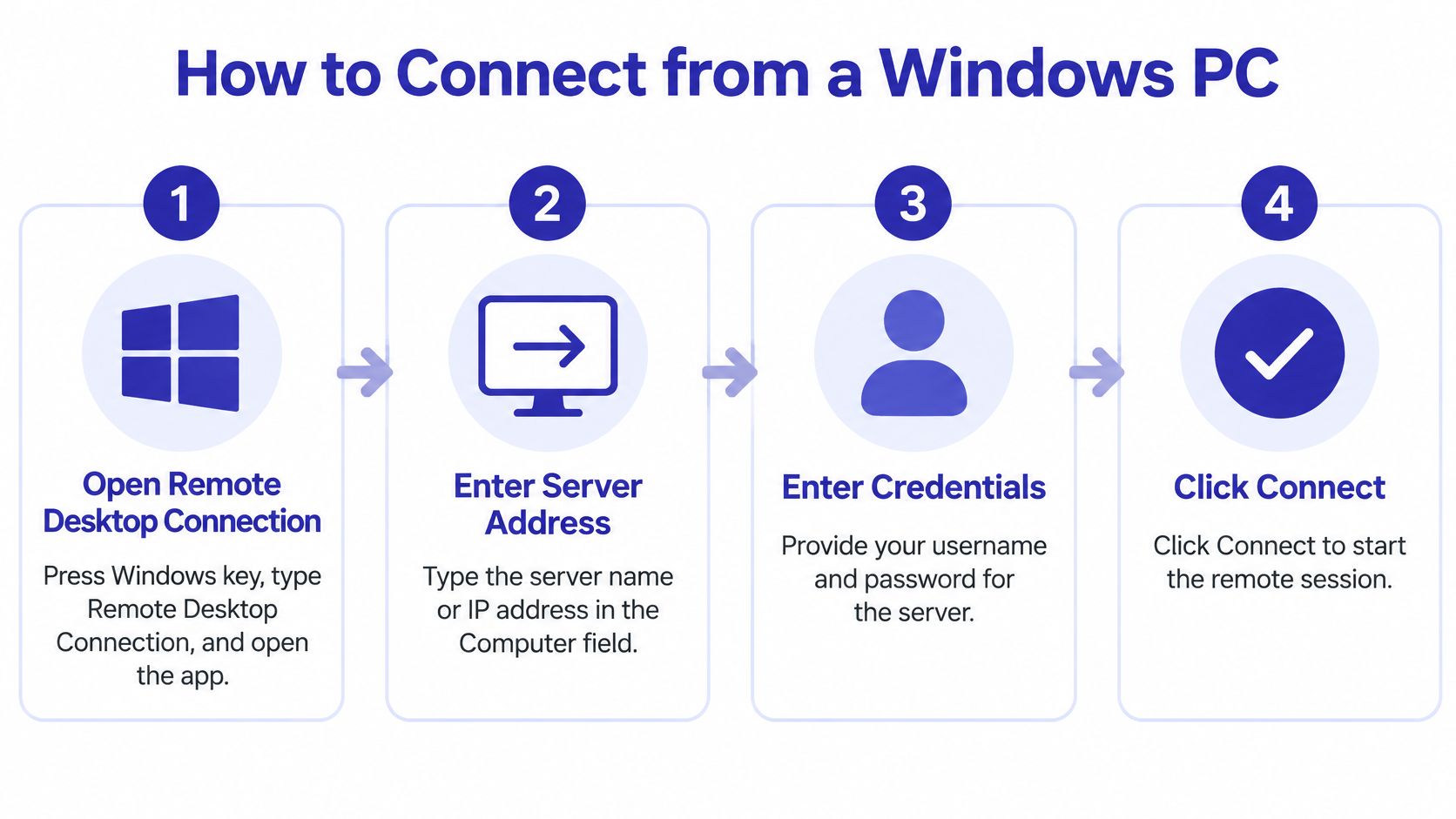
The Display, Local Resources and Experience tabs decide how much of your own machine travels with the session. Defaults are rarely wrong for a first attempt, and the display and experience settings for remote desktop sessions are worth tuning only after a connection opens cleanly.
If you'd rather watch the sequence once before running it, this walkthrough covers the same ground from the client side.
Save the connection as an .rdp file once it works, name it for the server rather than the date, and put it where the people who need it can find it. The saved file carries the address, the display choice and the redirection settings, which removes three of the nine steps above for everyone who follows.
One thing the file can't do is make the sign-in safer. NLA should already be required on the host, so the password is checked before the desktop loads and a bad credential never occupies a session. If NLA is off, a stranger with the address can sit at a login screen and try passwords at whatever rate the server allows.
Firms rarely run one device type. The partner reviews on a MacBook, the office manager signed the lease on an iPad, and the seasonal staff arrive with whatever laptop they own. The reassuring part is that the server doesn't change. It's the same Windows machine, the same hostname and the same account. Only the client application differs, and the differences are mostly about input and printing.

Install Microsoft's client from the Mac App Store (it now ships as Windows App, and older installs still call it Microsoft Remote Desktop). Choose Add PC, then type the same hostname or IP the Windows users type. Save the account only on a device the firm controls, and expect the Mac to offer to store the password in Keychain, which is convenient and also the reason a stolen laptop matters more than a stolen password.
On iPad or iPhone, install Windows App, add the PC, and expect a pointer-style cursor rather than a mouse. Attach a Bluetooth keyboard or trackpad if the session will last more than a few minutes. Android follows the same add-a-PC pattern in the Windows App, and the guide to connecting to a remote desktop from an iPad covers the same steps with device screenshots for staff who prefer pictures to paragraphs.
| Device | Client app | Input | Dual monitors | Printing and drives |
|---|---|---|---|---|
| Windows PC | Remote Desktop Connection (mstsc) | Full mouse and keyboard | Yes | Full redirection |
| Mac | Windows App or Microsoft Remote Desktop | Full mouse and keyboard | Yes | Test one printer first |
| iPad or iPhone | Windows App | Touch pointer, keyboard if attached | No | Test one printer before a deadline |
| Android | Windows App | Touch pointer, keyboard if attached | No | Test one printer before a deadline |
Try one non-Windows device only after the Windows session already works. If the Mac then fails, you know the problem is the client and not the host, and you've avoided an evening spent restarting a server that was never broken. A saved connection on any device should still sit behind the same VPN or gateway as everyone else's.
Someone reports that Remote Desktop can't find the computer. The instinct is to reinstall the client or reboot the laptop. Work the other way: host, then network, then account, then client. Test one layer, change one thing, retest, and don't touch the next layer until the first one reports clean.
Microsoft's troubleshooting guidance for RDP recommends validating in layers: confirm the machine is powered on and awake, Remote Desktop is enabled, and the user belongs to Remote Desktop Users or Administrators. Then check that Windows Firewall permits Remote Desktop, run Test-NetConnection -ComputerName <server> -Port 3389, and retry with the server's IP when DNS resolution fails. If the TCP test succeeds and the session still fails, inspect the Remote Desktop Services service, the listener status and the Windows event logs, checking the RDP protocol, service state, listener and listening port in that sequence, as Microsoft's RDP troubleshooting guidance describes.
That PowerShell test is the most useful single command in this whole process. TcpTestSucceeded False means routing, a firewall rule or a sleeping host. True followed by a rejected sign-in means credentials, group membership, lockout or NLA, which is an entirely different afternoon.
| What you see | Usual cause | Next check |
|---|---|---|
| Remote Desktop can't find the computer | Bad name, DNS, or VPN down | Retry with the IP while the VPN is connected |
| Connection times out | Host asleep, or TCP 3389 blocked | Wake the server and test port 3389 from the VPN |
| Your credentials did not work | Wrong account, or not in Remote Desktop Users | Sign in as DOMAIN\user and confirm group membership |
| Sign-in screen then access denied | NLA, lockout, or policy mismatch | Confirm NLA on both sides and that the account is not locked |
| Session opens then drops | Unstable link or idle policy | Reconnect on a wired or stronger network and check idle limits |
| Black or frozen desktop | Display settings too heavy for the link | Reconnect at a lower resolution with a single monitor |
The trap in that table is row four. A reachable sign-in screen feels like proof that the network is fine and the password is wrong, so people reset credentials that were never the issue. Group membership, an expired account restriction and an unsupported Windows edition all produce the same refusal.
One change at a time: write down what you changed and when. Two simultaneous fixes tell you nothing about which one worked.
Changing the RDP port is worth understanding, and how a custom RDP port changes the connection address explains the client side, but it never repairs a DNS or firewall fault. Keep the diagnostic work and the hardening work separate.
Once a month, review the failures by layer instead of by complaint. NIST advises that remote-access servers stay fully patched, follow a defined security baseline, and be managed only from trusted hosts by authorized administrators, and it treats remote desktop solutions such as RDP as exceptional-use technologies that need deliberate risk analysis, according to NIST's guidance on securing remote access. Practical measures follow from that: monthly availability per site, authentication failure rate, median time from click to desktop, and disconnect rate by user group. None of those require a vendor, and all of them show which layer breaks most often in your firm. Never publish 3389 to the internet just to test a timeout.
The honest decision comes down to frequency. If one administrator occasionally connects to a server that already sits on the office LAN, the procedure above plus a VPN rule is enough, and adding vendors makes it worse. If five people open the same accounting or practice management software every morning from home, from a client's conference room and from a hotel, the fragile part is no longer the client. It's keeping the host patched, awake, backed up and off the public internet, with someone accountable when it isn't.
That's the point where a managed workgroup server earns its place. Cloudvara builds a workgroup server and installs the applications the customer requires, so data can be accessed remotely by any number of users from any computer with internet access. Customers reach their data through Windows Remote Desktop, which can be installed on any computer or device, and the workgroup server itself is a fully managed environment that includes 24×7 support, server maintenance and daily data backups. You can read more about how that works under remote desktop hosting services.
Before committing, run the test that predicts the outcome. Put one Windows user and one Mac or iPad user into the same desktop, print to the printer the firm prints to, and sign out the way staff will. Cloudvara's trial runs 15 days with no contract, which is long enough to find out whether a hosted desktop replaces the office server before anyone forwards a port. If the central question is where the machine should live rather than who connects to it, browse Windows Server VPS options from UpTime Web Hosting and compare specifications against the applications your practice runs every day.
The order in this article exists because most RDP trouble isn't a mystery, it's a skipped step: a host asleep, a user outside the right group, a port opened to the world when a VPN would have done. Cloudvara puts the server side of that problem in a managed environment, installing the applications your firm already uses, running daily backups and covering maintenance around the clock, so your team signs in through Windows Remote Desktop from a PC, Mac or iPad without anyone owning a firewall rule on the side. Start a free 15-day trial at Cloudvara with no contract and no card, and test it with the printer and the deadline document that matter.