You sit down at the office PC on a Monday, open the return you've been working on since Thursday, and hit Print. The laser printer that appears in every other application on that machine isn't in the list. Nothing changed at your desk over the weekend. Something changed on the hosted desktop, on your laptop, or on the path between them.
Hosted accounting and tax desktops move print jobs across a chain that often goes unseen: your PC advertises its printers, the remote host decides whether to accept them, and any gateway in between can refuse on its own. When a Remote Desktop printer not showing problem lands, people usually reinstall drivers on a printer that was never broken. The faster route is to identify which link broke, before touching a single setting.
That distinction matters more now that so much work happens away from the office network. Quocirca's 2025 analysis of workplace printing trends found that 44% of employees were working either fully remotely or in hybrid arrangements in 2025, which means the print path now runs through home routers, hotel Wi-Fi and VPN concentrators far more often than a cable in the wall.
Two people can report "the printer's gone" and have nothing in common. One has no queue at all in the session. The other has a queue that sits on Spooling until they give up and email the PDF to a colleague. The fix for the first is a checkbox on their own laptop. The fix for the second is a driver decision on the server. Treating those as one problem is where most afternoons disappear.
Split the fault into three control planes. The first is the local Remote Desktop client, which has to advertise the printer before the host can see it. The second is the remote host's policy, the settings that decide whether redirected printers are permitted at all. The third is the connection path, meaning any RD Gateway or broker sitting between the two, which can disable redirection on its own even when both ends look correct. Microsoft's guidance on configuring printer redirection for virtual desktops treats these as separate settings for a reason. Generic troubleshooting lists flatten them into one checklist, and a checklist can't tell you which layer failed.
Match what the user sees to the layer underneath it, then run the first check for that row and nothing else.
| Symptom | Likely layer | First check |
|---|---|---|
| Printer missing from the session entirely | Client redirection or host and RD Gateway policy | Printers option ticked and redirectprinters:i:1 present in the RDP file |
| Printer listed but jobs fail | Easy Print or driver mismatch | Enable Easy Print first, then compare the native driver model and architecture |
| Printer appears only after reconnecting | Session reconnection or stale mapping | Log off fully, reconnect and check for old redirected queues |
| Printer appears twice or with (redirected 2) | Stale redirected records | Remove old queues and confirm only one physical printer is mapped |
| Printer also missing on the local PC | Local driver or Print Spooler | Print a test page locally and restart the Print Spooler service |
The last row carries the most weight. If Windows on the desk can't see the printer, no amount of server configuration will bring it into the session, because redirection has nothing to carry. Prove the hardware before you touch software. Swap in a known-good printer or cable rather than theorising about causes, the same first question any guide on help with a faulty second-hand phone asks before anything else: is the device itself working?
Redirection is negotiated when the session is created rather than when you press Print, which is one reason Remote Desktop Services on Windows behaves so differently from a printer installed on your own machine. A queue can look fine locally and never make it through the handshake. Write down which symptom the user reported before changing anything, so every setting you adjust has a reason attached to it.
Work in a fixed order so you always know which change brought the printer back. Each step below corresponds to one of the control planes, and stopping early leaves you guessing later.
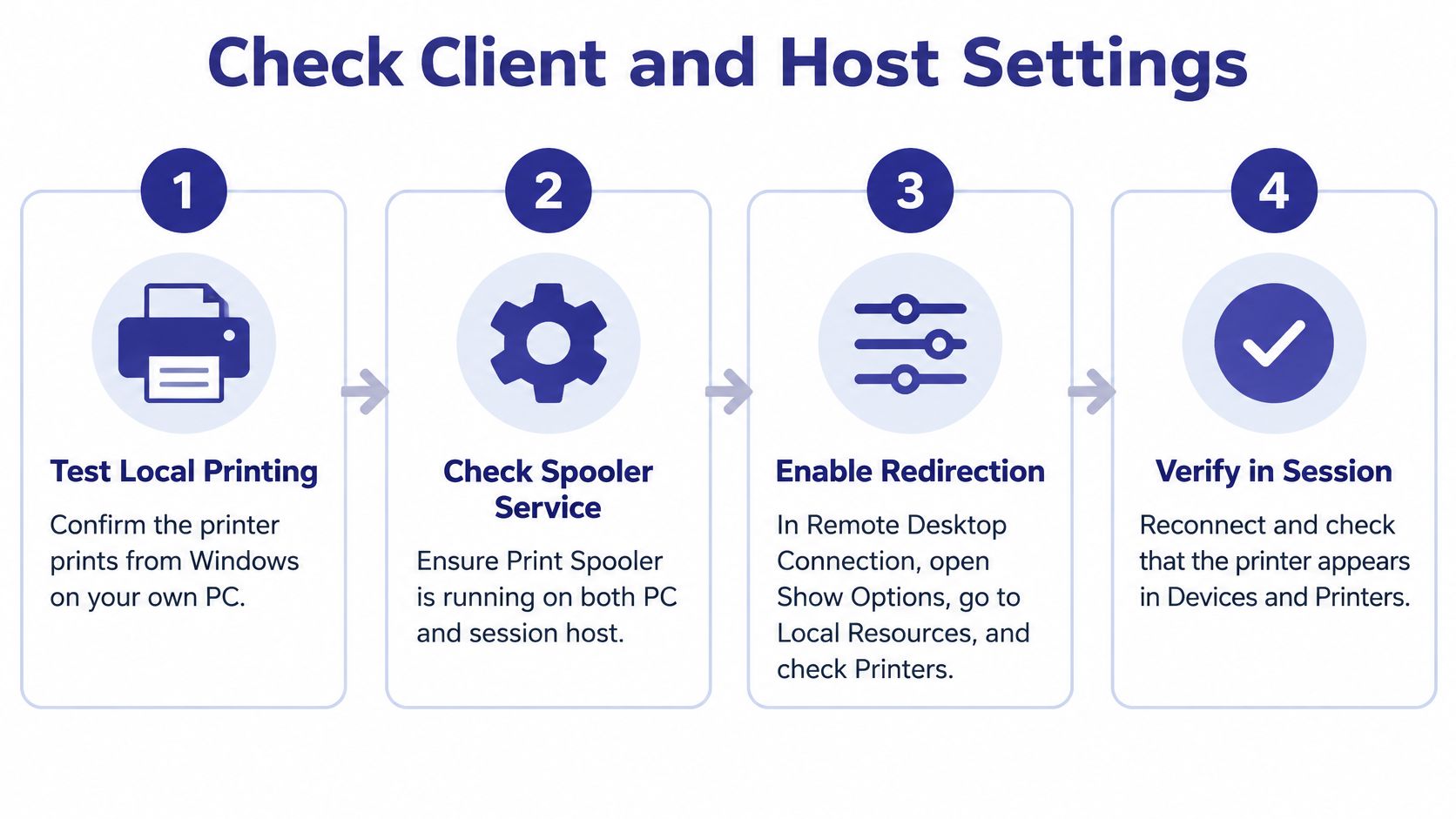
redirectprinters:i:1.Success looks specific: a queue named in the form printer name (redirected 1) appears inside the session. If you get that label, the three planes agree and any remaining fault sits in the driver or the spooler. The same options are laid out side by side in this Remote Desktop settings walkthrough if you want the reference next to the steps.
Here's the walkthrough of the client and host settings in practice, for the visual version of the same sequence.
Practical rule: if your connection runs through an RD Gateway, check that policy too. A gateway can refuse printer redirection while the client and the host are both configured correctly, and that failure looks identical to a missing checkbox.
Expect more printers than you need. Microsoft's printer connection troubleshooting guidance explains that enabling redirection sends every printer available on the local device into the session, and administrators can't pick individual ones from that setting. Seeing the PDF writer and the home printer alongside the office laser is normal behaviour, not a symptom.
A queue that exists but produces nothing points at a different chain than a queue that never appears. Microsoft's Remote Desktop Services documentation on printer redirection) describes the fallback clearly: the session host first tries the Remote Desktop Services Easy Print driver, and if the client can't use it, the host searches for a matching printer driver already installed on the session host. Nothing prints when that search fails, and the queue may still show up in the list.
Windows records Event ID 1116 when a printer can't be redirected through Easy Print because the client lacks a compatible Remote Desktop Connection client or a required Microsoft .NET Framework version. In practice, that means the PC, not the printer. Update the Remote Desktop client on the machine, make sure the .NET Framework version Easy Print expects is installed, and reconnect. A machine imaged with a stripped-down build often fails here without any obvious message on the desktop.
When the queue jams, stop the Print Spooler service, clear the files in the spool folder (%SystemRoot%\System32\spool\PRINTERS), then start the service again. Do it on the machine that's holding the job, which is usually the session host rather than the PC. A printer that prints one page and then goes silent for the rest of the afternoon almost always has a stuck job queued behind a failed one.
Separate the driver from the application before you change anything. Printing a plain page from Notepad tests redirection. Printing from the accounting or tax application tests rendering, and a Notepad page that works while the application job fails tells you the fault is in driver features or application output, not in the redirect path.
The working checklist after a failure like this is short: local driver present, client version current, spooler cleared, and a test page printed both ways. If you're adding a network device to the same session, the sequence for installing network printers follows the same order of proof.
Escalation point: a queue named
(redirected 2)or higher means the record is stale, not that the printer is duplicated in hardware. Remove the old entries before you chase a driver.
The setting rarely changed is the one that decides how hard the host works to match a printer. Use Remote Desktop Easy Print printer driver first keeps a universal driver on the host, so you don't install a vendor driver for every model on every server. According to Microsoft's guidance on Easy Print versus native drivers, that default lowers administrative overhead and removes a large class of driver-matching failures, but it can also strip finishing options, specialty trays and device-specific settings from the redirected queue.
| Setup | Works best when | Main trade-off | Test to run |
|---|---|---|---|
| Easy Print first (default) | Many clients and mixed printer models with little admin time | Finishing, specialty trays or device options may not carry through | Print a test page from Notepad and from the accounting application |
| Native vendor driver on the host | Duplex, tray selection or device features are needed for daily work | Exact model, architecture and package must match; more admin per printer | Confirm the queue in Print Management under Drivers, then test a full application job |
| Shared network printer | The printer is on the office network and reachable from the session host | Depends on host network access and the print server being up | Check that the printer is visible from the session host before testing redirection |
The question that sends most offices down this path isn't "why is the printer missing" but "why did it lose duplexing". Easy Print renders through a universal path, and a multifunction device that staples, punches or pulls from tray 4 may present a queue inside the session that offers none of those. That isn't a broken driver. It's a driver that was never the device's own.
My recommendation: start with Easy Print for anything people print once or twice a day, and move a specific printer to a native vendor driver only when someone's daily work depends on a feature the universal driver drops. Then keep that driver documented per model, because forcing vendor drivers across a fleet adds maintenance and compatibility risk, particularly after print-stack updates.
When the queue is confirmed and the features behave, the remaining work is verifying output end to end, which is what a proper cloud printing check covers before you roll the setting out to everyone.
A printer that shows up twice, or carries a (redirected 2) suffix, is usually the visible result of records that never got cleaned up. Each combination of client name, printer name and session ID can leave its own redirected entry behind, and users who sign in from a different laptop, a home PC or a meeting room machine add a new one each time.
The cleanup is manual and quick. Sign in to the session, open the printers folder, and delete every redirected queue that no longer corresponds to a device in front of the user. Keep one per physical printer. Don't remove the local printer on the PC while you're in there, because the name is what the session matches against.
The intermittent pattern has a different cause. A printer that arrives after a reconnect and disappears when the laptop sleeps has usually lost its mapping when the session dropped, or the user reconnected into a session that still held the old state.
A duplicate queue is evidence about records and session IDs. It is not evidence that the physical printer is failing, so don't replace hardware on that basis. If the device itself is throwing errors, that's a separate fault with its own codes, such as the printer not activated error code 30 on the local side.
The dividing line is which control plane owns the fault. If the client Printers option, the redirectprinters:i:1 setting, the Easy Print test and the spooler reset bring the printer back, and a test page prints from Notepad and the accounting application, the fix lived in your session. You changed nothing outside your own machine, so stop there.
Escalate when the blocking setting sits in host Group Policy or on an RD Gateway you cannot edit, when TerminalServices-Printers logs driver or mapping errors that survive every local reset, or when the printer needs an exact vendor driver for a model your office doesn't own. Those belong to whoever administers the server. Guessing at them wastes hours.
Make the call short by arriving with evidence. A screenshot of the client Printers setting, the current state of Do not allow client printer redirection and Use Remote Desktop Easy Print printer driver first, the matching event lines with timestamps, and a test matrix covering client OS, host OS, printer model and application tells support which layer failed before anyone touches a setting.
Where redirection still falls short, cloud-based printing and scanning handle the cases the connection path cannot, and some devices need third-party terminal printing software. Write down the working configuration either way, so the next disappearance takes minutes rather than an afternoon.
If a missing printer keeps costing your team billable hours, Cloudvara hosts QuickBooks, Drake, Lacerte, ProSeries and the rest of your stack on managed desktops, with cloud printing and scanning available so documents reach the printer on your desk from any machine. Cloudvara's support team is available 24×7 to help with settings on your hosted server, so you don't have to wait for business hours to get help. Start with a free 15-day trial, no contract or credit card required, and test printing from Cloudvara before your next filing deadline.