A lot of small firms reach the same point at roughly the same time. QuickBooks is on one machine. Sage lives on another. A document folder sits on a receptionist's PC because “that's where it always was.” One employee works from home two days a week, another uses a personal laptop when traveling, and nobody is fully sure whether every system has the same version of the same software.
That setup works until it doesn't. A tax deadline hits, a legal filing is due, or payroll has to go out, and suddenly the business is relying on a scattered collection of desktops that all need updates, security checks, backups, and support. The harder part isn't just remote access. It's managing risk without slowing the business down.
That's where remote desktop services windows becomes a practical business decision instead of a technical curiosity. Used well, it centralizes where applications run, keeps data in a controlled environment, and gives staff a consistent way to work from the office, home, or the road.
A common pattern in small accounting and legal firms looks like this. Someone starts with a simple office network. Then hybrid work becomes normal. Then one partner wants access from home, another needs a second monitor setup while traveling, and a new employee needs QuickBooks, Office, a tax app, and a document management system by tomorrow morning.
Now every device becomes its own little IT project.
One laptop misses updates. Another has a printer that works only in the office. A home PC has the right software version, but the office desktop doesn't. Sensitive client files end up being emailed around because it feels faster than logging into the “real” machine. If you're also evaluating workflows outside infrastructure, resources like comparing practice management platforms on caseledge can help clarify what should stay in your software stack and what should move into a more centralized model.
The problem usually isn't one dramatic outage. It's the steady accumulation of friction.
Practical rule: If your business apps only work smoothly on specific office PCs, you don't have a remote work strategy. You have a workaround.
For a practice manager, this complexity shows up as lost time and avoidable risk. For an owner, it shows up as rising support costs and too much dependence on one internal “computer person” who knows where everything is held together with tape.
Windows Remote Desktop Services gives you a different operating model. Instead of treating each employee PC as the place where work happens, you move the applications and the business data into a central server environment. Users connect to that environment securely and work through it.
That shift matters because it changes management from many endpoints to one controlled system. If you're not sure where your current setup is fragile, a business technology assessment from Cloudvara is the kind of exercise that helps identify whether your pain is coming from apps, infrastructure, security, or all three.
A small accounting firm usually notices the need for RDS when one office PC becomes the machine everyone depends on. QuickBooks is installed there because it behaves best there. Sage reports are easiest to run there. Remote access is arranged around that one device, and every replacement, update, or Windows issue turns into a business interruption.
Windows Remote Desktop Services, or RDS, changes that model by running desktops or applications on a central Windows Server and letting staff connect to them remotely. The work happens on the server. The user's device handles the screen, keyboard, mouse, and local peripherals.

Microsoft introduced the platform in Windows NT 4.0 Terminal Server Edition in 1998. The version businesses use today supports a session-based model, which means multiple users can work on the same Windows Server at the same time while keeping their sessions separate. For SMBs, that matters because it usually costs less than giving every user a full dedicated virtual desktop, especially when the goal is to run a defined set of business applications rather than highly customized developer or graphics workloads.
From the user's perspective, RDS usually shows up in one of two ways:
For law firms and accounting practices, the second option is often the better operational fit. Staff keep working from a familiar local desktop, but the application and its data stay in a controlled environment. That reduces training friction, limits user error, and makes it easier to standardize how critical software is configured.
RDS works well for smaller firms because it centralizes the parts of IT that are expensive to support when they are scattered across many PCs.
That means:
There are trade-offs. RDS is not the right fit for every workload. Applications with unusual hardware dependencies, heavy graphics demands, or poor multi-user support may need a different approach. But for professional practices that rely on a small number of core Windows applications and need tighter control over cost, security, and support time, RDS is often the most practical middle ground between fully local PCs and more expensive one-VM-per-user designs.
If you want a simpler primer on how users connect before comparing deployment options, this overview of remote desktop connection basics is a useful companion.
RDS makes more sense when you stop looking at it as a single product and start looking at it as a set of roles. I often explain it using a restaurant analogy because users grasp it immediately.
You don't walk into a busy restaurant and seat yourself in the kitchen. A front door controls entry, a host directs traffic, and the kitchen does the actual work. RDS follows the same logic.
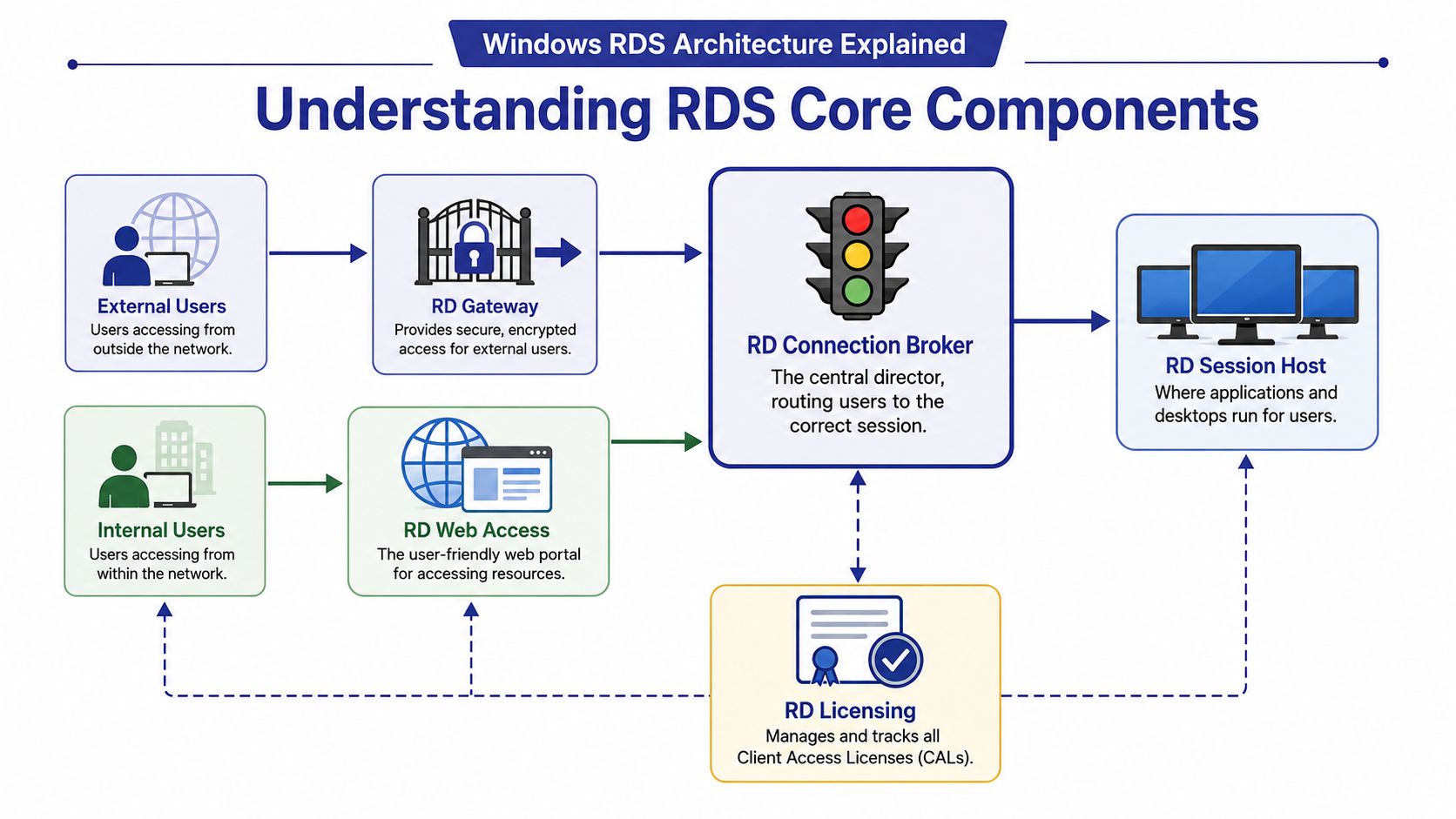
RDS was introduced in Windows NT 4.0 Terminal Server Edition in 1998 and evolved into a platform with specialized roles. Modern deployments rely on components such as the RD Connection Broker for load balancing and session reconnection, and the RD Gateway for secure external access over HTTPS on TCP 443, which removes direct RDP exposure and supports MFA requirements in regulated sectors such as accounting and legal, as summarized in the Remote Desktop Services history and component overview.
Here's the plain-English version of the main pieces:
RD Session Host This is the kitchen. It's where the applications and desktops run. If a user opens QuickBooks, Sage, or a CRM system, the work is happening here.
RD Connection Broker
This is the maître d'. It sends users to the right session host, helps spread demand across servers, and reconnects users to an existing session if they get interrupted.
RD Web Access
This acts like the front desk menu. It gives users a simple place to launch the desktops or apps they're allowed to use.
RD Gateway
This is the secure entrance. External users come through it instead of connecting straight to an exposed server.
RD Licensing
This is the compliance office in the back room. It tracks the Client Access Licenses needed for legitimate use.
A lot of SMBs underestimate this part because they assume remote access is just “turning on RDP.” That's where many bad deployments begin.
A professional RDS setup is less about remote control and more about controlled access.
If the architecture is weak, users feel it as dropped sessions, slow reconnects, or awkward login paths. If the architecture is solid, staff usually don't think about it much at all. They open their app and work.
For firms comparing RDS to other virtualization options, this guide to desktop and app virtualization models helps frame when a session-based approach is the simpler fit.
A 12-person accounting firm usually reaches this decision after something has already gone wrong. The server in the back office is aging out, staff need reliable access during tax season, and nobody wants QuickBooks or Sage performance tied to a VPN that slows down at the worst possible time.
That is the essential deployment question. Not whether remote access is possible, but which model your business can afford to run well.
Small firms and professional practices usually end up comparing three options: on-premises RDS, hosted RDS, and Azure Virtual Desktop. All three can work. The differences show up in day-to-day management, monthly cost control, security responsibility, and how much disruption the business can tolerate during migration.
On-premises RDS keeps everything under your control. Your team or IT provider manages the servers, storage, backups, patching, security tools, and recovery plan. That can make sense if you already own capable infrastructure, have dependable IT support, and need systems to stay tied closely to office-based equipment or local line-of-business integrations.
Hosted RDS keeps the familiar Windows Server and session-based RDS model, but the infrastructure sits with a provider. For many SMBs, this is the practical middle path. Staff still open the same Windows applications, but the business is no longer responsible for maintaining the hardware layer.
Azure Virtual Desktop, or AVD, is Microsoft's cloud desktop platform. It offers flexibility and strong Azure integration, but it often asks more from a small business than the marketing suggests. Cost tracking can be less predictable, setup choices are broader, and someone still needs to manage the environment properly.
| Factor | On-Premises RDS | Hosted RDS (e.g., Cloudvara) | Azure Virtual Desktop (AVD) |
|---|---|---|---|
| Control | Highest direct control over servers and policies | Shared responsibility, provider manages core infrastructure | Strong cloud flexibility, but more platform complexity |
| Upfront investment | Hardware, setup, licensing, and deployment effort | Lower infrastructure burden up front | Lower hardware burden, but planning is more involved |
| Monthly predictability | Often less predictable because hardware and support events vary | Usually easier to budget as an operating expense | Can be harder for SMBs to forecast because of usage-based cloud variables |
| Internal IT burden | Highest. Patching, backups, monitoring, and security stay on your team | Lower. The provider handles much of the infrastructure work | Moderate to high, depending on in-house cloud experience |
| Best fit | Firms with internal IT depth and existing server investment | SMBs that want centralization without owning the stack | Organizations that need broader Azure integration or cloud-native flexibility |
For firms using QuickBooks, Sage, tax platforms, document management systems, and Microsoft 365, the best choice usually comes down to a few practical questions.
Who is going to own the server work after go-live?
On-premises RDS can be cost-effective if you already have the right IT support. Without that support, routine tasks like patching, certificate renewals, monitoring, and backup testing tend to get deferred until there is an outage.
How predictable does the budget need to be?
Law firms and accounting practices usually prefer known monthly costs. Hosted RDS often fits that preference better than a refresh cycle for on-site hardware or a cloud design with variable consumption charges.
Are the applications traditional Windows apps with shared usage patterns?
If the answer is yes, session-based RDS is often a cleaner fit than assigning each user a separate desktop VM. That matters for firms where several people use the same accounting, practice management, or document workflow tools every day.
How much change can the business absorb at once?
AVD can be a good platform, but many SMBs do not need a broader Azure redesign just to publish a handful of business-critical apps securely. Hosted RDS often gets them to a stable result faster.
In practice, most small professional offices do not fail on technology choice. They fail on operating model. I have seen firms pick on-prem because it looked cheaper, then spend the next two years paying consultants to stabilize backups, improve remote access, and fix uneven performance. I have also seen firms choose AVD for flexibility they never used, while finance struggled to explain monthly cost swings.
Hosted RDS usually wins when the business wants central control, remote access for staff in multiple locations, and fewer infrastructure tasks on its internal team. On-premises still fits firms with strong IT discipline and existing investment. AVD fits best when the business already uses Azure heavily or expects to build around Microsoft's cloud stack over time.
The primary trade-off is operational overhead.
On-prem gives the most control, but it also gives you the full burden of maintaining that control. AVD offers broad cloud options, but small businesses often underestimate the number of decisions hidden behind that flexibility. Hosted RDS reduces that burden, which is why it often suits firms that need reliability more than customization.
A good way to pressure-test the choice is to compare your appetite for ownership against your need for flexibility. This guide to cloud versus on-premise infrastructure decisions is useful for that conversation.
Before committing, it also helps to treat the project as an operations and risk review, not just a server purchase. An IT security audit as growth accelerator is a good example of that mindset. For a small firm, the right desktop platform should reduce support noise, tighten access to client data, and make busy periods easier to survive.
RDS licensing confuses a lot of otherwise capable business owners because it sounds more complicated than it is. The short version is that you need RDS Client Access Licenses, usually called CALs, in addition to the Windows Server licensing underneath the environment.
The practical licensing choice is between Per User and Per Device. If your staff members work from multiple devices, such as an office PC, home laptop, and tablet, Per User often makes more sense. If you run fixed workstations in a shared environment, Per Device can be the cleaner fit.
Licensing decisions shouldn't be made in isolation, though. In real deployments, licensing and security are tied together because a sloppy deployment usually creates both compliance problems and security gaps.

Windows Server includes built-in Remote Access Reporting that can generate historical usage reports covering connection duration, bandwidth consumption, and user sessions, which helps with compliance, audit readiness, and CAL tracking, according to Microsoft's guide for usage reporting with historical remote access data.
That matters because in a regulated office, “we think we're licensed correctly” isn't a strong operating position.
A healthy process includes:
Matching CAL type to actual work patterns Don't buy Per Device because it sounds easier if your people use multiple endpoints.
Reviewing usage history
Historical session data helps you spot whether the environment reflects how the business really operates.
Keeping licensing tied to user lifecycle
New hires, departures, seasonal workers, and contractors can all change the right licensing posture.
For accounting firms, law offices, and nonprofits handling sensitive records, secure remote access isn't a nice enhancement. It's part of the design.
The baseline controls I'd insist on are:
Use an RD Gateway
External access should come through a controlled gateway, not through directly exposed remote desktop services windows endpoints.
Require MFA
Password-only remote access is too fragile for modern risk.
Apply least privilege
Users should reach the apps and data they need, not broad admin rights because “it was easier.”
Patch on a schedule
RDS is central infrastructure. If patching slips, the whole firm carries the risk.
Security insight: A remote access environment is only as professional as its entry controls, session controls, and audit trail.
If you want a broader management view of why an audit should drive business decisions rather than sit in a compliance folder, this piece on an IT security audit as growth accelerator is worth reading.
Most RDS problems aren't mysterious. They usually come from a short list of design or support mistakes. The trick is knowing which ones are worth chasing first.
A recent analysis found that 45% of RDS users in SMBs report intermittent disconnects during peak hours, often tied to missing load balancing or overlooked use of RD Gateway over TCP 443 for external access, which also reduces security exposure from direct RDP access, according to this review of remote desktop performance and connection issues.
When users say, “It kicks me out sometimes,” the first instinct is often to blame the internet in general. That's too vague to be useful.
Start with these checks:
Confirm how external users connect
If they aren't coming through a proper gateway path, reliability and security both suffer.
Look for peak-hour patterns If disconnects cluster around the same times, capacity or load distribution may be the underlying issue.
Test reconnection behavior
A healthy setup should reconnect users cleanly, especially when the session broker is doing its job.
Lag inside QuickBooks or Sage usually points to one of three things. The server is undersized for the workload, too many users are landing on the same host, or the environment wasn't tuned for the way the firm works.
A useful manager-level question is simple: does the slowness affect everyone, or only a subset of users at the same time? If everyone feels it, think server or broker. If a few remote users feel it, think connection path or endpoint quality.
When staff say “the app is slow,” ask whether typing lags, screens redraw slowly, or login takes too long. Those are different problems.
Printing is still one of the most annoying parts of any virtualized environment. The biggest mistake is assuming every local printer should redirect automatically.
That often creates more confusion than value. In professional practices, standardizing the printing path usually works better than trying to support every home-office printer someone bought at a retail store.
If a user's settings disappear, icons reset, or app preferences don't stick, profile handling is often the culprit. This tends to surface after rushed migrations or partial rebuilds.
The practical fix is not to keep patching the symptom. Review the profile design, test with a fresh user session, and verify whether the issue follows the user or the device. That quickly tells support where to look next.
A good migration to remote desktop services windows starts with restraint, not speed. The firms that struggle most are usually the ones that try to “move everything” before they've mapped what matters.
A 2025 analysis found that 70% of internet-exposed RDP instances in small organizations are vulnerable due to poor configuration during transitions, which is exactly why migration planning matters so much for firms handling financial, legal, or donor data, as noted in this discussion of RDS migration and security risks for smaller organizations.
Start with the applications, not the server.
List the business-critical apps first
QuickBooks, Sage, tax software, document management, CRM, Office, and any specialty plugins should be tested before broad rollout.
Map who uses what
Partners, managers, seasonal staff, and administrators often need different access patterns.
Decide what must stay centralized
Sensitive files and core line-of-business apps usually belong in the controlled environment.
Then move to the operating model.
For SMBs that don't want to build and operate all of this internally, a hosted model can remove a lot of friction. Cloudvara is one example. It provides managed application cloud hosting with remote desktop access, support for existing Windows business applications, automated backups, and a 99.5% uptime guarantee, which can suit firms moving away from local servers and scattered desktops. If you're planning that move, this guide on moving servers to the cloud is a practical starting point.
The main point is simple. Migration shouldn't just recreate your old problems in a new location. It should give you tighter control, simpler support, and a cleaner way for staff to access the tools they already depend on.
If your firm is juggling QuickBooks, Sage, document management, and remote access across too many devices, Cloudvara can help you centralize those applications in a managed Windows cloud environment with secure remote desktop access, daily backups, and round-the-clock support.




