The popular advice to choose virtual desktops because they're more secure skips the most important question: can users still copy client data onto their own devices? Central hosting doesn't prevent that if clipboard sharing, mapped drives, printing, and device redirection remain unrestricted. For a business owner comparing virtual desktop vs remote desktop, the better decision starts with architecture, then tests data controls, application performance, and total operating cost.
Remote desktop lets you reach a computer or shared server session that already exists, while virtual desktop infrastructure gives each user a separate virtual machine that IT provisions and manages centrally. The distinction is access versus infrastructure, not office hardware versus cloud hosting.
Virtual desktop vs remote desktop by key criterion
| Criterion | Remote Desktop | Virtual Desktop (VDI) |
|---|---|---|
| What the user connects to | An existing physical PC, server, or shared session | A virtual machine provisioned for that user |
| Sessions per operating system | Many users can share one server OS instance | Usually one virtual desktop per user |
| Isolation and personalization | Shared sessions offer limited per-user customization; a dedicated PC retains its own configuration | Separate desktop per user with stronger personalization |
| Central management | Manage the host machine or server | Create, reset, suspend, and replace desktops centrally |
| Resource use per user | Lower for shared sessions, with resources shared across users | Higher, because each desktop needs allocated resources |
| Typical fit | Occasional access to a workstation or a small set of applications | Standardized environments for many staff |
| Setup complexity | Lower for a straightforward existing-host deployment | Higher, with connection broker, desktop pools, storage, and hypervisor |
These architectural distinctions are also described in the VDI industry overview published through GlobeNewswire. The table's shared-session advantages shouldn't be mistaken for properties of every remote connection: connecting to a dedicated workstation doesn't make that workstation a multi-user server.
Both models can use similar display-and-input protocols. A familiar Windows login screen therefore tells you little about the infrastructure behind it, the resources reserved for the user, or the administrator's recovery options.
Remote desktop provides access to a machine. A virtual desktop provides a managed desktop.
For terminology, what VDI stands for matters less than what the deployment includes. A hosted Windows session isn't necessarily a separate virtual machine assigned to you, and centrally hosted applications don't automatically require full VDI.
Find the row that describes your operational problem. If an employee occasionally needs a particular office workstation, start with remote desktop; if IT needs to deliver consistent workspaces across a growing team, evaluate VDI.
A remote connection carries interaction between the user's device and the host where the applications run. The Remote Desktop Protocol overview describes RDP as a way to interact with another computer across a network, with application processing remaining on the remote host.
The endpoint receives display updates and exchanges keyboard, mouse, audio, printing, and storage traffic as permitted by the configuration. That last qualification matters: the available channels and the channels administrators enable aren't necessarily the same.
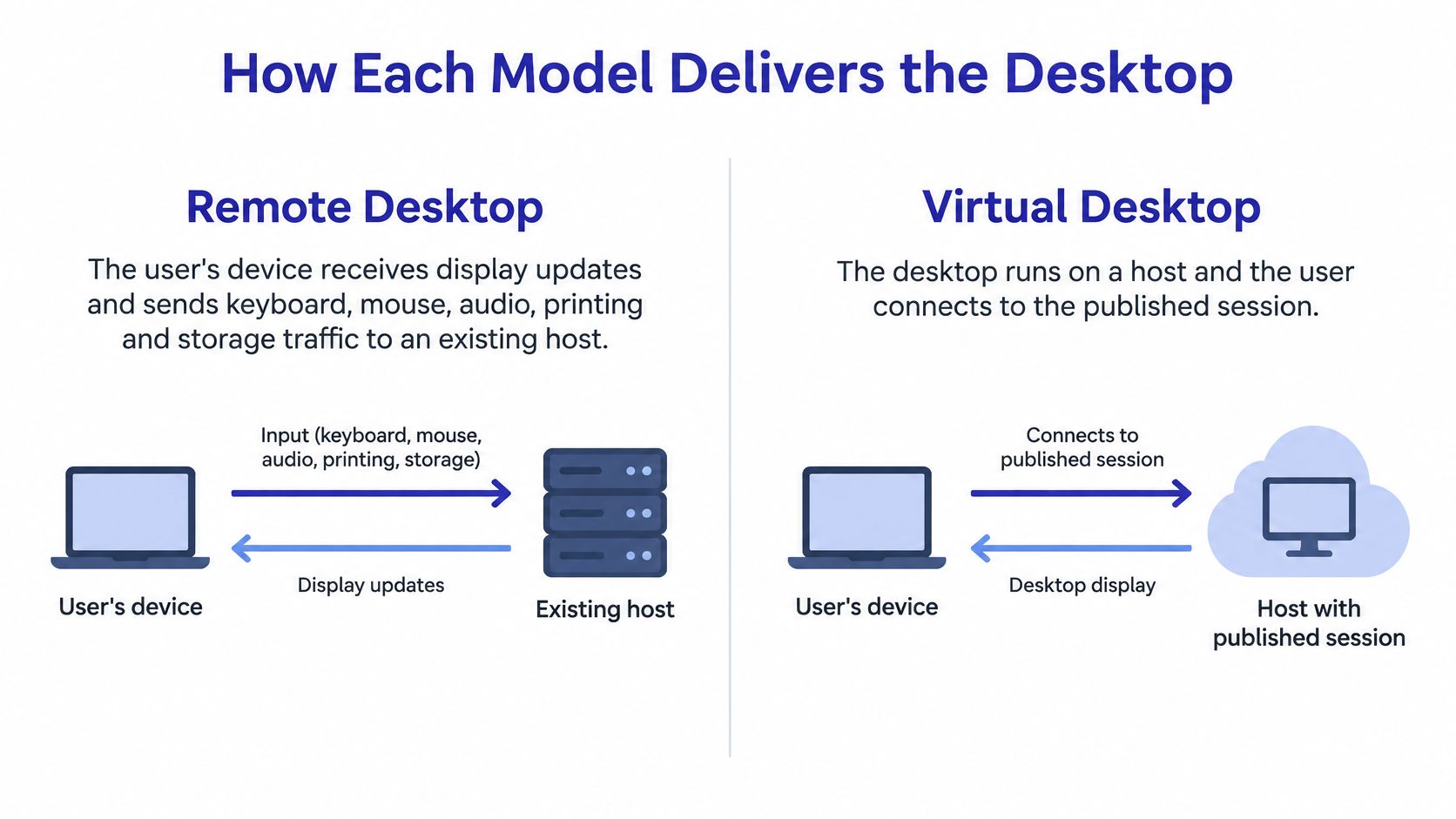
Say an accountant leaves her tax application and supporting files on her office computer. From home, she establishes a remote desktop connection to that specific machine and resumes work using its installed software and computing resources.
Her edits remain on that computer unless she deliberately transfers files elsewhere. She hasn't received a newly provisioned workspace, and the connection doesn't turn her workstation into a shared server. Whether someone can use it locally at the same time depends on the host operating system and its session rules.
If that machine becomes unavailable, her route back to those applications is interrupted. The support task is to restore the host or recover its workload, not assign another desktop and assume everything follows.
Now consider a firm that provisions desktops from a standard image. The accountant signs in through the desktop platform, which assigns an available virtual machine with the approved applications.
In a properly configured pooled design, her profile and saved work are maintained separately from the replaceable desktop. IT can then reset a misconfigured desktop without resetting a colleague's environment. Profile and data design make that replacement practical; virtualization alone doesn't guarantee that unsaved work or locally stored settings survive.
The administrative difference becomes clear during recovery:
Our customers access their hosted data through Windows Remote Desktop, which can be installed on any computer or device. That illustrates why the connection client alone doesn't identify the architecture behind it.
Choose based on the object you need to recover: a particular machine, or a reproducible workspace.
Estimated RDP bandwidth by workload, using Microsoft's RDP bandwidth measurements:
| Workload | Default mode | H.264/AVC 444 mode |
|---|---|---|
| Microsoft Word | 100–150 Kbps | 200–300 Kbps |
| Microsoft Excel | 150–200 Kbps | 400–500 Kbps |
| Graphically rich web browsing | 6–6.5 Mbps | 0.9–1 Mbps |
| 30 fps video playback | 8.5–9.5 Mbps | 2.5–2.8 Mbps |
These are workload measurements, not a guaranteed connection requirement for every deployment. Screen content, encoding choices, and activity change the traffic substantially.
Notice that H.264/AVC 444 doesn't reduce bandwidth uniformly. It increases the measured traffic for the office-document workloads while reducing it for rich browsing and video. A setting that helps one workload can cost more bandwidth for another.
For an accounting practice, test spreadsheet and tax work separately from browser-based research, training videos, and document previews. Don't estimate the entire team's demand from a quiet desktop with an application open but untouched.
Microsoft's RDP engineering lab specification gives video targets of at least 0.5 Mbps for 720p, 1.5 Mbps for 1080p, and 5 Mbps for 4K, each at 30 fps, and lists maximum acceptable end-to-end latency of 125 ms for keyboard and mouse and 30 ms for camera and inking peripherals. Treat those as lab reference points, not a promise that any application will feel satisfactory at the boundary.
RDP is latency-sensitive. A direct, efficient network path matters, and UDP-based RDP Shortpath is intended to improve responsiveness compared with less direct routing. A fast download test can't establish whether cursor movement, scrolling, or handwriting will feel immediate.
Capacity rule: Size for simultaneous active work, not the number of accounts that can sign in.
During peak tax-season activity, staff may open returns, recalculate spreadsheets, preview documents, and print at the same time. Test that overlap rather than assuming users take turns consuming resources.
An existing-host deployment concentrates dependence on that machine's CPU, memory, storage, and availability. VDI requires a broader capacity plan covering desktop pools, hypervisor overhead, storage input/output, graphics resources, and connection-broker resilience.
Use a remote desktop software comparison to shortlist connection capabilities, then validate the actual host-and-network combination. Changing the client won't fix an overloaded server or a poor network path.
A centrally hosted virtual desktop isn't automatically safer. Both architectures can expose client information through clipboard sharing, mapped drives, USB redirection, printing, and local-device access.
The Australian Cyber Security Centre's remote desktop client guidance.pdf) warns that mapped devices can let attackers transfer data outside a remote session. CISA also warns that attackers can abuse remote-access software through malicious use or provider supply-chain compromise. Hosting location doesn't eliminate either the transfer paths or the need to assess the remote-access tooling.
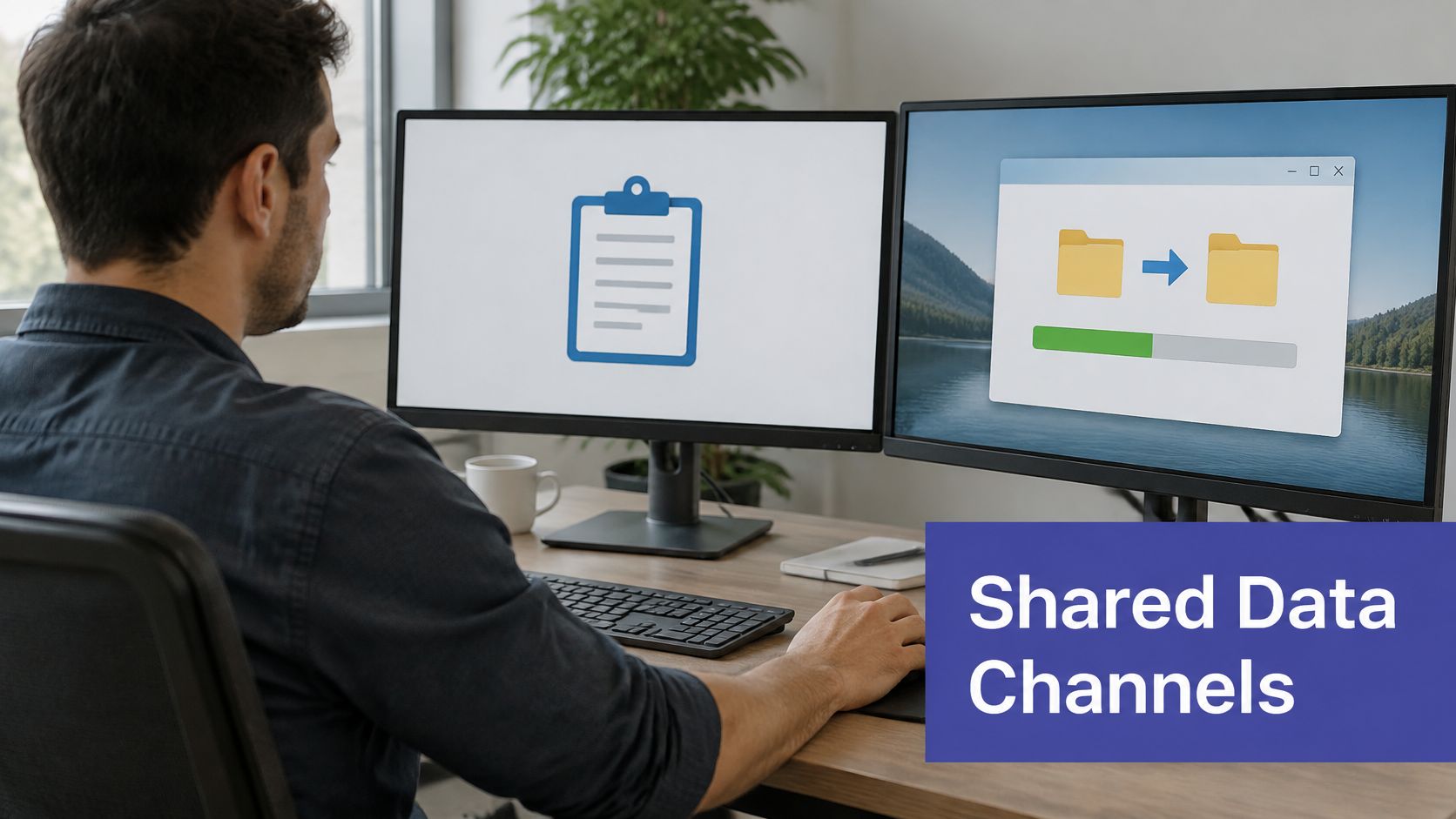
Treat the following as acceptance criteria to verify, not features that every VDI or remote desktop product necessarily provides.
Disable redirection by user or application. Test clipboard, drive, USB, and printer policies independently. Blocking every channel may prevent data leakage, but it can also stop a tax preparer from using an approved printer or importing a necessary document.
Enforce multifactor authentication. Require an additional authentication factor for remote entry and test account recovery. Staff need a workable process when an authentication device is unavailable, without creating an informal bypass.
Restrict unmanaged or personal endpoints. Decide whether sensitive work requires a managed device and confirm how the platform enforces that decision. Employees who previously used home laptops may need issued equipment before they can work remotely.
Log file movement between sessions and local devices. Verify what events the platform records and who reviews them. Session-login logs aren't proof that individual file transfers are visible; closing gaps may require additional tooling and investigation time.
Keep client data separate from personal devices. Provide an approved document-exchange route instead of relying on local downloads. That introduces extra steps, so test the exchange process with the people who handle incoming client records.
A useful demonstration isn't whether printing works. Have an administrator allow an approved printer while blocking local-drive exports, then confirm the restrictions with a test account.
Security buying question: Which transfer channels are enabled by default, and can administrators govern each one independently?
For accounting, tax, legal, and nonprofit organizations, this is more informative than a general claim of secure cloud hosting. A platform can keep application processing centralized while still allowing sensitive output onto an unmanaged laptop.
Use remote access security best practices as an operational checklist, then document exceptions, owners, and review dates. Choose the architecture only after the proposed controls survive a realistic staff workflow.
Cost comparisons go wrong when buyers treat remote desktop and VDI as competing product labels rather than different ways to support a workload. Reusing a suitable workstation can avoid unnecessary infrastructure, while standardized desktop delivery may justify additional platform costs when administrators must manage many similar environments.
The Servnet VDI overview discusses Gartner-related reporting cited by Computerworld that projects DaaS spending rising from $4.3 billion in 2025 to $6.0 billion by 2029, alongside a prediction that virtual desktops will become cost-effective for 95% of workers by 2027. Those are market expectations, not measured savings for your organization.
A growing market doesn't establish your break-even point. Your application licenses, support arrangements, recovery requirements, and existing hardware determine that.
Use the same planning period and service requirements for both alternatives. Start with these inputs:
| Input | What to record |
|---|---|
| Concurrent users | Staff actively working at the same time, not just named accounts |
| Peak demand | Seasonal overlap, temporary staff, and resource-intensive tasks |
| Application licensing | Hosting rights, user entitlements, and compatibility requirements |
| Support hours | Setup, patching, troubleshooting, user administration, and recovery |
| Backup requirements | Protected data, retention needs, restore testing, and recovery work |
| Acceptable downtime | Business interruption tolerance and the recovery arrangements needed |
Then calculate:
Comparable total cost = platform and hosting + licensing + endpoint replacement + support labor + backup and recovery + estimated downtime cost.
Keep setup costs visible rather than hiding them inside an optimistic recurring estimate. Use your own support rates, replacement schedule, and interruption assumptions, and show uncertain inputs as separate scenarios.
Consider a small accounting firm choosing between virtualizing every desktop and hosting only the applications and shared data that need continuity. A hybrid can be more appropriate: centralize the common workload while retaining local endpoints for specialized peripherals.
Our Workgroup Server is a fully managed IT environment with 24×7 support, server maintenance, and daily data backups. Those included services belong in the comparison against equivalent local operating costs, not against hardware alone.
Cloudvara states that Workgroup Server savings compared with maintaining infrastructure locally can be as much as 50%. That's an upper-bound provider claim, not a saving to insert automatically into your budget.
Run both models at current headcount using pilot measurements, then compare a peak-demand scenario. Apply cloud cost optimization to the resources you need, rather than purchasing a separate desktop for every employee by default.
The best fit becomes clearer when you name the work, the people, and the devices involved. These scenarios are decision examples, not claims that an architecture automatically includes every required control.

An accounting firm needs shared QuickBooks data and seasonal access. Start by centralizing the accounting applications and shared files, rather than assuming every user needs an individual virtual machine. Retain local endpoints where specialized printers or scanners require them, and validate those device paths before migration.
We centralize applications customers already own on dedicated servers, making them accessible from any computer or device by any number of end users. Specified users can access shared QuickBooks data through an icon on their local desktop. Verdict: evaluate hosted application or session-based access first, while checking software entitlements separately from technical access.
An engineer needs the office workstation from home. If the required software, project files, and computing resources already reside there, remote desktop is the lower-complexity starting point. Test model rotation, graphics quality, and specialist peripherals before assuming the existing setup will perform acceptably over the remote connection.
Verdict: use the existing workstation unless testing reveals a reason to redesign the workload. Budget for keeping that host available and recoverable.
A call center needs identical, restricted workspaces. Evaluate VDI when the operational requirement is reproducible desktop images, consistent policies, and replacement of misconfigured instances. Confirm that desktop resets preserve the records staff must retain.
A law firm has staff using personal laptops. Prefer managed endpoints for sensitive client work, with VDI or hosted sessions configured to restrict exports. If personal devices remain an exception, document the permitted tasks and transfer channels rather than treating the hosted desktop as sufficient protection.
A nonprofit relies on volunteers' own devices. A browser-based session may suit a narrow, restricted task if the selected service supports it. Disable local file movement where feasible, but don't equate that restriction with full control over the personal device or everything a volunteer can capture.
The practical verdicts are:
Place your team in the closest scenario, then write down the necessary permissions and prohibited transfers. That short requirements list is more useful than choosing a technology first and negotiating exceptions afterward.
Run a pilot with staff who represent the difficult workflows, not just the easiest logins. Include the person who prints heavily, the employee on a variable home connection, and the user who imports documents throughout the day.

Measure each user site during working hours. Record round-trip time and available bandwidth while normal business traffic is present. An empty office or quiet home network can conceal peak-use problems.
Test interaction delay. Assess keyboard, mouse, camera, and inking performance against the applicable latency criteria. Record user-observed interruptions alongside instrument readings.
Validate the required video quality. Compare measured capacity with the relevant resolution and frame-rate targets. Test the actual training or collaboration workload rather than a substitute clip.
Complete real application tasks. Launch applications, scroll documents, recalculate spreadsheets, print, and exercise approved file redirection. Include a disconnected-session recovery test so staff know what happens to unfinished work.
Attempt prohibited transfers. Verify redirection restrictions, multifactor authentication, endpoint rules, and logging with a non-administrator account. A policy documented in a console isn't enough if the test user can bypass it.
Recalculate operating cost. Replace estimates with observed support effort and resource demand, then compare the candidate with the current environment on equivalent terms.
Use a shared sheet with the task, device, connection conditions, result, and person responsible for resolving failures. Set pass criteria before reviewing results so convenience doesn't override a failed security requirement.
If a model passes the operational, security, and cost tests, proceed with it. If teams have materially different requirements, pilot their configurations separately and adopt a hybrid where justified.
Run the pilot before signing a contract. The deciding evidence should come from your users performing your work, not from a demonstration configured for someone else.
Cloudvara offers managed hosting for the business applications you already own, with remote desktop access, server maintenance, support, and daily backups. Visit Cloudvara to start a 15-day trial with no contract and no credit card required, and test your applications, peripherals, and working practices before committing.