Getting into a server from miles away isn't magic—it's a core skill for anyone managing modern IT. It all comes down to using the right protocol to connect securely over a network. The big three you'll run into are SSH for the command line, RDP for a full graphical desktop, and VPNs when you need to access an entire private network.
Picking the right one really depends on the server's operating system and what you're trying to accomplish once you're in.
In today's connected world, being able to manage a server remotely is non-negotiable. It's the foundation of modern system administration, letting you handle critical maintenance, push out updates, and troubleshoot problems without ever setting foot in the data center. This is what keeps businesses running, giving teams the power to respond to emergencies from anywhere, at any time.
The massive shift to remote work has only made these tools more essential. Back in 2023, a staggering 87% of global enterprises were already relying on remote access platforms to keep their operations smooth. This wasn't just about convenience; it also delivered serious cost savings, trimming expenses by up to 34% per support session compared to sending a technician on-site.
So, how do you decide which tool is right for the job? It often boils down to whether you need a command-line interface (CLI), a graphical user interface (GUI), or full network access. This decision tree can help you visualize the best path forward.
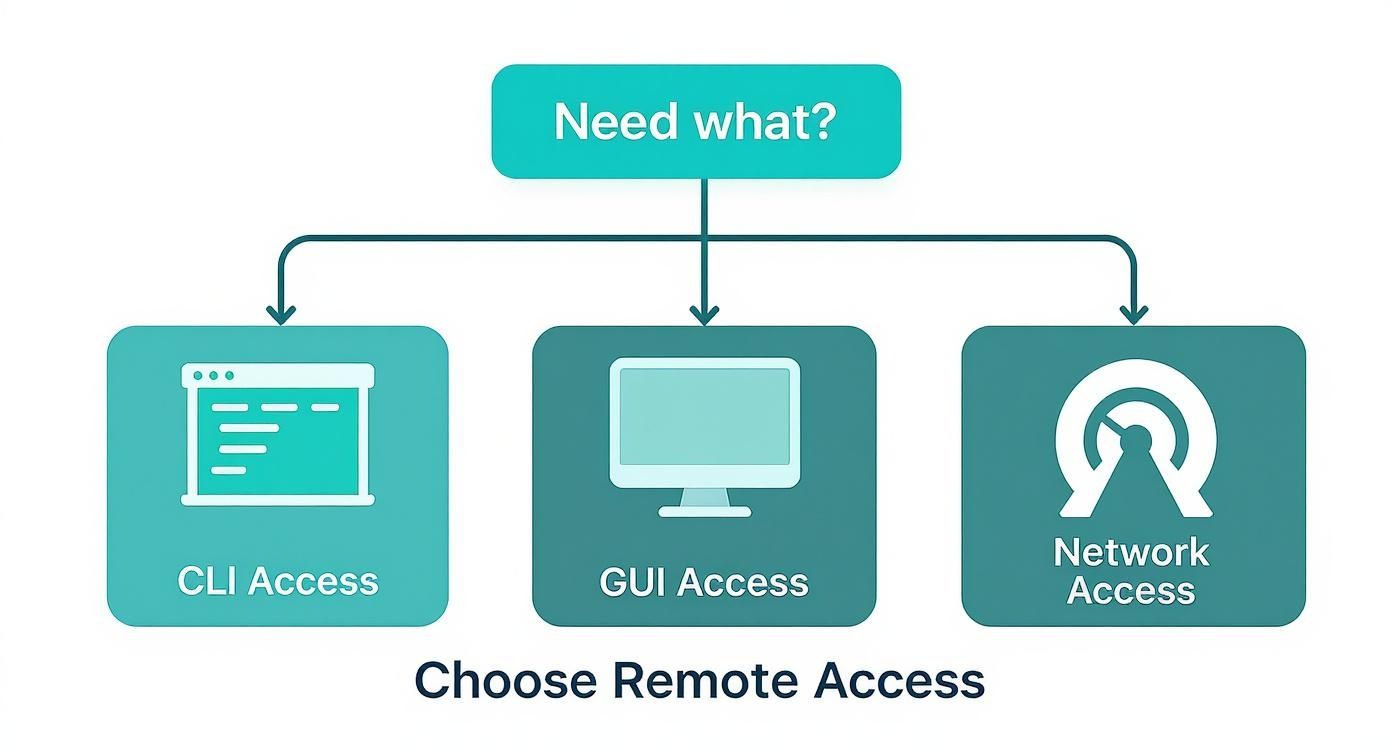
As you can see, matching your goal to the right technology simplifies the choice and makes sure you're using the most effective tool for the task at hand.
To help you get your bearings, this table breaks down the three remote access methods we'll be diving into. Each one has a specific job, and knowing their strengths and weaknesses is key to managing your infrastructure well. Getting this right is one of the many benefits of cloud hosting that gives your business an edge.
| Method | Best For | Primary User | Security Level |
|---|---|---|---|
| SSH (Secure Shell) | Command-line server management, file transfers, and running scripts. | Developers, System Admins | High (Strong Encryption) |
| RDP (Remote Desktop) | Managing Windows servers with a graphical interface and running desktop apps. | IT Support, Windows Admins | High (Encrypted by default) |
| VPN (Virtual Private Network) | Accessing an entire private network and all its resources, not just one server. | Remote Employees, Contractors | Very High (Full Tunnel Encryption) |
Ultimately, the best method is the one that aligns with your server's OS, the task you need to perform, and your company's security policies.
Let's break them down a bit further:
Secure Shell (SSH): This is the go-to for anyone working with Linux and Unix-based servers. It's a lightweight, secure way to get command-line access. Think running scripts, managing files, and tweaking configurations with text commands. It's efficient and powerful.
Remote Desktop Protocol (RDP): If you're managing a Windows server, RDP is your best friend. It gives you the full graphical desktop, so it feels like you're sitting right in front of the machine. You can click, drag, and run applications just like you would on your local computer.
Virtual Private Network (VPN): A VPN works a bit differently. Instead of connecting you to a single machine, it creates a secure, encrypted tunnel between your computer and an entire private network. Once connected, it's as if you're on the local network, with access to all its shared resources, servers, and printers.
If you need fast, secure, and lightweight access to a server's command line, SSH (Secure Shell) is the undisputed industry standard. It’s the go-to tool for developers and sysadmins who manage Linux servers, run scripts, or just need to check on system health from anywhere in the world.
Think of it as opening a secure, text-based window directly into your server. It lets you run commands just as if you were sitting right in front of it. More importantly, SSH encrypts all the traffic between your computer and the server. This is absolutely critical for protecting your login details and sensitive data from anyone trying to snoop on the network. For anyone serious about server management, learning SSH is non-negotiable.
https://www.youtube.com/embed/v45p_kJV9i4
Getting connected is actually pretty straightforward. Modern operating systems like Windows, macOS, and Linux all have built-in SSH clients, so you don't need to hunt down and install extra software to get started.
The basic command structure is the same no matter which terminal you're using. You'll just need your server's address and your username.
The command format is simple: ssh username@server-address. Just swap in username with your account on the server and server-address with its public hostname.
Let's walk through a real-world scenario. Imagine you need to connect to your web server to restart the Apache service.
ssh admin@your-server-domain.com, then hit Enter.yes to continue. After that, you'll be prompted to enter your password.Once you're authenticated, you'll notice your command prompt changes. That's how you know you're now issuing commands directly on the remote machine. It’s that easy. For a deeper dive into initial server configurations, our comprehensive server setup tutorial is a great place to start.
Passwords get the job done, but they're a weak spot, often targeted by brute-force attacks. A far more secure method for logging in is using SSH keys. This approach uses a cryptographic key pair: a private key that stays on your computer and a public key that you copy to the server.
SSH keys are the gold standard for authentication. They are practically impossible to crack with brute-force methods, making them a non-negotiable security upgrade for any production server.
Setting up SSH keys not only makes your server significantly more secure but also speeds up your workflow by letting you log in without typing a password every single time.
Once you make the switch to SSH keys, there are a few habits you should adopt to keep things locked down tight.
root user over SSH. It's much safer to log in with a regular user account and then use the sudo command to perform administrative tasks when needed.While the command line is a beast for many server tasks, some jobs just need a full graphical user interface (GUI). If you're managing a Windows Server, running specific desktop apps, or honestly, just prefer a visual environment, the Remote Desktop Protocol (RDP) is your go-to tool.
RDP essentially streams the server’s entire desktop right to your computer. You can click, drag, and interact with it exactly as if you were sitting in front of the machine itself. For anyone in a Windows-centric world, knowing how to get into a server with RDP is a non-negotiable skill. It turns what would be clunky terminal commands into simple point-and-click operations.
First things first: you can't connect to a server that isn't listening. Before you do anything else, you have to enable remote access on the target server. This is a critical security gate that ensures you're not just leaving the front door wide open.
On a Windows Server, you’ll typically handle this through the System Properties settings. Just find the "Remote" tab and check the option to allow remote connections. A good practice here is to also specify which user accounts are allowed to connect, rather than leaving access open to all administrators.
A super common mistake is forgetting to check the server's firewall. By default, the Windows Firewall often blocks RDP connections. You'll need to create a rule to allow inbound traffic on TCP port 3389, which is the standard port for RDP.
If you want a deeper dive into how this all works under the hood, you can explore more about what a remote desktop connection is and its core mechanics.
Once your server is configured and ready, getting connected is pretty straightforward. Both Windows and macOS have great, easy-to-use clients.
Connecting from a Windows PC
Windows has a built-in app called "Remote Desktop Connection" that does the job perfectly.
Connecting from a Mac
If you're on a Mac, you'll need to grab the official "Microsoft Remote Desktop" app. It's a free download from the Mac App Store and works like a charm.
Just getting connected is one thing, but a few tweaks can make your remote session feel way less laggy, especially if your internet connection isn't the best.
So far, we’ve looked at tools that connect you to a single machine. A Virtual Private Network (VPN), on the other hand, creates a secure, encrypted tunnel between your device and an entire private network. Think of it as a protective shield for your connection, making it seem like your computer is physically plugged into the office network, no matter where you are.
This approach is fundamentally different from direct connection methods like SSH or RDP. While those tools encrypt their own sessions, a VPN encrypts all your network traffic. It provides a comprehensive security layer for everything you do online while connected.
This method is the go-to for corporate environments. It’s perfect when employees need access to a whole ecosystem of internal resources—file servers, databases, and intranet sites—not just one specific server.
VPNs have become indispensable in modern business, especially with the explosion of hybrid work. Remote Access Servers (RAS) are now essential infrastructure, and the market reflects that. Valued at roughly USD 3.18 billion in 2024, it’s projected to hit nearly USD 4.78 billion by 2033. This growth underscores just how much businesses rely on secure remote connectivity.
So how does it work? A VPN client on your computer establishes a secure link with a VPN server. Once you’re authenticated, that server acts as a gateway, funneling all your internet traffic through its encrypted tunnel.
This process effectively masks your real IP address and location, replacing it with the VPN server's details. For business use, this means your device is treated as if it's on the local office network, inheriting its security policies and access rights.
To really get a handle on how VPNs lock down your remote connections, it’s worth digging into what a Virtual Private Network (VPN) is. This kind of comprehensive security is a cornerstone of any solid protection strategy. You can learn more about the fundamentals in our guide on https://cloudvara.com/what-is-network-security/.
While there are many VPN protocols out there, two names you'll hear most often are OpenVPN and WireGuard. Each has its own reputation and strengths.
Getting connected to a corporate VPN is usually a pretty straightforward affair. Your IT team has done the hard work; you just need to follow a few steps.
First, you'll need to install the client software. Your IT department will point you to the specific VPN client they use.
Next, you'll load the configuration file. This is usually a small file (like a .ovpn file for OpenVPN) that contains all the settings needed to connect to the right server.
Finally, you authenticate and connect. Just launch the client, import the configuration file, and enter your credentials. This typically includes a username, password, and often a multi-factor authentication code for an extra layer of security.
Once you’re connected, your device is securely on the private network. You're all set to access internal resources as if you were sitting right in the office.
Knowing how to get into a server remotely is just the beginning. Doing it safely is what separates a professional from a liability. Leaving a remote access port open without proper safeguards is like leaving your office front door unlocked overnight—it’s an open invitation for trouble.
The explosion of remote work has made these connections a much bigger, more attractive target for attackers. This trend is fueling a massive expansion in the remote access solutions market, which is projected to hit around USD 84.83 billion by 2035. Unfortunately, this growth is also driven by a sharp rise in cybercrime, with data breaches jumping by 72% from 2021 to 2023 alone. You can dig into the full report on the remote access solution market trends from Research Nester to see the full picture.
This reality means that strong security measures aren't just a good idea; they're an absolute necessity for protecting your company’s critical data and infrastructure.
If there's one thing you do to lock down your remote connections, make it this: move beyond basic passwords. Enforcing Multi-Factor Authentication (MFA) on all remote logins is completely non-negotiable in today's environment.
MFA forces users to provide a second form of verification—like a code from a mobile app or a physical security key—on top of their password. This simple layer can block the overwhelming majority of automated attacks that bank on stolen or weak credentials.
Think of it this way: even if an attacker manages to steal a user's password, they still can't get in without that second, time-sensitive factor. It's a game-changer.
A core concept in cybersecurity is the principle of least privilege. All it means is that users should only have the exact permissions they need to do their jobs, and absolutely nothing more.
If a developer just needs to manage files in a specific web directory, they shouldn't have root access to the entire server. This practice is all about containment. It limits the potential damage if one of their accounts ever gets compromised.
Applying least privilege dramatically shrinks your attack surface. A compromised user account with limited permissions can only cause limited harm, preventing a small breach from escalating into a full-blown server takeover.
To get started, review every user account with remote access. Systematically strip away any permissions that aren't essential for their day-to-day tasks. For a deeper dive into securing your connections, check out our guide on remote access security best practices.
Your server's firewall is your first line of defense. Instead of just opening ports for RDP or SSH to the entire internet, configure your firewall to whitelist specific IP addresses. This simple rule ensures that remote connections can only come from trusted locations, like your office network or a key employee's home IP.
Finally, consistent maintenance is the bedrock of good security. This means:
Even with the best tools in hand, jumping into remote server management can feel a little daunting. It's totally normal to have questions, whether you're just starting out or have been doing this for years. Getting solid answers is the key to feeling confident in how you connect.
Let's walk through some of the most common questions that pop up.
This is probably the most frequent question, and the answer comes down to one thing: text versus graphics.
Think of SSH (Secure Shell) as your direct, no-nonsense command line to a server. It’s incredibly lightweight and perfect for running scripts, tweaking configuration files, and handling admin tasks on Linux or Unix systems. There's no graphical overhead, just a secure, efficient terminal.
On the other hand, RDP (Remote Desktop Protocol) gives you the full graphical desktop experience. It’s the go-to for Windows Servers because you see and interact with the machine exactly as if you were sitting in front of it—clicking icons, moving windows, and using your mouse. It's essential for any application that doesn't have a command-line interface.
Excellent security question. While SSH itself creates a very secure, encrypted tunnel for your session, adding a VPN into the mix is a powerful best practice, especially in a business environment.
Here’s why: a VPN encrypts all the traffic from your computer, not just the SSH connection. It essentially places your machine securely on the private network, making it a trusted device. This is critical if you need to do more than just SSH into a single server—like accessing internal file shares, databases, or company wikis.
Layering SSH over a VPN creates a strong "defense-in-depth" security posture. The VPN secures the perimeter, and SSH secures the specific connection inside that perimeter.
Absolutely. And honestly, it can be a lifesaver for those moments when you need to run a quick check or handle an emergency away from your desk. There are fantastic mobile clients for every major remote access method.
Nine times out of ten, connection failures are caused by something simple. Before you start digging into complex network diagnostics, always check the basics first. The most common culprits are almost always one of these:
At Cloudvara, we make secure remote access feel effortless by providing fully managed cloud hosting for your essential business applications. You can forget about the headaches of server configuration and security protocols. We handle all of it, giving you seamless access from any device, anywhere. Discover how our dedicated cloud solutions can empower your business with a free 15-day trial.




