
Your firm runs on Macs. Your clients send urgent requests at odd hours. Your team likes Apple hardware, but the software that runs the business often lives in the Windows world. That's where the friction starts.
An accountant needs QuickBooks Desktop. A law office depends on a Windows-only case management tool. A partner opens a MacBook at home, then loses time juggling remote access workarounds, file copies, and version confusion. None of that helps billable work, client service, or security.
A lot of Mac users try to solve this with local tricks first. They use separate desktops, split screens, and app switching to stay organized. That works up to a point. But it doesn't solve the core issue when your business depends on software your Mac doesn't natively run well, or when sensitive files shouldn't live on individual laptops at all.
Mac users already understand the idea of separate workspaces. Apple has trained us to think that way for years. Its built-in Spaces feature dates back to Mac OS X 10.5 Leopard in 2007, and Apple says users can create up to 16 spaces on a Mac in current versions of macOS, as explained in Apple's guide to working in multiple Spaces on Mac.
That matters because it shows the Mac workflow has long been built around separation. One desktop for email. Another for bookkeeping. Another for client documents. You're already used to moving between contexts without changing computers.
Spaces is useful for organizing windows on your local Mac. It can keep your tax software away from your browser tabs and your document review work away from your inbox. For solo work, that's often enough.
But a professional services firm usually needs more than cleaner screen management.
You may need to:
Spaces doesn't deliver any of that. It rearranges your local workspace. It doesn't move the computing environment itself into a controlled business platform.
Practical rule: If your problem is window clutter, Spaces helps. If your problem is software access, security, or remote work consistency, you need a virtual desktop.
That's where virtual desktops for Mac come in. Instead of asking your Mac to be both your personal device and the place where all business software and files live, a virtual desktop separates those roles.
Think of your Mac as the front door, not the whole office.
You still use the Mac hardware you prefer. But the Windows desktop, business apps, files, permissions, and backups live in a centrally managed environment that you access remotely. For accounting firms and law offices, that changes the conversation from “How do we make this app behave on a Mac?” to “How do we give every user secure access to the exact tools they need?”
That's a much better business question.
Most business owners hear a string of terms like VDI, DaaS, and Remote Apps, then tune out. The easier way to understand them is to compare them to transportation.
VDI is like owning a fleet vehicle. Your business controls it, maintains it, and decides how it's configured.
DaaS is more like a managed lease. You still get a dedicated vehicle experience, but the provider handles more of the infrastructure.
Remote Apps is closer to calling a car only when you need one specific trip. You don't get the whole environment, just access to the one thing you need.
Here's a visual summary.
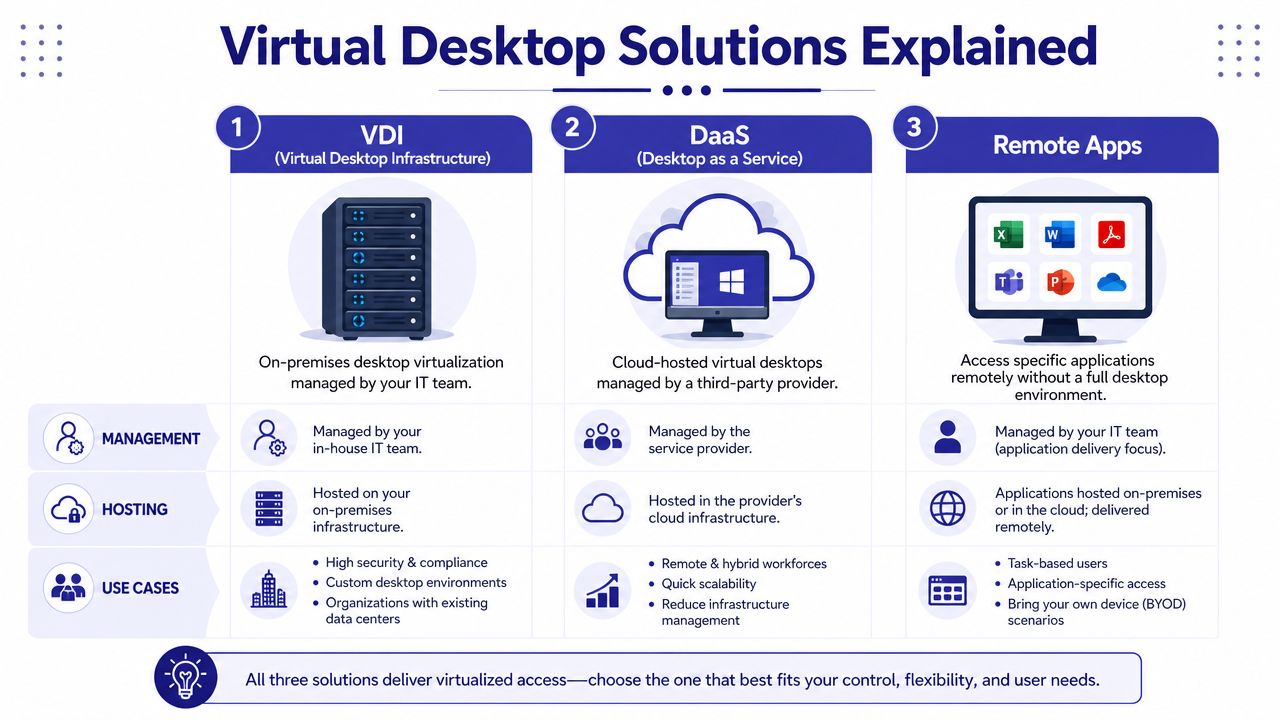
VDI, or Virtual Desktop Infrastructure, usually means a full desktop environment delivered from centralized infrastructure. Your team signs in and sees a complete work desktop, not just one app. This model gives IT more control, but it also brings more responsibility.
DaaS, or Desktop as a Service, delivers the same broad idea through a provider-managed cloud model. For smaller firms, this is often easier to live with because it reduces the burden on internal staff. You don't need to become an infrastructure company just to let a paralegal open a case file from home.
Remote Apps publishes only selected applications. A user might click one icon and open a Windows accounting program on a Mac without loading a full Windows desktop. That can be attractive when your staff only needs a few tools, but it can feel limiting if users switch constantly between apps, files, printers, and shared folders.
A legal or accounting office usually doesn't just need “remote access.” It needs the right kind of access.
If your staff uses a mix of:
then a full desktop often feels more natural than a single published app. It mirrors the way people typically work. They open one application, then another, then attach a file, then check email, then export a report.
For firms comparing options, Cloudvara's overview of virtual desktop solutions is a useful starting point because it frames these models around business use rather than just infrastructure terms.
Here's the simplest side-by-side view:
| Approach | Best For | Management Overhead |
|---|---|---|
| VDI | Firms that want deeper control over desktop configuration and policies | Higher |
| DaaS | Small and midsize businesses that want full desktops without managing the underlying platform | Moderate to lower |
| Remote Apps | Teams that only need a few specific Windows applications | Lower on the user side, but narrower in scope |
Another point often gets missed in Mac discussions. Virtual desktop delivery on Apple devices can include running macOS in virtual machines on Apple hardware in a data center, and industry descriptions note that this model has grown to support thousands of users with features such as 4K/5K graphics and multi-monitor support, as described in Venn's overview of VDI for Mac. Even if your immediate need is Windows access from a Mac, that broader model shows how mature remote desktop delivery has become.
If you prefer a quick walkthrough before comparing vendors, this short video helps make the concept easier to picture.
A good buying question isn't “Which acronym should I choose?” It's “Do my users need a whole work environment or just one remote app?”
The main benefit isn't technical elegance. It's removing friction from revenue-producing work.
For Mac-based professional services firms, the biggest win is simple. Your team keeps the Apple hardware they like, while the business runs the Windows software it depends on. No more awkward compromises where employees invent their own workflows just to bridge the gap.
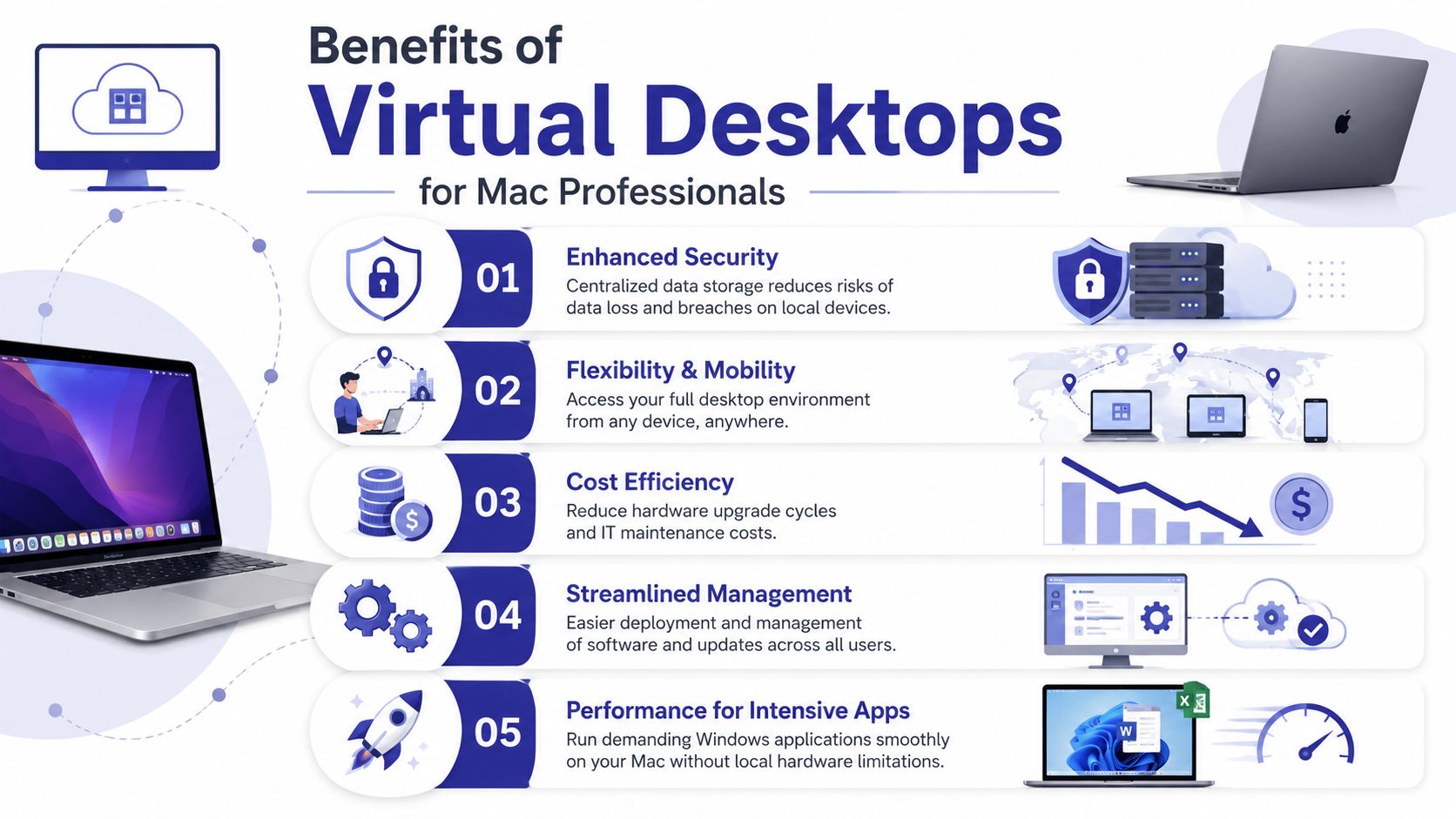
This is the pain point that drives most projects.
Many accounting and legal firms rely on software that was built with Windows in mind. That can include bookkeeping systems, tax applications, legacy document tools, legal workflow platforms, and line-of-business software that isn't available in a native Mac version.
A virtual desktop changes the setup. Instead of forcing the Mac to run that software locally, the application runs in the remote business environment and the Mac displays it. For the user, the experience becomes much cleaner. They sign in, open the desktop or app, and work.
That matters when you have:
Laptops break. Coffee spills happen. A staff member leaves a device in a taxi. Those events are disruptive, but they shouldn't shut down client work.
With a virtual desktop model, the work environment itself isn't trapped on one machine. The desktop, files, and business apps stay in the hosted environment. The user can often pick up another device, sign in, and continue.
That's especially useful for firms with seasonal surges or urgent document deadlines. Your continuity plan becomes more practical because access is tied to identity and permissions, not one specific laptop.
For firms that bill by the hour, continuity isn't just an IT issue. It protects working time.
Professional services firms don't just manage files. They manage trust.
When staff members save documents directly on local machines, the business creates risk. It becomes harder to know where data lives, who copied it, whether backups are consistent, and what happens if a device goes missing.
A virtual desktop setup improves this by centralizing where work happens. The user still works normally, but the business can manage access, software, and storage in one environment instead of chasing settings across a pile of laptops.
For firms weighing the operational upside, Cloudvara's page on virtual desktop benefits outlines the common business reasons companies move away from local-only setups.
Most small firms don't have a deep internal IT bench. They have one capable admin, an outside consultant, or nobody dedicated full-time at all.
That's why standardization matters. A virtual desktop can simplify:
Instead of fixing one Mac at a time, IT can focus on the central environment.
One practical option in this space is Cloudvara, which provides hosted application and desktop access for business software used by firms such as accountants, legal teams, nonprofits, and small businesses. The fit isn't about Mac users abandoning Macs. It's about giving Mac users reliable access to the Windows-based systems the business already depends on.
The first performance question most Mac users ask is, “Will this feel slow?”
That's the right question, but many people aim it at the wrong target. In most virtual desktop setups, the local Mac matters less than people assume. What usually matters more is the network path, the remote desktop protocol, and the resources assigned to the virtual machine that's doing the actual work.

Your Mac is often acting more like a well-designed terminal than a heavy compute box. It displays the remote session, sends your keyboard and mouse input, handles local peripherals, and manages the client app.
That means a MacBook Air, MacBook Pro, iMac, or Mac mini can all be perfectly capable endpoints for office work if the hosted environment is configured well. This is also why many Apple Silicon systems feel excellent as clients. They're efficient, responsive, and well-suited to this kind of access model.
What confuses buyers is that endpoint power and remote session quality aren't the same thing. A powerful local machine won't fix a poorly sized virtual desktop. And a modest local Mac can feel surprisingly smooth if the remote setup is right.
If you're evaluating virtual desktops for Mac, pay attention to these variables first:
For Mac users who need help with setup, this guide on connecting to remote desktop on Mac is useful because it focuses on the client side of the experience.
Reality check: If a remote session feels sluggish, don't blame the Mac first. Check the network and the virtual machine configuration.
Most accounting and legal workflows are not graphics-heavy. They center on documents, spreadsheets, case files, email, PDFs, and line-of-business apps. Those are usually a good fit for standard virtual desktop resources.
But not every office is purely document-driven. Some firms also use applications with more demanding rendering or interactive requirements. In those cases, GPU provisioning becomes important.
Microsoft's Azure Virtual Desktop guidance says 3D apps depend on the VM hardware configuration and recommends using a GPU-equipped VM for those workloads, as noted in Microsoft's guidance on Azure Virtual Desktop and Mac-related workload considerations.
That aligns with common sense. If the remote machine is doing graphics-intensive work, it needs graphics-capable resources. Otherwise users may see laggy interaction, poor rendering, or a session that feels fine for spreadsheets but not for visual workloads.
If your team mainly uses Office, PDFs, browser apps, accounting platforms, document management systems, and practice software, modern Macs are usually strong clients for virtual desktops.
If your users need more specialized performance, ask these questions before you buy:
Those questions will tell you more than a generic hardware checklist.
For accounting firms and law offices, security isn't a feature add-on. It's part of the service you deliver to clients.
When firms keep business files spread across laptops, desktops, USB drives, and ad hoc home setups, they create too many places for sensitive information to leak. A virtual desktop model can improve that because it centralizes the workspace rather than scattering it.
A properly configured virtual desktop environment keeps the applications, data, and access controls in one managed location. The user still works from a Mac, but the sensitive business content doesn't have to live on that Mac.
That changes several risk scenarios at once:
Centralization doesn't make a business secure by itself. It gives the business a place to apply security consistently.
Small firms don't need every technical term. They do need a clear checklist.
Look for a provider that can support:
For firms evaluating controls and vendor maturity, Cloudvara's explanation of SOC compliance is a practical starting point.
Law firms, accounting practices, and other professional services businesses often think about compliance as a document or policy issue. In day-to-day operations, it's usually an access and process issue.
If staff can work from anywhere, you need to know:
A virtual desktop environment can help by narrowing the number of places your data resides. That's useful whether you're dealing with client confidentiality expectations, internal governance, or industry-specific controls.
The key is simple. Don't buy on convenience alone. Buy on convenience plus control.
Most firms don't need a huge digital transformation plan. They need a clean path from “our Macs can't easily run what we need” to “our staff can work securely without friction.”
That path gets easier when you scope the project around actual workflows instead of broad IT jargon.

Before you compare providers, list the software your team cannot function without.
Include the obvious items, such as accounting, tax, legal, CRM, document management, and Microsoft applications. Then include the small but critical pieces people forget, such as PDF tools, scanner workflows, print requirements, browser dependencies, and line-of-business plugins.
If even one essential tool is missed, your rollout feels incomplete to users.
Not every employee needs the same setup.
A partner, bookkeeper, tax preparer, legal assistant, and office manager may all need different combinations of applications, storage access, and device flexibility. Grouping users by workflow helps you avoid overbuilding or underbuilding the environment.
A simple planning list often works:
Many small firms make a critical oversight. They compare features, but they don't test support expectations.
Ask practical questions:
Recent industry discussion suggests buyer attention is moving toward cloud-hosted Mac strategies, while real-world questions about Apple Silicon compatibility and everyday endpoint experience still need clearer answers, as discussed by MacStadium in its article on future trends in Mac virtual desktops. That gap is exactly why firms should test a setup against their real work before committing.
For businesses comparing hosted desktop vendors, this overview of VDI cloud providers helps frame the evaluation criteria.
The best next step is usually a pilot with real users doing real work.
Pick a few staff members. Give them the applications they use every day. Test login flow, dual-monitor behavior, printer access, file handling, and support responsiveness. In a firm environment, that tells you more than a long feature checklist ever will.
If your team uses Macs but depends on Windows-based business software, Cloudvara offers a practical way to test that setup in a hosted environment. It provides cloud access to business applications and desktops, supports Mac access, and offers a free 15-day trial with no contract or credit card required, which makes it a low-friction way to see how a virtual desktop fits your accounting, legal, or small business workflow.




