You're probably dealing with this already. Someone on your team has a new phone, an employee can't find the authenticator they used for a client portal, or a remote desktop login suddenly demands a code nobody documented. The account may technically have two-factor authentication enabled, but the business still has no reliable way to recover it.
That's the difference between turning on 2FA and operating it properly. A sound setup chooses the right second factor, protects the accounts that matter most, records recovery options, and gives an administrator a tested way to restore access. This guide shows you how to set up two factor authentication for personal accounts, Microsoft and Google environments, Apple devices, hosted Windows desktops, and small teams.
A password gives an attacker one answer. Two-factor authentication requires a second proof, usually something you possess or control, before the service grants access. If someone steals a password through phishing, malware, or reuse, that password alone should not open the mailbox, accounting system, client file share, or hosted desktop.
The shift toward 2FA is no longer theoretical. Google began rolling out consumer 2FA in 2011, and by the end of 2021 it had auto-enrolled 150 million users for account access, as documented in two-factor authentication statistics from Comparitech. The same source reports that 81% of U.S. adults used multifactor authentication on at least one online account in a 2025 survey, while workforce coverage reached 70%.
Those figures show where the market is going, but they don't tell you how to run a dependable program. A rushed rollout often creates a new failure point: one SMS number on an employee's personal phone, no backup codes, and no administrator who knows how to reset enrollment.
The most common operational failure isn't enabling 2FA. It's losing the only device that can approve the next login.
For an accountant, a lost authenticator can block payroll, tax work, or access to client records. In a law firm, a phone reset or SIM takeover can interrupt access to privileged correspondence and matter documents. A small business may lose access to its Microsoft 365 tenant, payment platform, CRM, or remote desktop environment at the exact moment staff need it.
Thoughtful setup also belongs inside a wider security program. Use this Cloud security best practices guide to place 2FA alongside access control, backups, device security, and account monitoring. For businesses handling card data, a practical 8-step PCI DSS checklist can help connect authentication controls with broader compliance work.
A good deployment answers five questions:
That approach turns a stolen password into an incomplete attack rather than a complete account takeover. It also prevents a security improvement from becoming an avoidable business interruption.
The service's default option isn't automatically the right option. Choose the factor based on the sensitivity of the account, the user's working conditions, and the recovery resources your organization can maintain.
| Factor | Strength | Main weakness | My recommendation |
|---|---|---|---|
| SMS code | Familiar and easy to deploy | Vulnerable to SIM swapping and number abuse | Use only when stronger options aren't available |
| Email prompt | Better than password-only access | Depends on the security of the mailbox being protected | Use cautiously, mainly as a fallback |
| Authenticator app | Generates time-based codes without relying on mobile delivery | The phone can be lost, replaced, or wiped | Make this the default for most staff |
| Push approval | Fast tap-to-approve workflow through tools such as Microsoft Authenticator or Duo | Users can approve a fraudulent prompt if they aren't trained | Use with number matching or equivalent safeguards where available |
| Hardware key | Strong phishing resistance and clear physical possession | Requires distribution, replacement, and spare-key planning | Use for administrators and high-risk users |
Understanding two-factor authentication provides the basic model, but implementation decisions deserve more attention than a definition. SMS remains common, with text-based codes reported at 83% usage across 2023 to 2025 measurement points in the research summarized by About Chromebooks. Familiarity explains that usage. It doesn't make SMS the strongest choice.
An authenticator app is my normal recommendation for general business accounts. Google Authenticator, Microsoft Authenticator, Duo Mobile, and similar applications generate rotating codes directly on the device. They avoid dependence on the phone network and don't expose the code through a carrier account. Push notifications can be even easier for staff, but train users to reject unexpected prompts. An attacker who already knows a password may deliberately trigger repeated requests, hoping the user taps approve just to make the interruption stop.
Use a FIDO2 security key such as a YubiKey or Feitian key for global administrators, finance leads, managing partners, and anyone with access to sensitive client data. The key performs a cryptographic exchange without sending a reusable secret to the login page, which gives it a strong defense against convincing phishing sites.
Email codes inherit the security of the mailbox. If the mailbox is the account you're trying to protect, email-based 2FA creates a weak dependency. Keep SMS and email available only where business continuity requires them, and write the trade-off into your policy so temporary convenience doesn't become the permanent standard.
Begin with the systems that can access other systems. Email, identity administration, cloud storage, finance platforms, VPNs, and remote desktop gateways deserve attention before lower-risk personal services.

For an individual Microsoft account, open Security and then Advanced security options. For a work tenant, use the Microsoft Entra admin center, then review Protection, Authentication methods, and Users.
A practical sequence is:
Open the user's Google Account Security page, select 2-Step Verification, and start enrollment. Choose Authenticator rather than SMS when available, scan the displayed QR code, enter the generated code, and save the recovery options.
Administrators should open the Google Admin console, go to Security, then Authentication, and review 2-Step Verification enforcement for organizational units. Users handling especially sensitive records can also evaluate Google's Advanced Protection option, provided the organization understands its stricter enrollment and recovery requirements.
For an Apple ID, open Settings, select the user's name, then Sign-In & Security. Review trusted devices and trusted phone numbers, generate a recovery key when the account's recovery policy supports it, and register a hardware key as an additional Apple factor where supported. Store the recovery key securely before signing out of any trusted device.
For a Windows remote desktop hosted in a cloud environment, configure the gateway and identity provider before users connect. Enable Network Level Authentication, apply Credential Guard through the gateway or appropriate group policy, and register the first app-based factor or hardware key before permitting remote logins. If you need help with the surrounding mobile workflow, setting up email on Android can help users prepare the device they'll use for authentication.
Install the authenticator before you begin enrollment. Keep the account signed in on a trusted browser, open its security settings in another window, and make sure the phone or key is physically available. Starting setup after the only trusted session has expired is an avoidable way to lock yourself out.
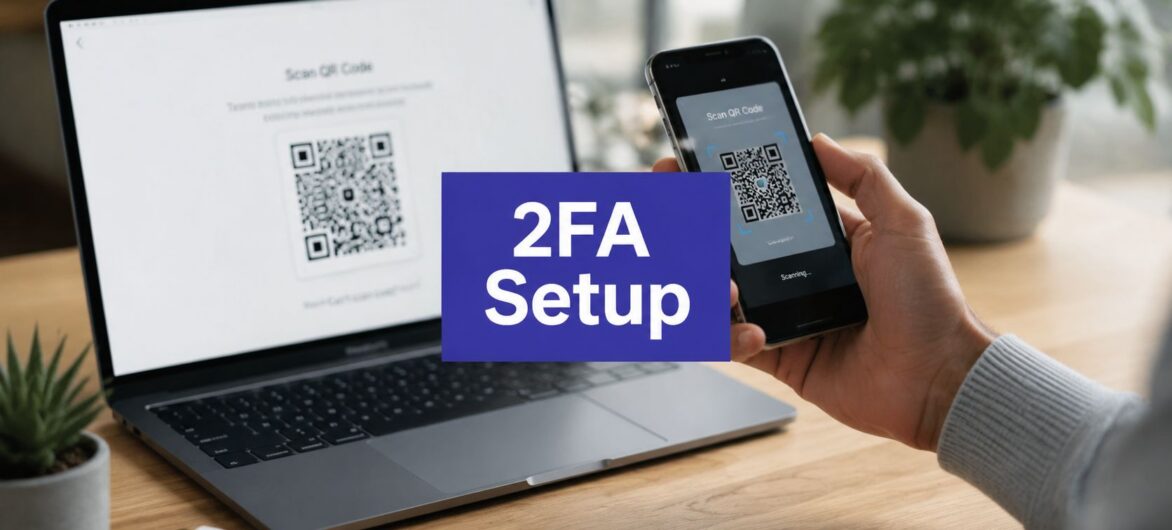
Choose Set up authenticator app in the account's security settings. Open the official authenticator, create a clearly named entry, and scan the QR code shown on the account page. Don't photograph, email, or forward that QR code. It can contain the secret used to generate future codes, so anyone who obtains it may be able to create a matching authenticator.

Enter the current rotating code to finish enrollment, then test the account in a private browser window or on a separate device. Check that the factor appears as active in the security settings. Give entries useful names such as “Microsoft 365, Jordan, office phone” rather than leaving several identical accounts labeled “Work.”
Insert the key and select Security key or FIDO2 key in the sign-in method menu. Give it a name such as “YubiKey 5C, office laptop,” then touch the key or enter its PIN when prompted. Sign out and test the key from a new browser before removing any existing method.
Register a second key wherever the service allows it. Keep the spare in a controlled physical location, not in an unsecured desk drawer. If an authenticator must move to another device, use the provider's encrypted cloud backup when available. Otherwise, export and secure the seed through an approved process, and never place it in an ordinary chat, email, or shared document.
Authenticator setup also belongs on services beyond email. Repeat the review for password managers, VPNs, accounting applications, document systems, and hosted desktops. For remote environments, Cloudvara's remote desktop two-factor authentication guidance covers the same practical pattern of registering a factor, validating a code, and retaining recovery information.
Organizations handling personal data should also connect enrollment records, access reviews, and recovery procedures with their wider GDPR compliance services work.
Watch the following demonstration for a visual walkthrough of the enrollment flow:
Recovery should be designed before the first factor becomes mandatory. The user who loses a phone, damages a security key, or leaves the company shouldn't be forced to improvise with an administrator on a stressful support call.
Generate backup codes during enrollment and treat each one as a bearer secret. Anyone holding an unused code may be able to use it, so don't paste codes into a team chat, an unprotected spreadsheet, or an open ticket. Store them offline in a sealed envelope or in an approved secure system with tightly controlled access.

Add a second authenticator or hardware key wherever the service permits it. Confirm that both entries appear in the account's security settings, and test the replacement before deleting the original. Record who owns each corporate key and where the spare is stored, but keep seed phrases, private keys, and active backup codes outside the company's main password vault unless your security design explicitly protects those items separately.
Your written process should identify:
Recovery rule: Never make one unenrolled administrator the only person who can restore everyone else's access.
Use a noncritical account to test the entire process. Lose the test phone deliberately, use a backup code, try the second key, and confirm that an authorized administrator can complete a reset without bypassing the policy. Then schedule recurring checks of recovery contacts, backup codes, spare keys, and reset permissions.
A backup and recovery planning guide can help you place 2FA recovery alongside system backups and business continuity. The goal isn't merely to preserve data after an outage. It's to preserve the ability to reach the systems that hold that data.
Small firms don't need a complicated program, but they do need an owner. Assign one person to coordinate enrollment, another authorized person to support recovery, and a clear deadline for every user. Don't rely on a shared spreadsheet as the primary control. Use identity-provider reports and activity logs to track actual registration.
Enroll administrators first, followed by email, cloud consoles, VPNs, finance systems, and remote desktop access. Run a real sign-in after each enrollment and record recovery ownership before moving to general staff.
Publish a short policy that answers these questions:
Use a phased rollout. Pilot with the IT or administrative group, enroll general staff, address support issues, then enforce the requirement for privileged users and remaining accounts. Give each person a supported setup option and hold a live enrollment session for staff who need assistance.
Configure a break-glass account only for genuine emergencies, protect it with two separately controlled hardware keys, and alert on every use. Don't exempt ordinary administrators because enrollment feels inconvenient. At the same time, don't cut off the entire business before recovery has been tested.
A good deadline changes behavior. A tested recovery path keeps that deadline from becoming an outage.
Audit the environment on a regular quarterly cadence. Review active factors, unused backup methods, recovery contacts, former employees, stale sessions, vendor activity logs, and devices that have been replaced. The operational blockers reported in 2025 include token management at 57%, extra training and support at 53%, and compatibility issues at 45%, according to the evidence summarized in recent MFA adoption research. Those aren't reasons to delay. They're a checklist for the support work your rollout must include.
A reliable 2FA program rests on five decisions.
First, choose the primary factor deliberately. Use an authenticator app for most users and hardware keys for administrators and high-risk accounts. Keep SMS as a documented fallback, not the default because it appears first in the setup wizard.
Second, standardize the authenticator. Supporting a small set of approved tools makes enrollment, troubleshooting, replacement, and training far easier. Name every registered device clearly so an administrator can tell an active phone from an obsolete one.
Third, document recovery before enforcement. Backup codes, spare keys, administrator reset paths, carrier controls, and role-change procedures should exist before users depend on the new policy.
Fourth, enforce enrollment in stages. Pilot, test, train, and then require the factor. Indefinite exceptions create weak access paths, while immediate enforcement without recovery testing can interrupt the business.
Fifth, audit the program. Review active factors, recovery options, former staff, stale sessions, and break-glass activity on a recurring schedule. 2FA remains useful only when the registered methods still belong to the right people and can still be recovered.
Passkeys built on FIDO2 and WebAuthn are gradually changing how people authenticate, reducing reliance on passwords and one-time codes. Adaptive policies are also becoming more useful, allowing organizations to request stronger verification when a sign-in looks suspicious rather than applying identical friction everywhere. Those developments don't replace the fundamentals. They make accurate enrollment, strong factors, and tested recovery even more valuable.
This afternoon, choose your highest-value account. Enable its strongest available factor, save a backup code in a sealed and controlled location, register a second method if supported, and put a 90-day review on the calendar.
Cloudvara can help businesses centralize applications and support secure access to hosted desktops, including two-factor authentication options for end users. Visit Cloudvara to review a cloud hosting setup that fits your accounting, legal, nonprofit, or small-business environment.




