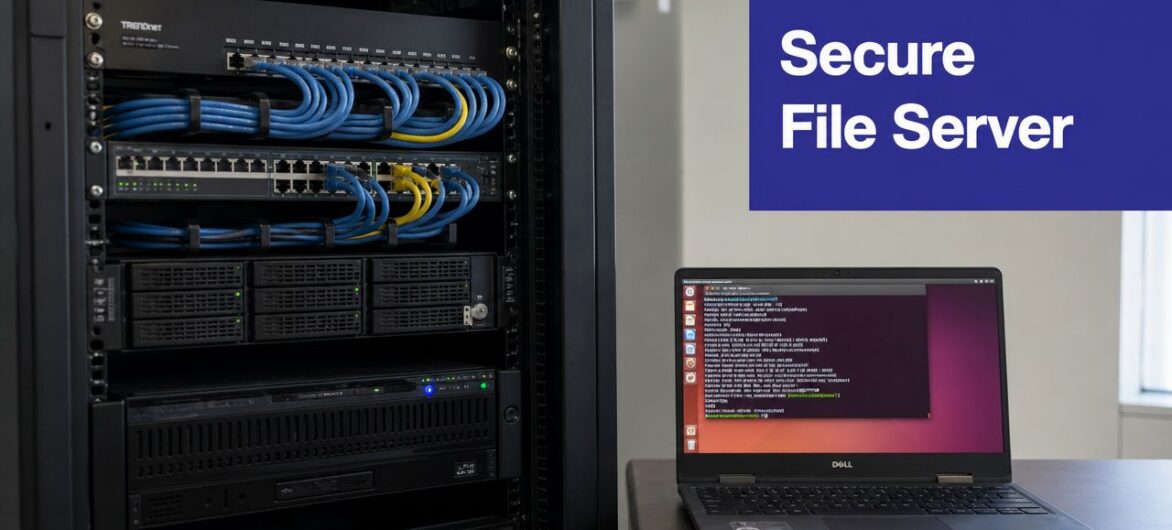
Your team probably has this problem already. Client files live in email threads, staff keep working copies on desktops, and someone always asks which version of the spreadsheet is the definitive one. That arrangement works until an employee leaves, a laptop fails, or a sensitive document ends up in the wrong place.
For accounting firms, law offices, nonprofits, and small businesses, file sharing isn't just convenience. It's control. You need one place for documents, predictable permissions, and an access model that doesn't depend on whoever remembers the latest attachment.
That's where installing Samba on Ubuntu makes sense. Samba gives you Windows and Linux file sharing over SMB/CIFS, using infrastructure you can manage directly instead of patching together consumer sync tools. Done well, it becomes a stable internal file server that supports backups, access control, and a cleaner path toward compliance.
Basic tutorials usually stop at “it works.” That's not enough for a business environment. If you handle tax records, legal matter files, HR documents, or medical information, the job is building something your staff can use every day without creating avoidable risk.
A small office usually drifts into bad file handling slowly. One employee shares documents from a workstation. Another keeps a client folder in a personal cloud drive. Someone else sends revised PDFs back and forth by email. Nothing looks broken at first, but the cracks show up when people need the same file at the same time, or when you need to prove who had access to what.
That mess creates two business problems. First, your staff wastes time hunting for current files. Second, you lose control over sensitive data. In an accounting or legal setting, that's the wrong place to improvise.
A properly configured Samba server on Ubuntu gives you a central share your team can reach from Windows and Linux systems. That matters because it turns file access into a managed process instead of a habit. You decide where documents live, who can open them, who can change them, and how they're backed up.
When businesses move from scattered storage to a managed file server, daily work gets simpler:
A file server is less about storage than discipline. It gives your business one place to enforce good habits.
Security planning also gets easier when your documents live in one controlled system. If you're evaluating your exposure more broadly, this guide to understanding business cyber threats is useful context for deciding how aggressively to lock down access, segment data, and review internal risk.
Many firms still rely on Windows desktops while using Ubuntu for server workloads. Samba bridges that gap cleanly. Staff can keep familiar network-drive workflows on Windows while the server runs on a platform administrators can harden, monitor, and maintain.
That's the main appeal. You're not building a hobby NAS. You're putting shared business data behind a system you can manage responsibly.
A good Samba deployment starts with restraint. On a business file server, the first goal is not to make the share visible as fast as possible. The first goal is to get a clean, supportable base in place so you can add authentication, auditing, and tighter permissions without rebuilding later.
Ubuntu keeps this part simple because Samba is available in the default repository. That matters in professional environments. Standard packages are easier to patch, document, and defend during internal reviews or client security questionnaires.

Start with the normal package flow:
sudo apt updatesudo apt install sambaThat is enough for a basic file server. Some teams add supporting administration tools at the same time, but keeping the initial install small reduces variables during testing. If you are building the host from scratch, this Ubuntu server setup tutorial for baseline system preparation is a useful companion before you add file services.
After installation, confirm the daemon version with smbd --version, then enable the required services with systemctl enable smbd nmbd. Before you reload Samba after any config edit, run testparm. That catches syntax errors early and saves time during rollout. Atlantic.Net's Samba on Ubuntu guide follows the same basic workflow.
Before changing /etc/samba/smb.conf, copy it.
sudo cp /etc/samba/smb.conf /etc/samba/smb.conf.bak/etc/samba/smb.conf controls global server behavior and individual share definitions. Early on, keep the edits limited. Confirm the service starts cleanly, the config validates, and the server responds on the network before you introduce business access rules or Active Directory integration.
A guest share is acceptable for one task. Proving that the Samba service works end to end. It is not suitable for accounting files, client contracts, HR records, or any data that falls under GDPR, HIPAA, or similar obligations.
Use a dedicated test path, not a real business folder. A simple setup usually includes:
/data/private or another isolated test location/etc/samba/smb.conf with settings such as:pathbrowsablewritableguest okKeep the permissions narrow and temporary. For a quick connectivity test, administrators often apply chmod and chown, restart smbd, and validate with testparm before checking access from a client. Avoid treating that test state as production-ready. Open guest access is one of the most common mistakes I see in small offices that started with a lab-style setup and never tightened it later.
Here's a short visual walkthrough if you prefer seeing the terminal flow before applying it on a business server:
Practical rule: Use a guest share to verify connectivity, then disable it. Production shares should require named accounts and documented permissions.
A first-pass Samba install is ready for the next stage when these checks pass:
| Check | What you want |
|---|---|
| Package install | samba installed from Ubuntu repository |
| Service state | smbd and nmbd enabled |
| Version check | smbd --version returns normally |
| Config test | testparm reports no syntax errors |
| Share visibility | A client can see the test share |
Stop if one of these fails.
Do not add user accounts, department shares, or AD integration on top of a broken base install. In business environments, that shortcut usually turns a simple setup issue into a permissions problem that wastes hours and leaves you less confident in the server you are about to trust with client data.
A file server becomes a business system the moment staff start saving client work to it. At that point, anonymous access and shared logins create legal, operational, and audit problems. An accounting office needs to know who changed a tax file. A law firm needs to restrict matter folders to the attorneys and support staff assigned to them. If your environment falls under GDPR or HIPAA, named access and traceable permissions are part of doing the job properly.
Samba handles authentication separately from the Linux account database. A user can exist on Ubuntu and still be unable to open a share over the network until you add that account to Samba.
Create the Linux user first if it does not already exist, then add the same account to Samba:
sudo smbpasswd -a username
That command sets the password Samba will use for SMB logins. It does not replace filesystem permissions. Both layers have to agree, or staff will authenticate successfully and still get denied when they try to open, save, or rename files.

For a small business, group-based access is easier to maintain and far safer than assigning rights one person at a time. Create Linux groups that reflect actual business functions, such as finance, legal, or operations. Assign the shared directory to the right group, then use Samba to allow only that group into the share.
A practical pattern looks like this:
\\server\financeThat structure also supports later integration with Active Directory if the business outgrows local account management.
smb.confUse share definitions that match how the business works. The settings that matter most here are:
path for the directory locationvalid users to restrict who may connectread only to set the default access levelwrite list to allow edits for a smaller set of users or groupsHere is a clean example for a finance share:
[Finance]
   path = /srv/samba/finance
   browseable = yes
   read only = yes
   valid users = @finance
   write list = @finance-managers
   create mask = 0660
   directory mask = 0770
This approach fits real office use. Everyone in finance can read policy documents, spreadsheets, and archived reports. Only the manager group can change live files. That reduces accidental edits and makes access reviews easier during a client audit or compliance check.
If you need to protect sensitive documents beyond login controls, review these file share encryption options for business environments. Encryption matters most when you store regulated client records, financial statements, personnel files, or health-related documents.
Samba issues often turn out to be Linux permission issues. I see the same pattern in small firms over and over. The user can map the drive, but saving fails because the folder is owned by the wrong group, the mode is too restrictive, or inherited permissions do not match the share design.
Use this checklist when access does not behave as expected:
| Layer | Controls | Common failure |
|---|---|---|
| Samba user database | Who can authenticate | User was never added with smbpasswd |
| Share definition | Which authenticated users may access the share | valid users or write list excludes the intended person |
| Linux filesystem | Who can read, write, create, and delete | Directory ownership or mode does not permit the action |
Do not “fix” a write problem with 0777. That removes control instead of correcting it. In a professional environment, broad write permissions create exactly the kind of avoidable exposure that shows up later in an audit or internal investigation.
For most small businesses, this model is reliable:
Using force user can simplify write ownership in edge cases, but it comes with a trade-off. It makes file ownership look uniform, which weakens accountability. For firms that handle privileged client data, preserving user-level traceability is usually the better choice.
Security reviews help validate those decisions before a problem does. The Guide to internal pentesting strategies is a useful reference if you want to test whether internal share permissions, segmentation, and access paths match your written policy.
Good Samba shares are boring in the best sense. Staff get the folders they need. Sensitive departments stay separated. Former employees lose access promptly. Administrators can explain who has access and why.
Poor Samba shares usually show the same warning signs:
Those shortcuts save minutes during setup and create months of cleanup later. For a business server, clear ownership, named authentication, and role-based shares are the baseline.
A Samba server that “works” can still be unsafe. That's the gap many businesses discover too late. Staff can map the drive, save files, and move on, while the server accepts weak access controls, broad exposure, or outdated protocol behavior.
For a firm handling tax returns, legal evidence, HR files, or health-related records, basic functionality isn't the target. Defensible configuration is.
For business use, guest access should be off. Password-protected access should be the baseline, not the upgrade. One Ubuntu Samba guide states that explicitly disabling guest access and enforcing password authentication helps prevent vulnerabilities that account for over 60% of common SMB misconfigurations, and it also specifies allowing Samba through the firewall with sudo ufw allow samba for traffic on ports 139 and 445 in AlexHost's Samba on Ubuntu instructions.
That's one of the few places where a hard rule is justified: anonymous access and sensitive business data do not belong together.
Opening Samba on the firewall is necessary, but broad exposure is not the same as controlled exposure. The command sudo ufw allow samba is the starting point, not the full security design.
Use a checklist mindset:

Many weak Samba deployments carry old defaults forward for years. That's risky. In business environments, disable obsolete SMB behavior and require modern protocol use. If your client fleet includes current Windows systems and maintained Linux desktops, you usually don't need to keep legacy compatibility settings alive just because an old tutorial included them.
A sensible hardening review in smb.conf should include:
This is also where many basic tutorials fall short for regulated offices. They get the share online, but they don't address the practical compliance question: if a workstation is compromised, how far can an attacker move laterally through file shares?
The safest share isn't the one everybody can reach. It's the one only the right people can reach, with the least access necessary.
If you want a broader operational framework around segmentation, access control, and security baselines, these cloud security best practices are useful for thinking beyond Samba alone.
A clean testparm result only proves syntax. It doesn't prove security. You still need to test what a normal employee, a former employee, and the wrong department can access.
That's where internal validation matters. A practical reference on Guide to internal pentesting strategies can help you think through how an internal attacker or compromised machine would interact with your file server, especially in flat office networks.
Here's the set of controls I'd treat as minimum standard for a professional Samba deployment:
The common failure pattern is simple. A business copies a home-lab tutorial, leaves broad access enabled, and assumes “internal network” means “safe.” It doesn't.
A secure file server fails if staff avoid it.
In a small accounting office or law firm, that failure usually looks familiar. Someone cannot reach the shared folder from home, a departing employee still has file access through a forgotten local account, or a partner saves client records to a personal cloud app because the approved system feels harder to use. Samba works well in business settings because it gives users a familiar path while still letting IT enforce policy, logging, and identity controls.
Windows clients usually connect with a standard UNC path such as \\server-ip\shared. Linux clients typically mount the same share over CIFS after installing cifs-utils. The user experience stays predictable across both platforms, which helps reduce side-channel file sharing and keeps staff inside the approved system.
For Linux clients, the basic workflow is simple:
cifs-utilsTools such as smbclient are useful for testing access from the client side before you troubleshoot the server. That saves time. If the share is reachable with smbclient but not mounting cleanly, the problem is often local package setup, credentials, DNS, or the mount options on the workstation rather than Samba itself.

Basic tutorials often stop at local Samba users. That can work for a very small office, but it becomes a liability once you have staff turnover, multiple departments, remote workers, or compliance obligations tied to access control. Separate credentials create extra admin work and make offboarding easier to get wrong.
If your business already runs Active Directory, Samba should tie into it. The commonly cited starting point is security = ads, but the real decision is architectural. The file server should use the same identity source as the rest of the business so account disablement, password policy, and group membership follow one controlled process.
That approach is especially important for firms handling regulated data. In healthcare, legal, and finance environments, proving who had access and when often matters as much as granting access in the first place.
AD integration improves operations in ways a small business feels quickly:
| Without AD integration | With AD integration |
|---|---|
| Separate Samba account administration | Access follows existing directory accounts and groups |
| Manual offboarding on the file server | Disabling the directory account cuts off file access more reliably |
| Password policy handled in more than one place | Authentication policy stays aligned with the rest of the environment |
For GDPR and HIPAA-sensitive environments, that consistency supports auditability and reduces permission drift. It also makes department-based access easier to maintain, which matters when accounting, legal, HR, and operations should never share a single broad permissions model.
Remote access needs the same discipline. Staff may open the same shares from office desktops, hosted environments, or secure remote sessions, but identity should still be centralized. If your broader setup includes remote desktops or published applications, this guide to remote access technology is a useful reference for aligning file access with the rest of your access model.
For healthcare-adjacent firms, Affordable Pentesting for medical organizations is also a practical resource for validating whether internal access controls match the policies your business depends on.
If users sign in through centralized identity everywhere else, the file server should follow the same rule.
The install is the easy part. Running a Samba server well means keeping it boring. Reliable file servers don't surprise anyone. They stay patched, they get backed up, and their permissions don't drift every time the team changes.
Three habits matter most.
For firms handling protected information, maintenance also supports compliance. GDPR, HIPAA, and similar obligations aren't satisfied by a one-time setup. They depend on repeatable controls, auditability, and evidence that access is limited and monitored. Healthcare-adjacent organizations can also use resources like Affordable Pentesting for medical organizations to pressure-test whether their internal systems match their written security expectations.
A good Samba deployment doesn't need constant drama. It needs ownership. Keep the server updated, keep permissions narrow, and keep recovery tested. That's what turns a useful file share into dependable business infrastructure.
If your business needs a more managed path than maintaining on-prem file servers yourself, Cloudvara provides secure cloud hosting for business applications and files, with backup-focused infrastructure, remote access, and support designed for firms that can't afford downtime.




