Your office server is getting noisier, remote access keeps dropping, and someone has suggested moving everything to the cloud. You want to know what will happen to the accounting software, client folders, printers, and staff logins, especially when work can't stop for an IT project.
The useful question isn't just what is server migration. It's whether people can keep doing their jobs during the move, and whether you can recover if something goes wrong.
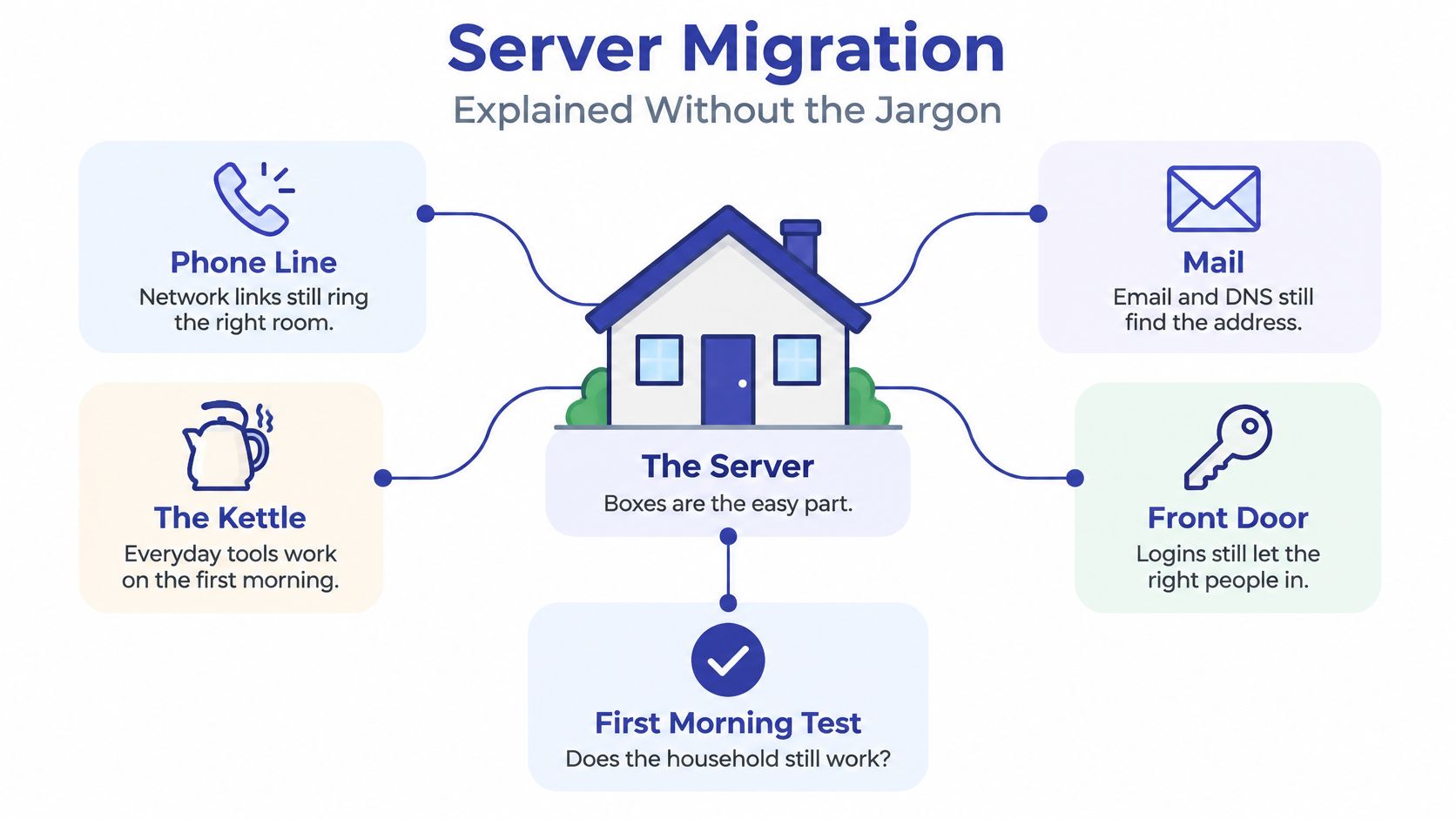
Moving house isn't finished when the boxes arrive. The phone must connect, the mail must reach the new address, and the kettle must work on the first morning. Moving a business server follows the same logic.
Server migration means moving a business's running software environment from one place to another in a controlled way. That environment, called a workload, includes the operating system, applications, databases, settings, user logins, network connections, and data.
Before going further, separate these commonly confused terms:
A completed data copy can still leave staff unable to work. An application might find its records but fail because its licensing service or printer connection stayed behind.
The moving-house analogy helps make those connections visible.
A physical server is an actual computer, perhaps sitting in an office cupboard. A virtual machine is a software-defined computer running on physical equipment, with its own operating system and applications. This explanation of server virtualization offers more detail about that distinction.
A cloud platform supplies computing resources over a network. The National Institute of Standards and Technology cloud framework describes cloud computing as on-demand access to shared, configurable resources, including servers, storage, applications, and services.
Instead of buying another machine whenever you need capacity, you can provision resources, meaning allocate them through the platform. Someone still needs to configure, secure, and maintain the environment, even when you no longer own its hardware.
A server migration succeeds when the people using it notice nothing except that it's easier to reach.
That's the user-facing ambition. For planning, begin with something concrete: write a sentence listing everything your current server does for the business, including file storage, applications, logins, printing, and backups. That sentence becomes the starting scope.
During a busy filing period, an accounting office's only server stops working. Staff cannot open tax returns, retrieve supporting documents, or finish billing. Replacing a failed part may get the machine running again, but the office still needs to know whether its backup can restore the work.
That risk is one reason organizations move servers before hardware fails. Common motivations include aging equipment or software nearing the end of vendor support, seasonal demand for extra capacity, and staff needing access from home, client sites, or another office. Businesses may also want backup copies kept away from the building, or fewer maintenance tasks for internal staff.
Professionally operated data centers can still experience outages. Cloud hosting can reduce disruption risks tied to local server equipment, but it cannot eliminate outages or other interruptions.
Migration changes who manages parts of the system. The cloud provider looks after its infrastructure, while responsibilities such as application updates, user access, backup monitoring, and recovery decisions still need clear owners. Your internet connection also becomes part of the access arrangement. Decide how staff will work if the office loses connectivity, including whether they can securely connect from another location.
Evaluate the benefits of cloud migration against the problem you need to solve. Remote access will not make unsupported software compatible, and extra capacity will not restore files if recovery has not been tested.
Rank your main reason for moving: cost, capacity, resilience, or access. Then decide what evidence would show progress, such as fewer maintenance duties, acceptable performance during busy periods, or a successful recovery exercise.
You don't have to move every application in the same way. Common migration approaches are often called the six Rs, a set of labels for deciding what to move, change, replace, or leave alone.
Use this comparison to distinguish the work involved. The effort descriptions are planning categories, not delivery estimates.
| Approach | What Changes | Typical Effort | Best When |
|---|---|---|---|
| Retire | Application is switched off and its data archived | Low | Nobody uses it or it duplicates another system |
| Rehost (lift and shift) | Application stays the same and moves to new servers | Low to moderate | Vendor-supported software works and time is short |
| Replatform (lift, tinker and shift) | Small changes, such as moving to a managed database | Moderate | A managed service removes a real administration burden |
| Repurchase | Application is replaced with a software-as-a-service product | Moderate to high | The current product is outdated or losing support |
| Refactor (re-architect) | Application is rewritten for cloud services | High | Its existing design blocks necessary features or growth |
| Retain | Workload stays on-premises | No migration effort now | Regulatory, response-time, or contract constraints require it |
Start by investigating retirement. An application nobody opens may still contain records you must retain, so confirm ownership and archive access before switching it off. Removing an unused system can simplify the remaining project.
Rehosting, also called lift and shift, keeps the application substantially unchanged. It can be the least disruptive route for supported desktop business software, although it carries existing design limitations into the new environment. Confirm that the vendor permits the intended hosting and licensing arrangement.
Replatforming changes a supporting component without rebuilding the whole application. For example, a managed database service transfers some database maintenance to the service operator. That only helps if the application supports the replacement and testing confirms that connections and features still work.
Repurchasing means replacing software with a software-as-a-service product, an application delivered as an online service. Staff may need training, historical records may need conversion, and familiar reports may look different. It's a business-process change as well as a technical one.
Refactoring involves changing application code and architecture. Reserve that work for a specific need, rather than treating a rewrite as a prerequisite for using cloud infrastructure.
Retaining is a deliberate decision, not a failed migration. A device-dependent application or restrictive contract may justify leaving a workload where it is while other systems move.
For another explanation of these choices, compare cloud migration approaches from TekRecruiter. A more application-focused assessment can use these application migration strategies.
An accounting practice might rehost supported tax software first, then replace its scanning system with a managed document service later. Choose the approach per application, not once for the entire company.
The visible application is only part of its working environment. A migration team must also account for the supporting systems it calls whenever someone signs in, saves a document, or runs a report.
Think of these as dependencies, things an application needs in order to function. A forgotten dependency can leave a seemingly healthy server unable to support ordinary work.
The equipment is visible, but many of its important connections aren't.

Microsoft's workload assessment guidance recommends examining architecture, performance, security, databases, and internal and external connections before migration. Network monitoring and application-performance monitoring help identify communications that written documentation may miss.
Inventory the operating system, the software that runs the server, along with applications, databases, and shared folders. Include printers, scanners, licensing services, backup software, and third-party integrations, which are connections that exchange information between products.
Record identity services, which verify users and their permissions, and DNS, the directory service that translates computer names into network destinations. Capture scheduled jobs too, such as overnight exports or document imports.
Use a practical assessment sequence:
Suppose a law firm's case-management application reads a SQL database, a structured store of records. It saves scanned documents to a mapped drive, a shared folder displayed as a drive on staff computers, and checks a licensing service on the old server.
Moving the database alone may let the application open during an initial test. It can still fail later when it checks the license or tries to retrieve a scan from the old folder.
That's why data migration best practices must be paired with application discovery. Ask a staff member to retrieve a case, attach a scan, generate a document, and print it while the technical team traces the connections.
Measure processor and memory use, disk latency, the delay in responding to storage requests, login time, and report completion time. Repeat comparable tests after migration so performance decisions rely on measurements, not conflicting impressions.
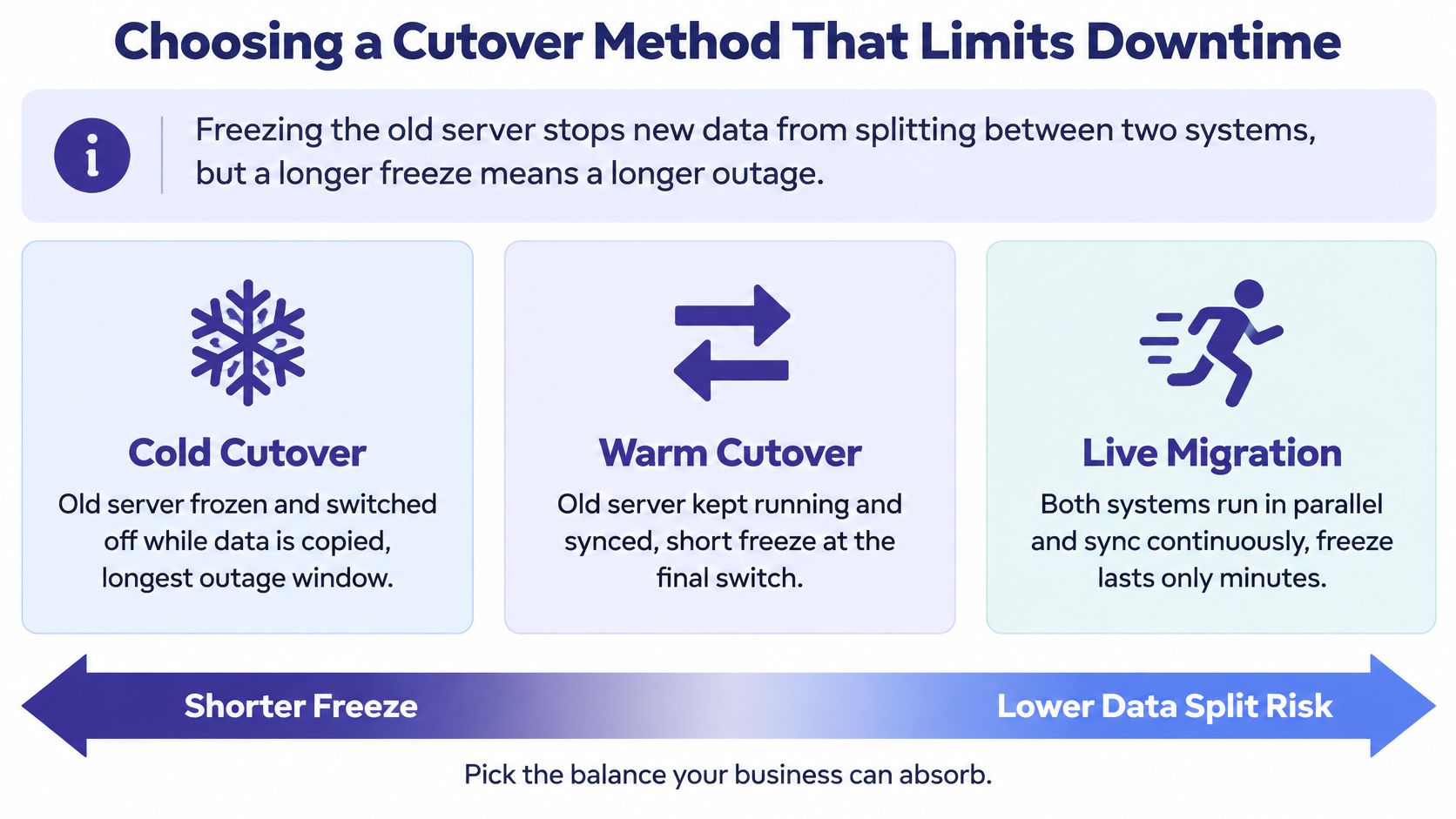
Cutover is the point when users start working on the replacement environment. Freezing changes on the old system prevents new transactions from splitting between environments, but a longer freeze means a longer interruption.
The diagram illustrates the difference between copying during an outage and synchronizing before the switch.
| Method | How It Works | Typical Downtime | Risk Level |
|---|---|---|---|
| Big-bang cutover | Writes stop, data is copied, and everyone switches together | Full copy, verification, and switching window | High concentration of risk |
| Phased migration | Applications or user groups move in waves | Interruption within each wave | More contained, if dependencies are separated correctly |
| Replication then switch | Changes are continuously copied before the final switch | Final synchronization and validation window | Requires close synchronization monitoring |
| Blue-green | A parallel replacement environment receives user connections | Switching and validation window | Easier switching back, but data changes need careful handling |
Replication means continuously copying changes to the destination. Blue-green means maintaining separate existing and replacement environments; it doesn't automatically make database changes reversible.
AWS's database migration guidance describes offline migration sequencing and recommends testing, monitoring, and predefined rollback checkpoints. Don't promise a downtime duration until a rehearsal supports it.
A runbook is the ordered instruction sheet for the migration team. Record the maximum acceptable outage before approving the window, then include these actions:
Choose a window with technical and application support available. A weekend may protect working hours but leave little troubleshooting time before staff return.
For a visual companion to the cutover discussion, use this video.
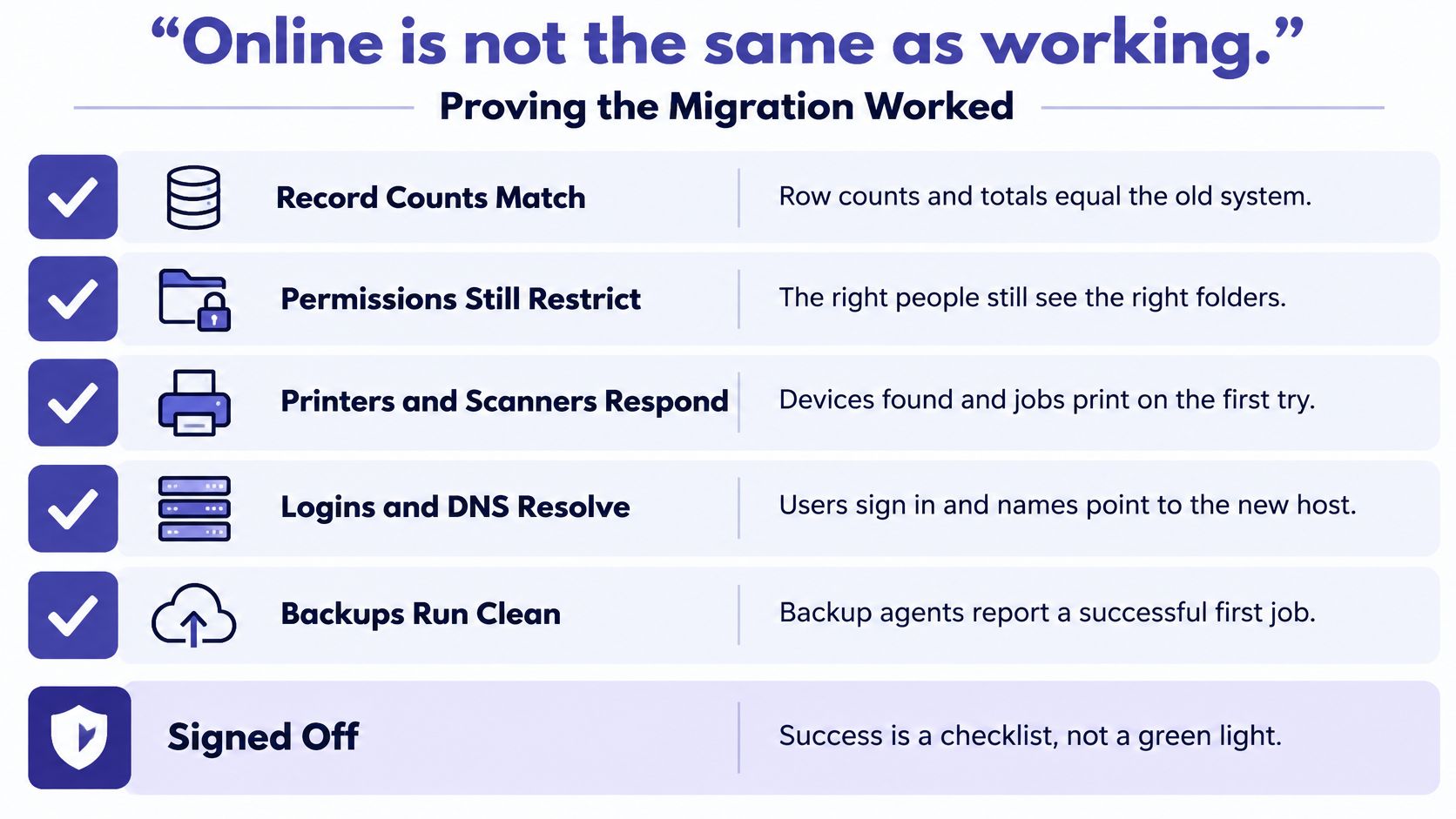
Online is not the same as working.
A server can respond to monitoring while staff remain unable to finish payroll or open client documents. Acceptance testing means demonstrating that the migrated environment supports agreed business tasks, not merely confirming that it starts.
Use a written test sheet with expected results and a named approver:
A structured user acceptance testing process gives office staff a defined role in approval. Have them test realistic tasks using appropriate protected test records, rather than asking whether the new desktop looks right.
Use the checklist as a visible sign-off aid, then verify recovery separately.
Only 54% of surveyed organizations that experienced ransomware restored data from backups, the lowest rate in six years, according to the Sophos State of Ransomware 2025 report. That doesn't mean every other backup failed, but it does show why you shouldn't equate having backups with demonstrated recovery.
Set a recovery time objective, how long the business can wait before service must resume. Also set a recovery point objective, how much recent work the business can afford to lose.
Test both by restoring a backup into an isolated environment, separate from live operations. Start the application, verify its records, and confirm that recovery instructions include access to necessary credentials and licensing.
Keep an immutable backup copy, one protected against alteration or deletion during its retention period. Restrict backup administration separately from ordinary user access, and make sure the recovery team can reach its instructions if the main login system is unavailable.
Schedule a quarterly recovery drill as a practical starting point, adjusting frequency to business risk and system changes. Record elapsed recovery time, missing dependencies, and whether recovered records meet the agreed recovery point.
Keep rollback criteria explicit: a failed payroll calculation, inaccessible confidential files, or an unexplained reconciliation difference may justify stopping. If users have already entered new transactions, the team must reconcile those changes before returning to the old environment.
Begin with a working inventory, not a shopping exercise. You can't estimate effort responsibly until you know which applications, connections, and business processes are involved.
Use this short first-move checklist:
Smaller firms may not have someone who can both map technical connections and validate restored applications. Assign those responsibilities explicitly, including who handles a failed test and who has authority to postpone the move.
Technical ownership and business approval are different jobs. Your IT adviser can confirm that a database is reachable; your payroll owner must confirm that payroll produces the correct result.
If you need managed operational support, we handle daily backups, server maintenance, updates, and user permissions through our Azure cloud management, one practical route among several.
Your first step is an inventory, not a purchase. Start by asking staff which task they couldn't complete if the server disappeared today.
Cloudvara's fully managed Workgroup Server includes server maintenance, daily data backups, and 24×7 support for the environment your business depends on. Visit Cloudvara to discuss your application inventory, access requirements, and migration priorities before choosing a hosting setup.