You're away from your desk, a client calls, and the question isn't simple. They need an invoice checked before a payment goes out, or they want to know whether yesterday's expense hit the right account, or they need a customer balance while you're walking into another meeting. In that moment, “quick access” to QuickBooks isn't a nice extra. It's part of how accounting work gets done now.
The problem is that QuickBooks on phone can mean two very different things. For QuickBooks Online users, there's the native mobile app. It's built for speed and convenience, and it handles a specific set of current-work tasks well. For firms that still depend on QuickBooks Desktop, the answer is different. They usually need remote desktop access to the full desktop application, because the phone itself isn't where the accounting power lives.
That distinction matters. A lot of frustration comes from using the wrong method for the wrong job. If you need to snap a receipt, check a customer record, or send an invoice from a parking lot, the mobile app is often enough. If you need the same workflow, reports, tools, and integrations you use in the office, the native app won't carry that load.
An accountant usually discovers the value of mobile access the hard way. It happens during travel, between client sites, or after hours when a controller wants an answer before the next business day. You don't need full bookkeeping from a phone every minute, but you do need reliable access to the right data at the right time.
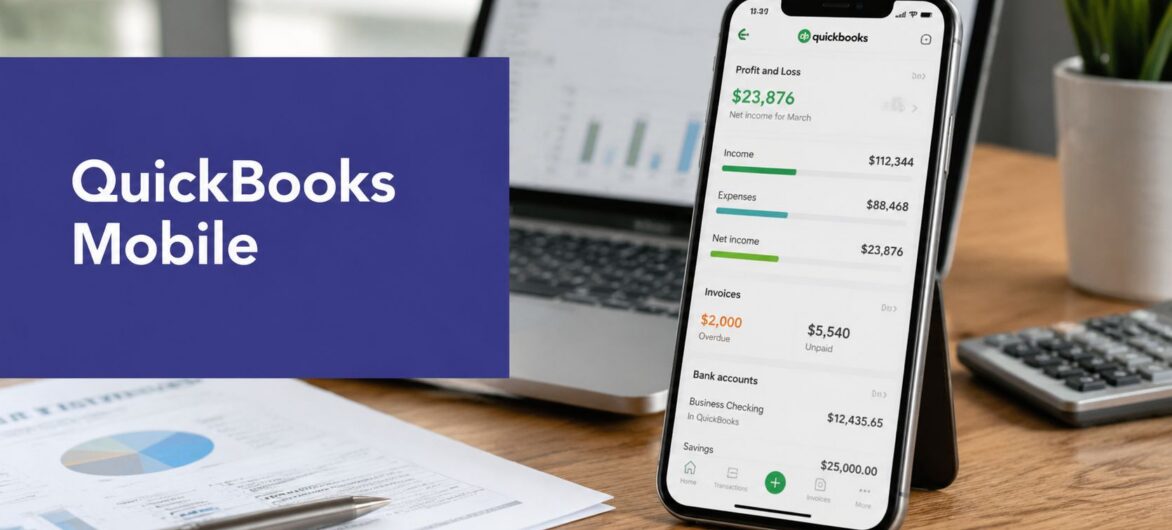
For QuickBooks Online, Intuit has positioned the mobile app as a real companion to the browser experience. Its mobile FAQ says users can view, create, and edit invoices, attach notes and photos to customers and transactions, add customer information from a phone or tablet, and keep data immediately synced with QuickBooks Online across devices on iOS and Android through the QuickBooks mobile FAQ from Intuit. That's useful when your workday doesn't happen in one chair.
What accountants need from phone access falls into two buckets:
Practical rule: Mobile access should reduce delay, not lower control.
That's where the decision starts. If your firm already works inside QuickBooks Online, the native app may fit a portion of your daily workload. If your staff depends on QuickBooks Desktop, the main question is whether you need a true desktop session from a phone instead of a simplified mobile tool.
Firms that are rethinking where accounting work happens often end up revisiting the broader shift toward cloud-based operations. If that conversation is happening in your office, this simple guide to cloud accounting is a useful starting point.
The QuickBooks Online app works best when you treat it like a transactional field tool, not a miniature replacement for your full accounting environment. It's good at capturing information while it's fresh and moving simple tasks forward before they become backlog.

Intuit states that QuickBooks Online can be accessed on iOS or Android, and that updates to customer, expense, estimate, invoice, payment, and sales receipt records become immediately available across devices in the QuickBooks Online mobile access support article. That immediate sync is one of the app's biggest strengths. It also means a rushed mobile entry can hit the ledger just as quickly.
The strongest use cases are practical and narrow.
The app is strongest when the task is current, simple, and time-sensitive.
For accountants serving specialized organizations, mobile convenience still needs to be matched with industry-specific workflow judgment. Teams working with charities and associations often need more nuanced setup around classes, restrictions, and reporting, so a resource like QuickBooks for nonprofits helps frame where QuickBooks Online fits and where extra care is needed.
The trouble starts when users assume mobile equals full parity. It doesn't.
Intuit explicitly says the mobile app and web browser are complementary experiences, and that mobile features may differ. That's why firms should validate exact tasks such as invoice creation, receipt capture, GPS mileage tracking, or voice notes before replacing browser-based workflows, as noted on Intuit's QuickBooks mobile page.
In practice, the app is not where I'd want staff handling more delicate accounting work such as:
The firms that use QuickBooks on phone effectively usually follow a simple pattern:
| Task type | Best tool |
|---|---|
| Receipt, photo, note, quick invoice | QBO mobile app |
| Review with full context | Browser |
| Complex accounting work | Desktop or full browser session |
That operating model keeps the app useful without asking it to do work it wasn't designed to handle.
If your firm runs QuickBooks Desktop, the native mobile app isn't the answer. The practical solution is remote desktop access to the actual desktop program running in a hosted or remote environment. That gives you the same software you use at your desk, just viewed through a phone.
Many accounting professionals still rely on Desktop-specific workflows. They use versions such as Pro, Premier, Enterprise, or Accountant because they need familiar menus, established add-ons, industry-specific habits, and deeper control over day-to-day bookkeeping. A stripped-down mobile experience won't cover that.

The cleanest way to think about it is this. Your phone becomes a window, not the workstation.
QuickBooks Desktop runs on a remote server or hosted environment. You connect to that environment using a remote desktop client on your phone. The data and application stay on the remote system. You interact with the full desktop session from wherever you are.
That approach changes the mobile conversation completely. Instead of asking, “Does the app have this feature?” you're asking, “Can I comfortably use the full desktop interface from a small screen for this task?”
The core benefit is simple. You get the actual desktop program, not a mobile approximation.
That means you retain:
For firms evaluating hosted deployment, a page like hosted QuickBooks Desktop access shows the model clearly. The key idea isn't novelty. It's continuity. Staff don't have to relearn QuickBooks just because they're away from the office.
If your work depends on QuickBooks Desktop features, the phone should extend the desktop. It shouldn't replace it with something narrower.
Remote desktop on a phone is powerful, but it isn't elegant for every task. The interface was built for a keyboard, mouse, and larger display. On a phone, buttons are smaller, reports are denser, and navigation takes more patience.
That doesn't make it the wrong choice. It means you should be honest about when it works best:
A lot of accounting teams settle into a realistic pattern. They use the phone for quick, full-access intervention and save heavier data-entry or cleanup work for a larger device.
Phone-based accounting isn't just about software. It can also depend on hardware. For payment workflows, the QuickBooks GoPayment Bluetooth card readers are designed to pair with QuickBooks mobile apps and support EMV chip, magstripe, and contactless payments. The spec sheet also lists compatibility with QuickBooks GoPayment, the QuickBooks Accounting App, and QuickBooks Desktop 2018+ in the GoPayment reader spec sheet. That's a reminder that mobile accounting setups often include device pairing, not just app login.
When a desktop-dependent accountant needs mobile access, the winning pattern is usually selective use:
That's very different from trying to “do a whole day of accounting” on a phone. Remote desktop solves the functionality problem. It does not eliminate the screen-size problem.
Most firms don't need a philosophical answer here. They need a decision they can operationalize by role, workflow, and software version.

The first decision point is software. If your firm runs QuickBooks Online, the native app is the natural mobile option. If your firm runs QuickBooks Desktop and needs the same tools available outside the office, remote desktop access is the realistic route. Firms comparing those broader platform choices often benefit from a side-by-side view like this guide on the difference between QuickBooks Desktop and Online.
Intuit support notes that the QuickBooks mobile app only displays transactions from the past year for invoices and estimates, and older records require logging in through a mobile browser in the Intuit support discussion on older invoices and estimates. For accounting professionals, that's not a small detail. It shows the app is aimed at current, transactional work rather than deep historical review.
Remote desktop access doesn't have that same kind of mobile-specific feature boundary because you're using the full desktop environment. The limitation there is usability, not feature scope.
A short video can help clarify how firms think about remote connectivity in practice.
| Criterion | QuickBooks Mobile App | Remote Desktop to Hosted QuickBooks |
|---|---|---|
| Primary fit | QuickBooks Online users handling current tasks | QuickBooks Desktop users needing full program access |
| Functionality | Focused, mobile-friendly feature set | Full desktop functionality |
| Historical review | Limited for some invoice and estimate lookups | Full file access within the desktop environment |
| Ease of use on phone | Better on small screens | Usable, but more demanding on a phone |
| Setup | App install and login | Remote environment plus client setup |
| Best use case | Receipts, invoices, customer updates, quick checks | Targeted work requiring desktop-only tools |
Choose the mobile app when convenience matters more than depth. Choose remote desktop when depth matters more than convenience.
The right answer often isn't firm-wide. It's role-based.
A partner may only need to review, approve, and answer client questions on the go. The QBO app may be enough for that. A senior accountant dealing with desktop files, prior-period review, or specialized forms usually needs remote desktop access because the work itself doesn't shrink to fit the phone.
Mobile convenience expands exposure to lost devices, weak passcodes, and session hijacking risks, and unmanaged mobile access can reduce productivity if the firm doesn't enforce policy controls, as discussed in this video on mobile access risks and controls. For accounting firms, that means mobile QuickBooks access starts with governance, not app selection.

A lot of firms make the same mistake. They enable mobile access first, then try to bolt policy onto it later. That's backwards. The security model should be defined before the first employee signs in from a personal phone.
Every accounting firm using QuickBooks on phone should have a short list of requirements that aren't optional.
The mobile app and remote desktop model don't carry the same risk profile.
With a native app, convenience can blur boundaries between personal and business use. You need stronger discipline around mobile device management, account separation, and logout behavior. If the firm allows BYOD, the policy has to be explicit.
With remote desktop access, the phone often acts more like a terminal. That can reduce exposure because the accounting application and data remain in the remote environment rather than living locally on the device. A lost phone is still a serious event, but it's a different kind of event when the phone isn't the data repository.
Security stance: The safest mobile workflow is the one your staff can follow consistently under pressure.
For firms tightening policy beyond QuickBooks itself, broader guidance on securing your SaaS applications is helpful because many firms expose more than one cloud app through the same employee devices.
A practical mobile access policy should answer four questions:
Remote environments need controls too. Access methods, authentication steps, and endpoint discipline all matter. Firms using remote connectivity should document those expectations, and this overview of remote access security best practices is a useful reference point.
Most complaints about QuickBooks on phone fall into a few predictable categories. The good news is that they usually point back to tool choice, not user failure.
If you're using the mobile app and searching for an older invoice or estimate, the issue may not be you. The app isn't designed to mirror every historical lookup scenario. In those cases, use the browser-based workflow instead of wasting time trying to force the app to behave like a full desktop environment.
That's often because the mobile app and browser are meant to work together, not interchangeably. Intuit explicitly notes that they are complementary experiences and that mobile features may differ on its QuickBooks mobile page. If your team is trying to replace desktop or browser processes entirely with phone workflows, reset expectations before frustration turns into bad data entry.
This is common and it's not a product defect. Desktop accounting screens were built for larger displays. If the task involves dense reports, multiple windows, or frequent line-by-line edits, a tablet may be more practical than a phone. On an iPhone, firms using a remote desktop workflow should also look at access patterns optimized for remote desktop on iPhone.
Start with the basics:
Use the phone for speed, not for volume.
That's the cleanest conclusion. The QuickBooks mobile app is useful for current, fast-moving work. Remote desktop access is the better fit when you can't compromise on features. Firms run into trouble when they expect one method to do both jobs well.
If your firm relies on QuickBooks Desktop and needs secure mobile access without giving up the full program, Cloudvara is one option to evaluate. It provides hosted application access through remote desktop, which can let accountants open the same QuickBooks Desktop environment they use in the office from other devices, including phones.




