You’re away from your desk, a client needs an answer now, and the file you need lives inside your Windows office environment. For accountants, attorneys, nonprofit administrators, and owners of small firms, that moment isn’t unusual. It’s the reason rdp remote desktop iphone access has gone from a convenience to part of normal business operations.
Used correctly, an iPhone becomes more than a phone. It becomes a secure window into your desktop, your accounting application, your document system, and the exact work session you’d otherwise have to drive back to the office to reach. Used poorly, it becomes frustrating, slow, or risky. The difference comes down to setup choices, authentication, and a few practical performance adjustments that most generic tutorials skip.
A good mobile remote desktop session doesn’t feel like a workaround. It feels like continuity. You open your iPhone, sign in, and the same Windows environment you use at your desk is there, with the same folders, shortcuts, and line-of-business apps.
That matters most when work can’t wait. A CPA may need to review a prior return while traveling between meetings. A law office may need to pull a client document before a hearing. A business owner may need to approve something inside QuickBooks after hours. In each case, the iPhone isn’t replacing the desktop. It’s extending access to it.
RDP on iPhone isn’t new or experimental. One of the earliest iOS RDP clients, Remote Desktop – RDP by MochaSoft, was first released on April 23, 2009, and by 2026 its 17+ year history reflects how established mobile access to Windows has become, as shown on the MochaSoft App Store listing. That long track record is one reason professionals are comfortable relying on mobile remote access for real work, not just emergencies.
Practical rule: The iPhone works best as a secure access point to your existing desktop workflow, not as a separate mobile workflow you have to rebuild.
A key value for business users is consistency. If your desktop environment is already organized for tax prep, bookkeeping, CRM, document management, or Office work, RDP lets you keep using that setup instead of learning a stripped-down mobile app for each task.
If you need a quick primer on the basics behind the technology, Cloudvara has a plain-English explanation of remote desktop connection. The short version is simple. Your apps and data stay in the Windows environment, and your iPhone acts as the viewing and input device.
That’s why the right question isn’t whether iPhone remote desktop works. It does. The useful question is how to make it secure, reliable, and usable enough for professional work.
A typical first mobile login fails for ordinary reasons. The user has the wrong server name, an expired password, a missing gateway entry, or no authenticator app on the phone. For Cloudvara clients, the fix is rarely complicated, but the setup has to be exact from the start, especially if you will be opening hosted applications such as QuickBooks or Sage from an iPhone.

Get your connection details together before you install or open anything. That cuts out the usual trial-and-error cycle and makes it easier to tell the difference between a typo, a policy block, and a real connectivity issue.
Keep these items ready:
If your firm has stricter mobile access rules, review these remote access security best practices before rolling iPhone access out to staff.
The phone itself can be the weak point if it is outdated or loosely secured. Microsoft’s current iOS Remote Desktop client expects a supported version of iOS, so update the device first if it has been ignored for a while. In practice, that removes a lot of basic compatibility issues before you start testing credentials.
Run through these checks:
For regulated environments, treat the iPhone as a business endpoint. That means device lock, identity checks, and enrollment standards should be handled with the same care you would apply to a laptop. Guidance on secure mobile device authentication is useful here, even if your exact stack differs.
I see the same mistakes during first-time mobile deployments.
A careful setup on day one saves time later. It also reduces the risk of lockouts, repeated password resets, and weak mobile habits that create larger security problems once iPhone access becomes part of someone’s normal workday.
You are away from the office, a client needs a file from QuickBooks, and the only device in your hand is an iPhone. The connection has to work on the first try, and it has to open the right Cloudvara desktop, not the wrong Windows machine or an outdated profile.

For Cloudvara customers, that distinction matters. In many support cases, the app itself is fine. The problem is usually the target name, the gateway entry, or a saved credential that no longer matches the hosted environment. Microsoft’s iPhone client remains the standard choice for Windows RDP access, and as noted earlier, it continues to get practical updates that make daily business use more reliable.
Open the app and create a new PC connection. The labels can differ slightly by app version, but the fields you need are consistent.
Use the values from your Cloudvara welcome email or setup instructions, not the name of a desktop sitting in your physical office.
| Setting | What to enter | Why it matters |
|---|---|---|
| PC Name | Your assigned Cloudvara server or desktop address | This points the app to the hosted desktop you are approved to use. |
| User Account | Your business username and password | Your permissions inside QuickBooks, Sage, and other hosted apps depend on this account. |
| Friendly Name | A label such as “Cloudvara Accounting” or “Payroll Desktop” | Clear names prevent mistakes if you save more than one connection. |
| Gateway | Only if Cloudvara or your IT team supplied gateway details | Some environments require it for secure routing and session brokering. |
One character in the wrong field is enough to stop the login. I regularly see users enter the name of their office workstation instead of their assigned hosted desktop. On an iPhone, that mistake is easy to miss because the screen is small and autocorrect can interfere.
This is a policy decision as much as a convenience setting.
If your firm allows saved credentials in the app, sign-in is faster. If your firm handles financial records, client tax data, legal files, or donor information, asking users to enter the password each time usually gives better control, especially on personally owned phones. The right choice depends on your device management standards, whether the iPhone is company-managed, and how quickly you need to revoke access if the phone is lost.
For Cloudvara environments, I usually recommend keeping the profile saved but being cautious about storing the password locally unless the device is managed and protected to business standards.
The first session should be predictable.
A successful connection should place you inside the same hosted workspace you use from a laptop or office PC. If the desktop opens but the icons look too small, the connection is working. That is a mobile display setting issue, not an access issue.
If you want a broader overview of remote access across devices, Cloudvara also has a guide on how to access desktop remotely that explains the setup model beyond iPhone alone.
If you want a visual walk-through before you configure your own profile, this short video helps users see the basic flow on iPhone:
After the connection works, adjust the profile for the work you do.
Set a friendly name you will recognize quickly and keep the display focused on readability. On a small screen, clear text matters more than fitting every window control on screen at once.
Rotate the iPhone to a horizontal orientation before you start detailed work. That gives you more room for menus, data-entry fields, and dialog boxes. It will not turn an iPhone into a full workstation, but it does make short accounting tasks much more practical.
Name connections by business function. “Tax,” “Payroll,” and “Admin” are easier to identify than server names, especially when a user has access to more than one Cloudvara resource.
That small naming decision prevents a surprising number of support tickets.
Passwords still matter. They’re just not enough by themselves.

For regulated businesses, two-factor authentication should be standard for remote access. Tax firms, law offices, medical-adjacent organizations, and nonprofits all handle information that can’t be protected by a password alone. If a password is reused, phished, or exposed somewhere else, 2FA gives you another gate.
That matters because the risk is real. The source material provided for this article states that 2025 cybersecurity reports show 40% of data breaches involving mobile access stem from unpatched or poorly secured RDP connections, and it ties 2FA directly to reducing that exposure in environments with compliance obligations like GDPR or HIPAA, as discussed in this TSplus article on iPhone and iPad remote access.
The user experience changes slightly, but in a good way.
Instead of relying only on:
You also rely on:
That second step blocks a lot of the attacks that still succeed against password-only remote access.
Most users do well with a standard authenticator app such as Microsoft Authenticator or Google Authenticator. The exact enrollment flow depends on your organization’s policy, but the core process is familiar:
After that, the login becomes routine. Enter credentials, approve or enter the second factor, and continue into the Windows session.
Security controls should add a short pause, not a long detour. If 2FA feels painful, the setup usually needs tuning, not removal.
If your firm hasn’t turned this on yet, review the mechanics and policy considerations around remote desktop two-factor authentication. The point isn’t to add complexity for its own sake. The point is to stop stolen credentials from becoming a breach.
A remote session can be technically connected and still feel bad to use. On iPhone, performance comes down to restraint. Smaller display, touch input, and variable networks reward simpler session settings.
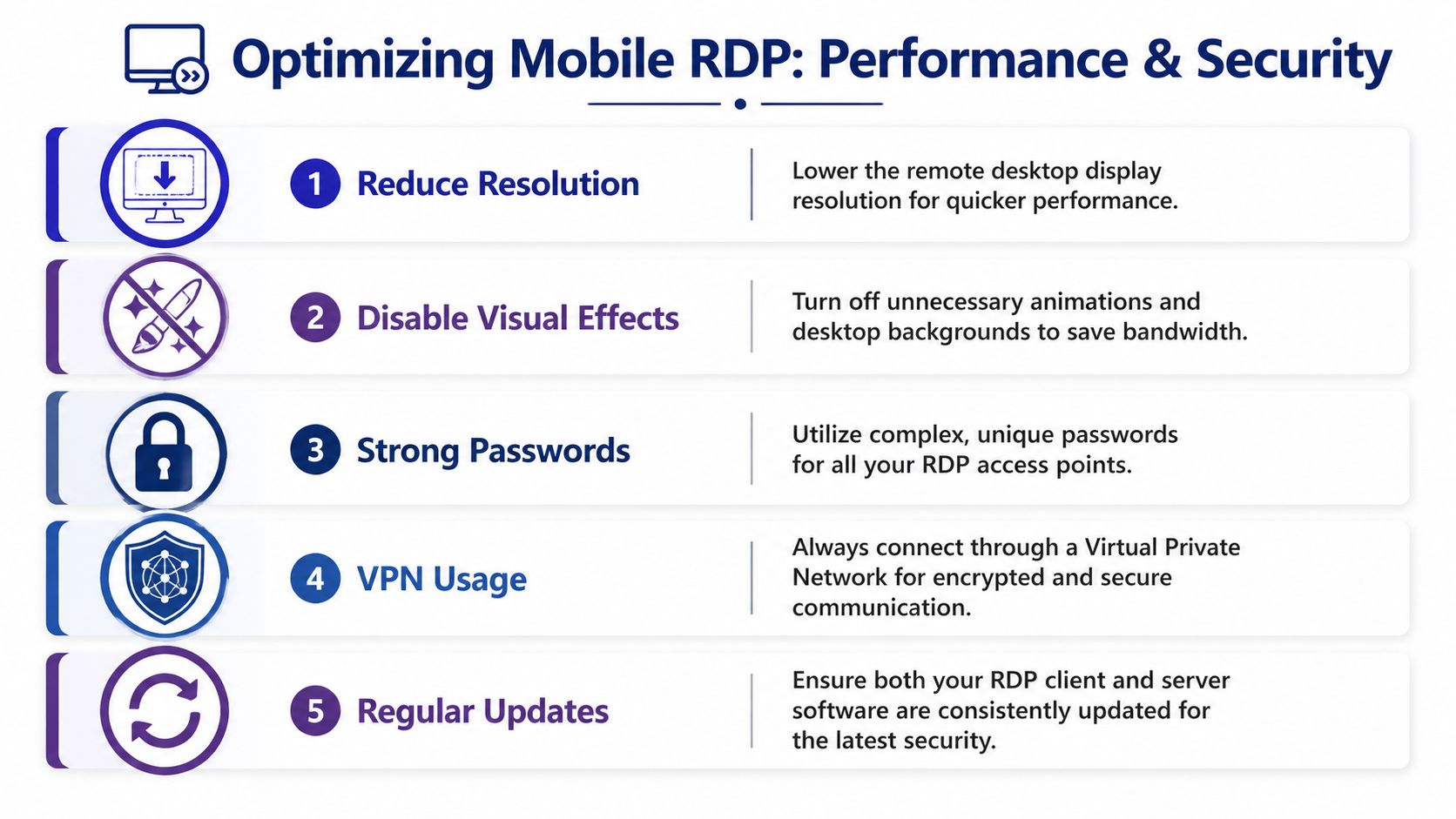
High resolution sounds better until you’re on mobile data trying to scroll through a spreadsheet. The source data for this article notes that adjusting a high-resolution iPhone display down to a remote session resolution of 1366×768 can reduce data consumption by 40-60%, according to G2’s remote desktop statistics overview. That’s one of the few tweaks users notice immediately.
If a session feels laggy, reduce the display burden first. Don’t start by assuming the server is the issue.
A practical sequence looks like this:
Not every mobile session should look the same.
If you’re checking a tax file, reading an email in Outlook, or confirming a number in QuickBooks, prioritize speed and legibility. Lower resolution and minimal visual effects usually win.
Users encounter friction most readily. Touch input on a Windows app isn’t impossible, but it’s less forgiving. Use zoom and pointer controls deliberately, and don’t expect desktop ergonomics on a phone-sized screen.
Security settings matter more than comfort. Use a VPN on untrusted networks, keep the phone locked when not in use, and avoid storing passwords inside apps unless policy allows it.
When users say “RDP is slow,” they often mean one of three different things:
| Symptom | Likely issue | First adjustment |
|---|---|---|
| Choppy scrolling | Too much display load | Lower resolution |
| Delay after tapping | Network latency | Test the connection quality |
| Blurry but responsive | Aggressive scaling | Fine-tune display settings |
If you suspect the network path rather than the app itself, basic network latency tools can help you tell whether the delay is coming from the connection and not the hosted desktop.
One platform option in this space is Cloudvara remote desktop settings guidance, which covers practical tuning choices for hosted desktop access. What matters most is the principle behind it. Remote work on iPhone gets better when you reduce unnecessary graphics, secure the transport path, and treat the phone as a business endpoint.
Mobile RDP performance is usually won by subtraction. Fewer pixels, fewer effects, fewer background variables.
Most iPhone RDP failures aren’t mysterious. They usually come from one of a few predictable causes: wrong destination details, bad credentials, blocked network traffic, or old saved settings inside the app.
Start with the basics before changing anything else.
Check these in order:
If the same account works elsewhere but not on the iPhone, the problem is often local to the connection profile.
A surprising number of login issues are simple typing problems on mobile keyboards. Re-enter the username manually, then re-enter the password carefully. If your organization recently changed password policy, old saved credentials may still be stored in the app.
Look for these clues:
This usually points to a network path or client configuration problem, not a broken desktop.
The source material for this article notes a common troubleshooting order for router-related failures: first confirm the server is reachable from a PC on the same network, then verify port forwarding rules, and only then configure the iPhone client, based on guidance reflected in App Store review discussions for the MochaSoft RDP app. That order matters because it isolates the fault instead of guessing.
That’s usually not a connection issue. It’s a usability issue. If text is too small, controls are hard to hit, or scrolling feels rough, adjust the session settings instead of rebuilding the profile.
Try this short reset:
If the session still behaves poorly after that, involve support with a clear description of the symptom, the network you used, and whether the same account works from another device.
If your team wants a hosted desktop environment that supports iPhone RDP access for applications like QuickBooks, Sage, Office, and document systems, take a look at Cloudvara. It provides remote desktop access, two-factor authentication, daily backups, and support for firms that need a Windows workspace available from practically anywhere without keeping an office PC running.




