A PDF that opens yesterday and refuses today usually lands at the worst possible moment, right when you need to sign, send, print, or review something fast. The good news is that most pdfs won't open problems aren't random, and they usually aren't proof that the file is ruined. They're usually a mismatch between the file, the viewer, and the environment around it.
The fastest way to stop guessing is to treat the failure like triage. First, ask whether the file is broken, whether the viewer is confused, or whether your permissions or environment are blocking access. Adobe's troubleshooting guidance makes the same point in practical terms, since PDF handling now passes through browsers, file associations, and installed readers that can all intercept the same file differently, and it specifically recommends changing the default app, adjusting browser PDF settings, and considering file size or optimization when a PDF won't open Adobe's PDF opening troubleshooting guidance.
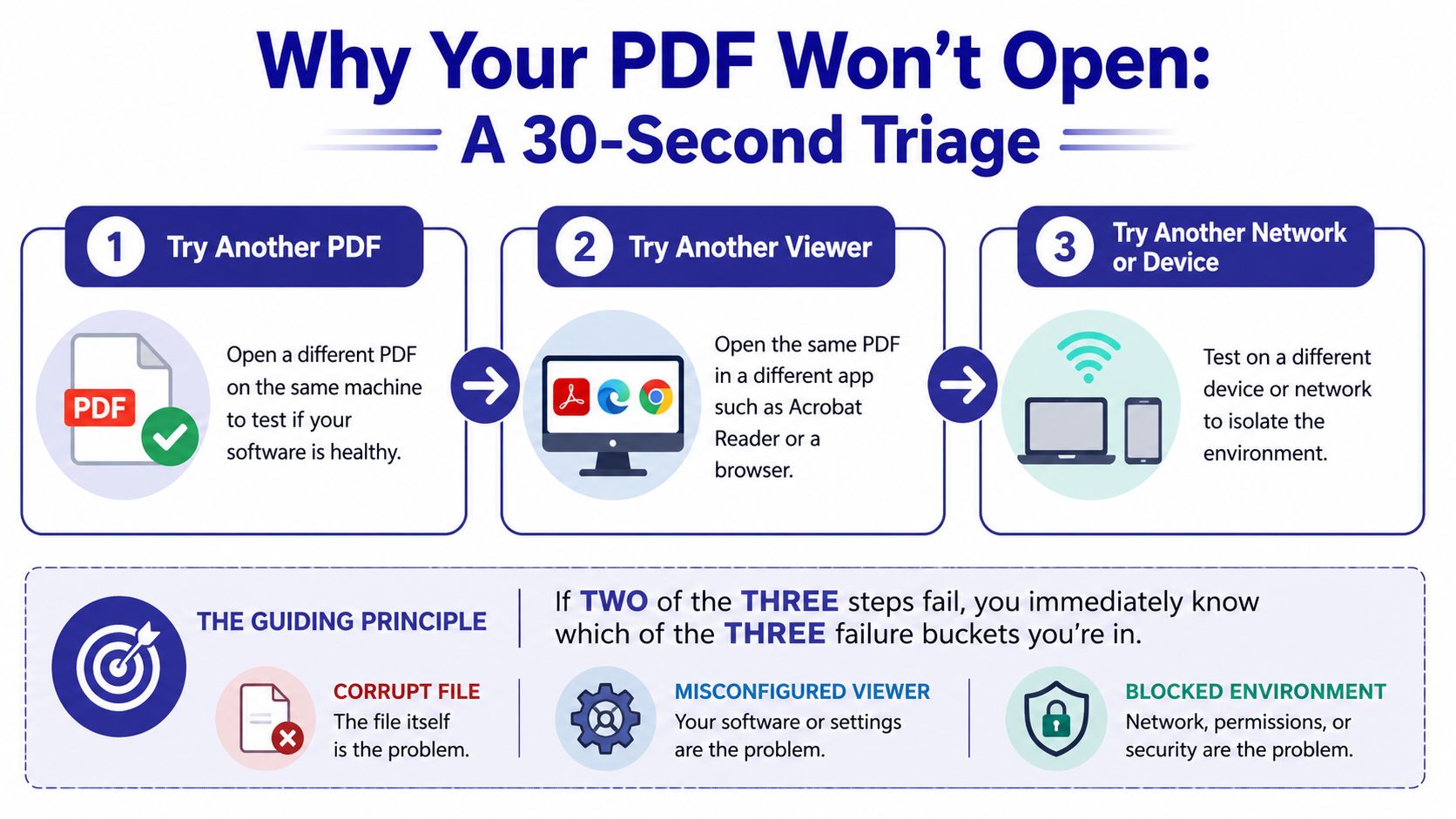
If you only remember one rule, make it this, test a different PDF, then the same PDF in a different viewer, then the same file on a different device or network. If two of those three fail, you've already narrowed the problem to one of the three buckets instead of burning time on the wrong fix. In document-heavy workflows, that kind of triage matters just as much as the software itself, especially when files move through shared systems and managed repositories like the ones described in this guide to document management systems.
The mistake many make is starting with the software they hate most. They reinstall Acrobat, clear caches, or blame the browser before proving whether the file itself is healthy. That wastes time because a single bad file can mimic a full system failure, while a broken viewer can make every PDF look suspect.
Open a different PDF on the same machine. If that file opens, your viewer and OS are at least partly healthy, and the original document becomes the prime suspect. If no PDF opens, stop focusing on the document and move to the app, browser, or system layer.
Next, open the same file in a different viewer. Adobe's guidance explicitly points users toward changing the default app and, in browser cases, adjusting settings like disabling PDF display in the browser or choosing another app for web PDFs Adobe Acrobat PDF troubleshooting. That matters because Chrome, Edge, Safari, Acrobat Reader, and the OS itself can all try to own the same file.
Practical rule: if the same file opens in one place and fails in another, the file is probably fine and the viewer is the problem.
A third test helps when the first two are inconclusive. Try a different device or a different network location, especially if the PDF lives in a hosted app or shared drive. If the file works elsewhere, the issue is local, not universal, and you can stop treating it like a corrupted document.
One more thing. Adobe notes that file size and rendering complexity can matter, and that files at 4 MB or larger may need optimization to behave reliably in some situations Adobe Acrobat PDF troubleshooting. That doesn't mean large files are bad. It means they deserve more suspicion when older viewers or thin clients struggle.
A PDF that refuses to open is not always a viewer problem. Sometimes the file was cut off during download, exported badly, renamed from something else, or damaged before it ever reached your machine. Start with the file itself, because no viewer repair can rescue a file that is incomplete.

Open the document in a plain text viewer or inspect the beginning of the file if you can. A real PDF starts with the header %PDF-. If that header is missing, the file may be mislabeled, truncated, or converted badly, which points to file integrity trouble instead of a viewer issue.
That check matters because a file can keep the .pdf extension and still not be a valid PDF. I have seen email gateways, cloud sync tools, and manual renames leave users with something that looks right but will never open correctly. Adobe and Microsoft both advise checking the document for corruption and comparing it with another PDF that opens normally Adobe and Microsoft PDF troubleshooting guidance.
Re-export or re-download the file from the source if that is available. If the document came from a form, scanner, or office app, generate a fresh copy rather than trying to salvage the old one. If the file came from a build process or document workflow, a clean export is often faster than trying to repair a broken copy later. If you need to recreate the source document, a guide to reinstalling Microsoft 365 can help when the export tool itself is unstable.
File size gives another useful clue. A file that is unexpectedly small may be an empty export or an interrupted transfer. A very large PDF may open in some viewers but stall in weaker ones, especially on thin clients or older hardware. Adobe also notes that larger files can need optimization before they behave reliably in some situations Adobe Acrobat PDF troubleshooting.
If the file was received from an external source, check whether it was modified in transit. A rename alone does not break a PDF, but a transfer that strips part of the content often does. In cases where the document might have been affected by system issues or unwanted software, Nerds 2 You Edmonton repair help is a useful reference point for broader cleanup before you keep troubleshooting the file.
Windows creates more PDF confusion than you might expect because the operating system, the browser, and Adobe all want to control the .pdf extension. When the wrong app grabs the file, the result can look like corruption when it's really just a bad association. That's why the first fix should be simple and local, not dramatic.

Right-click the PDF, choose Open with, and pick a specific viewer instead of letting Windows guess. If the file opens, the old default was the problem, and you should set the working app as the default for .pdf files. Adobe explicitly recommends assigning a specific app as the default on Windows rather than relying on whatever currently intercepts the file Adobe Acrobat troubleshooting for Windows and macOS.
If the file still won't open, move to repair. Adobe's repair workflow through Control Panel > Programs and Features > Change > Repair is the targeted fix worth trying before a full reinstall Adobe Acrobat troubleshooting for Windows and macOS. It's faster, preserves more of your setup, and often clears the install-level corruption that appears after updates or partial upgrades.
After that, update the reader. An outdated application can fail on newer PDF features even when the document is fine. If you've already confirmed the file opens elsewhere, updating the viewer is usually a better use of time than hunting for imaginary file damage.
For browser-based PDFs, change the browser behavior too. Adobe's support guidance points users toward browser settings such as disabling Display PDF in browser or choosing another PDF application when web PDFs fail to load Adobe Acrobat PDF opening guidance. Clear the browser cache and disable extensions one by one if the PDF downloads correctly but fails inline.
If you're also dealing with suspicious pop-ups, broken browser behavior, or a machine that suddenly changed its defaults after a cleanup, a local technician who handles broader machine health can help separate a PDF issue from a larger system problem. For that kind of hands-on diagnosis, Nerds 2 You Edmonton repair help is a useful reference point.
A final Windows-specific note. If the same apps that open PDFs started misbehaving after another suite was installed, repaired, or removed, the file association chain may be tangled beyond a single app reset. In that case, the same troubleshooting logic used when rebuilding an office app setup, such as the process outlined in this Office 365 reinstall guide, is a good mental model, fix the installer and the default path before assuming the data is bad.
Apple devices usually fail more subtly than Windows. The file looks fine, the app opens, and then nothing happens, or Preview shows a blank response that makes the PDF seem damaged when it isn't. On mobile, the failure often comes down to whichever viewer the device chose behind the scenes.
On Mac, Preview handles most PDFs well, but stale caches or Quick Look issues can make a file seem unreadable. A restart often helps more than people expect, and dragging the file into a fresh Preview window can bypass a weird state without changing anything else. If you've installed a third-party reader, check Open With and Get Info so you know which app owns the .pdf extension.
That ownership detail matters because macOS can shift defaults after app installs or updates. If a file opens in one app but not another, the document may be fine and the app state may be the only problem. A clean default reader plus an updated app solves a lot of the confusion that looks mysterious at first glance.
On iOS and iPadOS, PDFs from Files or Mail often open in a simplified viewer that handles basic pages but struggles with more demanding forms or encrypted content. Installing a full-featured reader like Acrobat Reader and setting it as the default can resolve a lot of those complaints. If the file came from Mail, try saving it into Files first, then opening it from the app that should own the document.
Android adds another layer because device makers often customize file managers. A PDF can appear to belong to one app while another handler is intercepting it in the background. If one file manager fails and another opens the same document cleanly, the problem is probably the viewer path, not the file.
A reliable mobile fix is usually boring, install the right reader, update it, and confirm the default app really changed.
If your workflow lives partly in cloud storage or remote access on Apple devices, this gets even more important. The guidance in Cloudvara's virtual desktop overview for Mac is a helpful reminder that the remote environment matters as much as the local app when a PDF behaves differently across devices.
When a PDF lives inside a hosted application, a remote desktop session, or a mapped network drive, local fixes often miss the underlying failure point. The document may be intact and the viewer may be fine, but the environment around it can block access or break rendering. That's why permissions, path behavior, and session state matter so much here.

Check read access first, not just folder visibility. In app-controlled directories, you can often see a folder without having the permission needed to open the file inside it. That's a common pattern in legal, accounting, and other document-heavy systems where Windows Explorer doesn't tell the full story.
Then copy the PDF locally and try again. Files that fail over a mapped drive sometimes open fine once they're on the machine, which points to network timing or drive handling instead of corruption. Deep folder paths and special characters can also trip older viewers or hosted apps, so a file that works in one directory may fail in another.
Remote desktop profiles can get stale or partially corrupted. Signing out fully, clearing temporary files, and reopening the session can restore PDF viewing without any change to the file. If a hosted app uses its own internal viewer, also check whether it's configured to hand PDFs off to an external application, because mismatched viewer settings are a frequent cause of blank or stalled opens.
For teams working through remote desktop blocks or connectivity oddities, Throughwire's notes on overcoming RDP blocks are a useful companion when the session itself seems to be part of the problem.
If you're centralizing software in a managed environment, the hosting layer matters too. The way remote desktop hosting services are configured can affect whether a file opens cleanly, slowly, or not at all, especially when the app and the viewer don't agree on who should handle the PDF.
The easiest PDF problem to fix is the one you never create. Most recurring failures come from a small set of habits that make file associations drift, reader installs age out, or shared files lose their shape on the way to the recipient. Prevention is mostly housekeeping, but it saves a lot of emergency work later.
Use one default PDF reader and keep it updated. Adobe's repair and update guidance exists for a reason, and outdated readers are a reliable source of odd behavior after operating system changes Adobe Acrobat troubleshooting for Windows and macOS. If you only ever open PDFs in random browsers, you're making trouble harder to diagnose.
Keep the .pdf extension attached to the filename. Files renamed to something like ContractFinal without an extension become support tickets waiting to happen, especially after email clients or file sync tools touch them. A clear extension also makes it easier for the right app to claim the file.
When you send PDFs to clients or coworkers, preserve the original file instead of letting tools re-compress or convert it on the way out. If the sender tested one version and the recipient receives a different one, troubleshooting starts in the wrong place. Shared folders need the same discipline, with a clear location and naming standard so people don't dig through duplicate copies.
Simple maintenance rule: repair or update the reader before you're under pressure, not after a deadline exposes the problem.
The same idea applies to document systems. A predictable storage structure makes it much easier to spot when one file is wrong and when an entire path or user profile is drifting. That's why teams that follow document management best practices usually spend less time chasing PDF failures in the first place.
Some PDF failures are yours to fix, and some really aren't. The trick is knowing when you've already done the useful checks and when another round of tinkering is just delaying resolution. Escalate when the file opens elsewhere, your viewer has been repaired and updated, and the same problem still happens on one machine, one profile, or one hosted session.
Save the exact error message or a screenshot. Note the viewer and version you used, plus the file's size and source. Those details let support reproduce the issue faster, and they prevent the classic support loop where you're asked to repeat tests you already completed.
If the document lives in a hosted app or remote environment, the support team may need to check session logs, profile state, or application-level settings that you can't see from the user side. That's normal. It's also why a well-prepared handoff often gets resolved faster than a dozen separate local fixes.
A good escalation also tells the story of what you already ruled out. If the same PDF opened on another device, say that. If another PDF opened locally, say that too. Those two facts usually separate file corruption from viewer confusion very quickly.
For organizations that rely on outside helpdesk coverage, Networking2000's outsourced IT support overview is a useful example of the kind of support structure that can shorten these handoffs when users are stuck.
The fastest path isn't always a local fix. Sometimes it's getting the right person to inspect the right layer, whether that's the reader, the user profile, the hosted app, or the network path in between.
If PDF failures keep interrupting your work, Cloudvara helps teams run their applications in a stable cloud environment with centralized access, backups, and support designed for business continuity. If you want fewer file-association surprises and a cleaner path for document-heavy workflows, visit Cloudvara and see how their hosting can reduce the friction around the PDFs your team depends on every day.




