
You're probably here because you have a Mac on your desk, a SQL Server database somewhere in the office or cloud, and one simple question: how do I use SQL Server Management Studio on macOS?
That question comes up a lot in small businesses. An accounting firm may need to check a table in a practice management system. A law office may need to verify a case database backup. An operations manager may just need to run a query, export results, or confirm that a scheduled job completed.
The short version is that SSMS itself doesn't run natively on a Mac. But that doesn't mean you're stuck. It means you need to choose the right method for your team's skill level, security requirements, and tolerance for maintenance.
SQL Server Management Studio is a Windows-only application. Microsoft states that SSMS is available only as a 32-bit application for Windows, and Microsoft recommends Azure Data Studio for other operating systems, including macOS and Linux, in its SSMS product documentation.

That's the direct answer to the mac os sql server management studio question. There is no native SSMS for macOS. If someone tells you there's a Mac installer for SSMS, they're either confusing it with another tool or pointing you toward an unsupported workaround.
For most small businesses, that's not bad news. It just changes the decision. Instead of trying to force a Windows admin tool onto macOS, you pick one of two practical paths:
Practical rule: If your staff needs “open the database, run a query, export to Excel,” use a Mac-friendly client. If they need SQL Agent, security wizards, or deeper server management, use Windows for the admin session.
A lot of people also need a reliable way to reach the server once they've chosen a tool. If you need a quick refresher on how to connect MSSQL, that guide is useful because it walks through the practical connection details rather than abstract theory.
For less technical teams, it also helps to understand the Windows session itself. A simple explanation of remote desktop connection makes the later options much easier to evaluate.
The key point is simple. You can manage SQL Server from a Mac. You just won't do it with a native copy of SSMS installed directly on macOS.
If your team wants a familiar windowed app on macOS, start here. For many business users, a modern GUI tool is the easiest answer because it avoids Windows licensing, virtual machines, and remote desktop setup.
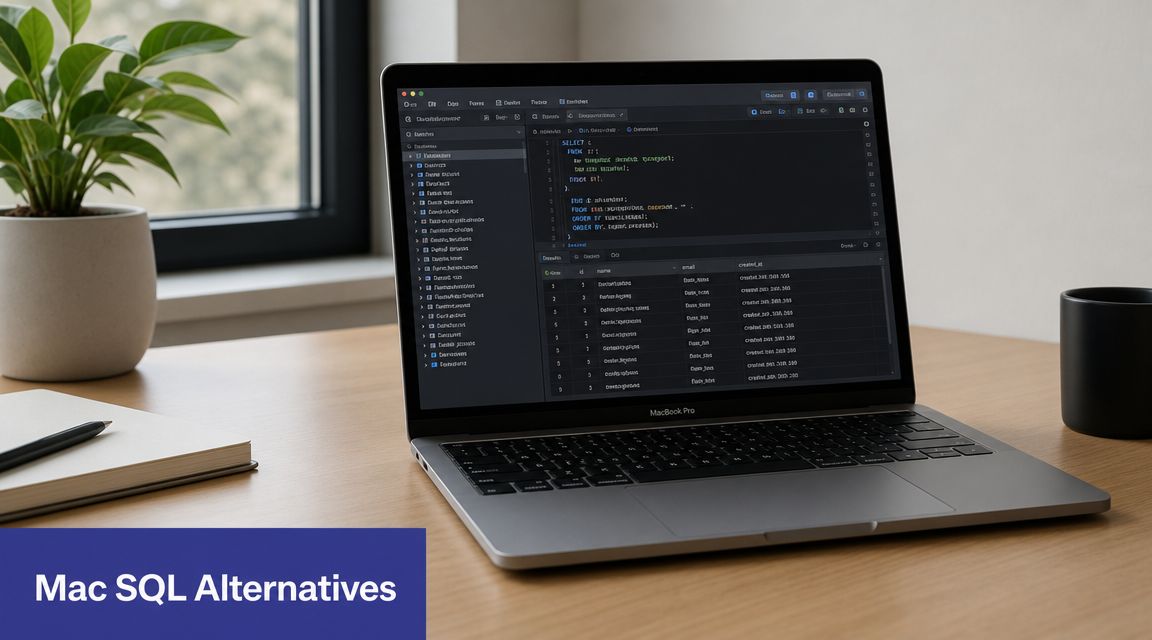
Azure Data Studio became the obvious recommendation for Mac users because Microsoft's own guidance for non-Windows operating systems points people away from SSMS and toward cross-platform tooling. It runs on macOS, and it gives you a clean interface for connecting to SQL Server, browsing databases, and running queries.
For a small office, that matters because the interface is lighter than traditional SSMS. Staff can usually handle routine work without seeing dozens of administrative panels they'll never use.
Common tasks that fit Azure Data Studio well:
A typical connection uses the SQL Server host name or server name, the port, SQL authentication if required, and the target database. In practice, many teams test the connection first, then save it so non-technical users don't have to re-enter details every time.
DBeaver is often the better fit when your team doesn't live only in Microsoft systems. If you connect to SQL Server today, but also touch MySQL, PostgreSQL, or another platform tomorrow, DBeaver gives you one desktop tool for many databases.
That flexibility is useful in smaller organizations where one person wears several hats. The office manager who checks a SQL Server report may also need access to another system maintained by a vendor.
Here's the trade-off in plain English:
| Tool | Best for | Main strength | Main limitation |
|---|---|---|---|
| Azure Data Studio | Microsoft-focused teams | Clean SQL Server workflow on Mac | Not full SSMS parity |
| DBeaver | Mixed database environments | Broad database support | Can feel more generic |
If your team wants a broader operational checklist around permissions, backups, and routine care, these database management best practices are a useful companion to whichever client you choose.
Neither Azure Data Studio nor DBeaver is a one-for-one copy of SSMS. That's the important mindset shift. They're not trying to recreate every Windows-specific administration feature.
They're best when your users need practical access, not deep DBA tooling.
For many offices, the right question isn't “How do we recreate SSMS on Mac?” It's “What's the simplest tool that lets our staff do the work safely?”
This walkthrough gives a visual feel for the kind of Mac-based database workflow many users prefer:
Why these tools are attractive
Where they fall short
If your office mostly needs visibility into data, these GUI tools are often the least painful place to start.
Some teams don't want “close enough.” They need the Windows SSMS interface because their workflow depends on specific features, or because a software vendor gives support instructions only for SSMS on Windows.
That's where virtualization makes sense. You run a full Windows virtual machine on your Mac, install SSMS inside that VM, and work as if you were on a Windows PC.
This approach fits situations like these:
According to the Arm64 guidance discussed by BornSQL, SSMS 22 runs natively on Arm64 Windows, and for Mac users who need full SSMS feature parity, running Windows on Arm in a VM is the most reliable path. That same guidance also notes that setup may require enabling TCP/IP in the registry and configuring mixed-mode authentication because the normal GUI path may not fully cover network enablement in these scenarios, as described in this Windows on Arm SSMS setup guide.
At a practical level, the process is usually:
The hidden work is usually in configuration, not installation. A firm can get Windows running in a VM fairly quickly, then lose time on authentication mode, network access, or permissions.
The VM route is the closest thing to “real SSMS on a Mac,” but it's still a Windows machine running inside your Mac. You're carrying the weight of both systems.
A VM is often the best option for a power user, but not always the best choice for a whole office.
Pros
Cons
If you're evaluating hosted or local virtual environments more broadly, this overview of virtualization with VMware helps frame the operational side.
For a single advanced user, virtualization can be a solid answer. For a front office team, it's often more moving parts than they want.
A small office usually tries Docker after hearing it is the quickest way to get SQL Server running on a Mac. In practice, it is usually the quickest way for a technical user to create a test environment. It is rarely the simplest option for an accounting manager, legal assistant, or office admin who just needs reliable database access.
Docker works well for one specific job. It lets you run SQL Server locally in a container on macOS, then connect with a cross-platform tool such as Azure Data Studio or DBeaver. That setup is useful for testing imports, checking a script, or reproducing an issue without touching the live database.
The attraction is clear. You avoid a full Windows install, you can rebuild the environment quickly, and you keep the test system separate from your day-to-day Mac setup.
For consultants, DBAs, and technical admins, Docker can save time. A local container is handy when you want to test a change, verify an application connection, or give a vendor a clean environment to work against.
It also makes sense if you are comparing lightweight local options. In some cases, a smaller edition such as SQL Server 2022 Express for local testing and small workloads may be enough.
Use Docker if you need:
The setup itself is only part of the story. Someone still has to handle container images, passwords that meet SQL Server policy, port mapping, storage persistence, and connection troubleshooting. Those are normal tasks for IT staff. They are a poor fit for front office users who expect software to open and work.
There is also a support trade-off. If a Mac update, Docker update, or chip compatibility issue breaks the container, the office loses time diagnosing the platform instead of finishing payroll, billing, or document work. For a small business, that operational cost matters more than the appeal of a clever local setup.
Docker is a good tool for technical testing. It is not my first recommendation for daily business use on a Mac.
Use Docker when:
Skip Docker when:
For a single technical user, Docker can be efficient. For a small business team, it often adds more maintenance than value.
A common small business setup looks like this. The office runs a Windows-only accounting or case management workflow, but several staff members use Macs every day. They do not need a new database tool to learn. They need reliable access to the same SQL environment the business already trusts.
For that situation, Remote Desktop is often the cleanest fit. The Mac becomes the access point, while SSMS stays on a Windows machine that is built for it. That Windows machine can be an office workstation, a server, or a hosted cloud desktop.
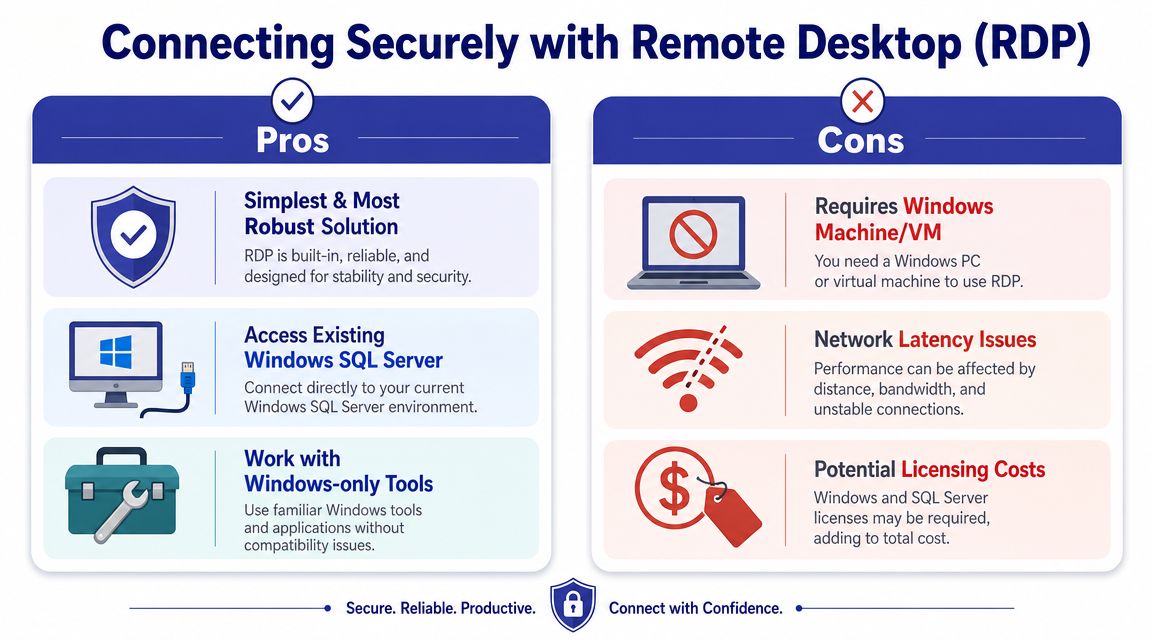
This approach works well for accounting firms, legal offices, and admin teams because it keeps the Windows-only pieces in one place. Staff can open the same SSMS interface the business already uses, without maintaining a VM on every Mac or asking non-technical users to troubleshoot local database software.
It also gives IT a simpler support model. Permissions, updates, backups, and security policies stay tied to the Windows environment instead of being scattered across employee laptops.
The practical advantages are straightforward:
The first option is to connect to a Windows system you already own. That usually works if the business has a dedicated workstation or server, and someone is responsible for patching Windows, managing user accounts, and locking down remote access.
The second option is a better fit for many smaller firms. Use a managed cloud desktop so Windows, SSMS, and the business applications live in a hosted environment maintained for that purpose. For non-technical teams, this usually reduces setup mistakes and makes onboarding easier.
A managed desktop also helps with continuity. If a local Mac fails, the staff member signs in from another device and returns to the same desktop. That matters more to a bookkeeper or office manager than the technical elegance of a do-it-yourself setup.
If your team needs help with the user side, this guide to connecting to Remote Desktop on Mac covers the basic process.
Remote Desktop still depends on a well-run Windows environment. Someone has to maintain the host, enforce strong access controls, and make sure remote connections are limited to approved users and devices. Security is part of the design, not an add-on after staff start connecting.
That is why I usually recommend Remote Desktop only when the business can support it properly, either with internal IT, a consultant, or a managed provider such as Cloudvara. For small business teams, that support cost is often easier to justify than the hidden time spent fixing local Mac workarounds.
If your company is also planning a server change, consolidation project, or hosted transition, Planning secure data moves for businesses is worth reviewing alongside your access plan.
For non-developers who need full SSMS from a Mac, Remote Desktop is often the option with the best balance of familiarity, control, and day-to-day reliability.
By this point, the right answer probably looks less like “Which Mac trick should we use?” and more like “Which workflow can our team support month after month?”
That's the right question. The best method isn't the most technical one. It's the one your staff can use consistently without creating security gaps, support headaches, or hidden maintenance work.
| Method | Ease of Use | Cost | Maintenance | SSMS Parity |
|---|---|---|---|---|
| Azure Data Studio | High for routine tasks | Low to moderate | Low | Partial |
| DBeaver | High for general database work | Low to moderate | Low | Partial |
| Windows VM with Parallels or VMware | Moderate for experienced users | Moderate to high | Moderate to high | Full |
| Docker with local SQL Server | Low for non-technical users | Low to moderate | High | No |
| Remote Desktop to Windows host | High for end users | Moderate | Low to moderate if managed well | Full |
The table points to a pattern many firms discover on their own. There isn't one universal winner. There are different winners for different job roles.
For office staff who run queries and exports
Choose Azure Data Studio or DBeaver. These are usually the cleanest choices when the goal is checking data, exporting records, or running saved SQL statements without deep server administration.
For a power user or consultant who needs the complete toolset
Use a Windows VM. This is the strongest match when one person needs actual SSMS features and is comfortable maintaining a Windows environment on a Mac.
For testing and technical experiments
Use Docker. It's useful when you want a local SQL Server instance you can create, reset, and discard. It's less attractive when your staff needs something stable and easy.
For a small business that wants the least friction
Use Remote Desktop to a Windows host, especially a managed cloud desktop. That keeps the Windows-only software in a Windows environment and gives Mac users a predictable way to access it.
No matter which path you choose, a few practices matter more than the specific tool:
If your team is moving data between systems or changing how applications are hosted, this guide to Planning secure data moves for businesses is worth reading before you start.
If you want the shortest version of the decision:
That last option is often the quiet favorite in small businesses because it balances usability, security, and supportability better than most DIY setups.
If your team wants SQL Server access from Macs without the hassle of building and maintaining Windows environments locally, Cloudvara offers a managed cloud desktop approach that keeps Windows applications, business software, and data in one secure hosted workspace. That's a practical fit for accounting firms, law offices, and small businesses that want reliable access with less day-to-day IT overhead.




