You're probably reading this on a day when your iPhone is doing real work, not casual browsing. Maybe you're approving payroll from a hotel lobby, reviewing a client agreement before a hearing, or logging into a hosted accounting app between meetings. In those moments, your phone isn't just a phone. It's a mobile endpoint touching sensitive business data.
That's why the question isn't just how to hide an IP address on iPhone. The better question is what level of protection fits professional work. For a small firm, solo practice, or finance team, the answer usually comes down to scope. Some iPhone privacy features reduce tracking in Safari. Others help obscure your network identity in limited ways. If you need coverage for mail, remote desktop, file access, and cloud apps, you need more than a browser setting.
A lot of consumer advice misses that distinction. For legal, accounting, and SMB use, the right setup has to protect confidentiality without breaking access to the tools you rely on every day.
A lawyer opens a settlement document on airport Wi-Fi. An accountant checks a client file from a coffee shop before a deadline. An office manager signs into a cloud dashboard from a conference center. In each case, the work looks routine. The exposure doesn't.
An IP address acts like a network identifier. It can reveal approximate location and helps outside services identify where traffic is coming from. If you handle client records, tax data, contracts, or internal financials, that visibility matters. It adds context an attacker, tracker, or untrusted network operator may not need to have.

For professionals, this isn't only about personal privacy. It's about client confidentiality, reducing unnecessary exposure, and making remote work harder to profile. If your team accesses hosted accounting systems, document repositories, or practice management tools from phones, you should treat network privacy as part of normal mobile security hygiene.
If you need a quick refresher on the underlying protocol, this overview of what is IP version 4 gives useful technical context without getting lost in theory.
Practical rule: If you'd hesitate to open the file on an untrusted laptop, don't assume an iPhone on public Wi-Fi is automatically safe just because it's an Apple device.
For firms in regulated industries, IP masking should sit alongside stronger controls like app permissions, secure authentication, and staff training. Accountants, in particular, should think about mobile access as part of a wider security posture, not a separate issue. This guide on cyber security for accountants is a useful companion if your phone regularly touches financial systems.
Apple gives iPhone users a few native ways to reduce IP exposure. They're useful, easy to enable, and worth turning on. But they don't all do the same thing, and that's where many business users get tripped up.
The two built-in options that matter most here are iCloud Private Relay and Safari's Hide IP Address behavior. Apple also provides Limit IP Address Tracking controls at the network level for Wi-Fi and cellular.

Apple says iCloud Private Relay routes Safari traffic through two separate internet relays when iCloud+ is enabled, and users can set IP Address Location to “Maintain General Location” or “Use Country and Time Zone”. Apple also says the feature prevents websites from seeing the user's IP address and exact location while preventing network providers from collecting Safari browsing activity. Apple positions it as part of iCloud+ privacy tools, not as full-device anonymity, and it's limited to Safari traffic rather than all internet use on the phone, as described in Apple's iCloud Private Relay support guide.
That last point is the one professionals need to remember. If you're using Safari to browse a website, Private Relay can help. If you're using a hosted bookkeeping app, a remote desktop client, a mail app, or a line-of-business app outside Safari, you shouldn't assume the same protection applies.
If you already have iCloud+, this is usually worth enabling for day-to-day browser privacy.
For professionals, the location setting matters. Maintain General Location tends to be more practical when a service expects your traffic to come from the same broad area. Use Country and Time Zone is more privacy-oriented but can sometimes create friction with location-sensitive services.
Apple also documents a Safari setting to hide your IP from trackers. On iPhone, the practical path is Settings → Safari → Hide IP Address → From Trackers, as summarized in this guide on how to hide an IP address with and without VPN.
This is helpful, but narrow. It's designed to stop known tracking domains in Safari from seeing your real IP. It is not the same as changing your device-wide IP identity.
Turn this on even if you use stronger tools elsewhere. It reduces casual tracking in Safari with almost no downside.
Apple also provides Limit IP Address Tracking controls on Wi-Fi and cellular connections. That matters if you want to manage IP masking by network instead of treating it as a single global switch. In practice, this is useful when one network behaves well with privacy features and another doesn't.
Use Apple's features as a baseline, not as your full mobile security plan.
A sensible order looks like this:
If your iPhone only browsed the web, Apple's built-in controls might be enough. But that's not how professionals use phones. They open Outlook, remote desktop apps, file portals, VoIP tools, CRMs, cloud accounting platforms, and document systems. Once work moves beyond Safari, a VPN becomes the more reliable choice.
A VPN changes the conversation from browser privacy to device-wide protection. That's the key distinction. When you need to hide IP address on iPhone in a way that covers business apps, not just web browsing, a VPN is the tool that usually fits.

A VPN routes your phone's internet traffic through the VPN provider before it reaches the destination service. That means the app or website you connect to sees the VPN's exit point instead of your direct network identity.
For professionals, that changes the risk profile in useful ways:
That broader coverage is what makes a VPN far more practical for legal and accounting work on the go. If you're opening hosted Windows apps, accessing client documents, or reviewing financial records from a mobile device, browser-only privacy isn't enough.
Not every VPN is suitable for business use. Some are built for streaming or casual personal privacy. That's not the same thing as protecting sensitive work traffic.
Use this checklist when evaluating providers:
If you want a grounded buyer's checklist from an SMB angle, this article with expert insights from Finchum Fixes IT is a solid place to compare practical considerations.
A VPN that users hate will not stay enabled. In small businesses, usability is a security control.
VPNs aren't magic. They improve privacy and security, but they can also introduce friction.
A few issues come up regularly:
| Concern | What it means in practice |
|---|---|
| Speed changes | Traffic takes an extra hop, so some slowdown can happen |
| Login alerts | Business apps may flag a new location or unusual network |
| Compatibility issues | A few services behave poorly when they detect VPN traffic |
| User workarounds | Staff may disconnect the VPN if setup is confusing |
Those trade-offs are manageable when the setup is intentional. Choose a stable provider, document when staff should use it, and test your critical apps before rolling it out widely.
Here's a useful explainer if your team is weighing full remote desktop access against network tunneling options like a VPN: VDI vs VPN.
After the policy discussion, it helps to show users what this looks like in practice:
For small businesses, I'd treat VPN use on iPhone as mandatory in these situations:
If the task is sensitive and the network isn't fully under your control, a VPN is usually the right default.
VPNs are the best all-around answer for professional iPhone use. Still, there are niche cases where other tools make sense. The important part is knowing what they do not do.
A proxy can place another system between your iPhone app or browser and the destination service. That may mask the apparent source of a request, but a proxy usually isn't the same as a full-device encrypted tunnel.
That difference matters. If your goal is secure access to cloud files, bookkeeping apps, or legal systems, a proxy is usually too limited on its own. It may help with a specific workflow, testing scenario, or location-sensitive web request, but it's not what I'd recommend as the default for firms handling confidential data.
A proxy can be reasonable when:
A Tor-based browser such as Onion Browser can provide stronger anonymity for browser activity, but the speed and usability cost is real. For non-urgent, high-sensitivity research, that trade-off may be acceptable. For normal business work, it usually isn't.
If you're trying to review hosted documents, work in a browser-based accounting system, or keep a remote desktop session stable, Tor often becomes frustrating fast. It's a specialist tool, not a standard business tool.
Use Tor for anonymity-heavy browsing tasks that can tolerate delay. Don't use it for routine client work that depends on speed and predictable sessions.
| Method | Best for | Main drawback |
|---|---|---|
| VPN | Daily professional use across apps | Can add some friction |
| Proxy | Narrow routing tasks | Limited protection |
| Tor browser | High-anonymity browsing | Slow and less practical |
If your work depends on a hosted Windows environment or mobile remote access, stability matters as much as privacy. In such scenarios, a more predictable setup beats clever workarounds. For teams using phone-based remote access, this guide to RDP remote desktop on iPhone is useful background.
Turning on a privacy setting isn't the same as verifying it works. I've seen plenty of users assume they were covered because a toggle was enabled, even though their actual traffic still exposed more than they expected.
The fastest way to check is a simple before-and-after test. First, note what public IP an IP-checking website reports before you enable your privacy tool. Then enable your VPN or Apple privacy setting and check again. If nothing changes, you need to look closer.
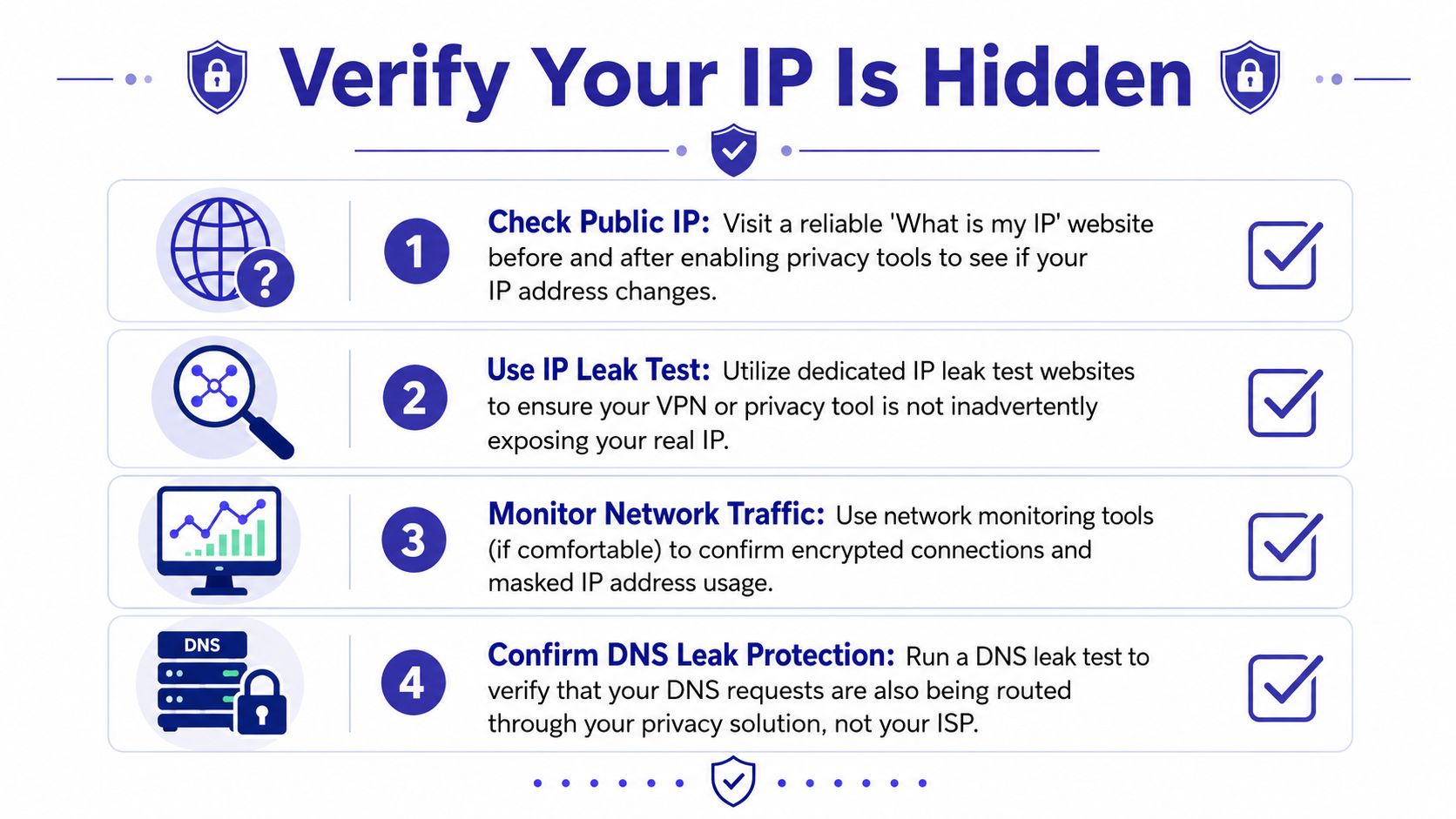
You're looking for evidence that the destination no longer sees the same network identity it saw before.
That usually means:
If you enabled only Safari protection, remember the limitation. Apple's Safari guidance says the setting to hide IP from trackers stops known tracking domains from seeing your real IP, but it “won't hide your IP from every website”, as described in Apple's Safari privacy guidance discussed in this Apple privacy video reference. That's exactly why verification matters.
A changed IP is a good sign, but it isn't the whole story. You also need to think about DNS leaks and browser-related exposures such as WebRTC leaks.
In plain terms:
You don't need to become a network engineer to test this. Use reputable leak-testing websites and compare results with the VPN off and on. If the traffic still appears tied to your normal provider or original network context, your setup needs attention.
Don't verify privacy in theory. Verify it on the exact connection type and the exact app workflow you use for work.
That last point is important. A setup that behaves properly on office Wi-Fi may act differently on hotel Wi-Fi or cellular data.
When professionals ask how to hide IP address on iPhone, they're usually asking a bigger question. They want to know how to safely access cloud-hosted work from wherever they happen to be. The answer isn't one setting. It's a stack of habits.
For legal, accounting, and SMB teams, the safest pattern is simple. Use Apple's native privacy controls as a baseline, then use a reputable VPN whenever the work involves sensitive systems or untrusted networks. That combination gives you lighter browser privacy for everyday use and stronger app-level protection when increased protection is required.
This matters most when your iPhone acts as a front door into a larger cloud environment. If you're connecting to bookkeeping platforms, tax applications, legal files, or internal desktops, your phone becomes part of the firm's security perimeter. That's why remote access policy should cover mobile devices explicitly, not just laptops. This overview of how to secure remote access is a useful reference for building that policy.
What works is a layered approach. Browser privacy settings reduce some exposure. VPNs protect more of the phone's actual business traffic. Strong authentication and disciplined app permissions close the obvious gaps.
What doesn't work is relying on one partial feature and assuming the job is done. Safari tracker protection is helpful. It is not the same thing as full professional-grade traffic protection. A free or unreliable VPN can also create a false sense of security if users disable it, ignore warnings, or route around it when it gets in the way.
For cloud-hosted business data, reliability is part of security. If the secure method constantly breaks, staff will find an insecure one that works.
The right standard for a small business owner is straightforward. If the task involves client information, internal financials, or privileged access, use the setup that protects the entire session, not just the browser tab.
If your firm needs a more secure way to access QuickBooks, Sage, document systems, CRM tools, or other business applications from any device, Cloudvara provides hosted cloud environments built for remote work, security, and day-to-day reliability. It's a practical option for teams that want simpler access control, stronger continuity, and less dependence on fragile local office infrastructure.




