Your bookkeeper opens a client's tax workbook in Excel, emails a summary through Outlook, and puts the file in a shared folder for a partner to review. Everything feels like one system until someone asks which subscription you need, whether the files are backed up, or why a new employee can't open the same applications.
Those are sensible questions. Understanding what Microsoft applications are starts with the tools themselves, but choosing them for a business also means understanding licenses, hosting, and access to sensitive information.
Microsoft applications are productivity and business software for writing, spreadsheet analysis, presentations, email, and collaboration. Think of them as a toolbox: each tool handles a different job, but employees often use several to complete one piece of work.
In the bookkeeper's workflow, Excel holds the calculations, Outlook carries the correspondence, and shared storage gives the partner access to the workpaper. The applications are separate, even when the employee moves between them using the same business account.
That toolbox developed gradually. Word, Excel, and PowerPoint began as separate programs before Microsoft bundled them into Office for Macintosh in 1989, according to Microsoft's history of Word. Bringing document creation, numerical analysis, and presentations together made the suite useful across different business roles.

Today, the term includes both desktop programs installed on a device and cloud-connected services delivered through Microsoft 365. That distinction matters because an installed application and the service supporting it aren't necessarily the same purchase.
The right bundle therefore isn't a universal list. It's shaped by your employees' jobs, your license entitlements, and where you want the software to run.
Use this quick reference to identify the application behind each business task.
Core Microsoft applications and their business jobs
| Application | Core job | Typical business use | Where it runs |
|---|---|---|---|
| Word | Writing and document creation | Engagement letters, proposals, contracts | Desktop and cloud |
| Excel | Spreadsheets, calculation and analysis | Tax workpapers, budgets, financial models | Desktop and cloud |
| PowerPoint | Presentations | Client and board presentations | Desktop and cloud |
| Outlook | Email, calendar and contacts | Client correspondence and scheduling | Desktop and cloud |
| Teams | Chat, meetings and calls | Remote client meetings and team channels | Cloud service |
| OneDrive | Personal and shared file storage | Working files synced across devices | Cloud service |
| SharePoint | Team sites and document libraries | Shared client folders and internal sites | Cloud service |
| Exchange Online | Hosted mailboxes | Business email with central administration | Cloud service |
| Access | Relational databases | Client, case or donor tracking databases | Desktop |
| Power Automate | Workflow automation | Approval routing and recurring data tasks | Cloud service |
Word, Excel, and PowerPoint handle different kinds of content. A law firm might draft an engagement letter in Word, calculate a matter budget in Excel, and explain a proposed service arrangement in PowerPoint. Using Excel for a long policy document is possible, but Word is the more suitable tool because the main job is structured writing, not calculation.
Outlook, Teams, and Exchange Online support communication. Outlook is the application employees open to manage messages and appointments. Exchange Online is the hosted mailbox service behind Outlook email for many business accounts, so they're related but not interchangeable. Teams provides a shared place for conversations and remote meetings.
OneDrive and SharePoint organize files. Think of OneDrive as an individual's working storage and SharePoint as a team's document library. For a client folder that must remain available when an employee leaves, choose an organization-managed shared location rather than leaving the only copy in that employee's working files.
Access and Power Automate address more specialized needs. Access can support a structured donor-tracking database; Power Automate can route a document to an approver. Neither should be added just because it appears in a catalog.
“Cloud service” describes the underlying service, not necessarily the absence of an installed client. Employees can use a Teams application on their computers while their conversations depend on the online service. Likewise, syncing a OneDrive folder doesn't turn OneDrive into a standalone desktop storage system.
For a department-specific example of organizing these tools around work, Microsoft 365 for HR teams from HR Management 365 provides useful context. Firms considering a centralized desktop environment can also review Office 365 cloud hosting when assessing access requirements.
Practical test: List the applications your employees actually open during a normal workday. Mark each as desktop, cloud, or both, and record what they use it to accomplish.
Follow an engagement letter through a hypothetical approval process. An employee creates it in Word on a laptop, saves a working draft to OneDrive, moves the team copy into a SharePoint library, discusses its link in Teams, and submits it through a Power Automate approval workflow.
The diagram follows that sequence.

Microsoft's architecture guidance describes a connected environment of applications and services, rather than a single program. Employees interact with the applications; storage, email, identity, and automation services support their work underneath.
Microsoft Graph gives authorized software a consistent way to work with information across those services. It isn't another folder employees must manage. For a plain-language explanation of connecting business systems, see what application integration means.
Microsoft 365 Apps for enterprise uses managed update channels and administrative policies instead of relying solely on occasional manual upgrades. Hosting decisions must therefore account for updates, service connections, and the desktop features employees require.
Older files can introduce another dependency: embedded or linked objects. If your workbooks contain content from other programs, GoSafe Dark Web monitoring's OLE guide offers background on that mechanism.
This video provides additional context for the connected environment.
Before choosing a hosting arrangement, answer these questions:
Microsoft 365 plan limits by organization size
The business and enterprise limits below come from Microsoft's subscription and licensing guidance: Microsoft 365 Apps for business supports up to 300 users, enterprise plans have no stated user limit, and eligible users can install applications on up to five PCs or Macs, five tablets, and five phones.
| Plan type | User limit | Device installs per user | Best fit |
|---|---|---|---|
| Microsoft 365 Apps for business | Up to 300 users | Up to 5 PCs or Macs, 5 tablets and 5 phones | Small businesses and small practices |
| Microsoft 365 enterprise plans | No stated user limit | Eligible app licenses allow up to 5 PCs or Macs, 5 tablets and 5 phones | Mid-sized and large organizations |
Licenses are assigned per person, not per device. An eligible employee may use the applications across permitted devices, but that doesn't make their account a shared license for colleagues. Also, a plan that supplies desktop applications doesn't automatically include every email, collaboration, security, or AI service.
Consider these role-based requirements:
Some advanced compliance and AI capabilities require additional entitlements. Check the exact plan, add-ons, geographic availability, and administrative configuration rather than treating “Microsoft 365” as a complete feature specification.
Security also affects the buying decision. Microsoft's enterprise security guidance describes centralized identity, encrypted transport, and controls such as multifactor authentication and data loss prevention. Confirm which required controls your proposed licenses support.
When someone joins, assign the appropriate license and record their installations. When they leave, preserve required records, address mailbox ownership, and review whether to reassign the license or reduce the purchased quantity. Removing someone's access and stopping unnecessary billing are separate administrative actions.
Use a license register with the employee, subscription, renewal terms, and business purpose. These software license management practices help turn that register into a repeatable process.
Finally, distinguish a one-time Office purchase, which provides fixed desktop versions, from a Microsoft 365 subscription, which provides ongoing updates and the services included in that particular plan. Ask whether staff need subscription cloud services before comparing package sizes.
A smaller organization can begin by evaluating business plans, while a larger organization should examine enterprise options. Neither headcount nor the product name alone proves that a plan covers your work.
Three hosting options compared
| Option | Where the applications run | Who handles maintenance | Best fit |
|---|---|---|---|
| On-premises | Your own servers and office PCs | Your IT staff, for updates, backups and hardware | Strict rules that keep data in-house |
| Microsoft 365 cloud | Microsoft data centres for services; desktop apps run on the device where installed | Microsoft maintains cloud services; your administrator manages policy and app deployment | Mainly email, documents and collaboration |
| Hosted desktop | Provider's dedicated servers, accessed through Windows Remote Desktop | Hosting provider for servers, backups and updates | Desktop accounting or tax software used across devices |
The distinction is easiest to understand by asking who owns the daily maintenance work.
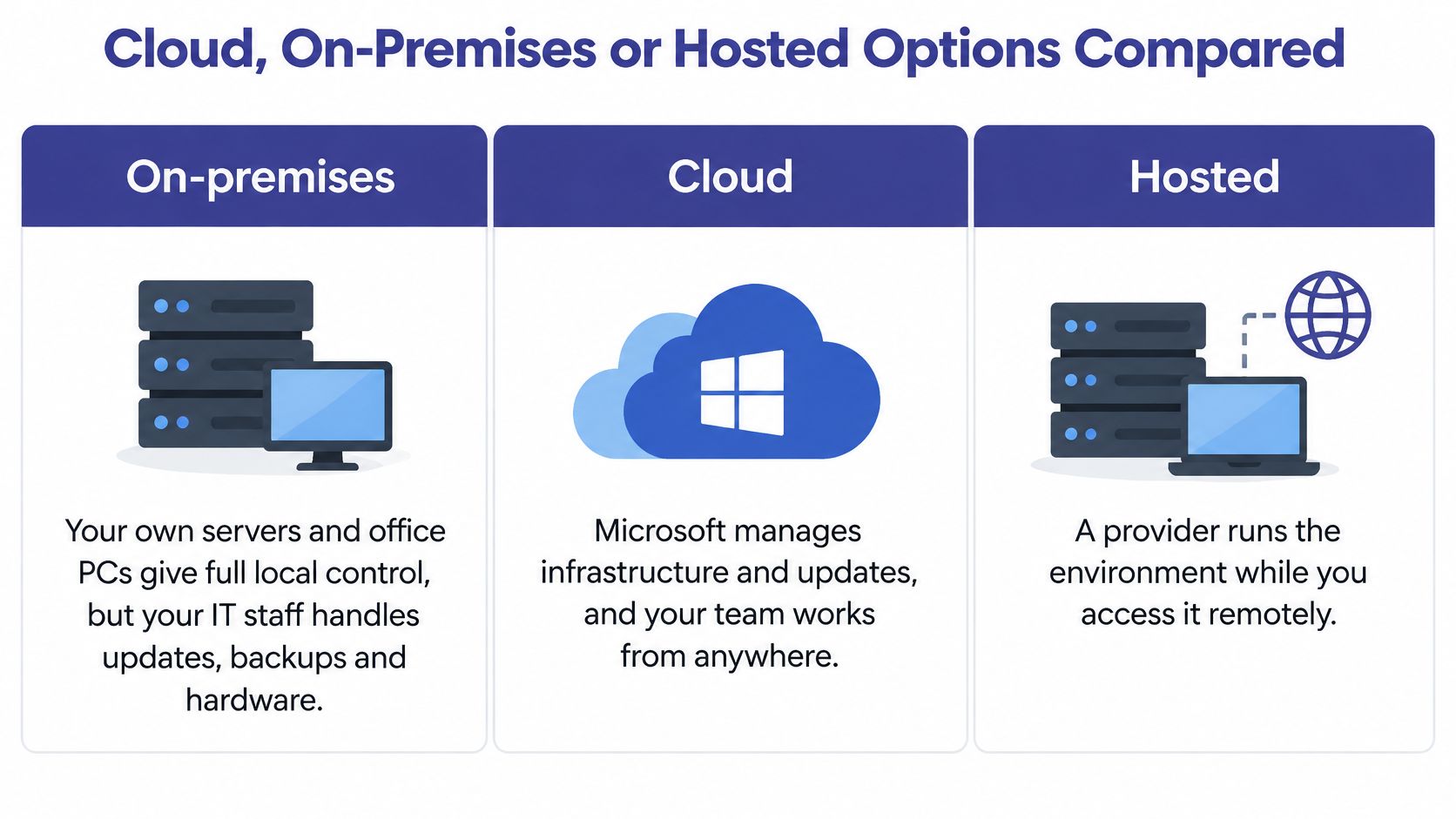
On-premises means your organization runs the relevant systems on its own hardware. That gives your IT team direct control, but someone must maintain equipment, install updates, check backups, and plan recovery. Keeping equipment in the office isn't, by itself, a security or continuity plan.
Microsoft 365 cloud places supported services in Microsoft's data centres. Employees access them through browsers or connected applications, while your administrator manages permissions and policies. Installing Word on a laptop still means that copy of Word runs on the laptop, even when its documents are stored online.
Hosted desktop puts desktop programs in a remotely accessed server environment. Employees work through Windows Remote Desktop rather than installing every business program on each endpoint. This can suit a practice whose tax software, accounting application, and Office documents need to remain together.
We host Microsoft Office and SQL Server on Cloudvara's dedicated infrastructure. Customers can access their software, files, email, and company data through an internet connection worldwide; under our Azure cloud management, we handle daily backups, server maintenance, updates, and user permissions.
Choose hosted desktop when the main requirement is remote access to desktop accounting or tax software alongside supporting applications. Favor Microsoft 365 cloud services when employees mainly need email, documents, and collaboration. Keep workloads on-premises when a documented requirement calls for in-house storage or processing.
A hosted desktop and Microsoft 365 cloud services aren't mutually exclusive. Decide where each workload belongs, then test how employees move between them.
A hybrid arrangement may be appropriate, but it needs clear responsibility for support and recovery. Use the same criteria when reviewing cloud solutions from Wisely: application compatibility, maintenance ownership, access, and data location.
For a broader evaluation, the cloud versus on-premise comparison can help structure the operational questions. Don't move a workload until you know how employees will print, open linked files, and complete their normal client work.
Productivity software isn't low risk because employees use it every day. An Excel workbook can hold a client's financial position, and a Word draft can contain privileged legal advice. The relevant question is who can retrieve, share, retain, or export that information.
Data risk and controls by application
| Application | Data it typically holds | Main risk | Control to set |
|---|---|---|---|
| Excel | Client financial and tax figures | Workbooks shared more widely than intended | Sharing limits and role-based access |
| Outlook | Client emails and attachments | Messages forwarded to the wrong recipient | Data loss prevention and retention rules |
| Teams | Chats and meeting recordings | Searchable communication kept beyond need | Retention policies and external access limits |
| SharePoint | Shared client folders | Over-broad library permissions | Least-privilege access by role |
| Word | Privileged legal or confidential drafts | Copies saved outside managed storage | Managed storage locations and labels |
Microsoft's secure productivity guidance identifies oversharing, data leakage, privacy, and authorized data access as concerns for AI-enabled work. Copilot can retrieve and summarize permitted information across connected content. If a user already has unnecessarily broad access, AI can make that information easier to find.
That doesn't mean AI automatically bypasses permissions. It means poor permissions remain poor permissions, even when employees interact with information through a new interface. Review shared libraries and sensitive folders before enabling features that make their contents easier to discover.
Routine collaboration can involve several sensitive sources at once.

Give employees access by role, require multifactor authentication, and restrict external sharing to approved situations. Set retention rules for email and Teams, enable appropriate audit logging, and document which information employees may use with AI features. Labels and policies need owners who will maintain them, not just an initial configuration.
Centralized sign-in through Microsoft Entra ID helps administrators apply consistent identity policies across connected applications. Use separate administrative accounts and review privileged access rather than giving everyday accounts unnecessary authority. These access control practices provide a useful operational checklist.
For example, when an employee leaves, disable their account that day, revoke active access where appropriate, and remove their folder permissions. Transfer responsibility for records instead of leaving the account available until the next scheduled review.
Governance standard: Treat access, retention, and offboarding as required operating controls for confidential work, not optional extras attached to an application purchase.
For tax practices, law firms, and nonprofits handling donor or beneficiary information, assign a named person to verify that those controls work.
Start with a task inventory, not a subscription checkout page. A useful inventory records what employees must accomplish, the software they use, and the information involved.
If you already own desktop software, don't assume a move requires replacing it. As an authorized reseller of Intuit and Microsoft products, we can help review licensing requirements before a deployment decision.
Our setup process creates a workgroup server and installs the applications a customer requires, enabling remote data access from internet-connected computers. The deployment still needs the appropriate application licenses and permissions.
Use a trial to complete an actual work cycle: open a client file, make changes, obtain a review, print the required output, and confirm access from the devices employees use. Begin with the inventory and a working test before changing licenses or retiring existing infrastructure.
Cloudvara offers managed hosting for Microsoft applications alongside the desktop business software your team relies on. Visit Cloudvara to discuss your application inventory and try the setup with a free 15-day trial, with no contract or credit card required.