If you're deciding between a VPN and remote desktop access, you're probably not debating abstract IT architecture. You're trying to answer more practical questions.
Can staff work from home without dragging client files onto personal laptops? Will QuickBooks, Sage, or case management software still feel usable on a weak home connection? If someone leaves the firm, can you shut off access cleanly without worrying about copies of sensitive records sitting on an unmanaged device?
That's where the VPN vs Remote Desktop decision happens. For accountants, lawyers, and nonprofit managers, remote access isn't just about convenience. It affects compliance, ransomware exposure, staff productivity, and how much day-to-day IT work your team takes on.
The short version is simple. VPNs are built for secure access to a network. Remote desktops are built for secure access to a workstation or hosted desktop session. Those are not the same thing, and the difference matters a lot when your work revolves around confidential financial records, legal files, and specialized business software.
A VPN (Virtual Private Network) creates an encrypted connection between a remote device and your office network. The easiest way to think about it is this: the employee's laptop stays where it is, but the connection makes that laptop behave more like it's inside the office.
That matters when people need broad access to shared resources. A VPN is often the right fit when staff need to reach file servers, internal web apps, printers, shared folders, or other systems that live inside the business network. Instead of giving someone one remote machine to control, a VPN extends the network itself to that user.

A proper business VPN is not the same as a consumer privacy app marketed for streaming or anonymous browsing. In a firm setting, the VPN's job is to protect traffic in transit and control who gets into the private environment.
That usually means:
For a small law office or CPA firm, this can be a clean solution if the core need is simple network access rather than a full remote desktop experience. A staff member can log in from home and reach the same internal folders and resources they'd use in the office.
Practical rule: A VPN works best when the user needs the network itself, not when the user needs a specific office computer.
VPNs are strong at breadth. They let one remote employee access multiple internal resources in one session. That's useful for administrators, operations staff, and firms with several internal systems.
But that flexibility creates responsibility. If the endpoint device is poorly managed, the VPN can become a path into the wider environment. For regulated firms, that raises an uncomfortable question. Once the remote user is connected, where is the data being opened, edited, downloaded, or stored?
Security guidance shifted sharply during the remote work surge. In a 2020 advisory, DHS recommended organizations use VPNs to protect RDP access, noting that a VPN-first approach can reduce susceptibility to external attacks by approximately 94% by hiding internal ports from public scanning tools, according to CISA's enterprise VPN security guidance.
Firms comparing older remote access setups can also look at how Citrix and VPN approaches differ in practice when security and application delivery both matter.
A remote desktop works differently. Instead of extending your office network to the user's device, it sends the user into a specific remote system. The employee sees and controls another desktop, while the applications, processing, and business data stay on that remote machine or hosted environment.
That model changes the risk profile in a good way for regulated work. When a lawyer opens client files through a remote desktop session, or an accountant runs QuickBooks on a hosted Windows desktop, the sensitive information can remain centralized instead of living on a home laptop.

For firms that handle tax returns, payroll records, trust documents, case files, or donor data, centralization is often the biggest advantage. Staff can work from a basic laptop, tablet, or thin client while core computing happens on the remote host.
That's useful in several common situations:
Specialized software stays in one controlled environment
QuickBooks, Sage, tax software, legal billing tools, and document management systems don't need to be installed and maintained on every employee device.
Sensitive files don't need to move
Users can review, edit, and save records without creating local copies on unmanaged endpoints.
Hardware demands shift to the server side
Staff can use lower-powered devices because the remote host does the heavy lifting.
Remote desktop use has become mainstream in business settings. According to an IDC study, 72% of global organizations now use remote desktop software, a 35% increase since 2019, driven by performance and security. The same IDC data says these solutions average 80 milliseconds of latency and are associated with a 58% reduction in security incidents compared with traditional RDP setups, as summarized by IDC.
That doesn't mean every remote desktop deployment is automatically safe. It means the model itself, when managed correctly, aligns well with the way professional firms work. Staff need the desktop, the application stack, and the data to stay together.
For a plain-language breakdown of how a session-based setup works, see this overview of remote desktop connection basics.
For accounting and legal teams, remote desktop isn't just about reaching a computer from home. It's about keeping client data inside a controlled environment while still letting staff work normally.
A straight VPN vs Remote Desktop comparison gets clearer once you stop asking which tool is “better” in general and start asking what each one gives your staff access to.
Here's the quick view first.
| Criterion | VPN (Virtual Private Network) | Remote Desktop (e.g., RDP, Hosted Desktop) |
|---|---|---|
| Access type | Connects a user's device to the business network | Connects a user to a specific remote desktop session |
| Primary use | Reaching shared network resources | Running apps and files on a remote machine |
| Data location | Work often happens on the local device after connection | Data and apps stay on the remote host |
| Security focus | Encrypts network traffic | Centralizes data and isolates the desktop session |
| Performance profile | Better for broad network access | Better for application-centric work |
| Scalability | More efficient for larger user bases | More resource-intensive per session |
| Typical fit | Teams needing access to many internal resources | Firms needing controlled access to software and records |
The visual below summarizes the same trade-offs from a business operations angle.
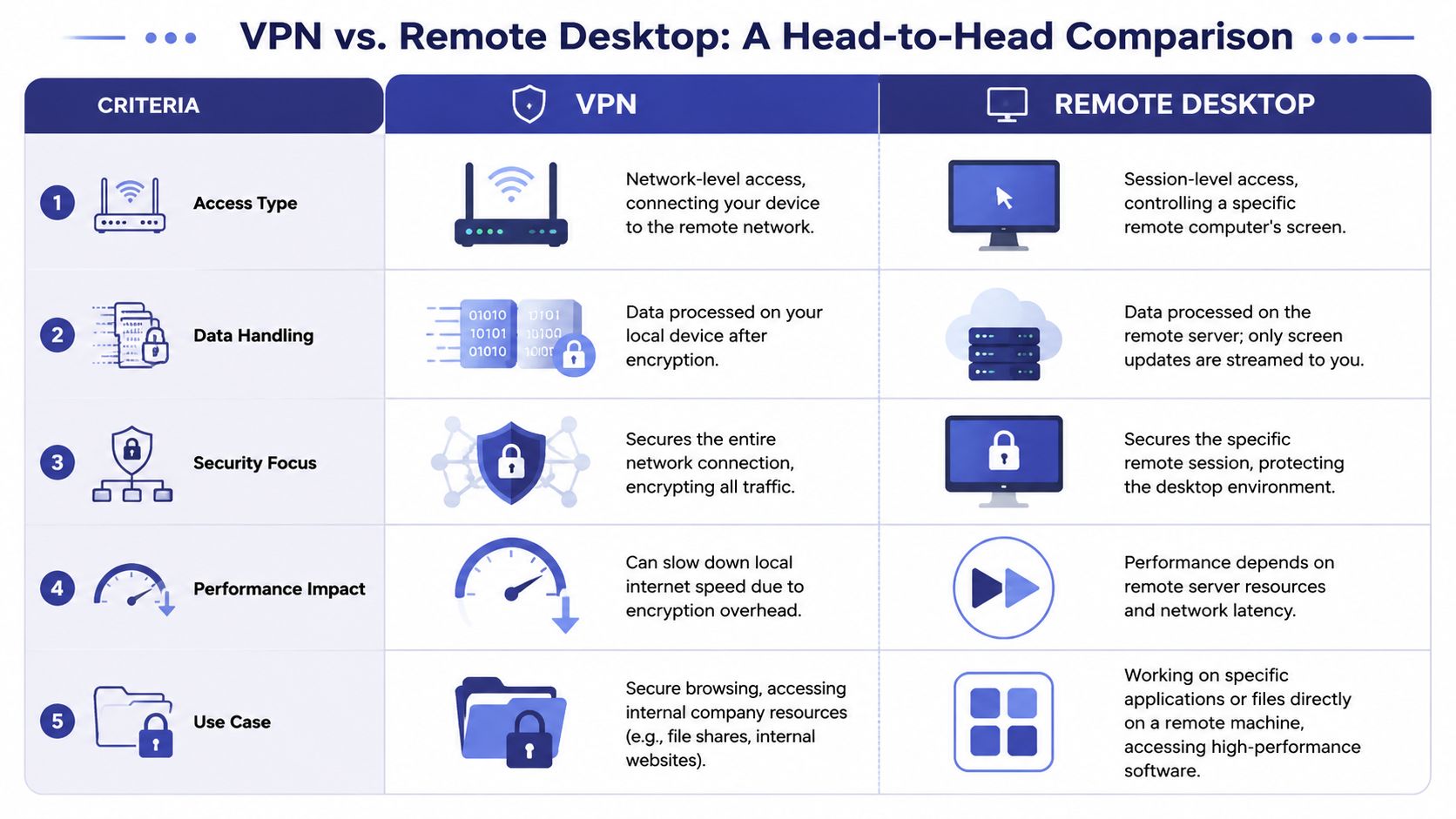
A VPN gives the user network-level access. After connecting, they can reach internal systems much like they would from inside the office. That's flexible, but it also assumes the local device is trusted and managed well enough to handle business data.
Remote desktop gives the user session-level access. They don't roam the entire network from their own machine in the same way. They enter a remote desktop and work there.
For a bookkeeper who needs QuickBooks and a file share, those are very different experiences. With a VPN, QuickBooks might still run locally if installed on the home machine. With remote desktop, QuickBooks runs in the centralized environment.
These tools protect different surfaces.
A VPN protects the connection between the remote device and the office network. That's valuable, but it doesn't automatically keep sensitive files off the endpoint. If the employee downloads, syncs, or opens confidential records locally, data has already left the controlled environment.
Remote desktop reduces that endpoint exposure because the applications and files stay on the host system. For firms that care about client confidentiality, that's often the deciding factor.
Still, remote desktop has a major warning label when misconfigured. Open RDP exposure has been a recurring entry point for ransomware, which is why firms should never confuse “we have a VPN” with “our remote sessions are fully protected.”
The performance trade-off surprises a lot of managers. For general network access, VPNs usually have the latency advantage. In comparative benchmarks, VPNs offer 20 to 50 milliseconds lower latency for general access, while RDP is more bandwidth-efficient for application-heavy workflows, requiring only 100 to 500 kbps sustained bandwidth, according to TechTarget's RDP vs VPN performance overview.
That means the “faster” option depends on the work.
A tax preparer spending hours inside one accounting stack often benefits from the second model.
A short explainer on alternative architectures can help here if you're comparing VDI vs VPN trade-offs.
Later in the evaluation process, it helps to see a product walkthrough in action.
VPNs can feel familiar to technical users. Connect first, then access network drives, web portals, and office resources. The downside is that the experience depends on the user's device, local software versions, and home environment.
Remote desktop is usually more consistent. Everyone enters the same managed desktop, with the same applications, settings, and file paths. That lowers support friction, especially in firms where not every employee is comfortable troubleshooting their own machine.
A remote access setup is easier to support when the desktop experience is standardized. That's one reason smaller firms often prefer centralized desktops over open-ended network access.
For broad access across a larger workforce, VPNs scale more efficiently. They don't require a separate remote machine or session host sized for every individual in the same way a desktop environment does.
CompTIA's guidance notes that VPNs scale efficiently by adding users, while RDP is less efficient because each session consumes separate resources and may require additional hardware and licensing. That's why VPNs can be more cost-effective for larger teams needing broad access, while remote desktop fits controlled groups needing specific applications. CompTIA also notes that a hybrid approach is often the practical middle ground, as outlined in CompTIA's VPN vs Remote Desktop guide.
The cleanest way to choose between VPN and remote desktop is to look at the actual work your staff does all day.
A generic office can get away with broad network access and a few shared files. A tax firm, law office, or nonprofit usually can't. Their workflows are narrower, more sensitive, and far less forgiving when data ends up on the wrong device.
A CPA practice usually cares about three things at once. Staff need access to accounting software, they need a stable experience during deadline periods, and they need client financial records kept inside a controlled environment.
That pushes many firms toward remote desktop. If your team works in QuickBooks, Sage, tax prep software, payroll systems, or document management tools, a centralized desktop keeps the application stack in one place. It also avoids the messy reality of supporting those programs across a mix of office PCs, home laptops, and personal devices.
The practical upside is simple. The bookkeeper or tax preparer logs into the same managed workspace every day, regardless of location.
Law firms often underestimate the endpoint problem. The issue isn't only who can get into the system. It's whether pleadings, contracts, exhibits, discovery files, and privileged communications end up saved to a personal desktop or synced into a consumer file app.
Remote desktop is usually the safer fit when attorneys and staff need access to a specific legal environment. Document management, practice management, timekeeping, PDF tools, and matter files stay in the central workspace. The home laptop becomes a window, not a storage point.
If a lost laptop creates a breach notification problem, your remote access design was too loose for legal work.
A VPN still has a role in legal operations. It can make sense for administrators or IT personnel who need broader access to multiple internal systems. But for fee earners handling client records, desktop centralization is often easier to defend from a risk-management standpoint.
Nonprofits often come at this from the opposite direction. Budget matters. Staff may be part-time, volunteers may need limited access, and there may not be a dedicated IT person to maintain a stack of remote tools.
In that setting, the decision usually comes down to scope.
If the nonprofit only needs staff to reach a few internal files and systems, a VPN can be enough. If the organization relies on a particular donor database, accounting system, or case management platform and wants tighter control over where data lives, remote desktop is often the cleaner answer.
For nonprofits with mixed needs, hosted desktops can reduce internal maintenance because the software and user environment stay centralized. That's often easier than securing several different personal machines used by staff, contractors, or volunteers.
A useful reference point is how hosted virtual desktops support organizations that need controlled access without building and maintaining all of the server infrastructure in-house.
A remote access project usually fails in the details, not in the product choice.
I see the same pattern in small firms. An accounting office installs a VPN, but staff still save tax returns to home laptops. A law firm sets up remote desktop, but leaves weak session timeouts, broad permissions, and little audit review. The tool is in place. The control model is not.
The better approach is to match the access method to the job, then set rules around how people use it day to day.

For a small firm, that usually means:
Use VPNs for broader internal access
This fits teams that need several internal resources, such as file shares, internal websites, document repositories, and admin systems.
Use remote desktop for sensitive application work
This is often the better choice when QuickBooks, tax platforms, legal practice software, or donor databases should stay in a controlled environment instead of running on personal devices.
Use hybrid setups with clear boundaries
RDP over VPN can work well, but only when the firm also controls authentication, device trust, logging, and user permissions.
Hybrid access gets recommended for good reason. It can reduce exposure while keeping specialized applications available to remote staff. But RDP over VPN is only a transport method. It does not solve weak passwords, over-permissioned accounts, poor logging, or unmanaged endpoints.
For accountants, lawyers, and nonprofit managers handling regulated or confidential data, the missing controls usually create the actual business risk. A lost laptop, an unmonitored login after hours, or a user with access to every client folder can turn a routine IT issue into a compliance problem.
Focus on these controls first:
For law and accounting firms, access control needs to go beyond connection security. Review how you are implementing data access controls across staff roles, client matters, and financial records. That is often what determines whether a remote access setup holds up under scrutiny.
Many small organizations reach a point where self-managing the stack stops making financial sense. Someone still has to maintain remote gateways, enforce MFA, review alerts, patch systems, test restores, and support users who are working from home, court, client sites, or temporary offices.
In those cases, managed hosted desktop services can be a practical option. Cloudvara's remote access security best practices outlines the controls firms should expect, and Cloudvara also provides hosted desktops with centralized application delivery, two-factor authentication, automated backups, support, and managed remote access controls for organizations that do not want to run that environment internally.
The right standard is simple. Remote access should protect client data, support the applications your staff rely on, and stay manageable for the team you have.
A ten-person accounting firm usually reaches the same point after a few weeks of comparing options. The partners want staff to work from home during busy season, QuickBooks and tax software need to run reliably, and nobody wants client financial data sitting on unmanaged personal laptops. That is the critical decision. Choose the setup that fits your risk tolerance, your applications, and the IT capacity you have.
Start with the question that drives the rest. Where should client data live?
If your team only needs access to file shares, internal websites, and a few office systems, a VPN can be enough. If you want tax returns, trust account records, case files, or donor databases to stay inside a controlled business environment, remote desktop is usually the safer choice. For law firms and accounting practices, that difference matters during audits, client security reviews, and incident response. It is much easier to explain centralized data handling than a mix of office systems and home devices.
Next, look at the software your staff use all day, not the tools listed on a vendor comparison sheet.
Remote desktop tends to make more sense when work depends on QuickBooks, Sage, tax platforms, legal case management systems, document management tools, or other programs that are picky about device setup and performance. Keeping those applications in one managed environment usually cuts support time and reduces version conflicts. VPN access can work well for browser-based systems and lighter office workflows, but it often pushes more responsibility onto each user device.
Management overhead should be part of the decision, too. A small nonprofit with no in-house IT may struggle to maintain secure VPN access across a mix of staff laptops, home computers, and mobile devices. A standardized hosted desktop environment is often easier to support because applications, permissions, updates, and backups stay in one place. A firm with a capable IT manager may accept the added flexibility of VPN access, but it still needs clear policies and regular oversight.
Use a simple decision lens. Pick the option your team can keep secure on an ordinary Tuesday, not just during the initial rollout.
Security risk is the final filter. As noted earlier, remote access is a common entry point in ransomware cases, especially when remote desktop is exposed carelessly or monitored poorly. That does not make remote desktop a bad choice. It means the safer option is the one you can configure properly, keep behind the right controls, and review consistently. For a legal perspective on policy, training, and remote work risk, this guide to cybersecurity for remote teams is a useful companion to the technical decision.
For many small firms, the practical answer is straightforward. Choose VPN if users need broad access to office resources and you trust the endpoints connecting to your network. Choose remote desktop if your priority is keeping sensitive legal, financial, or donor data in a centralized environment while giving staff access to demanding business software. Use both only when there is a clear reason and someone is accountable for securing each layer.
If your team needs a practical remote access setup for QuickBooks, Sage, tax software, legal applications, or shared business systems, Cloudvara is one option to evaluate. It provides hosted desktops and centralized application access so firms can keep data in a managed environment while staff work from any location.




