Your accounting firm's server closet still works, but replacing an aging machine is becoming harder to justify. Staff want to use tax software from home, shared files need dependable backups, and someone still has to deal with the application that only works with the office scanner. A virtual data center could help, but moving everything isn't necessarily the right answer.
Say a small accounting practice keeps separate physical servers for accounting software, document storage, and internal applications. Each machine has spare capacity, but the firm still maintains each one separately. Virtualization lets the firm run those separate computing environments on shared hardware instead.
Think of an apartment building. Each tenant has a private, locked unit, while the building owner manages shared power, plumbing, and elevators. Similarly, each virtual machine, or VM, has its own operating system and applications, while software allocates the underlying computing resources.
A virtual data center brings virtual machines together with pooled storage, networking, and management tools. Administrators can assign resources, resize machines, and move workloads between compatible hosts without treating every application as a separate hardware purchase. There must still be enough physical capacity underneath.
The difference from a traditional server room comes down to practical choices:
For the physical side of that distinction, Pacific Mobile Structures, Inc.’s explanation of prefabricated data center modules is useful context. Modular construction concerns the facility housing the equipment, not the software dividing its resources.
In survey results reported in March 2021, Forrester found that 54% of enterprises and 53% of small and medium-sized businesses had implemented x86 server virtualization or planned to within the following 12 months. These historical figures provide context for virtualization's entry into mainstream business infrastructure, not a measure of current hosted-service adoption.
The important distinction is that a virtual data center is a pooled, managed environment, not a single product. Buying a virtual machine alone doesn't establish who manages its security, protects its data, or restores its applications.
Sharing hardware makes isolation essential. The hypervisor controls how virtual machines reach processor capacity, memory, networking, and storage, keeping their running environments separate. The NIST guide to security for full virtualization technologies explains that protection must extend beyond guest machines to the virtualization infrastructure itself.
That boundary includes the hypervisor, any host operating system, management interfaces, virtual switches, storage, and guest machines. A compromised administrator console or hypervisor can affect many hosted workloads simultaneously. That's the blast radius of consolidation: a privileged failure can reach beyond an individual application server.
Consider a tax practice and a law firm sharing consolidated infrastructure. Their users shouldn't be able to browse each other's systems, but protecting user accounts alone isn't enough. Administrators must also secure the shared components that enforce separation.
Use the following controls as an operational checklist:
Patch every virtualization component. Include hypervisors, host systems, management tools, virtual networking components, and guest operating systems. Assign an owner for each component so maintenance doesn't disappear between the hosting company and the application support team.
Apply hardened configuration baselines. Disable unnecessary services, remove unused accounts, and document approved settings. Compare changes against that baseline rather than assuming an installation remains secure because it started that way.
Restrict administrator access. Use role-based permissions so a backup operator doesn't automatically receive unrestricted infrastructure control. Require phishing-resistant multifactor authentication, such as security keys or appropriately deployed passkeys, for privileged access.
Separate management access from application traffic. Staff connecting to their working desktop shouldn't have a network route to the console that controls its host. Administrative access needs a deliberately restricted entry path.
Centralize hypervisor and control-plane logs. Record privileged sign-ins, configuration changes, and infrastructure events somewhere an attacker can't casually erase alongside a compromised VM. Name the person responsible for reviewing alerts and investigating unexpected changes.
Control VM templates and images. Treat these reusable starting points as software releases. Approve changes, remove embedded credentials, restrict modification rights, and retire outdated versions before administrators deploy them again.
Practical rule: A secure application login doesn't prove that the infrastructure behind it is secure.
These controls need operational evidence. A documented patching process should identify responsibility and exceptions; an access-control policy should match the permissions administrators hold. For a small firm, understandable answers matter more than a long list of product names.
Virtual machines can exchange traffic inside a host without that traffic passing through the office firewall. That makes the virtual network part of the security design, not merely a substitute for physical cables. Cloudvara's explanation of cloud networking provides background on how hosted resources connect.
NIST's guidance on secure virtual network configuration evaluates network segmentation, path redundancy, firewall-based traffic control, and VM traffic monitoring. Put those control areas into practice through deliberate design:
Separate networks by purpose. Keep management, storage, backup, production, and tenant traffic in distinct controlled segments. Segmentation restricts lateral movement, meaning an intruder's ability to move from an initially compromised system into other systems.
Provide redundant paths. Examine network interfaces, switches, and uplinks together. Additional connections won't provide meaningful resilience if they all depend on the same failed switch or upstream path.
Attach firewall policy to workload identity. A VM can move to another host while remaining the same application server. Policies tied only to a physical port or perimeter device may no longer enforce the intended boundary after that move.
Deny unnecessary traffic between machines. Start with blocked access, then permit documented application connections. An accounting application may need its database, but that doesn't justify access to an unrelated firm's file server.
Monitor inter-VM flows. Watch traffic between hosted machines, often called east-west traffic. Unexpected connections can reveal a compromised desktop, an incorrectly configured application, or a backup account reaching beyond its intended scope.
Test failover under working load. Disconnect a planned path during a controlled exercise and verify that users can still complete representative tasks. Healthy-looking links aren't proof that applications will remain usable during a failure.
A compromised remote desktop or backup service shouldn't be able to reach unrelated systems merely because they share a facility. Equally, isolating workloads shouldn't accidentally block the dependencies they need. Record permitted connections and test both access and denial.
Finish the security review with clear questions: Who patches the hypervisor? Who holds administrator rights? Are management networks separated? Where are logs kept? Request written answers for the environment you'll use, not just a description of the provider's general capabilities.
You don't need to administer virtualization software to understand what you're buying. You do need to distinguish the components, because a service agreement may cover some layers while leaving others with your firm.
Start with the hypervisor, which allocates physical resources to virtual machines. Storage holds those machines' virtual disks, networking connects them, and management tools give administrators control over the environment. The workloads are the business systems your staff use.
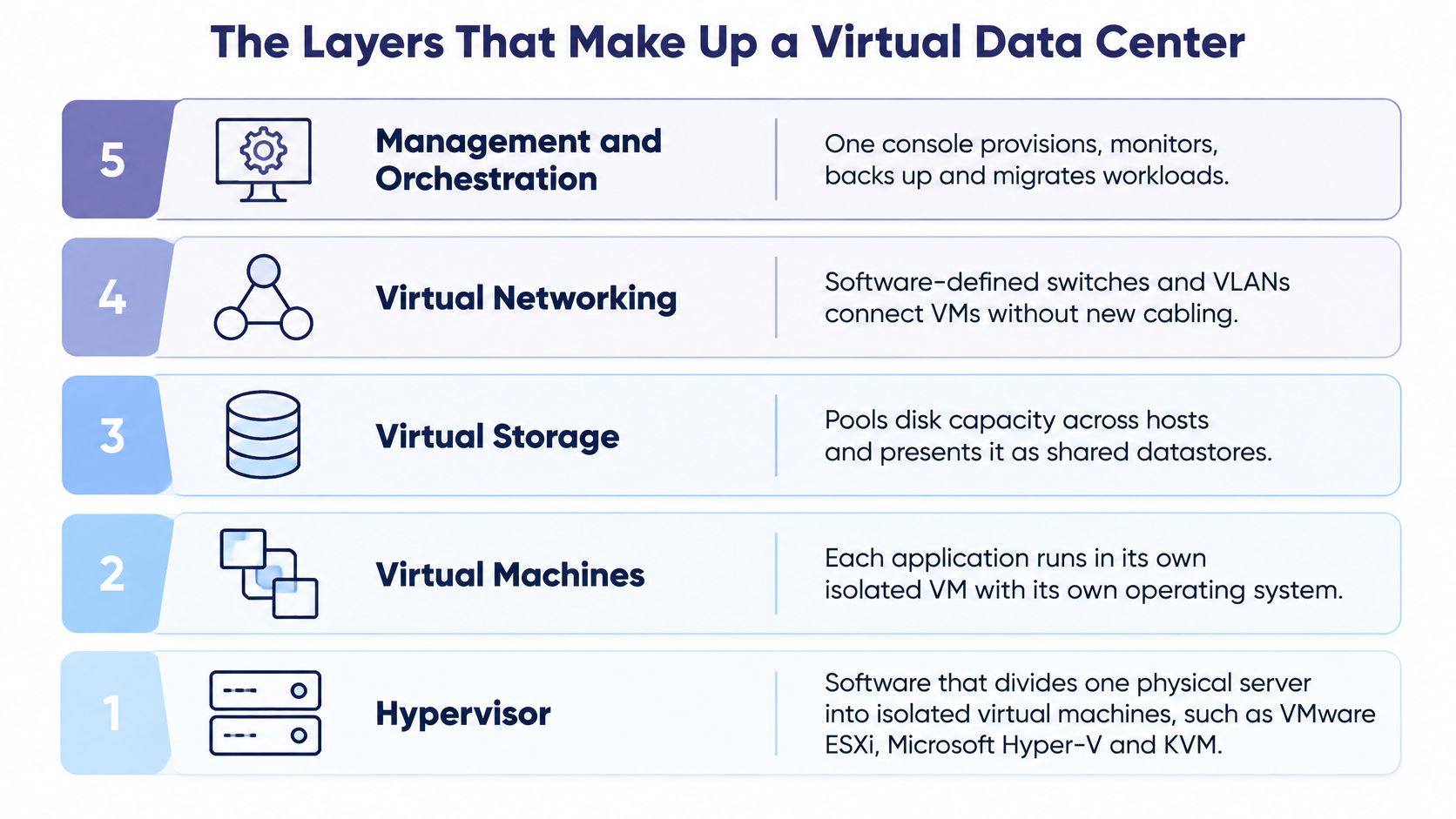
| Layer | What It Does | Common Examples |
|---|---|---|
| Hypervisor | Splits one physical host into isolated virtual machines | VMware ESXi, Microsoft Hyper-V, KVM |
| Storage | Pools disks and makes virtual disks available to compatible hosts | SAN, NAS, software-defined storage |
| Virtual network | Connects virtual machines and filters their traffic | Virtual switches and virtual firewalls |
| Management plane | Provisions, monitors, and coordinates maintenance of virtual machines | vCenter, Hyper-V Manager |
| Workloads | Run the operating system and business application | Accounting software, file servers, email |
A storage area network, or SAN, supplies shared block storage, while network-attached storage, or NAS, shares storage over a network. Software-defined storage manages disk resources through software. Whichever approach is used, administrators must configure host access correctly before a VM can start elsewhere.
The management plane isn't interchangeable with application management. A console may create a server and monitor its resource use without updating the accounting package inside it. Guest patching, application upgrades, backup scheduling, and migration may require additional tools or separately assigned responsibilities.
These layers depend on one another. A storage fault can stop applications even while the hypervisor remains healthy; a management-console outage may prevent administrative changes without immediately stopping running workloads. Different failures require different responses.
A provider's responsibility should be clear at every layer, not just at the boundary of the server.
Use a broader inventory of data center components to keep the physical foundations visible too. Power, cooling, and physical access still matter underneath a virtual environment.
Map your current server room onto the layers in the table. Beside each layer, write who owns it, who maintains it, and who responds when it fails. That exercise makes it easier to distinguish a managed environment from a rented machine that your staff must still operate.
Off-premises isn't automatically better, and local doesn't automatically mean outdated. The Uptime Institute's 2025 global survey found that 45% of IT workloads remained in corporate facilities, while 55% were off-premises. Location and virtualization are different decisions: an office server can be virtualized, and an off-premises workload isn't necessarily a VM.
For a small professional-services firm, selective placement is more useful than a move-everything policy. Favor hosted placement where staff need shared access, but investigate hardware dependencies, application restrictions, and location requirements before committing.
| Workload | Virtualize? | Main Reason | Check Before Moving |
|---|---|---|---|
| Shared documents and email | Yes, where appropriate | Authorized users can access shared information from supported devices | Mailbox and file-sharing licences |
| Desktop accounting or tax software | Yes, if it runs over remote desktop | Centralizes the working application environment | Multi-user licence and printer redirection |
| Software needing local USB or scanner hardware | Often no for hosted placement | Peripheral drivers may not pass through reliably | Test device redirection before moving |
| Real-time production control | Usually no for remote hosting | Network delay can disrupt time-sensitive control | Measure round-trip time and confirm application tolerances |
| Backup copies | Yes, as an offsite copy | Separates a recovery copy from the office | Backup window and restore time |
| Records under data residency rules | Only in a compliant location | Placement must satisfy applicable jurisdiction requirements | Confirm data center and backup locations |
These are starting recommendations, not compatibility guarantees. Email may already be better served by an existing hosted application, while records with residency restrictions may still be virtualized in an approved local environment.
For each application, check whether its vendor supports remote desktop use and whether its licence permits the intended hosting arrangement. Test from the locations where staff work, including printing, exporting reports, opening large files, and reconnecting after an interrupted session.
Use application dependency mapping to identify databases, shared folders, authentication services, and devices the application needs. Then measure the backup window and define the recovery-time objective, meaning how long the business can tolerate the application being unavailable. Also record how much recent work it can afford to lose.
Say a firm uses a scanner-linked document capture process that won't redirect reliably through remote desktop. It can keep capture local while moving a compatible shared accounting application and its files together. The handoff between those systems still needs testing.
Before discussing price, sort your top ten applications into move, keep local, or check. Give every check item a named test and an owner, rather than leaving it as an unresolved assumption.
Virtual data centers can reduce physical server purchases, make new machines quicker to provision, and simplify centralized administration. They can also support remote working and coordinated backup operations. None of those gains means the full service will automatically cost less.
Evaluate each benefit alongside the obligation it creates. Otherwise, a lower hardware budget can conceal higher licensing, networking, or management expenses.

Disaster recovery deserves its own budget discussion. For a location-specific planning example, We Fix PC Laptop's guide to reduce costly IT downtime in Houston offers context for considering recovery alongside everyday hosting. Don't treat backup availability as a substitute for an application restoration plan.
| Cost item | What to record |
|---|---|
| Software licensing | Per-core or per-machine fees after workloads move |
| Migration labour | Data moves, testing, and cutover hours |
| Connectivity and bandwidth | Links to the environment from each office |
| Support hours | Issues the provider does not own |
| Staff skills | Training or contractor time to manage or supervise |
| Exit costs | Time and fees to move data back out |
For each row, separate recurring charges from one-time expenses. Licensing deserves particular attention because hosting rights and remote-user access may differ from the licence covering an office installation. Migration labour should include user acceptance testing, not just copying files.
Calculate each year's service fee plus recurring expenses, then add migration, training, and planned exit costs at the appropriate point. Total the result across three years, without multiplying one-time costs as though they recur annually. Compare it with the equivalent local-server budget, including replacement hardware, backups, repairs, and administration.
Budget test: Compare complete operating arrangements, not a hosting subscription against the purchase price of a server.
Use cloud cost optimization to turn that worksheet into an ongoing review. Track actual usage and support effort after migration so the business can correct assumptions. A savings claim is useful only when the comparison covers your applications and the work required to keep them usable.
Choose a provider against documented requirements, not a persuasive demonstration. Use this decision sequence to keep application needs, cost, and operational evidence together:
A practical cloud provider selection checklist can organize those responses. Request current SOC reports, the scope of ISO certifications, and HIPAA or PCI compliance evidence where applicable. Check that each document covers the proposed service and facility.
Apply the same scrutiny to us. Our data centers provide regular SOC reports, hold ISO certifications, and are HIPAA and PCI compliant. We have data centers in North America and worldwide, so confirm the specific location assigned to your datasets rather than assuming worldwide availability satisfies a residency requirement.
Test shortlisted environments with representative application workflows, and request written answers on segmentation and tested failover. You should finish with a workload map, a three-year cost figure, and a shortlist supported by evidence.
Our Workgroup Server provides a fully managed IT environment with server maintenance, daily data backups, and 24×7 support. Visit Cloudvara with your application inventory and recovery requirements to discuss which workloads fit a managed virtual environment and which should remain local.