Accurate time tracking in QuickBooks is what separates firms that guess from firms that know. It's the engine that powers precise invoices, smooth payroll, and—most importantly—clear-eyed insights into where your money is actually being made.

For most service-based firms, time tracking feels like a chore—a necessary evil for billing clients and running payroll. Viewing it this way, however, is a huge missed opportunity. What if that tedious task could become your firm's secret weapon for smarter growth?
This guide isn't just about logging hours. It’s about using that data to change how you operate. When time entries flow directly into your accounting system, you get the concrete proof you need to price projects, discover which services are truly profitable, and assign your team with confidence.
The real magic begins when you stop treating time tracking as "logging hours" and start seeing it as "collecting intelligence." Every minute your team tracks is a data point. When that data lives inside QuickBooks, it directly connects effort to financial results.
This approach aligns perfectly with core principles of Time Management, where the goal isn't just to be busy, but to be effective. It’s about making every recorded hour reveal something valuable about your business.
This unlocks several key advantages:
By linking labor directly to your financial reports, effective time tracking turns your accounting software from a simple record-keeper into a strategic tool. It finally answers the question: "Where is our time really going, and are we getting paid what it's worth?"
To really get this right, you'll want to use a dedicated tool like QuickBooks Time (the app formerly known as TSheets). While QuickBooks has basic time entry fields, QuickBooks Time takes it to another level with features like mobile clock-ins, GPS tracking, and tiered manager approvals.
All this detailed data syncs seamlessly back into your main QuickBooks file, giving you a complete, real-time picture of your operations.
And if you’re looking to make your accounting even more flexible, you might be interested in the benefits of cloud accounting for your firm. This guide will show you how to pull this whole workflow together.
Before you can start tracking every valuable minute, you need to get your QuickBooks account in order. A little prep work now saves you from major headaches down the road. It all starts with simply turning the feature on, though the steps look slightly different depending on whether you're using QuickBooks Desktop or QuickBooks Online.
If you’re on QuickBooks Online, activating time tracking is a breeze. Just head over to your Account and Settings, click into the Time tab, and flip the switch on. That one click unlocks the time tracking fields you'll need across your transactions.
For those using QuickBooks Desktop, the process is just as simple, but the button is tucked away in a different spot. You'll go to the Edit menu, choose Preferences, and then click on Time & Expenses. From there, inside the Company Preferences tab, you’ll find a clear "Yes" or "No" option to enable time tracking.
Here's what that activation screen looks like in QuickBooks Desktop:
By clicking "Yes," you’ve officially told QuickBooks to make time data available throughout your company file for payroll and invoicing. And before you dive deeper, it’s always a good idea to ensure your software is installed and running smoothly, especially if you’re trying to get a QuickBooks download for Mac to work correctly.
Once the feature is on, you have a few more settings to dial in so they match how your company actually operates. One of the first, and most important, is setting the First day of work week. This might seem like a small detail, but it’s what dictates how your timesheet reports are built and, more critically, how overtime gets calculated. Get this wrong, and you're in for a world of payroll nightmares.
Next, you’ll want to decide who gets to track time. In your user settings, you can grant time tracking permissions to specific employees and contractors. This is a crucial step to keep your data clean and secure, ensuring only authorized team members can log their hours.
Key Takeaway: Take a moment to think through your workflow. Do you want employees to see billable rates? Do you need overtime alerts? Answering these questions during setup will create a system that actively helps your team instead of just adding another task.
With the basics configured, it’s time to connect the dots. This involves two key steps that bring your time tracking data to life.
Adding Team Members: Every person who will be logging time—whether they're a W-2 employee or a 1099 contractor—needs to be set up correctly in the Employees or Vendors center. For each person, make sure the “Use time data to create paychecks” (or a similar option) is checked.
Defining Service Items: For time to become billable, it has to be linked to a Service Item from your Products and Services list. This is how you tell QuickBooks what the hours were for—think "Consulting," "Legal Research," or "Graphic Design"—and assign a specific rate to that work.
Getting these links right is what separates generic time logs from rich data you can actually use for invoicing and job costing. A solid setup is fundamental to data integrity, and on that note, it's always smart to have a bulletproof process for backing up QuickBooks to protect all this critical information.
While QuickBooks has some built-in fields for time entry, they’re really just a starting point. To truly get a handle on your firm’s time data, you need to integrate its dedicated application, QuickBooks Time (you might remember it as TSheets). This isn't just another add-on; it's a fundamental upgrade that connects how your team works with how you bill and run payroll.
Think of it as the difference between a simple digital notepad and a fully connected project management system. The basic time entry is manual and siloed. But with the QuickBooks Time integration, you link your team in the field directly to your back office, creating a seamless flow of information that eliminates double entry and costly mistakes.
It’s easy to assume all time tracking is the same, but the difference between the native QuickBooks features and the full QuickBooks Time integration is significant. The basic tools are fine for simple entries, but QuickBooks Time is built for the complexities of a modern, mobile workforce.
Here’s a quick comparison of what you get with each.
| Feature | Basic QuickBooks Time Tracking | QuickBooks Time Integration |
|---|---|---|
| Time Entry | Manual entry in a timesheet view | Clock-in/out kiosk, mobile app, web dashboard |
| Mobile Access | Limited; requires manual entry | Full-featured app with real-time tracking |
| GPS & Geofencing | Not available | Yes, with clock-in/out reminders |
| Project Tracking | Basic assignment to customers/jobs | Detailed tracking against projects and tasks |
| Timesheet Approvals | Simple approval process | Advanced, multi-level approval workflows |
| Payroll Sync | Manual sync or basic integration | Automated, error-checked sync to payroll |
| Reporting | Basic time reports | Advanced analytics on project costs & profitability |
As you can see, the integration moves you from just recording hours to actively managing them with powerful automation.
The real power of this integration comes from features designed for a team that isn't always sitting at a desk. It gives your staff tools that make tracking time effortless and incredibly accurate, which is a massive leap from trying to remember hours for a weekly timesheet.
A few game-changing features include:
This infographic shows the simple, but critical, progression of getting your system ready for advanced tracking.
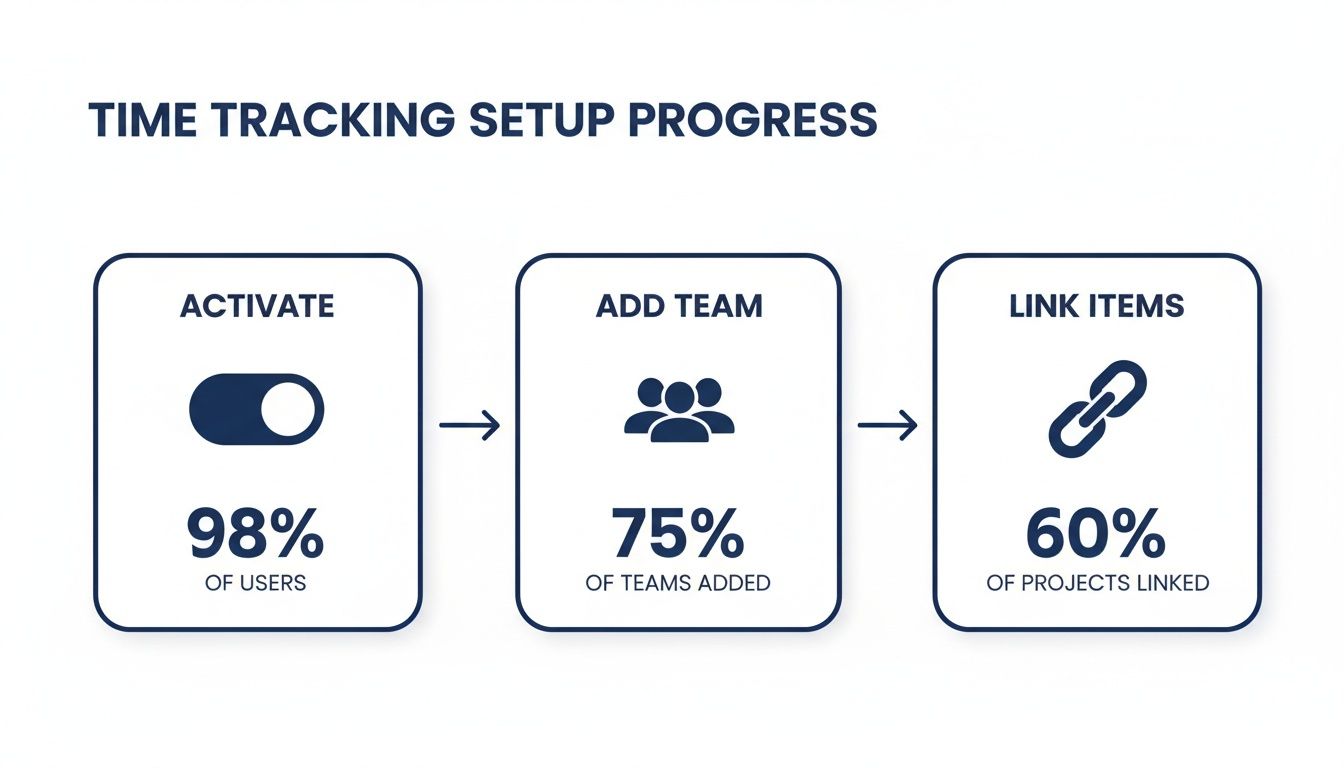
Activating the system, adding your people, and linking your projects are the core steps that make the entire automated workflow click into place.
Imagine a remote consulting firm with team members spread across different states. A consultant on the West Coast uses the QuickBooks Time mobile app to track 3.5 hours on "Project Alpha" and another 4.5 hours on "Client Beta Strategy." They add a few quick notes about the tasks completed right in the app.
As soon as they submit their time, their manager gets a notification. The manager reviews it, approves it with a click, and that data automatically syncs to the firm's main QuickBooks account. There’s no manual data entry, no risk of typos, and zero delay. Every single billable minute is captured and assigned to the right project and client, ready for invoicing.
The impact is immediate. Businesses using QuickBooks Time see huge operational gains. The data shows these firms save an average of 6% on gross payroll costs, cut down payroll processing time by three hours per cycle, and capture an 11% increase in billable time. You can dig into the full statistics on QuickBooks Time benefits to see why so many firms are moving to cloud platforms where this data stays synced and accessible everywhere.
This level of accuracy and automation is essential for any serious firm today. By directly connecting your field operations to your financial hub, you close the gap between work performed and revenue earned. You can also discover other powerful tools that integrate with QuickBooks to make your entire workflow even more efficient.

Here's where all your hard work pays off. After all that careful tracking and approving, those hours are finally ready to become what they were always meant to be: revenue and accurate payroll. This is the moment you bridge the gap between work performed and money in the bank.
The real beauty of an integrated time tracking QuickBooks system is waving goodbye to manual data entry. Gone are the days of transcribing numbers from a spreadsheet into an invoice or payroll run. Now, you can pull all approved, billable hours directly into customer invoices and employee paychecks with just a few clicks.
This doesn't just save a ton of administrative time—it dramatically cuts down on the risk of human error. A single misplaced decimal or transposed number during manual entry can cause you to under-bill a client or overpay an employee. Both are costly mistakes you just don't have to make anymore.
Turning billable hours into a customer invoice is remarkably simple. When you start an invoice for a specific client, QuickBooks flags that they have billable time available. You’ll see a drawer slide out on the right side of your screen, listing all the unbilled time and expenses tied to that client.
It makes the whole process intuitive, presenting these unbilled activities right where you need them.
From there, you just select the time entries you want to include. QuickBooks automatically populates the invoice with detailed line items, including dates, services performed, and total costs.
Before you send it off, always give it a final review. You have the flexibility to:
This level of control ensures your invoices are not only accurate but also fit your client relationship strategy.
The process is just as seamless when it’s time to run payroll. When you kick off a payroll run in QuickBooks, the system automatically pulls the approved hours from each employee's timesheet for that pay period.
Expert Tip: Always run a "Time by Name" or "Unbilled Time" report before processing payroll or invoices. This final check lets you catch any anomalies—like someone who forgot to clock out or unapproved overtime—before they become a financial headache.
This automated workflow handles both standard hours and any overtime rules you've configured, keeping you compliant and your numbers accurate. For firms juggling payroll across different roles and pay scales, finding the best payroll software for small business is a game-changer, and an integrated system makes it all click together.
The connection between time tracking and payroll isn't just a nice-to-have; it's a core part of a well-oiled financial machine.
Where you run your QuickBooks is just as critical as how you use it, especially for modern firms with distributed teams. While the time tracking features in QuickBooks are powerful, their real impact shines when your whole system lives in a centralized, secure cloud environment.
This setup is a game-changer for firms with staff working from home, at client sites, or across multiple offices. Instead of being tethered to a single computer, your entire ecosystem—QuickBooks, integrated apps, and sensitive company files—resides on a dedicated cloud server. It means your team gets secure access from any device, anywhere.
Think about it: a paralegal can log billable hours from their tablet at the courthouse, a project manager can review timesheets from their home office, and you can run payroll from anywhere, all working from the exact same company file in real time.
Moving your QuickBooks to a hosted platform like Cloudvara isn't just about remote access; it’s about buying peace of mind. The heavy lifting of server maintenance, security updates, and data backups shifts from your team to the hosting provider. For firms without a dedicated IT department, this is a massive win.
Key advantages include:
By centralizing your data in a secure cloud, you create a single source of truth for your entire firm. No more conflicting file versions or worrying about who has the latest data—just one secure, consistently updated system accessible to everyone who needs it.
Nothing grinds productivity to a halt faster than software glitches, slow performance, or connectivity drops. We’ve all been there—the application freezes right when you’re trying to check a job schedule or run a critical report. It’s beyond frustrating.
A professionally managed cloud environment minimizes these headaches by providing a stable, high-performance foundation. As long as your team has a reliable internet connection, their access to QuickBooks Time and the main QuickBooks application becomes consistent and fast. This reliability is the bedrock of an efficient time tracking workflow, letting your team focus on their work, not on troubleshooting software.
To get a deeper understanding of the protections involved, our guide on QuickBooks cloud hosting security explains how a managed platform keeps your data safe.
Even with the best setup, real-world questions pop up the minute your team starts tracking their hours. When it comes to time tracking in QuickBooks, we see firms run into the same practical hurdles again and again.
Think of this as the FAQ you actually need—the one built from experience in the trenches. Getting these details right is what separates a time tracking system that just works from one that truly drives efficiency.
Yes, and you absolutely should. QuickBooks is built to handle time for both your W-2 employees and your 1099 vendors. The key is to simply check the "Track time" option when you create or edit a vendor's profile.
Taking this small step allows subcontractors to log their hours directly against clients or projects. You can then use their entries to instantly verify invoices. Better yet, you can pull those billable hours straight into your own client invoices, giving you a complete and accurate picture of all labor costs on a job.
This is one of the most critical distinctions for any service-based business. Nailing this down is fundamental to understanding your firm's real financial health.
Tracking both is non-negotiable. Billable time obviously pays the bills, but non-billable time reveals your true operational overhead and team productivity. If you ignore it, you’re flying blind on a huge chunk of your business costs.
It all depends on when you find the error. If a timesheet has been submitted but hasn't hit payroll or an invoice yet, an admin or manager can easily edit or reject it. The employee can then fix it and resubmit. Simple.
But once that time is processed on a paycheck or a client invoice, the original timesheet entry is locked. You can't just go back and change it. The proper accounting move is to make an adjustment on the next paycheck or issue a credit memo for the invoice, then create a correcting journal entry to keep your books straight.
Yes, and this is where QuickBooks time tracking really shines. You can—and should—link every single time entry to one of the "Service Items" from your Products and Services list.
For example, a marketing agency could set up different billable rates for "Content Writing," "SEO Analysis," and "Client Strategy Session." When a team member tracks their time, they select the exact service they performed. This creates perfectly detailed invoices and gives you profitability reports that are accurate right down to the task level.
At Cloudvara, we provide the secure, high-performance cloud hosting that ensures your QuickBooks and integrated time tracking apps run smoothly and are accessible to your entire team, anywhere. Learn how Cloudvara can centralize your firm's most critical applications.