Your accounting or legal firm may already be moving toward a shared-desktop model. Staff can sit at different desks, open the same applications, and keep documents in a central environment instead of scattering files across local drives. The appeal is clear, but one practical question often gets less attention than it deserves: what should sit on each desk?
A thin client can be a sensible endpoint for fixed, network-connected workers. It can also create frustration if employees need offline access, advanced graphics, unusual USB devices, or reliable work during connectivity failures. This guide treats the decision as a VDI rollout problem for a small or mid-sized firm, where nobody has time to build an endpoint strategy around vendor slogans.
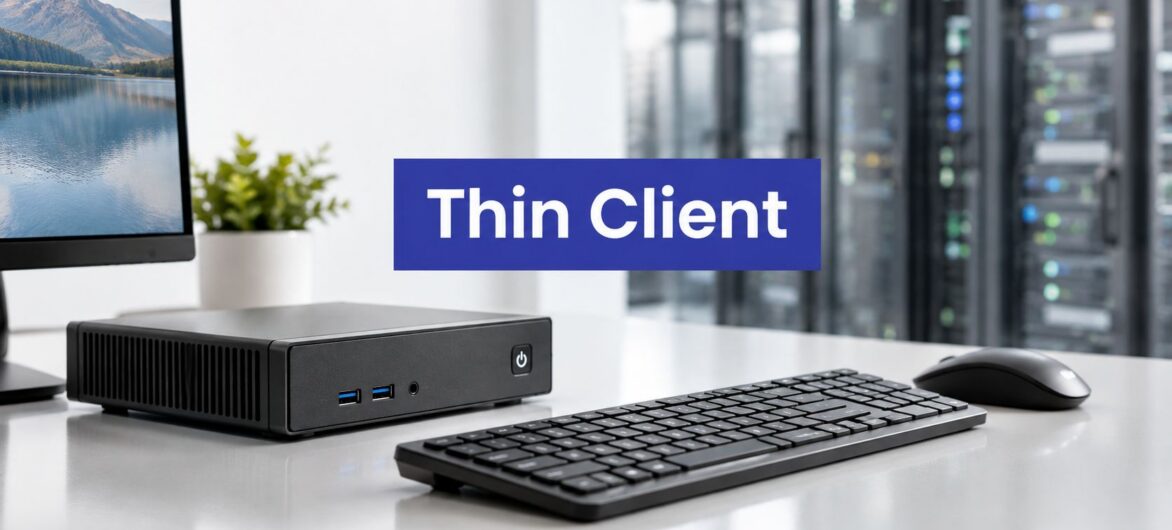
A thin client for VDI is a small endpoint that connects a user to a desktop running somewhere else. The applications, desktop operating system, and working data live on a server, virtual machine, or hosted desktop. The device on the desk mainly displays the remote screen and sends keyboard, mouse, audio, video, and peripheral input back to the virtual desktop.
Think of it as a window into another computer. The window needs enough capability to render the view and communicate reliably, but it isn't the computer doing the accounting, document management, or case-management work.
A conventional desktop works differently. It runs applications on its own processor, stores files on its local drive, and needs its own operating-system updates, security tools, drivers, and troubleshooting. A thin client usually runs a lightweight operating system and a remote display client instead. The distinction is about where the work happens, not merely the size of the box.
A laptop running VDI client software can provide the same kind of remote access, but it remains a more general-purpose device. It may run local applications, store files, support offline work, and connect from different locations. A dedicated thin client is normally designed for a desk, a locked-down configuration, and centralized control.
That distinction matters for a shared workstation. An employee can authenticate at a thin client, receive a virtual desktop from the broker, and leave without leaving a full Windows environment or a working document cache behind.
A thin client also isn't automatically a cloud PC. The virtual desktop may run on the firm's own server cluster, in a colocation facility, or in a hosted environment. A provider such as Cloudvara can deliver hosted virtual desktop access, but the endpoint itself doesn't determine where the desktop lives. Read the distinction between zero clients and thin clients before treating those terms as interchangeable.
Practical rule: Choose the endpoint only after you know where the desktop runs, which broker manages it, and which protocol carries the session.
A thin client is only the visible part of a VDI system. If the back end is undersized or the network path is poorly designed, a fast endpoint won't rescue the user experience.
The virtual desktop host runs the Windows or Linux desktop inside a data center, cloud tenant, or hosted infrastructure. A hypervisor supplies the virtual machines, while storage and network services make the desktop available.
The connection broker authenticates the user, identifies an available desktop, and starts or reconnects the session. Depending on the platform, the broker may come from Microsoft, Citrix, VMware, or another VDI provider.
The remote display protocol moves screen changes, sound, keyboard input, mouse movement, and peripheral traffic between the host and the desk. Protocol support is not a cosmetic feature. It directly affects responsiveness, video, printing, scanning, and redirection.
The thin client sits at the user's desk. It supplies the display outputs, network connection, local authentication options, and firmware that speaks to the broker and protocol.
The host and broker generally belong to the infrastructure or service provider. The endpoint belongs to the firm, although a managed service provider may administer it. Models from Dell Wyse, HP, IGEL, 10ZiG, and Stratodesk typically ship with firmware designed around particular broker and protocol combinations. Confirm compatibility before comparing processor speeds.

The endpoint can't compensate for a poor host pool, an overloaded storage system, or a broker that assigns users to unsuitable desktops. A firm considering virtual desktop infrastructure should therefore document the entire path, from login to application launch, before selecting hardware.
Ask the vendor to identify which component they support when a session lags. If the answer is always “the network,” you don't yet have an operational model. Your requirements should name the broker, supported protocols, identity method, peripheral redirection, management console, and escalation owner.
Users experience the protocol, not the thin client's specification sheet. A modest endpoint can feel responsive over a well-tuned connection, while a more capable device can feel slow when the protocol, network route, or host configuration doesn't suit the workload.
The practical guidance is straightforward. RDP generally fits fast, low-latency networks. PCoIP and HDX are designed for more adaptive behavior across less reliable WAN connections, while Blast Extreme is commonly associated with VMware Horizon environments. Independent guidance places practical targets below 100 ms round-trip time for HDX or Blast and below 75 ms round-trip time for PCoIP, with office sessions commonly using about 150 to 700 Kbps and multimedia sessions rising to roughly 2 to 10 Mbps, depending on content and protocol. See the remote display protocol guidance for VDI for the cited operating ranges.
| Protocol | Typical vendor | Bandwidth per user | Latency target | Strength |
|---|---|---|---|---|
| RDP | Microsoft | About 150 to 700 Kbps for typical office work, higher for multimedia | Fast, low-latency network preferred | Broad compatibility and straightforward Windows integration |
| PCoIP | VMware Horizon | About 150 to 700 Kbps for office sessions, roughly 2 to 10 Mbps for multimedia depending on content | Under 75 ms RTT in the cited guidance | Adaptive delivery across WAN links |
| Blast Extreme | VMware Horizon | Varies with content and encoding settings | Under 100 ms RTT in the cited guidance | Adaptive display delivery and multimedia support |
| HDX | Citrix | About 150 to 700 Kbps for office sessions, higher for multimedia | Under 100 ms RTT in the cited guidance | Rich session features and peripheral handling |
These ranges are planning references, not promises. A spreadsheet-heavy session with scrolling, a video call, and a document-scanning workflow can behave very differently from a simple text session. Ask for testing with the firm's actual applications, not a blank desktop.
Confirm that the thin client's firmware supports the protocol version your broker requires. Also test authentication, clipboard policy, printer mapping, scanner redirection, smart cards, microphones, webcams, multiple displays, and reconnect behavior.
If the firm uses VMware Horizon, the Horizon VDI overview can help frame the platform discussion, but your own pilot still needs to validate the exact endpoint firmware and user workflows.
Thin client specifications make more sense when translated into desk-level decisions. The question isn't whether a device has an impressive processor. The question is whether it can render the required displays, handle the firm's peripherals, and remain manageable throughout its service life.
An entry-level x86 processor is often adequate for a user who runs office applications in a single remote session. A stronger, multi-core processor becomes more reasonable when the endpoint must handle several displays, high-resolution output, local media processing, video meetings, or demanding USB and audio paths.
Memory affects how comfortably the local firmware and session components operate. A practical requirements sheet can use 4 GB as a minimum baseline and 8 GB for knowledge-worker scenarios, but these figures must be checked against the vendor's supported configuration and the chosen collaboration software. Local flash storage matters for firmware, logs, recovery tools, and cached configuration, even when business data stays remote.
The local operating system also changes administration. IGEL OS, Windows IoT, HP ThinPro, and vendor-specific firmware can all be valid choices, but they differ in licensing, policy controls, update workflows, and broker support. Pick the management model your team can operate, not the one with the longest feature list.
A useful test: If a requirement can't be tied to a user, application, peripheral, or support task, remove it from the shortlist.
A legal workstation may need a smart card reader, dictation pedal, scanner, headset, and printer. An accounting desk may need two displays, a webcam, and a reliable audio jack. A hybrid worker may expect USB-C docking, although a fixed thin client may not be the right endpoint for that person at all.
Use this checklist when reviewing a model:
The visual above uses an already referenced asset, so don't duplicate it in a production page. For a real deployment, use a dedicated asset and validate its URL before publication.
| Spec Category | What to Look For | Minimum Bar |
|---|---|---|
| Processor | x86 support, hardware video features, adequate session rendering | Meets the broker and collaboration-client requirements |
| Memory | Headroom for firmware, multiple displays, and local media handling | 4 GB baseline, 8 GB for knowledge-worker use cases |
| Storage | Reliable flash for firmware, recovery, and logs | Enough for the supported image and rollback process |
| Displays | Dual outputs, required resolution, stable refresh behavior | Supports every planned monitor configuration |
| Peripherals | USB, audio, webcam, scanner, smart card, and printer compatibility | Every critical device passes a live workflow test |
| Firmware management | Central policy, updates, write filters, inventory, and recovery | Administrators can manage the fleet remotely |
| Protocols | RDP, PCoIP, Blast, HDX, or the required combination | Exact broker and firmware compatibility verified |
For firms that rely on two screens, review the practical considerations in this guide to using remote desktops with two monitors.
A thin client is a poor fit when the endpoint needs to do more than display and connect. Local video editing, CAD, 3D modeling, and other GPU-intensive work can require hardware acceleration that a basic thin client can't provide. A remote desktop platform may support GPU-backed hosts, but that changes the architecture and cost model rather than making the desk device universally suitable.
Connectivity is the harder limitation for many small firms. If the network path to the hosted desktop fails, the user may lose access to applications and files at that desk. A thin client doesn't turn an unreliable connection into an offline workstation.

The right response isn't to reject VDI. It may be to use a mixed fleet. Fixed office workers can use dedicated endpoints, mobile staff can use managed laptops, and specialist users can use workstations or a host environment designed for graphics.
A constrained device bought for an unconstrained workload creates support tickets instead of solving them.
Before standardizing, observe a complete workday for each role. Test opening large documents, printing, scanning, joining calls, using dictation, reconnecting after sleep, and recovering after a network interruption. If the user can't perform the core job during the test, the endpoint isn't ready for production.
The security argument for thin clients is strongest when the firm keeps documents and applications centralized. A lost endpoint typically contains little or no corporate data because the user works inside the remote desktop. That reduces the value of the stolen device, especially for firms handling client financial records, legal files, or protected information.
The protection isn't automatic. The endpoint still has firmware, an operating system or appliance layer, a protocol stack, credentials, and physical ports. Neutral guidance describes thin clients as reducing data-loss exposure and making persistence harder in read-only configurations, while also stressing that firmware updates, operating-system patching, and protocol security remain necessary. Review the thin client security and maintenance guidance when documenting the control model.
A good management platform lets an administrator push configuration to groups of devices, apply restrictions, schedule firmware updates, reboot or recover a device remotely, and maintain an asset inventory. Device certificates and role-based access can help separate help-desk actions from security administration.
Compliance teams should also ask where session data resides and who controls it. The answer may be an office data center, a colocation facility, or a cloud tenant in a particular region. Audit logging, session recording, identity controls, retention policies, printer routing, and clipboard restrictions need to be defined at the VDI and broker layers, not assumed from the endpoint.
Endpoint management is only one part of the operating model. Resources discussing beyond device management are useful because a firm also needs identity governance, application control, data handling policies, and an incident-response process.
A thin client can narrow the local attack surface and simplify fleet administration, but it increases dependence on the central desktop platform. If the broker, host pool, identity service, or network path is unavailable, the desk has limited value.
That tradeoff can be acceptable for a fixed office with strong operational controls. A hosted virtual desktop service such as Cloudvara's hosted virtual desktop offering can place responsibility for parts of the infrastructure with a provider, but the firm still owns user permissions, device placement, peripheral testing, and business continuity decisions.
Start with requirements that describe work rather than brands. A procurement sheet should make it possible to reject a device before someone gets distracted by processor labels or a low purchase price.
Workload fit: Record applications, display count, audio and video needs, scanning, printing, dictation, signatures, and other peripherals for each role.
Protocol alignment: Match the endpoint to the VDI platform's preferred protocol, codec, authentication method, and session features. Confirm this with a live connection.
Management depth: Check whether administrators can configure groups, update firmware, track assets, lock ports, recover devices, and export useful logs from one console.
Security baseline: Require the controls your policy needs, such as secure boot, TPM, certificate support, write filters, removable-media restrictions, and locked-down local settings.
Lifecycle cost: Model purchase, firmware or management licensing, support, replacement, VDI licensing, back-end infrastructure, electricity, and administrator time across the planned refresh cycle.
A 25-person accounting office in one location, using Microsoft 365 and standard financial applications, may fit entry-level x86 thin clients with dual-display support. Stay at that level if sessions are office-focused, peripherals are ordinary, and the protocol test is clean. Step up when users need advanced video, several displays, or more demanding local media handling.
A 50-person legal firm with dictation pedals, scanners, signature devices, remote printing, and document workflows needs broader peripheral support. Mid-range devices may be justified when the chosen model passes live USB, audio, smart card, and printer tests. Don't approve the rollout from a specification sheet alone.
A distributed nonprofit with intermittent connectivity and roaming staff may be better served by software endpoints on managed laptops. Dedicated thin clients can still suit permanent reception, intake, or shared-office desks, but they shouldn't become the default for people who work away from the network.
A repurposed desktop PC can be defensible in a budget-led rollout if it receives a locked-down endpoint operating system, has adequate memory and storage, supports the required displays and peripherals, and can be centrally updated. Keep in mind that old hardware may introduce inconsistent drivers, higher maintenance effort, or an uncertain replacement path.

Decision test: If the employee needs mobility or offline work, start with a laptop. If the employee stays at a connected desk and uses standardized applications, evaluate a thin client. If the employee needs graphics acceleration, start with a workstation or GPU-capable VDI design.
Start with a pilot of five to ten seats, selected from real roles rather than only technically confident volunteers. Confirm broker and protocol compatibility, apply firm-specific firmware defaults, validate every required peripheral, document recovery steps, and measure baseline boot time, login time, and session latency before expanding.

The category is becoming less rigid. Managed software endpoints running on existing laptops can cover cases that once called for dedicated hardware, while purpose-built devices remain attractive for fixed desks and centralized control. Treat the purchase as a three- to five-year commitment and verify the vendor's firmware support window, security patching cadence, management platform, and exit path before standardizing.
Cloudvara provides hosted virtual desktops that let accounting, legal, nonprofit, and other small-to-mid-sized firms access centralized applications from thin clients, laptops, or other supported devices. Review your workloads and peripherals, then visit Cloudvara to discuss a VDI setup that fits the firm's users, connectivity, and management capacity.




