Putting Sage 50 in the cloud simply means we host your familiar desktop accounting software on a secure, remote server. This setup gives you the freedom to access your financial data anytime, anywhere, from any device with an internet connection—just like a true web app. It modernizes the classic Sage 50 experience without forcing you to learn a whole new system.
Thinking about migrating your trusted Sage 50 software isn't just a technical exercise; it's a strategic business decision. The move away from a single, office-bound computer to a hosted environment solves some of the biggest headaches modern businesses face. It's all about empowering your team and future-proofing your operations.
For many companies, the final push comes from the need for remote work flexibility. An accountant might need to finalize month-end reports from home, or a business owner might want to check cash flow while traveling. A traditional setup makes this clunky and often insecure.
Hosting Sage 50 in the cloud completely removes those physical barriers. Your data lives on a secure, professionally managed server that you access through a remote desktop connection. This means your team can collaborate on the same company file in real-time, from different locations, without creating conflicting copies or frustrating data sync issues.
Beyond just access, security is a huge driver. On-premise setups are vulnerable to everything from hardware failure and theft to office disasters like fires or floods. A single crashed hard drive could mean catastrophic data loss.
A cloud hosting environment is designed to mitigate these risks from the ground up. With features like automated daily backups, enterprise-grade firewalls, and built-in disaster recovery, your financial data is often far safer than it would be on a server tucked away in an office closet.
As your business grows, your IT demands grow right along with it. Managing an in-house server requires constant maintenance, security updates, and eventual replacement—all of which chew up time and money. Cloud hosting shifts this entire responsibility to a specialized provider.
This model delivers some pretty significant advantages:
Ultimately, moving Sage 50 to the cloud is a strategic decision aimed at achieving broader business process optimization strategies. It transforms your accounting software into a resilient, scalable, and highly accessible asset. To get a better sense of the bigger picture, you can learn more about the overall benefits of cloud hosting for all sorts of business applications.
A smooth migration to Sage 50 in the cloud doesn't happen by accident—it’s the direct result of careful planning. Before moving a single file, you need a clear blueprint of your current setup and confidence that your data is in perfect shape for the journey. This groundwork is what separates a seamless transition from a frustrating one.
First things first: secure your data. Perform a full backup of your Sage 50 company files and store it somewhere safe and separate. Think of this as your ultimate safety net. If anything unexpected happens, you have a clean starting point to fall back on.
Right after backing up, run the data verification utility inside Sage 50. This is an essential step. The tool scans for corruption or inconsistencies that could cause major headaches later on. It’s far easier to fix minor data integrity issues now than to troubleshoot them in a new cloud environment.
With your data safely backed up, it’s time to document everything about your existing Sage 50 installation. This isn't just a technical exercise; it's about mapping out how your team actually uses the software day-to-day. A detailed audit ensures no critical function gets left behind.
Start by listing all active users and their specific permission levels. Who has admin rights? Who can only view reports? Replicating these roles accurately in the cloud is vital for maintaining security and operational control from day one.
Next, shift your focus to customizations and integrations. Get granular here.
This meticulous documentation creates a clear roadmap for your cloud provider and internal team. It ensures the new environment mirrors the functionality your business depends on and forms the foundation for a successful setup.
This move aligns with a massive shift in how businesses handle technology. Worldwide spending on public cloud services is projected to hit $723.4 billion by 2025, and small businesses are increasingly dedicating over half their tech budgets to the cloud. You can dive deeper into these cloud computing trends to see the bigger picture.
Finally, remember the human element is just as important as the technical one. Communicate the upcoming changes to your team early and often. Explain why the move is happening, what benefits they can expect (like remote access), and what the timeline looks like.
Managing expectations prevents confusion and builds buy-in. It makes your team active participants rather than passive observers. For a more structured approach, you might find our complete cloud migration checklist helpful, as it covers these steps in even greater detail.
Alright, with your pre-migration checks done and dusted, it's go-time. This is the part where all that careful planning starts to pay off, turning your earthbound Sage 50 setup into a flexible, secure powerhouse you can access from anywhere. The whole process is methodical, focused on moving your data safely and getting your cloud environment to feel just like your old desktop.
First things first, we need to get your verified Sage 50 backup file onto the new cloud server. This isn't like attaching a file to an email; we're talking about your core financial data. The transfer is handled using secure protocols like SFTP (Secure File Transfer Protocol), which encrypts your information from the moment it leaves your machine until it lands safely in its new home.
This simple graphic breaks down the main phases of the journey.
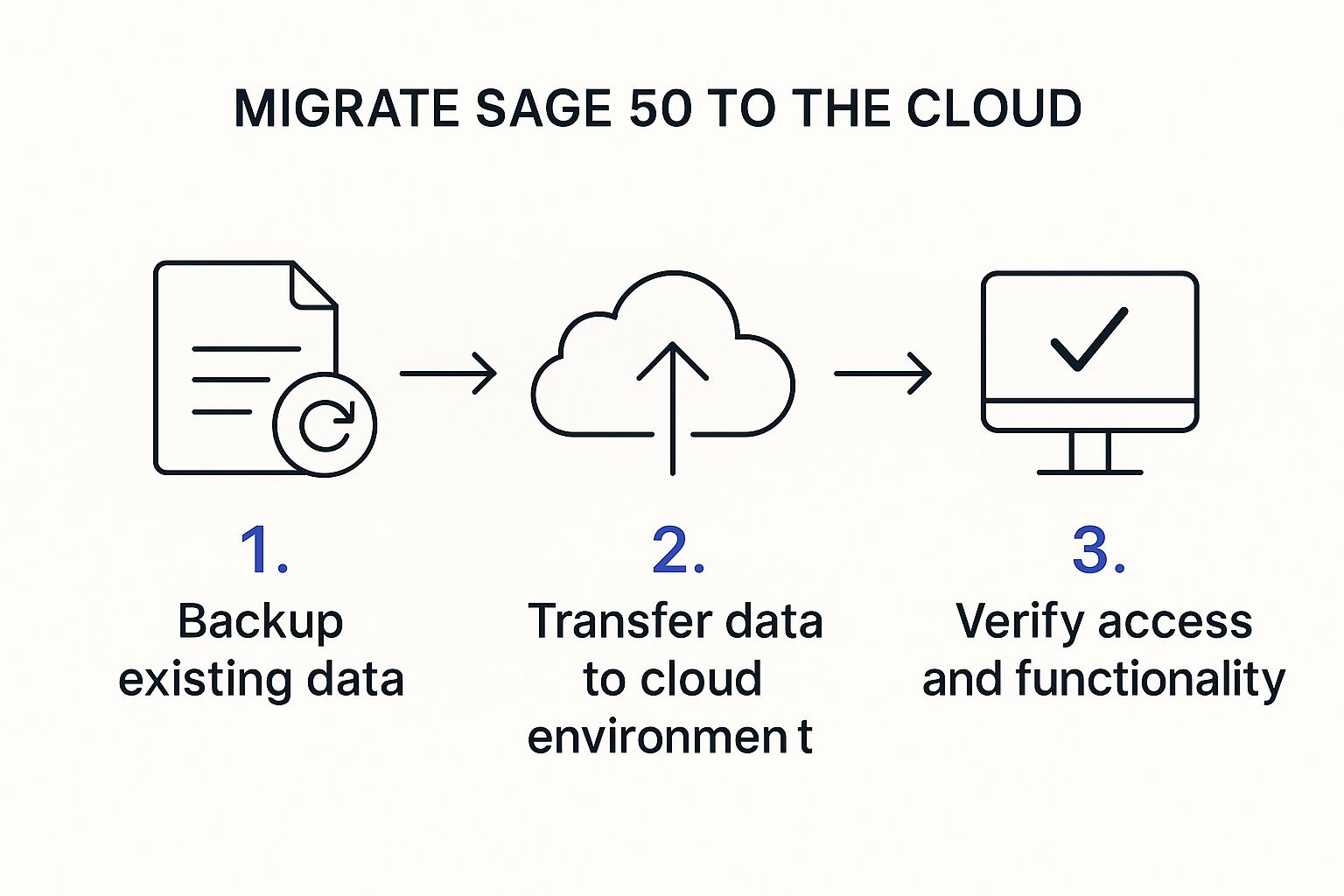
As you can see, it's a clear three-part trip: from your local machine, through the transfer, and into a fully functioning cloud environment.
Once your data is on the cloud server, the next step is to install the Sage 50 application itself. Think of it like setting up software on a brand-new computer, but with one massive advantage: this single installation will serve as the central hub for every authorized user, no matter where they're logging in from. Your hosting provider will typically handle this, making sure the software is perfectly tuned for the server.
Then comes the magic. After the installation is complete, we restore that backup file you uploaded. This step populates the fresh Sage 50 install with all your company data, custom settings, and years of historical records. It’s the moment the application comes back to life, looking and feeling just like the system you know.
This is arguably one of the most critical parts of the migration: recreating your user structure. The security of your financial data hinges on getting this right. That documentation you prepared earlier listing everyone's access levels? It’s about to become your best friend.
We'll meticulously set up each account on the cloud desktop, using your list as our guide. This precision ensures that:
There's no room for error here. This guarantees that when your team logs in for the first time, their permissions are exactly what they should be, maintaining your security policies without a single gap. If you want to get a broader perspective, it's always helpful to explore various cloud migration and transfer strategies to understand the mechanics behind the move.
The goal is simple: make the new cloud environment a seamless extension of your old one. The user interface, the reports, and the day-to-day tasks should all feel identical to minimize the learning curve and let your team get right back to work.
This methodical approach ensures that from day one, your operations continue without missing a beat. For a deeper look into the tasks involved in any software move, our guide on general cloud migration steps provides great context. It all helps turn a complex IT project into a straightforward, manageable upgrade.

Getting your data moved over is a huge milestone, but the work isn’t quite done. Now, the focus shifts from migration to optimization. Having Sage 50 in the cloud is one thing; making it a seamless, productive tool that your entire team loves is the real win. The next steps are all about dialing in the user experience to ensure your new environment is a genuine upgrade from the old desktop setup.
First things first: let's validate remote access for every single user. This means more than just checking if they can log in. Have each team member connect from their typical work location—whether that’s a home office, a client’s site, or even a coffee shop—to test the connection’s stability and responsiveness. A smooth, frustration-free login experience is absolutely critical for user adoption.
Moving to the cloud fundamentally changes how your team interacts with Sage 50. What was once tied to a specific office machine is now accessible from anywhere, with security and maintenance handled by experts. This table breaks down the key differences between the old way and the new cloud-hosted model.
| Feature | On-Premise Sage 50 | Cloud-Hosted Sage 50 |
|---|---|---|
| Accessibility | Limited to a single, designated computer in the office. | Access from any device with an internet connection. |
| Security | Depends entirely on in-house measures and local machine security. | Enterprise-grade firewalls, intrusion detection, and managed updates. |
| Backups | Manual process; data is vulnerable to local hardware failure or theft. | Automated, daily backups stored in secure, off-site data centers. |
| Maintenance | All software updates and hardware repairs are your responsibility. | The hosting provider manages all server maintenance and updates. |
| Collaboration | Difficult for multiple users to work simultaneously without conflicts. | Multiple users can access and work in the same company file in real-time. |
Ultimately, a cloud-hosted environment offloads the technical burdens of security, backups, and hardware management, freeing your team to focus on their actual work with greater flexibility.
One of the most common questions we get after a migration is about local devices. Your team still needs to print invoices, scan receipts, and use other peripherals connected to their computers. How do those devices talk to a server that's miles away?
This is where proper configuration comes in. Your hosting provider uses smart tools that redirect your local devices, making them appear right inside your cloud session. Essentially, when you click "Print" in your cloud-hosted Sage 50, that command gets securely routed back to the printer sitting on your desk. It feels seamless when it's set up correctly.
To make sure it works flawlessly from day one, take these steps:
Sorting this out early prevents a lot of headaches and keeps daily workflows running smoothly.
While your hosting provider handles the heavy lifting of server security and network defense, you still have a crucial role in protecting your financial data. Your new cloud environment gives you powerful tools for security and business continuity that you likely didn't have before.
Start by reviewing the automated backup schedule. Most providers offer daily backups, but you’ll want to confirm the exact timing and retention policy. For instance, are backups kept for 14 days or 30? Knowing this helps you build a rock-solid disaster recovery plan. You're no longer just guarding against a local hard drive crash; you have a robust safety net against data corruption or accidental deletions.
By shifting to a hosted solution, you’re adopting a proactive security posture. Features like enterprise-grade firewalls, intrusion detection systems, and managed security updates provide a level of protection that is often difficult and expensive for a small business to achieve on its own.
This move aligns with a broader industry trend. Sage itself reported a 9% increase in total revenue to £1,242 million in early fiscal 2025, largely driven by its cloud offerings. You can find more details in Sage’s cloud strategy and financial performance report.
Tackling these post-migration tasks effectively also boosts your bottom line. When your team is productive and your data is secure, you maximize the return on your cloud investment. For more tips on managing your cloud spending, check out these helpful cloud cost optimization strategies. This final polish is what makes your cloud migration a true success.
Now that your team is logged in and your hardware is connected, we’re in the home stretch. This final phase is all about confirming the technical success of the migration and building the right habits to get the most out of your new Sage 50 cloud setup. This is what separates a simple data move from a true workflow transformation.
Your first job is a thorough post-go-live check. Don't just assume everything is working perfectly—put it through its paces with real-world scenarios. A proactive audit now ensures any small hiccups are found and fixed right away, before they can touch your financial reports or daily operations.
Think of this as your final quality assurance sweep. The goal is to confirm that the data you moved is a perfect mirror of what you started with and that your core business functions are running smoothly. This isn't just an IT task; you'll need the accounting team—the people who live in Sage 50 every day—to get involved.
A simple but solid checklist will guide you through it:
Getting your team to test the system like this builds immediate confidence and helps everyone get comfortable with the new environment much faster.
A great migration isn't a one-and-done event; it's the beginning of a smarter, more efficient way of working. Adopting a few key best practices will keep your cloud environment secure, organized, and effective for years to come. This forward-thinking approach is a core part of our recommended cloud migration best practices.
First up, establish a clear protocol for managing who can access what. Your team will change—new people will join, roles will shift, and others will move on. You need a rock-solid system for updating permissions promptly. Make it a habit to regularly audit user access to ensure that system privileges always align with current roles and responsibilities.
Don’t just set it and forget it. A successful cloud strategy involves ongoing management. Regularly reviewing user access, staying informed about security updates, and maintaining an organized data environment are the pillars of long-term success and security.
This mindset of continuous improvement is why user satisfaction is so high. The numbers speak for themselves: Sage 50cloud users have a 98% plan-to-renew rate and an 81% likelihood to recommend the software. These metrics underscore the platform's reliability and the value it delivers when managed well. You can dive deeper into the Sage 50 user satisfaction metrics to see how these practices lead to such positive outcomes.
By validating your setup and embracing these routines, you're doing more than just closing out a project—you're setting your business up for sustained success.

It’s natural to have questions before any big tech shift. Even with a solid plan, moving your core accounting software to a new environment brings up some common "what ifs." When businesses consider hosting Sage 50 in the cloud, they usually circle back to a few key areas: security, cost, performance, and whether their existing tools will still work.
Let's walk through these concerns one by one, because getting these answers builds the confidence you need to make the right move.
This is usually the first question, and for good reason. The idea of your financial data living "somewhere else" can feel unsettling at first. But a high-quality cloud hosting environment is almost always more secure than a typical office server closet.
Think about it this way: a reputable provider invests in enterprise-grade firewalls, sophisticated intrusion detection systems, and has a dedicated security team on watch 24/7. That's a level of protection most small and mid-sized businesses simply can't afford to replicate in-house. Your data isn’t just on "the cloud"—it's in a digital fortress.
Performance is another big one. If you're used to running Sage 50 locally, you might worry about lag or a sluggish connection. A properly configured cloud environment, however, should feel just as fast and responsive as your desktop.
Good hosting providers optimize their servers specifically for demanding applications like Sage 50. They make sure you have more than enough processing power, memory, and bandwidth for smooth, uninterrupted operation. The experience is designed to be seamless.
Concerns about cost are always top of mind. While you’ll see a monthly subscription fee, it’s crucial to look at the total cost of ownership, not just one line item. That subscription replaces a whole list of expensive, unpredictable costs.
You're no longer on the hook for buying expensive server hardware, renewing maintenance contracts, or paying for IT staff time to patch and troubleshoot. Plus, the hidden costs of downtime or a lengthy data recovery process disappear.
By moving to a hosted model, you trade unpredictable capital expenses for a stable, predictable operational expense. This shift often results in significant long-term savings and simplifies budgeting.
Finally, let's talk compatibility. Many companies rely on specific third-party tools that integrate with Sage 50, from custom reporting software to industry-specific plugins. A common and critical question is, "Will my essential add-ons still work?"
The answer is almost always a resounding yes. A dedicated hosting environment for Sage 50 in the cloud acts just like your local desktop. This means any compatible add-on can be installed and run right alongside your accounting software. Your workflows don't have to change. Your hosting provider can always confirm compatibility for any specific applications you depend on.
Ready to experience the security, flexibility, and cost-effectiveness of a truly modern accounting setup? Cloudvara delivers a seamless and secure cloud environment for your Sage 50 software, backed by 24/7 expert support. Start your free, no-obligation 15-day trial and see the difference for yourself at https://cloudvara.com.




