Connecting your Linux and Windows machines for remote access isn't as complicated as it sounds. The trick is simply using the right tool for the job. If you're on a Linux machine trying to reach a Windows desktop, you'll need a client that speaks Remote Desktop Protocol (RDP). Going the other way? A tool like XRDP or VNC on your Linux box will let a Windows PC connect right in.
Think of these protocols as translators, allowing two very different operating systems to communicate seamlessly.
At its core, every remote desktop setup boils down to a simple client-server relationship. One machine acts as the server (or host), running the software that shares its screen and resources. The other machine, the client, is what you use to connect to that host, giving you full control from wherever you are.
This setup is a lifesaver in mixed-OS environments. Imagine a developer working on a Linux laptop who needs to run a piece of Windows-only accounting software. Remote desktop makes that possible without needing a second computer on their desk.
While Windows dominates the desktop world, Linux is an absolute powerhouse in the server and cloud space. In fact, projections show that by 2025, roughly 90% of all cloud infrastructure will be running on Linux. This reality makes smooth, cross-platform remote access more critical than ever. You can learn more about these Linux market trends and their broader impact at enterpriseappstoday.com.
The protocol you pick has a huge impact on the speed and features of your remote session. RDP, being a Microsoft creation, is native to Windows. It's built from the ground up to work with the Windows graphical interface, which is why it feels so snappy and responsive.
VNC (Virtual Network Computing), on the other hand, is more of a universal solution. It works by sending pixel-by-pixel snapshots of the screen, making it compatible with almost any OS. The trade-off is that this method can sometimes feel a bit slower than RDP's optimized approach.
This diagram breaks down how RDP works under the hood, showing how a client and server interact.
As you can see, RDP hooks directly into system components like display drivers and keyboards to create that seamless experience. Getting a feel for this architecture can be a huge help when you need to troubleshoot a tricky connection issue. If you want to go deeper, check out our complete guide on what remote desktop connection is.
When you're deciding which protocol to use, it helps to see how they stack up side-by-side.
| Protocol | Primary Use | Performance | Best For |
|---|---|---|---|
| RDP | Connecting to Windows systems | High-performance, low latency | Accessing Windows desktops, especially for graphic-intensive work. |
| VNC | Cross-platform connections (Linux, macOS, Windows) | Slower, pixel-based | Simple screen sharing and when platform independence is key. |
| XRDP | Connecting to Linux from Windows using RDP | Good, bridges RDP to a Linux session | Linux users who want a native RDP experience from a Windows client. |
Each protocol has its strengths, but the right choice always depends on which two operating systems you're trying to connect.
Key Takeaway: The choice between RDP and VNC often comes down to your primary use case. For connecting to a Windows machine, RDP is almost always the superior choice due to its efficiency. For connecting to Linux, tools like XRDP cleverly translate RDP for a native-like experience.
Before you jump into establishing a remote desktop connection, a little prep work on both the Windows and Linux machines is essential. Taking a few minutes to get your systems ready will save you hours of frustration from dropped connections and weird errors down the road.
Think of it as a pre-flight check. On the Windows side, this starts with enabling the Remote Desktop feature. It's usually a simple toggle in your system settings. A crucial point to remember, though, is that this is only available on Windows Pro, Enterprise, or Server editions. The Home versions of Windows don't support incoming RDP connections.
Once that’s on, you’ll need to make sure the Windows Defender Firewall is playing nice. The system usually prompts you to allow Remote Desktop through the firewall, but I always recommend double-checking that the exception is active for your network profile, whether it's Private or Public.
Over on the Linux machine, your first move should always be a quick system update. This ensures all your packages and security patches are current, which is the best way to minimize potential software conflicts later on.
You'll also want to identify which desktop environment you're running. Is it GNOME (the default on Ubuntu), KDE Plasma, or something else? Knowing this is helpful because tools like XRDP can behave differently depending on the environment, and it's the first thing you'll need to know if you have to troubleshoot graphical session issues.
Lastly, make sure you have the right permissions. You’re going to need sudo or root access to install the server software (like XRDP or a VNC server) and to tweak system services and firewall rules.
A stable remote connection is completely dependent on a stable network address. If your host machine's IP address changes, your remote client won't be able to find it. This is a super common headache on home and office networks where routers assign addresses dynamically.
You have two solid options to solve this:
my-remote-pc.ddns.net) that automatically points to your host's current IP address, even when it changes.Pro Tip: For any business environment or if you're managing multiple machines, setting a static IP is almost always the more reliable and straightforward approach. For a deeper dive on related configurations, our complete server setup tutorial offers some great insights that can streamline this process.
Getting these foundational steps right from the start ensures your remote desktop experience is smooth and predictable.
So you're running Windows but need to get into a Linux machine. You're not alone. Bridging this gap is a daily task for countless developers and sysadmins. While Microsoft Windows dominates the desktop market with a 70-74% share, Linux has carved out a serious and growing niche, especially among technical pros. You can find plenty of data on Linux's growing presence on developer machines that backs this up. This split reality makes a solid remote desktop tool essential.
To get your Windows PC talking to a Linux desktop, you need to install a server application on the Linux box that speaks the same language as Windows' built-in Remote Desktop client. The two most popular and effective ways to do this are with XRDP or a VNC server.
If you want the most seamless experience, XRDP is probably your best bet. It’s an open-source tool that lets you connect to a Linux machine using the native Remote Desktop Connection client that’s already on your Windows PC. Think of it as a translator—it takes the RDP signal from Windows and bridges it to a graphical session on your Linux host.
Most people prefer this method because it feels familiar and responsive, and you don't have to install any extra software on your Windows computer.
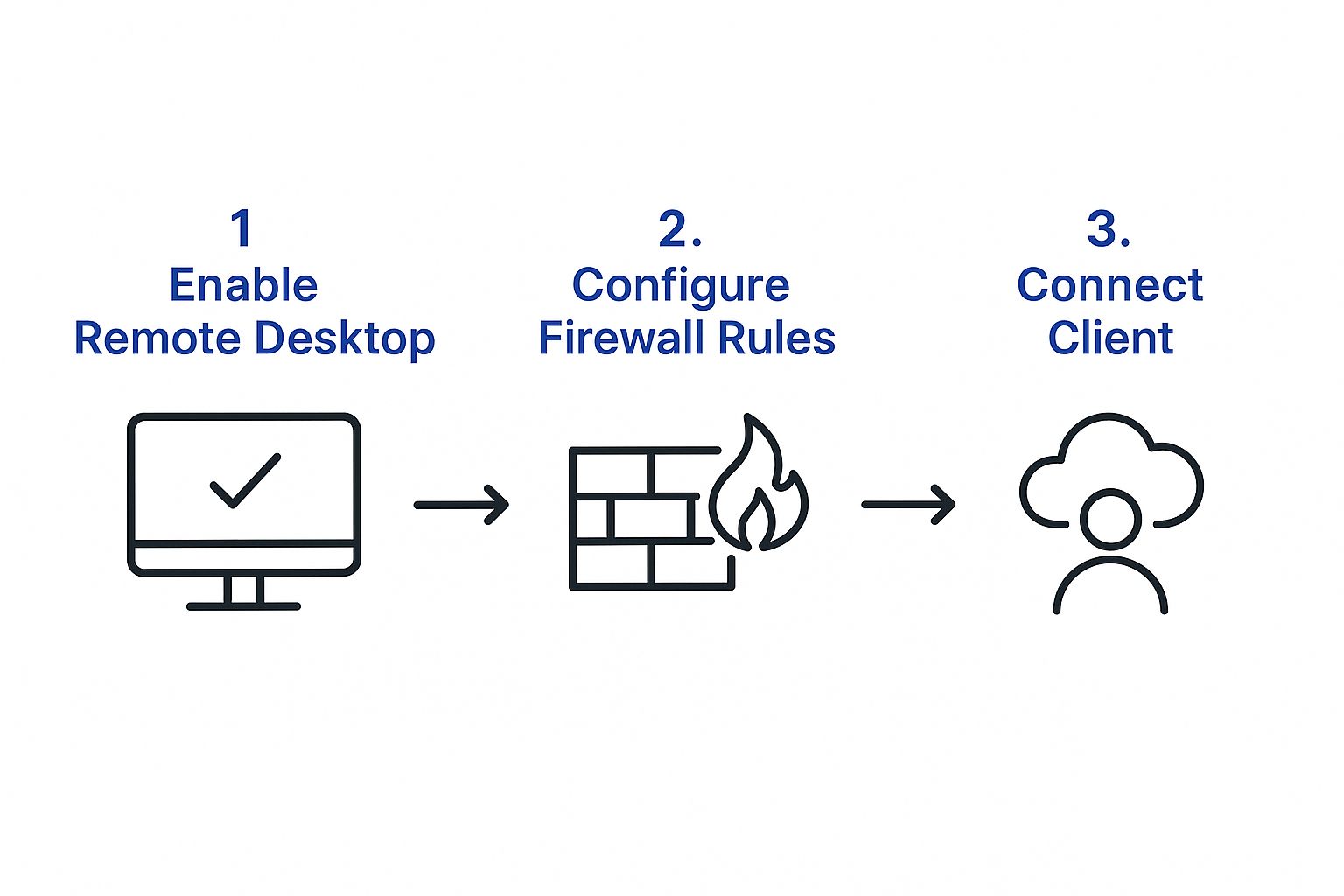
The setup flow is pretty logical, as this infographic shows. It really boils down to enabling the feature, tweaking the firewall, and then using the client to connect.
Getting XRDP installed on a Debian-based system like Ubuntu is usually just a quick terminal command. Once it's installed, the service starts up automatically in the background, ready and waiting for you to connect.
One of the most common snags people hit is getting a blank or black screen right after logging in. This almost always happens when XRDP tries to start a new remote session while you’re still logged into a local graphical session on the Linux machine itself. They conflict.
Expert Tip: To dodge session conflicts, make sure you're fully logged out of the graphical desktop on the Linux host before you try to connect remotely. XRDP needs to spin up a fresh session, and an active local one gets in the way.
Once you connect, you'll see a login screen that looks very similar to the standard Windows Remote Desktop prompt, confirming the service is up and running.
If XRDP isn't quite right for your workflow, Virtual Network Computing (VNC) is another fantastic option. It works a bit differently. Instead of creating a brand-new session like RDP, VNC typically mirrors the existing desktop session running on the Linux host. This is incredibly useful if you need to collaborate with someone or want to pick up exactly where you left off on the physical machine.
To get started with VNC, you'll need to install a VNC server on your Linux box. A few popular choices include:
After installing the server, your first and most important step is to set a strong VNC password. This is what stands between your remote session and the outside world, so don't skip it. From there, you'll configure the server to start automatically and set the screen resolution for remote connections.
On your Windows machine, you'll need a VNC client to make the connection. Tools like the TigerVNC Viewer or RealVNC Viewer work great. Just pop in your Linux host’s IP address, enter your password, and you're in.
Now, let's flip the script. This is a situation I find myself in all the time—happily working away in my Linux environment but needing to jump into a specific app that only lives on Windows. Getting a solid remote desktop connection between Linux and Windows is a must-have for these mixed-OS workflows.
The good news is that connecting from a Linux client to a Windows host is usually more straightforward than the other way around. This is mostly because Windows Pro, Enterprise, and Server editions come with a built-in Remote Desktop Protocol (RDP) server ready to go.
First things first, you'll need to head over to the Windows machine you want to access. Before you can connect, you have to explicitly enable incoming remote connections. You can find this toggle in the system settings.
Just remember, this feature is a perk of the higher-tier Windows versions. If you're running a Home edition, it won't work as a host machine.
Once you flip the switch, Windows is smart enough to configure its firewall to allow RDP traffic through. It's also super important to make sure the user account you plan on using has the right permissions. Administrators get access by default, but you can easily grant remote access to standard user accounts, too.
A Quick Tip: I always recommend creating a separate, standard user account just for remote access instead of using your main admin account. It’s a simple security habit that can limit potential damage if those credentials ever get compromised.
With the Windows host prepped and ready, you need a client application on your Linux machine to make the connection. You’ve got several excellent, open-source options, and each has its own vibe. Most are easy to find in the default software repositories of popular distributions like Ubuntu or Fedora.
Two of the most popular and reliable clients are:
Getting Remmina installed on a Debian-based system like Ubuntu is usually just a single command. Once you launch it, you'll find a simple interface for creating a new connection profile.
This is where you'll plug in the IP address or hostname of your Windows machine, along with your username and password. You can also tweak display settings like screen resolution and color depth to fit your needs and network speed. My advice? Start with a lower resolution and bump it up until you find that perfect balance between visual quality and performance.
For businesses juggling tons of virtual machines, knowing how to configure these connections efficiently is a game-changer. You can dive deeper into this with our guide to hosted virtual desktops.
One common thing you might see on your first try is a certificate warning. This just means your client doesn't automatically trust the self-signed certificate from the Windows host. On a private network, it's generally safe to accept it and carry on with the connection.
Getting a remote desktop connection running is really just the starting line. If you don't lock it down properly, your remote desktop for Linux or Windows is essentially an open invitation for trouble. Unsecured RDP and VNC ports are prime targets for automated bots that do nothing but scan the internet for vulnerable systems.
Once the basic setup is done, it's time to shift gears and focus on hardening these connections. This isn't just about ticking off a checklist of "best practices"—it's a critical step to protect your data and the integrity of your network. A single oversight here can snowball into a major security breach.
First things first: a strong password policy is absolutely non-negotiable. When you combine a complex password with multi-factor authentication, you create a serious roadblock against brute-force attacks.
For anyone on Windows, enabling Network Level Authentication (NLA) is a must. NLA forces a user to prove who they are before the server even bothers to establish a full remote session. This pre-check stops a huge number of malicious connection attempts dead in their tracks, long before they get anywhere near your login screen.
Key Takeaway: Think of NLA as a bouncer checking IDs at the front door. It prevents troublemakers from even getting inside the building to try and pick the locks on individual office doors.
Over on the Linux side of things, a fantastic technique is to tunnel your VNC or RDP traffic through an encrypted SSH connection. This wraps your entire remote session in a secure layer of encryption, making the data completely unreadable to anyone who might be snooping on your network traffic.
Here’s a simple but surprisingly effective trick: change the default RDP port from 3389 to something random. Those automated bots are programmed to look for the default port, so a quick change makes your system practically invisible to most of them. It's not a silver bullet on its own, but it dramatically cuts down on the noise from opportunistic attackers.
Proper firewall configuration is another non-negotiable. Whether you're using Windows Defender Firewall or Linux's Uncomplicated Firewall (UFW), you can set up rules to restrict remote access to only specific, trusted IP addresses. This means that even if an attacker somehow got their hands on valid credentials, they couldn't connect unless they were doing it from an approved location. To get this right, it helps in understanding network security vulnerabilities that often pop up with remote connections.
These layers of defense are crucial no matter which operating system you're using. While Linux powers around 77% of the world's web servers, Windows still dominates the desktop market with a 71-74% user base. Securing the bridge between these two platforms is vital. For a more complete security checklist, take a look at our deep dive into remote access security best practices.
When you're trying to bridge the gap between Linux and Windows for remote access, a few questions pop up again and again. Whether you’re stuck on a connection issue or just curious about how it all works, getting clear answers makes everything smoother.
One of the first things people ask is if they can use Microsoft's own Remote Desktop client to connect directly to a Linux machine. The short answer is yes, but there's a small catch.
Linux doesn’t have a built-in RDP server like Windows does. To make that connection happen, you need to install a little something on your Linux system to act as a go-between. The most common tool for the job is XRDP, an open-source server that translates the RDP protocol so your Linux desktop shows up perfectly in the standard Windows Remote Desktop Connection client.
Another point of confusion is the real difference between RDP and VNC. They both let you control a computer from afar, but they work in fundamentally different ways, which has a huge impact on performance.
Because of how they operate, VNC can get sluggish over connections with limited bandwidth. RDP, on the other hand, usually delivers a much smoother experience that feels almost like you're sitting right in front of the machine.
Key Takeaway: Go with RDP (using XRDP on Linux) when you need a snappy, seamless graphical experience. Stick with VNC when you need simple, platform-agnostic screen sharing or have to mirror an existing user session.
This is a big one. People often wonder if it's safe to open their remote desktop port—like RDP's default port 3389—directly to the internet. The answer is a hard no.
Exposing these ports is asking for trouble. They are constantly scanned by automated bots looking for vulnerable systems to attack. Instead of leaving the door wide open, you should always connect to your remote network using a secure method first, like a VPN or an encrypted SSH tunnel. This creates a secure, private pathway for your RDP traffic to travel through.
It's always smart to add another layer of security. A great way to do this is by understanding what two-factor authentication is and using it to protect your accounts from anyone trying to get in without permission.
At Cloudvara, we provide secure, high-performance cloud hosting that makes remote access simple and safe. Let us handle the infrastructure so you can focus on your work, accessible from anywhere. Discover our solutions at https://cloudvara.com.




