You're away from your desk, a client needs a file now, and the only device in your hand is an Android phone or tablet. That's the moment a remote desktop app stops being a convenience and starts being part of your operating model. If you pick the right one, you can open the same business applications you use in the office, keep work moving, and avoid the scramble of emailing files to yourself or asking someone else to log in for you.
For business use, access alone isn't enough. You also need sensible controls around authentication, session access, device management, and backups. Microsoft's own Android guidance makes it clear that mobile remote access is a real desktop workflow, not just screen sharing. Its Android client supports connecting to a specific Windows PC and to admin-published remote resources, and it's built for Windows apps and desktops from Android devices and supported Chromebooks through Google Play (Microsoft Remote Desktop for Android documentation).
That's why this guide sorts tools by business use case instead of pretending one app wins for everyone. An accountant who lives in QuickBooks has different needs from an MSP technician, and a lawyer reviewing documents from a phone has different tolerance for lag than a field service manager approving one item on the go.
Security also has to be part of the buying decision, not an afterthought. If you're reviewing your broader mobile posture at the same time, these mobile app security tips are worth keeping alongside your remote-access rollout.

A common Android remote access failure starts the same way. Someone needs QuickBooks, a tax app, a case file, or a Windows-only line-of-business tool from the road, and the plan depends on one office PC staying powered on, patched, and reachable. That setup works until it doesn't.
Cloudvara fits a different use case. It gives businesses a managed cloud desktop environment instead of asking staff to remote into scattered office machines. For firms trying to centralize where applications and data live, that is a meaningful operational shift. It cuts dependence on aging hardware, reduces single-PC failure points, and gives IT a cleaner place to manage access, backups, and support.
This option makes sense for organizations that still run real work through Windows desktop software. Accountants often need QuickBooks, Sage, CCH, Thomson Reuters, and Office in one controlled environment. Law firms need access to document systems, matter files, and desktop productivity tools without copying sensitive data onto personal phones or tablets. Nonprofits and smaller companies often want the same thing for a simpler reason. They need staff to work from anywhere without maintaining a server closet or troubleshooting office workstations after hours.
The business case is straightforward. Centralized desktops are usually easier to secure and support than a patchwork of individual PCs.
That is also why Cloudvara belongs in the managed cloud desktop category, not the ad hoc IT support category. If your employees need a persistent work environment with shared apps and files, hosted desktops usually hold up better than one-to-one remote control tools. Teams that rely on extended desktop space can also review options for remote desktop with two monitors before rolling out access broadly.
Cloudvara's value is mostly operational. The service includes automated daily backups, two-factor authentication, round-the-clock support, and an admin portal for billing and account management. The trial offer also helps. For a platform that may end up hosting accounting, legal, or back-office workflows, a short hands-on test matters more than marketing copy.
There are trade-offs. This is a managed service, so it will not appeal to buyers who only want the cheapest Android remote desktop app for occasional access. Pricing is not published as simple self-serve tiers, which means procurement usually starts with a conversation. Its published uptime commitment will be acceptable for many SMBs, but firms with stricter contractual or compliance requirements should compare the SLA, support scope, and recovery expectations with their internal standards before signing.
Cloudvara is the stronger choice when the goal is to centralize business software and reduce support overhead. If you only need occasional remote control of a single PC, lower-cost tools in this list will be easier to justify.
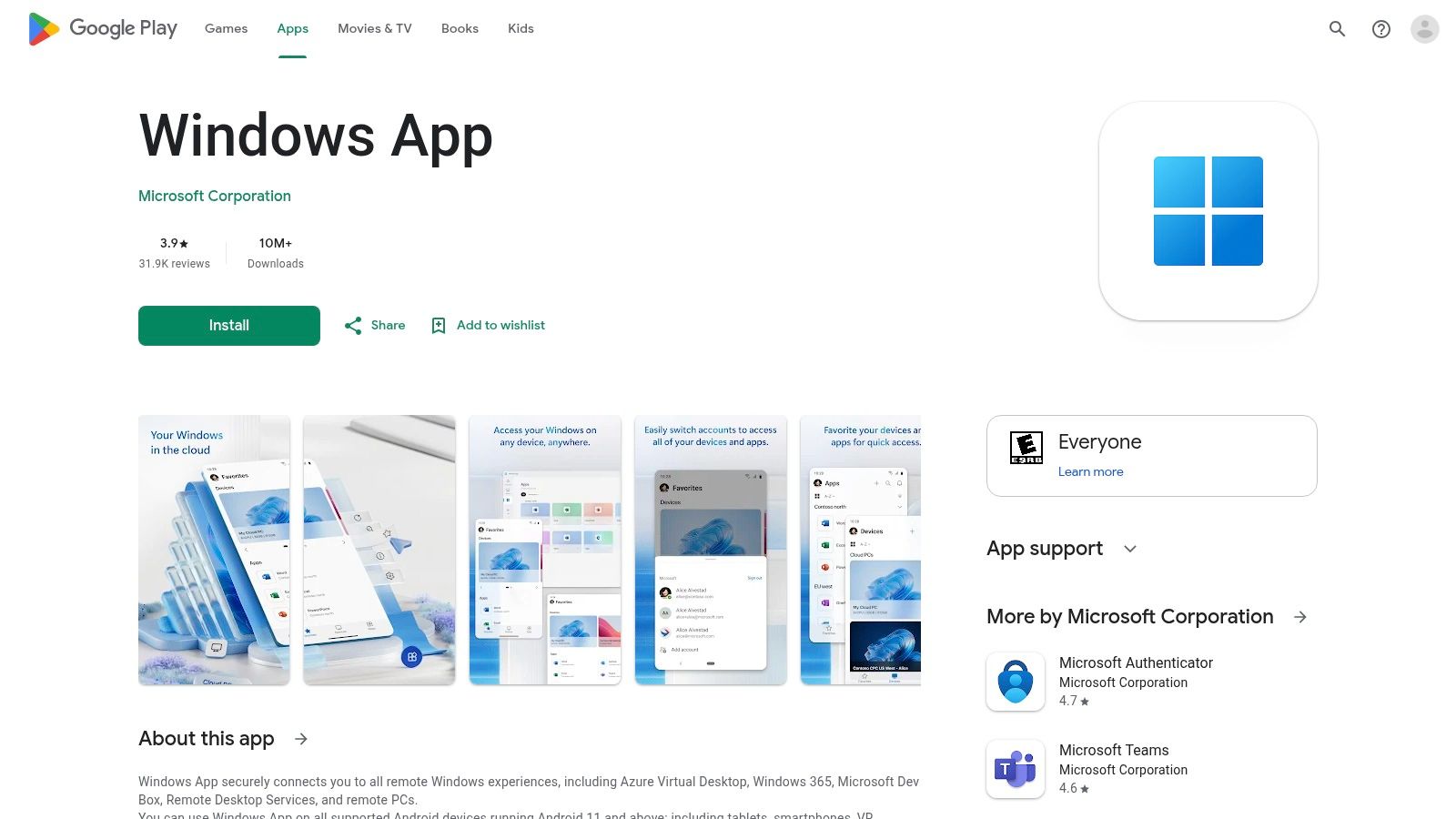
For Windows-first organizations, Microsoft's own Android client is the default starting point. If your company already uses Azure Virtual Desktop, Windows 365 Cloud PC, Microsoft Dev Box, Remote Desktop Services, or standard remote PCs, the Windows App keeps the stack aligned.
The appeal is straightforward. You're not adding another vendor just to get Android access. You're extending an environment your admins already manage, and you avoid a separate per-seat client fee beyond the Microsoft licensing model you already live with.
This is a strong remote desktop app for Android when the rest of your environment is already built around Microsoft identity, policy, and virtual desktop services. It also works well on phones, tablets, Chromebooks, and some other supported device types, which gives IT teams a cleaner endpoint story.
Microsoft's Android client heritage matters here. The company has long documented Android-specific setup, including downloading from Google Play, adding remote desktop connections or remote resources, and launching sessions directly from the device. That's not bleeding-edge experimentation. It's an established productivity workflow in enterprise environments.
If your users rely on multiple displays at their desks, review practical setup considerations for remote desktop with two monitors. On Android, multi-monitor awareness is useful, but the phone form factor still limits how comfortable heavy desktop work feels.
Microsoft is best when everything else is already Microsoft. If your workflows span mixed platforms, external support sessions, or broad third-party device control, tools like TeamViewer or ConnectWise tend to be more flexible.
There's also a usability gap people don't talk about enough. Android remote desktop can handle quick edits, approvals, and retrieval well, but sustained document-heavy work on a small screen is still tiring. Product marketing across the industry increasingly emphasizes performance features like 4K, HDR, and low latency, but the hard limit is usually screen size and touch input, not just transport speed.

TeamViewer is the enterprise support pick when you need breadth. It has a mature Android app portfolio, attended and unattended access, OEM add-ons, and enough policy depth for serious IT operations. If your support desk touches many device types and many user environments, TeamViewer usually makes the shortlist.
It's especially useful when Android is only one endpoint among many. Windows, macOS, Linux, Android, iOS, and ChromeOS support keeps your toolset consistent, which matters more than feature bragging when technicians are under time pressure.
TeamViewer's value isn't just remote control. It's the surrounding management layer: SSO, conditional access, policy controls, file transfer, chat, and session recording. For service desks, that creates a workflow you can govern instead of a collection of one-off remote sessions.
This category is also much bigger than many buyers assume. One market study says more than 1.3 billion remote access sessions were initiated globally each month in 2023, with 87% of global enterprises using remote access platforms and over 79% of Fortune 500 companies deploying at least one remote access tool (remote access tools market study). That lines up with how TeamViewer is used in practice. It's not niche software anymore.
When a help desk supports mixed fleets and remote users across many locations, consistency beats novelty. TeamViewer's main advantage is that technicians usually know what they're getting.
The downside is cost and administrative friction. Commercial subscriptions can be expensive, and teams sometimes run into strict commercial-use enforcement or account handling frustrations. If you're a small firm that only needs a few unattended systems, TeamViewer can feel heavier than necessary.
For larger support operations, though, that extra governance is often exactly the point.
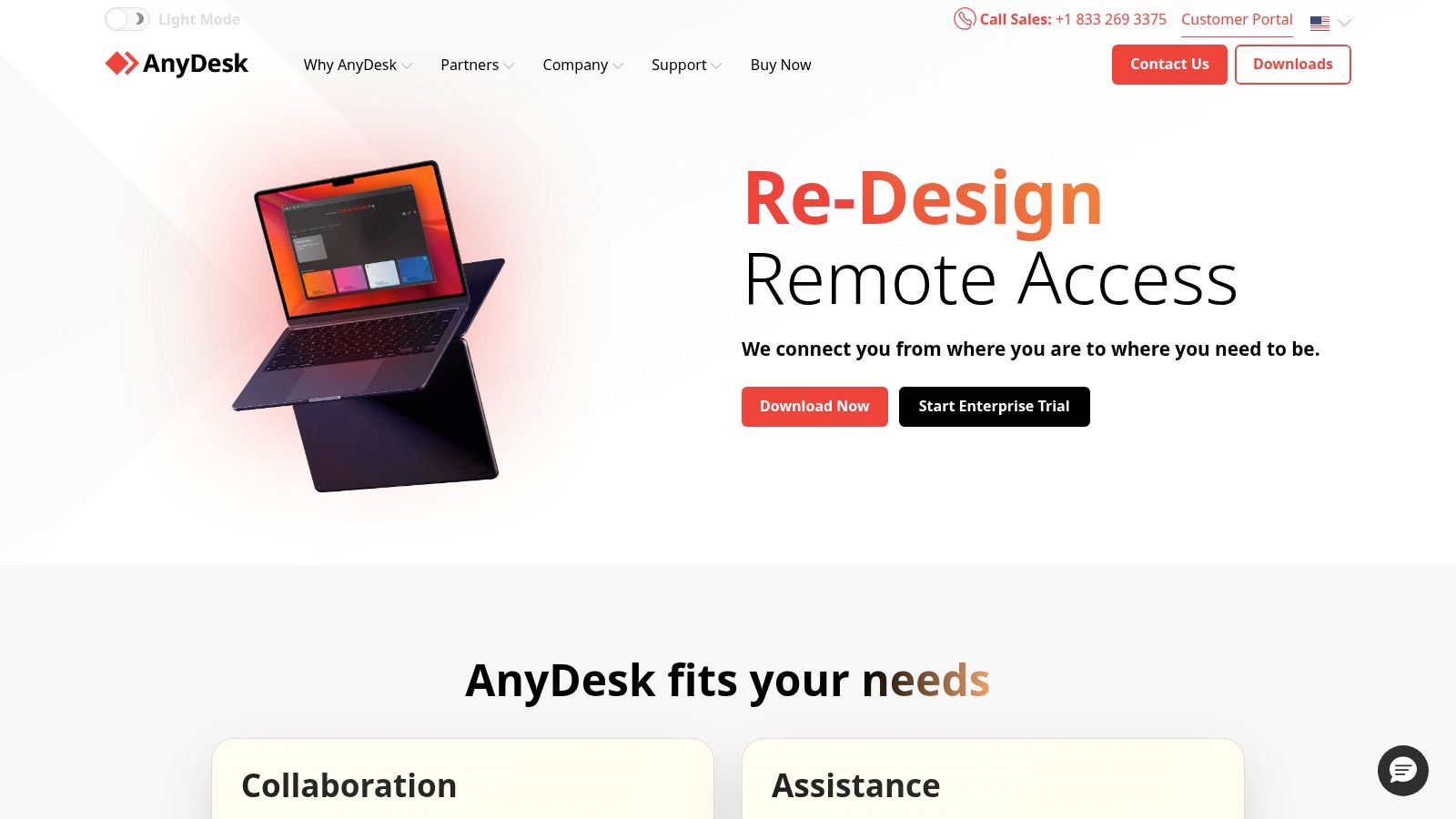
AnyDesk earns its place when responsiveness is the deciding factor. If users complain that remote sessions feel muddy, delayed, or awkward on mobile networks, AnyDesk is one of the first tools worth testing. It has a lightweight client, a reputation for quick session handling, and a lower-friction install experience than some enterprise-heavy platforms.
That makes it a good fit for SMB access, consultants, and teams that need regular ad hoc connections rather than a fully managed hosted environment.
AnyDesk works well when you need to explain what a remote desktop connection is in practical terms to end users. Install the client, authorize the device, and connect. For many businesses, simplicity is the feature.
It also suits organizations that want unattended access and some administrative controls without immediately stepping into a more complex support stack. File transfer, session recording, address books, and branding options cover a lot of common business needs.
The Android experience can vary by device model and Android version. That's common across remote support tools because OEM behavior, accessibility permissions, and screen-control add-ons aren't perfectly consistent. Don't assume one successful test on a flagship phone means every field user will have the same experience.
AnyDesk is also one of the products commonly found in the free or freemium layer of the market. HelpWire's review notes that AnyDesk is free for personal use, with commercial versions available. That's attractive for pilots, but business buyers should still review commercial tiers and renewal terms carefully.
A fast remote desktop app for Android is useful, but speed doesn't erase the small-screen problem. AnyDesk is best for responsive access, not for pretending a phone is the ideal place to spend hours inside spreadsheets.

Splashtop sits in a very practical middle ground. It's capable enough for business and IT use, but it usually feels less cumbersome than the larger enterprise suites. For SMBs and MSPs that want stable Android access, attended support, unattended machines, and pricing they can explain internally, Splashtop is a sensible option.
Its Android client is usually easy for non-technical users to adopt. That matters because remote access projects often fail on user friction, not on technical capability.
Splashtop's Business Access, SOS, and Enterprise lines map well to different operating models. Small firms can start with straightforward remote access. Support teams can expand into attended support, remote reboot, Wake-on-LAN, device management, and role controls.
If you're weighing hosted desktop infrastructure against app-based remote access, it helps to understand where desktop as a service (DaaS) changes the equation. Splashtop is excellent when you want remote control of existing machines. A hosted desktop model is better when the underlying machines themselves are the problem.
Splashtop's biggest advantage is clarity. Its pricing is generally easier for SMBs to understand than some larger vendors, and the Android app tends to be stable. For lean IT teams, that combination saves time.
The trade-off is that some advanced enterprise controls sit in higher tiers. There can also be small UI differences between desktop and mobile experiences that require user coaching. None of that is unusual. It just means Splashtop is best when you want strong practical coverage, not every possible enterprise bell and whistle.
Zoho Assist is the support-team value pick. If your priority is helping users and accessing unattended devices without paying for a heavyweight enterprise platform, it deserves a serious look. It's especially attractive for businesses already using Zoho Desk, CRM, or adjacent Zoho tools.
Unlike products focused mainly on end-user self-access, Zoho Assist is built around technician workflows. That changes the feel of the product in a good way for help desks.
The Android experience is split sensibly between technician and customer use. Attended and unattended sessions, file transfer, chat, clipboard support, and session notes cover the basics support teams need. For SMB support operations, that's often enough.
If you're comparing categories, broader roundups of the best remote desktop software can help frame where Zoho Assist fits. In practice, it's strongest when remote support is the main use case and broad enterprise policy depth isn't the top priority.
Full Android remote control can depend on device model or add-on installation. That's not a Zoho-only issue, but it does affect field support planning. If technicians support a highly mixed Android fleet, test on the actual devices your staff and customers use.
Operational note: For Android support tools, device compatibility matters more than feature lists. Run pilot sessions on the lowest-common-denominator devices, not just on the newest Samsung in the office.
Zoho Assist also doesn't go as deep as premium enterprise tools in every area. For many small support teams, that's a fair trade. You get a more approachable product and simpler seat-based buying.

A common scenario in IT is inheriting systems that already run on VNC. The business question is not whether VNC is modern. It is whether replacing a working access method is worth the migration cost, retraining, and risk. RealVNC Connect is a practical fit for teams that need Android access without rebuilding those workflows.
This app makes the most sense in the compatibility-focused category. Internal IT teams, consultants supporting older infrastructure, and firms with direct-connect requirements often choose it because it works with established VNC environments and supports both cloud-brokered and direct connection models.
RealVNC Connect works well for administrators who need reliable remote access to servers, workstations, lab systems, or specialized office machines from an Android device. I usually recommend it for use cases where screen sharing is occasional but dependable access matters, such as after-hours admin work, checking a back-office PC, or reaching a line-of-business app that still lives on a fixed desktop.
That can suit smaller professional firms too. An accountant accessing a bookkeeping workstation after hours or a lawyer checking a document system from a secured office PC may value continuity and predictable setup more than premium collaboration features.
Higher tiers add the controls businesses usually ask for, including SSO, MFA, role-based access, and audit logging. Those features matter if the app moves from individual admin use into a broader company access policy.
RealVNC Connect is not the strongest choice for high-motion, media-heavy, or graphics-intensive sessions on Android. Newer remote protocols usually feel faster in those conditions, especially on mobile networks. For document access, system administration, and light support work, the difference is often acceptable.
The bigger trade-off is operational. VNC can be flexible, but it may require more careful network design and security setup than products built around a fully managed support stack. If your priority is technician workflows, ticketing alignment, or large-scale support administration, other tools in this list fit that role better.
Pricing is generally structured from a free viewer option into paid business plans. That gives teams a low-cost way to keep existing VNC access in place while adding commercial controls only where they need them.
RealVNC Connect is a sensible pick for businesses that want to preserve a VNC-based environment, keep Android access available for admins and professionals, and avoid unnecessary migration work.
ConnectWise ScreenConnect is built for serious support operations. MSPs and internal IT teams choose it because it gives them deep administrative control, role-based security, unattended access, and extensibility through integrations. On Android, that translates into a capable technician tool rather than a stripped-down companion app.
If your team works tickets all day, that distinction matters. You need consistency, permissions, and auditability, not just the ability to “take over a screen.”
ScreenConnect shines in organizations with defined support workflows. Extensions and integrations with PSA and RMM tools let it fit into a broader service process. For technicians in the field, the Android client is good enough to review sessions, connect quickly, and move work forward when they're away from a laptop.
This segment is growing fast. One independent market forecast values the global remote desktop software market at US$ 5.08 billion in 2026 and projects US$ 12.02 billion by 2033, implying a 13.1% CAGR. The same market source also cites another forecast estimating growth from USD 3.76 billion in 2025 to USD 9.96 billion by 2031 at a 17.63% CAGR (remote desktop software market forecasts). For MSPs, that growth shows up as client demand for managed remote access and support.
This is not the cheapest product for very small teams, and pricing often requires a sales conversation. It also demands disciplined patching and security hygiene, which is true of major RMM and support platforms generally. If you want power, you also take on process responsibility.
That's a fair trade for service desks. It's usually unnecessary for a solo professional who only wants access to one office desktop.

GoToMyPC is the simplicity pick for solo professionals and small businesses. If you want always-on access to an office machine with minimal setup drama, it still does that job well. The Android app is straightforward, and that low-friction feel is the product's main selling point.
For users who don't want to think like IT admins, that has real value.
Accountants, attorneys, and small business owners who mainly need to reach their own workstation often prefer a tool like GoToMyPC over a more complex support platform. File transfer, clipboard sync, and multi-monitor navigation cover the basics, and the service has been around long enough to feel familiar.
That said, simplicity should never mean sloppy deployment. Before rolling out always-on remote access, teams should review remote access security best practices and decide who gets unattended access, from which devices, and under what authentication requirements.
GoToMyPC is often pricier than some SMB alternatives with similar core features. It also offers fewer deep administrative controls than MSP-oriented products. If your environment is simple, that may be fine.
A good remote desktop app for Android doesn't need to do everything. It needs to make the common task easy without creating avoidable security debt.
For individual access and day-to-day continuity, GoToMyPC remains a credible option. It's just not the one I'd choose for a growing support team or a firm trying to standardize a broader digital workspace.
RustDesk is the control-first choice for privacy-minded organizations. It gives you a TeamViewer-style workflow, but with open-source roots and the option to self-host relay and rendezvous infrastructure. If vendor lock-in, data sovereignty, or licensing cost are your biggest concerns, RustDesk stands out.
For technical teams, that's attractive for reasons beyond price. You get more say over where traffic and service components live.
RustDesk works well for internal IT teams, labs, privacy-sensitive firms, and organizations willing to manage more of the stack themselves. Cross-platform support is broad, and the self-hosting option gives you flexibility that many commercial tools don't.
It also aligns with a broader market shift toward cloud-based remote access. Earlier market research noted that cloud-based platforms represented the majority of global usage in this category, but there's still a clear place for organizations that want tighter control over deployment rather than defaulting to vendor-managed infrastructure.
The trade-off is administrative overhead. If you self-host, you own server management, updates, and reliability. That's fine for a capable IT team. It's a poor fit for a small business that already struggles to maintain one Windows server.
Android distribution can also be less polished than mainstream tools. Depending on the release path, users may install through F-Droid or APK channels rather than relying solely on Google Play. That's manageable in technical environments and annoying in ordinary business ones.
For organizations that want autonomy, RustDesk is compelling. For firms that want someone else to make remote access boring and reliable, a managed provider will be easier.
| Solution | Core features | Security & reliability | Pricing & value | Best for | Key differentiator |
|---|---|---|---|---|---|
| Cloudvara (Recommended) | Centralizes desktop apps (QuickBooks, Sage, MS Office) on dedicated servers; remote desktop | 99.5% SLA, automated daily backups, 2FA, 24×7 live support | Custom transparent plans; reduces IT costs; 15‑day free trial (no CC) | Accountants, law firms, nonprofits, SMBs replacing on‑prem servers | All‑in‑one app hosting + immediate commercial‑grade support |
| Microsoft Windows App (Android) | RDP client for AVD, Windows 365, Dev Box, RDS; multi‑monitor | Azure AD sign‑in; security per Microsoft platform | No per‑seat client fee (licensing via Microsoft) | Windows‑centric orgs using Azure/Windows 365 | Deep native Microsoft/Azure integration |
| TeamViewer Remote | Cross‑platform remote control, file transfer, session recording | SSO, conditional access, granular policies; enterprise‑grade | Commercial subscriptions can be costly | Enterprises and large support teams | Robust OEM/hardware support and enterprise ecosystem |
| AnyDesk | Low‑latency video codec, file transfer, unattended access | Responsive streaming; lightweight client (Android quality varies) | Tiered commercial plans; efficient bandwidth use | Low‑latency remote work and limited‑bandwidth environments | Very responsive streaming with small footprint |
| Splashtop Business | Adaptive streaming, unattended access, multi‑monitor, SSO | Stable Android app; reliable performance | Competitive, transparent SMB pricing | MSPs and small firms wanting high performance | Clear SMB pricing + consistent performance |
| Zoho Assist | Attended/unattended sessions, session notes, integrations | Good Android apps; device‑dependent full control | Simple seat‑based pricing; strong SMB value | Help desks and managed support teams | Tight integration with Zoho ecosystem |
| RealVNC Connect | VNC viewer, cloud or direct connections, 256‑bit encryption | SSO/MFA/RBAC on higher tiers; mature security features | Free viewer; server licensing recommended for best UX | VNC deployments needing mature compatibility | Proven VNC vendor with flexible deployment modes |
| ConnectWise ScreenConnect | Attended support, unattended access, extensions | Role‑based security, 2FA, audit logging | Sales‑based pricing; powerful but higher cost | MSPs and IT service desks requiring extensibility | Extensible platform with PSA/RMM integrations |
| GoToMyPC | Always‑on unattended access, file transfer, multi‑monitor | Mature, stable service | Straightforward plans but generally pricier | Non‑technical users and small businesses | Extremely simple, low‑friction remote access |
| RustDesk | Open‑source cross‑platform clients; self‑hostable servers | End‑to‑end encryption; self‑host for data sovereignty | Free core features; optional paid services | Privacy‑minded orgs that avoid vendor lock‑in | Self‑hostable, open‑source alternative with full control |
The biggest mistake I see is treating remote access as the finish line. It isn't. A remote desktop app for Android solves the immediate problem of getting into a machine from a mobile device, but the larger business question is how your team should access work, where your data should live, and how much operational risk you want to carry.
For a solo user, a simple app like GoToMyPC or AnyDesk may be enough. For a help desk, TeamViewer, Zoho Assist, or ScreenConnect will usually make more sense because they support technician workflows, policy controls, and multi-device support. For Microsoft-heavy shops, the Windows App is the logical choice because it aligns with Azure Virtual Desktop, Windows 365, and existing Microsoft administration patterns.
The more important divide is between “remote into that one computer” and “centralize the business environment.” Those are not the same strategy. If your accounting team, legal staff, or nonprofit office depends on shared desktop applications, on-prem servers, and office-bound data, a single remote desktop tool doesn't remove the underlying fragility. It just gives users a way to reach it.
That's why managed cloud desktop platforms deserve more attention in this conversation. Cloudvara is the strongest example in this list for firms that want a secure, simplified replacement for patchwork remote access. It centralizes the Windows applications many businesses already depend on, supports Android access, includes automated daily backups and two-factor authentication, and adds the kind of 24×7 support that small and mid-sized organizations often can't provide internally. For accountants and lawyers in particular, that's a meaningful upgrade from hoping a desktop in the office stays online.
There's also a practical role-based lens that helps with selection:
Security setup is the part many teams skip until something goes wrong. Don't do that. At minimum, require MFA or 2FA where the product supports it, limit unattended access to approved users and devices, keep host systems patched, document who can access what, and remove stale accounts quickly. If your remote desktop deployment touches client files, financial records, or legal documents, review it the same way you'd review any other system that exposes sensitive business data.
The right choice depends on what you're trying to improve. If the goal is occasional access, pick the simplest reliable app. If the goal is resilience, cost control, and a cleaner long-term operating model, centralizing your digital workspace will do more for the business than adding one more remote access tool.
If your team is tired of juggling office PCs, VPN workarounds, and fragile server setups, Cloudvara is worth a close look. It gives accountants, law firms, nonprofits, and small businesses a managed cloud desktop environment with Android access, automated daily backups, two-factor authentication, immediate 24×7 support, and a 15-day trial with no contract or credit card. For firms that want remote access to feel routine instead of risky, Cloudvara is the stronger long-term move.




