
Even with cloud-based everything, QuickBooks Desktop remains the undisputed champion for countless professionals. Why? Because for serious work in accounting, construction, or manufacturing, its deep, specialized features are non-negotiable.
This creates a classic dilemma: how do you get the raw power of the desktop version with the go-anywhere flexibility of the cloud? That’s the exact problem a QuickBooks remote desktop setup solves.
The conversation about accounting software often drifts toward cloud-native tools, but for a huge slice of the business world, QuickBooks Desktop isn't just a preference—it’s a necessity. It offers a depth of functionality that power users depend on for complex financial management, something its online cousin just can't match.
For example, businesses with complex inventory, like wholesalers or retailers, lean heavily on the advanced inventory management tools found only in the desktop editions. In the same way, construction firms need the kind of detailed job costing and industry-specific reports that are miles ahead of what cloud-only platforms offer.
The big drawback of this powerful software has always been its physical chain. Traditionally, your company file sat on one computer in the office or on a local server. This setup is a major bottleneck in a world where remote work isn't a perk, it's a requirement.
Your accountant can't easily jump into the books from their office. Your team can't log hours or process invoices from home. You can't check on financials while traveling. This old-school, on-premise model gets in the way of efficiency and collaboration.
The core issue isn't the software itself—it's how it's deployed. Businesses are stuck trying to balance the unmatched power of QuickBooks Desktop with the modern demand for anywhere, anytime access.
This is precisely where hosting QuickBooks on a remote desktop changes everything. It’s the perfect bridge, moving your familiar software into a secure, high-performance cloud environment. You keep every single feature, report, and workflow you rely on, but you gain the freedom to run it from any device with an internet connection.
Before we dive deeper, let’s quickly compare the two approaches.
Many businesses start with an on-premise setup before realizing its limitations. This table breaks down the key differences when you move that same desktop software to a hosted environment.
| Feature | On-Premise QuickBooks | Cloud-Hosted Remote Desktop |
|---|---|---|
| Accessibility | Limited to a single office or local network. | Access from any device (PC, Mac, tablet) anywhere with internet. |
| Upfront Cost | High initial investment in servers and IT infrastructure. | Low monthly fee with no major hardware costs. |
| Collaboration | Difficult; often requires sending files back and forth. | Multiple users can work in the same company file simultaneously. |
| Security | Your responsibility to manage backups, firewalls, and updates. | Managed by the provider with enterprise-grade security and backups. |
| Maintenance | Requires an in-house IT team or costly consultants. | All IT maintenance, updates, and support are included. |
| Scalability | Adding users requires new hardware and licenses. | Easily add or remove users as your team changes. |
As you can see, hosting simply modernizes the deployment without forcing you to abandon the software you trust.
The reliance on the desktop version isn't just a feeling; the numbers back it up. Even today, QuickBooks commands a massive 62.23% market share as of 2025, leaving competitors far behind. This shows just how many businesses refuse to sacrifice the powerful features they need to run their operations.
This loyalty highlights the critical need for a solution that doesn't force a compromise. You shouldn't have to choose between robust features and remote access. A hosted remote desktop gives you the best of both worlds. We break down more of the key differences in our guide comparing QuickBooks Desktop and Online.
Ultimately, hosting QuickBooks on a remote desktop isn't about replacing a tool you trust. It's about freeing it from the four walls of your office, letting you and your team work how and where you want without giving up the functionality that powers your business.
Moving your QuickBooks Desktop to a hosted environment is a huge upgrade, but a little prep work is what makes the whole process feel seamless instead of stressful. Think of it as laying a solid foundation for your new, more flexible workflow. Getting these key pieces in order beforehand will sidestep the usual hiccups and let your team get straight to work.
The first thing to sort out is your QuickBooks license. You really have two main paths here: you can bring your existing license with you, or you can lease one directly from the hosting provider. Both are perfectly fine options, and the right one just depends on your current setup.
Bringing your own license (BYOL) is the way to go if you’ve already invested in a perpetual license for a specific QuickBooks Desktop version that your team knows inside and out. A quality hosting provider will simply install that exact version for you in your dedicated cloud space. No retraining needed.
On the other hand, leasing a license from your provider offers a ton of flexibility. This is a great choice if you're looking to upgrade to the latest version or if you'd rather have a predictable monthly expense that bundles everything together. It also simplifies things—your provider manages both the software and the server it lives on.
Once the licensing is handled, it’s time to think about your team. A QuickBooks remote desktop is built for collaboration, but that only works if everyone has the right permissions. Before you migrate anything, take a few minutes to map out who needs access to what.
This bit of proactive user management is what keeps your data safe and sound in a shared environment.
This flow chart gives you a simple visual of how a hosted solution connects your powerful desktop software with anywhere-access.
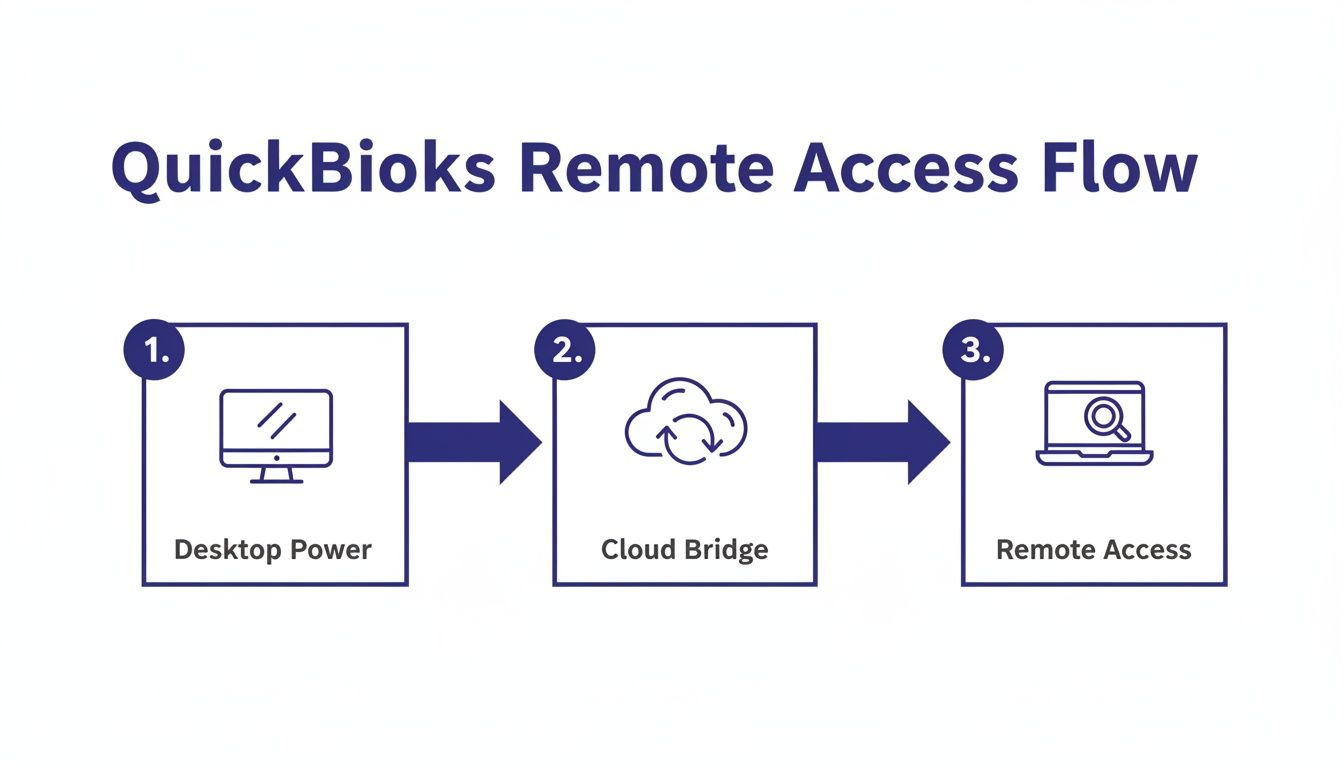
As you can see, the cloud acts as that essential bridge, turning your locally installed software into a resource you can tap into from anywhere.
The final piece of the puzzle is your most important asset: the company file itself. A clean, organized file will not only migrate faster but will also perform much better in the cloud.
A common mistake we see is people migrating a bloated, messy company file. It almost always leads to performance lags and frustration down the road. Taking a few hours to clean up your data before you move it pays for itself in long-term speed and reliability.
Before the migration, give your data a quick health check. This means condensing your company file, purging old audit trail data, and archiving outdated transactions, especially if your file has gotten massive over the years. Considering QuickBooks Desktop's sustained revenue hit $2,279 million in FY'23, it's clear how vital this software is—and keeping its data file healthy is the key to making it fly in a hosted setup.
Once your file is tidy, run one last local backup and tuck it away somewhere safe. This gives you a clean recovery point right before you hand the data off. For a detailed guide through each of these pre-flight checks, our comprehensive cloud migration checklist has you covered. A well-organized dataset doesn't just make for a smooth transition; it sets you up for peak performance from the moment you log in.
Once your QuickBooks company file is ready for its new home in the cloud, it's time to connect. This is the moment you log into your hosted environment and start working, just as if the software were installed right on your machine. We’ll walk through the most common method—using Windows Remote Desktop Connection (RDP)—and, more importantly, how to keep that connection locked down.
Accessing your QuickBooks remote desktop for the first time is pretty simple. Your hosting provider, like Cloudvara, will send you a unique set of credentials. This usually includes a server address, a username, and a temporary password that you’ll need to change right away.
Windows has a built-in tool called Remote Desktop Connection, and it's the go-to for securely connecting to another computer over a network.
To get started, just open the RDP app on your computer and punch in the server address you were given. When prompted, enter your username and password. On that first login, it's a good idea to save the connection settings. This creates a shortcut on your desktop, letting you connect with just one click in the future and saving you from typing in the details every single time.
You can also tweak a few settings for a better experience. Under the "Display" tab, for instance, you can adjust the screen resolution. In "Local Resources," you can choose whether your local printers and drives are accessible in the remote session. This is incredibly handy for printing reports directly from your hosted QuickBooks to your office printer.
Easy access is great, but it has to be paired with serious security. When you're handing over the keys to your financial data, you need total confidence that only authorized users can get in. This is where a multi-layered security approach becomes non-negotiable.
For any financial professional, ensuring cybersecurity in financial planning businesses is critical when dealing with sensitive data remotely. The principles are the same whether you're managing client investments or your own company's books. A single weak point can become a huge vulnerability.
That's why modern hosting solutions go way beyond a simple password.
Your login credentials are the front door to your financial data. Simply locking that door with a basic password is like using a simple latch to protect a bank vault. Modern security requires more advanced measures to keep intruders out.
This is where multi-factor authentication comes into play.
Two-Factor Authentication (2FA) is one of the single most effective security measures you can put in place. It adds a second layer of verification to prove you are who you say you are, making it exponentially harder for someone to gain access even if they manage to steal your password.
Here’s how it typically works in a hosted environment:
That simple process confirms that the person logging in not only knows the password but also has the authorized device in their hands. It’s a powerful defense against common cyber threats.
Beyond the tech safeguards your host provides, your team's habits play a massive role in keeping your remote QuickBooks environment secure. Instilling good security hygiene is a critical part of the process.
Here are a few best practices to enforce across your team:
By combining the provider's security infrastructure with your team's vigilant practices, you create a fortified environment. You can explore more of these strategies in our guide to remote access security best practices. This ensures your critical financial data remains protected, so you can focus on your work with total peace of mind.
When your entire accounting team depends on a QuickBooks remote desktop, performance isn't just a feature—it's everything. Even a moment of lag can throw off a workflow, frustrate your staff, and bring productivity to a screeching halt.
The secret is to treat your hosted environment less like a remote computer and more like a shared, high-performance workspace. It needs a bit of fine-tuning to keep it humming along. QuickBooks is built for collaboration, but that teamwork needs structure. Without it, you’ll hit roadblocks like file conflicts, slow reports, and the kind of general sluggishness that makes you wonder why you moved to the cloud in the first place.
A high-performing shared environment starts with a rock-solid multi-user setup. It’s not enough for everyone to just log in; you need to configure their accounts and the software to play nicely together. This is what keeps one person's massive report from grinding the system to a halt for everyone else.
One of the most common missteps is having the whole team log in under a single generic account. That’s a recipe for data conflicts and makes tracking changes nearly impossible. Instead, every single person on your team needs their own dedicated user account on the remote server.
This isn’t just about neatness; it delivers real advantages:
Over the years, your QuickBooks company file can get bloated with old data, and that’s a major drag on performance. A bigger file simply takes more time and resources for the server to process, especially when multiple people are trying to pull information from it at the same time.
Regular maintenance is non-negotiable here. A simple but incredibly effective tool is the Condense Data utility built right into QuickBooks. It archives old, closed transactions, shrinking the active file size without deleting your historical records. For most businesses, running this utility once a year is enough to keep things lean and fast.
Think of your company file like a physical filing cabinet. If it's overflowing with old papers, finding what you need is a nightmare. Regularly archiving old records keeps it organized so the system can pull information instantly.
Beyond the one-time setup, a few smart daily habits can make a massive difference in how your remote QuickBooks performs. It's all about working smarter within the shared environment.
One of the best moves you can make is scheduling resource-heavy jobs for off-peak hours. Running a huge year-end financial report or a complex payroll calculation at 10 AM on a Tuesday will slow things down for everyone. If possible, schedule those big tasks to run overnight or during lunch.
Another quick win is to adjust your Remote Desktop Connection (RDP) settings. If someone is working from a spot with a weaker internet connection, they can dial back the visual quality of their session. In the RDP client's "Experience" tab, unchecking things like "Desktop background" and "Font smoothing" can seriously improve responsiveness by using less bandwidth. You can dive deeper into this and other techniques in our guide on improving application performance.
To help you stay on top of all the moving parts, we've put together a quick checklist. Run through these points periodically to ensure your environment is always running at its best.
| Area of Focus | Action Item | Benefit |
|---|---|---|
| User Management | Create a unique user account for every team member. | Prevents file locking and improves security. |
| File Maintenance | Run the Condense Data utility annually. | Reduces company file size for faster processing. |
| Workflow Scheduling | Schedule large reports or payroll for off-peak hours. | Minimizes system slowdowns during busy work periods. |
| RDP Settings | Disable non-essential visual effects (e.g., backgrounds). | Lowers bandwidth usage for a more responsive connection. |
| Report Generation | Use filters to narrow down data before running reports. | Less data to process means reports generate faster. |
| Server Resources | Periodically review server CPU and RAM usage with your provider. | Ensures your hosting plan still meets your team's needs. |
By keeping these areas in check, you can ensure your system remains responsive and efficient, even as your team grows.
By combining proper user management, diligent file maintenance, and smart workflow adjustments, you can guarantee your remote setup runs just as smoothly as a local installation—and in many cases, even better.
Let’s talk about one of the biggest reasons businesses move to a hosted solution: the peace of mind that comes with rock-solid data protection. When your QuickBooks company file lives on a single laptop or an office server, keeping it safe is entirely on you. It's a task that's all too easy to forget until the worst happens.
A QuickBooks remote desktop environment completely flips that script. Instead of relying on manual backups that are often missed, your financial data is protected by a systematic, automated process managed by people who do this for a living. Data protection goes from being a nagging item on your to-do list to a built-in feature of your accounting workflow.
With a quality hosting provider like Cloudvara, your data is backed up automatically every single day without you ever lifting a finger. This consistent, reliable schedule is your best defense against data loss.
Compare that to the typical on-premise reality. Someone has to remember to run the backup, figure out where to store it, and cross their fingers that the external drive or local server it's saved on doesn't fail. That manual process is just asking for human error, creating vulnerabilities you might not discover until it’s too late.
Now, think about a worst-case scenario. A laptop gets stolen, a power surge fries your office server, or a flood makes your physical office totally inaccessible. With a local setup, your business could grind to a halt for days—maybe even weeks—while you scramble to recover your data, assuming you even can.
This is where a hosted environment really proves its worth. Since your QuickBooks software and data live in a secure, remote data center, local disasters become non-issues for your accounting.
If your office hardware is compromised, you can simply grab any other internet-connected device, log into your remote desktop, and get right back to work. Your company file will be exactly as you left it, ensuring zero operational downtime.
That ability to maintain business as usual, no matter what happens to your physical location, is the very definition of business continuity.
Beyond the daily snapshot, a crucial detail is your provider’s data retention policy. This policy dictates how long your backups are kept. A solid plan ensures you not only have yesterday's data but also versions from last week, last month, or even further back.
This is incredibly important if you ever need to restore your company file to a specific point in time. For example, if you find out a major data entry error was made a week ago, you don’t want to be stuck with only the most recent (and still incorrect) backup.
Here’s what a typical retention schedule might look like:
Having access to this historical data provides a powerful safety net. If you ever need to roll back your file, you can just contact your provider's support team, and they can restore the exact version you need. To see how these policies fit into a larger strategy, check out our guide on effective backup and recovery planning. It’s this multi-layered approach that truly safeguards your most critical financial information, keeping your business resilient no matter what comes your way.
Once your setup is complete, the real work—and the real benefits—begin. Moving QuickBooks to a remote desktop isn't just about logging in from a different building. It’s about fundamentally rethinking how your team collaborates and operates. You've officially broken free from the limits of a single office, opening the door to a more dynamic and resilient accounting workflow.
This new freedom unlocks powerful ways for your team to work together that were clunky or even impossible before. Imagine a CPA in New York City reviewing year-end financials at the exact same time a bookkeeper in Chicago is processing invoices, all within the same live company file. The frustrating delays of sending files back and forth are gone. The version control nightmares are over. What's left is just seamless, real-time teamwork.
This shift transforms QuickBooks from a siloed tool into the central hub for all your financial operations. It lets you build a more flexible team, bringing in top talent from anywhere without worrying about geography. To really capitalize on this, you could even integrate specialized remote support, like a dedicated QuickBooks Virtual Assistant, to handle routine tasks and make your processes even smoother.
This is also where the advantages of a managed provider like Cloudvara really shine. You're not just renting server space; you’re getting a dedicated IT partner. Having 24/7 support means that if a user runs into a login issue at 8 PM on a Sunday, help is just a phone call away.
Your focus should shift from managing IT infrastructure to maximizing your team's productivity. A high uptime guarantee and round-the-clock support ensure your business keeps running, allowing your team to concentrate on their actual work, not on technical troubleshooting.
Ultimately, the goal is to think beyond simple remote access. A managed QuickBooks hosting solution provides the foundation for a more efficient and secure way of doing business. It’s about making sure your most critical financial application is always available, always secure, and always performing at its best for your entire team.
Here’s what that looks like in the real world:
By embracing this new workflow, you empower your team to collaborate more effectively and drive your business forward with newfound agility and peace of mind.
Even with a clear plan, it's natural to have a few questions about how a QuickBooks remote desktop environment really works day-to-day. Let's tackle a couple of the most common ones we hear from businesses taking the leap.
Yes, you absolutely can. Most reputable hosting providers, including Cloudvara, operate on a "Bring Your Own License" (BYOL) model. This is great because it means we can install the exact version of QuickBooks Desktop you already own and know how to use.
If you’re looking to upgrade or prefer a simpler subscription, you can also lease a license directly through your provider. This bundles everything into one straightforward monthly fee. The flexibility is key—you get to use the software that makes sense for your company and budget, without being pushed into a purchase you don't need.
This is a big one, and for good reason. Your financial data is protected by several layers of enterprise-grade security, starting with the physical data centers themselves, which are fortresses.
In a hosted environment, security goes far beyond a simple password. It involves end-to-end encryption for all data in transit and at rest, professionally managed firewalls, and proactive threat monitoring to keep your information safe.
On top of that, Two-Factor Authentication (2FA) is standard practice. It requires a second verification step (usually on your phone) to block unauthorized access, even if someone somehow gets your password. Regular, automated backups add another critical layer of protection, making sure your data is always recoverable no matter what happens.
Ready to experience the freedom and security of a hosted QuickBooks solution? Cloudvara offers a no-obligation, 15-day free trial to see how our platform can transform your workflow. Get started today!




