For any growing business, the moment you have more than one person handling the books, you hit a wall. Suddenly, accounting becomes a game of "wait your turn," with team members lining up to access the QuickBooks company file one by one. This isn't just inefficient; it's a bottleneck that grinds productivity to a halt.
This is exactly the problem QuickBooks Multi-User Mode was built to solve. It’s a core feature that lets multiple people work in the same company file at the same time, turning accounting from a solo task into a truly collaborative effort.

Imagine your accounting team operating in perfect sync. One person is entering new invoices, another is running payroll, and a third is reconciling bank statements—all at once, inside the same live company file. That’s the reality with QuickBooks Multi-User Mode.
It fundamentally changes your company file from a static document into a dynamic, shared workspace. This shift from a slow, sequential process to a parallel, real-time workflow can slash month-end closing times and finally put an end to those frustrating data entry logjams.
When you enable multi-user mode, you have a big decision to make: where will the "host" computer or server live? You can manage it on-premise with your own hardware, or you can host it in the cloud for better accessibility and less IT overhead. Here’s a quick breakdown to help you decide.
| Feature | On-Premise Server | Cloudvara Cloud Hosting |
|---|---|---|
| Accessibility | Limited to the local office network | Accessible from anywhere with an internet connection |
| Upfront Cost | High (server hardware, software licenses, setup) | Low (no hardware to buy, simple monthly fee) |
| IT Management | Requires an in-house or contracted IT team | Fully managed by the hosting provider (us!) |
| Security | Your responsibility (firewalls, backups, updates) | Enterprise-grade security and automated backups included |
| Scalability | Difficult; requires purchasing new hardware | Easy; add or remove users and resources on demand |
| Remote Work | Complex and often requires a slow VPN connection | Seamless; designed for remote and hybrid teams |
While an on-premise server gives you direct physical control, the trend for accountants, law firms, and other professional services is clearly moving toward the cloud. The simplicity, security, and flexibility of a dedicated hosting environment just make more sense for most businesses today.
For accountants, law firms, and nonprofits, mastering this mode is an absolute game-changer. The benefits pop up everywhere in your daily operations. For instance, QuickBooks Premier supports up to 5 simultaneous users, while QuickBooks Enterprise scales impressively from 5 to 40 users.
This means your sales team can enter new customer payments while the accounting department reconciles last month's bank statements in real time. In fact, businesses that properly implement this feature often report 30-40% faster month-end closings.
The real value of multi-user mode is simple: it kills the "wait your turn" approach to accounting. When your team can work in parallel, you don't just save time—you build a more responsive and agile financial operation.
Hosting your QuickBooks file in a secure cloud environment amplifies these benefits even further. It removes the technical headaches of managing a local server and provides stable, anytime access for your entire team, whether they’re in the office or working from home. We've seen firsthand how this shift can dramatically improve workflow efficiency for our clients.

Before you even think about flipping the switch on multi-user access, you need to lay the proper groundwork. Skipping this prep phase is like building a house without a foundation—it’s a surefire way to run into frustrating errors down the road.
Getting these foundational pieces right from the get-go will save you countless hours of troubleshooting later. Think of it as a pre-flight checklist for a smooth launch.
The first thing to check is your software licensing. Every single person who needs to access the company file at the same time must have their own licensed copy of QuickBooks Desktop. Critically, these licenses all have to be for the exact same version and year. A mismatch, like one user on Pro 2023 and another on Premier 2024, will stop multi-user mode dead in its tracks.
Next up, you have to designate one computer as the "host." This machine is where the company file lives, and it manages all the access requests from other users. It’s the central hub for everything, so its stability is absolutely paramount.
For this reason, we strongly recommend using a stable, wired Ethernet connection for the host computer and all workstations. Sure, Wi-Fi is convenient, but its tendency for signal drops can easily corrupt your data or cause connection errors.
The host computer is also where you'll install and run the QuickBooks Database Server Manager. This little tool is the air traffic controller for your data, coordinating every request from each user to prevent conflicts and keep the information flowing smoothly. You can find detailed instructions for this process in our comprehensive server setup tutorial.
Key Takeaway: The entire multi-user system hinges on one computer acting as the host. Make sure this machine is the most reliable one on your network, stays on during business hours, and is plugged in with an Ethernet cable.
Proper licensing is non-negotiable. While every simultaneous user needs a license, many small businesses get creative to manage costs. A common strategy, used by an estimated 55% of small businesses, is sharing accounts for non-simultaneous access. This lets 5-6 people use the system with just 2-3 licenses.
This approach is particularly effective in a cloud-hosted environment, where 72% of Enterprise users report productivity gains from seamless multi-user access—a vital capability during the chaos of tax season.
Of course, none of this matters if your core QuickBooks setup isn't solid. Before enabling multi-user mode, make sure you've covered the basics of setting up QuickBooks correctly.
By handling these prerequisites—licensing, network stability, and proper host configuration—you’ll prevent the vast majority of setup headaches before they even happen. This paves the way for a smooth and efficient collaborative experience for your entire team.
Once you’ve laid the groundwork, it’s time to actually get your team working together inside QuickBooks. This really boils down to two main jobs: setting up the main computer to share the company file, and then pointing everyone else’s machine to that central file.
The most important step happens on your designated host computer—the one that will act as the server. You need to officially tell QuickBooks that this machine is in charge of your QuickBooks multi-user mode setup. This is done by turning on multi-user hosting, which fires up the QuickBooks Database Server Manager to handle all the incoming connections from your team.
On the computer you’ve chosen as the host, open QuickBooks and head to the File menu, then look under Utilities. Your mission is to find and select "Host Multi-User Access."
Simple enough, right? If the menu already says "Stop Hosting Multi-User Access," you're one step ahead. It means hosting is already on, and you can just move on.
With hosting enabled, the next move is to create dedicated user accounts for your team inside QuickBooks. These are separate from their Windows logins; they are specific QuickBooks profiles that control what they can and can’t do with your financial data.
To do this, navigate to Company > Set Up Users and Passwords > Set Up Users. Here, you can add new people and—crucially—assign them specific roles. This is a powerful feature that gives you granular control. For example, you can let a salesperson create invoices all day long but block them from ever seeing payroll details or your main bank balance.
The user list, shown below, is your command center for managing who gets in and what they're allowed to touch.
Here's a pro-tip that saves a lot of headaches: go into the host computer’s power settings. Make sure it's set to never go to sleep or hibernate. If that machine dozes off, it kicks everyone out, disrupts work, and can even lead to data corruption.
Now, let's get the rest of the team connected. On each person’s workstation, you'll need to map a network drive that points to the shared folder on the host computer—the one holding the company file.
It's a really good practice to use the same drive letter (like Q:) across all workstations. This consistency makes troubleshooting way easier down the road.
Once that drive is mapped, the user can open QuickBooks on their machine. Instead of creating a new file, they’ll choose "Open or restore an existing company." From there, they just need to navigate to the mapped network drive (Q:, for instance) to find and open the company file (the one ending in .QBW).
Your first attempt to connect from a workstation is the moment of truth. If you hit an error like H202, it’s almost always a firewall or permissions issue stopping the workstation from talking to the host.
This local network setup is pretty standard, but it can get tricky to manage, especially if you have remote team members. For a more robust and secure alternative, many firms are turning to a remote desktop for QuickBooks. This approach moves the entire environment to the cloud, centralizing everything and sidestepping those frustrating network errors.
Finally, make sure you establish clear rules for the team. Train everyone to switch the file back to multi-user mode if they find it in single-user mode, and always log out properly at the end of the day. Good habits are the final ingredient for a stable, collaborative accounting system.
Nothing grinds productivity to a halt faster than a cryptic error code. If you're running QuickBooks multi-user mode, you've likely met the infamous H-series errors. Codes like H101, H202, and H505 pop up, but they almost always boil down to the same root problem.
At their core, these errors mean one thing: a workstation computer can't talk to the host computer or server where your company file lives. Think of it as a dropped call between two machines. Your job is to figure out what's blocking that connection and restore it.
This decision tree shows the basic logic QuickBooks uses to grant file access in a multi-user environment.
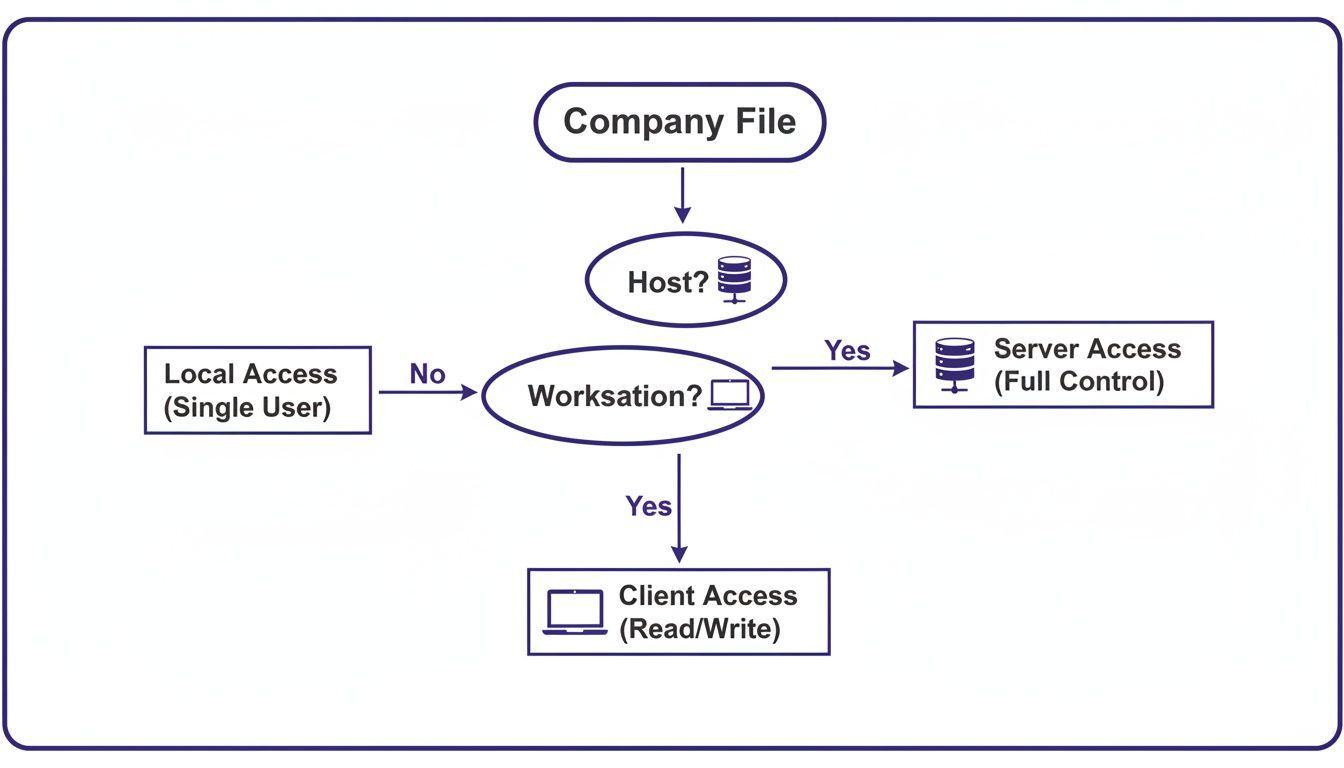
As the flowchart shows, the system first has to figure out whether a machine is the designated host or just a workstation before it can grant access to the file.
Instead of panicking when an error appears, it's best to follow a logical sequence. Always start with the simplest, most common fixes before you dive into more complex diagnostics.
Your first stop should always be the QuickBooks Database Server Manager. This tool is installed on the host computer and essentially acts as the traffic cop for your company file. Running a scan is the fastest way to resolve connection glitches.
If the scan doesn't fix it, your next suspect is almost always a firewall. A firewall’s job is to block unwanted network traffic, but sometimes it gets a little too aggressive and blocks QuickBooks by mistake. A classic real-world scenario is a Windows update that quietly resets firewall rules overnight, causing a mysterious H202 error the next morning.
Multi-user setup issues can be a major hurdle. In fact, an estimated 40% of businesses hesitate to adopt it because they're worried about setup problems. Simple mistakes like incorrect hosting—where multiple computers are trying to host the file instead of just the server—or firewall blocks are responsible for H101 and H505 errors in 15-20% of cases.
According to Intuit's own support data, correctly setting Windows folder permissions (Read and Write access for all QuickBooks users) and consistently using the Database Server Manager resolves up to 90% of multi-user glitches. For accounting and law firms tired of managing these hiccups, cloud solutions can reduce IT-related downtime by 70% compared to on-premise setups by providing pre-configured servers and immediate support. You can get more details on managing multiple users in QuickBooks on backofficeaccountants.com.
Pro Tip: Never, ever have more than one computer set to "Host Multi-User Access." Only the designated server or host PC should have this turned on. If a workstation accidentally has this enabled, it will clash with the server and cause connection failures for everyone.
To make things even easier, here's a quick cheat sheet for decoding the most common H-series errors you'll encounter.
| Error Code | What It Means | First Action to Take |
|---|---|---|
| H101 | The workstation can't access the file because hosting is set up incorrectly. | On the workstation, go to File > Utilities and ensure "Host Multi-User Access" is OFF. |
| H202 | A firewall is blocking communication between the workstation and the host/server. | Add QuickBooks services (like QBCFMonitorService) as exceptions in your firewall settings. |
| H303 | There's an issue with the file path or server configuration. | Verify the workstation is using a mapped network drive to access the company file. |
| H505 | Another computer is blocking access, often because it's also trying to host the file. | Run the QuickBooks Database Server Manager scan on the actual host computer/server. |
By demystifying these common errors, you can confidently troubleshoot them without waiting on a lengthy IT support call. The key is a logical approach: check the Database Server Manager first, then inspect your firewall, and finally verify your folder permissions and hosting settings. This process will get your team back up and running in no time.
Getting your team connected in QuickBooks multi-user mode is a great first step, but the real win is keeping the environment fast, stable, and secure for the long haul. This is where ongoing best practices come into play, separating a setup that just works from one that truly performs.
Think of your QuickBooks company file like a high-performance engine. It needs regular tune-ups. As thousands of transactions are added, tweaked, and deleted, small data integrity issues can pile up, slowing things down and inviting errors.
A proactive maintenance schedule is your best defense against this kind of digital decay.
Your maintenance routine doesn't need to be complicated, just consistent. The two most important tools you have are right inside QuickBooks: the Verify Data and Rebuild Data utilities, found under File > Utilities.
A simple, effective habit is to run the Verify utility every Friday afternoon. If it reports issues, you can schedule the Rebuild for a time when no one needs access, like over the weekend.
A reliable backup strategy isn't just a good idea; it's an absolute necessity. QuickBooks has an automated backup feature, but you shouldn't just "set it and forget it." A solid strategy accounts for multiple points of failure.
Your backup plan is only as good as your last successful restoration. Periodically test your backups by restoring them to a test company file to ensure they are complete and not corrupted.
Consider a multi-layered approach to be truly safe:
A high-performing system is useless if it's not secure. Protecting your sensitive financial data in a multi-user environment starts with controlling who can access what.
The principle of least privilege should be your guiding rule here. It simply means giving each user the absolute minimum level of access they need to do their job. For instance, an accounts receivable clerk has no business seeing payroll reports. You can fine-tune these permissions under Company > Users > Set Up Users and Roles.
From there, adding more layers of security is crucial. Implementing Two-Factor Authentication (2FA) is one of the single most effective ways to stop unauthorized access. For businesses that want the highest level of protection without the headache of managing it themselves, exploring comprehensive QuickBooks cloud hosting security can offload the management of firewalls, threat detection, and data encryption to dedicated experts.
Finally, don't overlook the simple things. Educate your team on critical habits like always logging out correctly at the end of the day and never, ever sharing their login credentials. These small, consistent actions collectively fortify your long-term performance and security.
Managing a local network for QuickBooks multi-user mode often feels less like accounting and more like a full-time IT job. You spend your days troubleshooting H-series errors and worrying about server hardware. After wrestling with the complexities of an on-premise setup, one thing becomes painfully clear: while QuickBooks multi-user mode is a great feature, the infrastructure it relies on can be incredibly fragile.
This is the point where the conversation needs to shift from the how of a local setup to the why of a smarter, more modern approach. Moving your QuickBooks to a dedicated cloud host isn't just about changing where your files live; it's a fundamental upgrade to your entire workflow.
Remember that notorious H202 error? It’s almost always tied to a firewall or a quirky network configuration on your local server. In a managed cloud environment, those errors practically vanish. Your hosting provider handles all the server-side configurations, ensuring the network pathways for QuickBooks are always open and optimized.
This means you and your team can simply log in and get to work. No more worrying about what’s happening behind the scenes. Your focus shifts from troubleshooting technology to actually using your financial data to make business decisions.
The real value of cloud hosting is peace of mind. Instead of reacting to network problems, you get a stable, professionally managed platform where everything is pre-configured for optimal performance and security from day one.
Beyond just wiping out common errors, cloud hosting delivers a level of access and security that’s incredibly difficult and expensive to build in-house. For any busy professional, a managed solution offers some undeniable advantages.
This streamlined approach allows firms to focus on what they do best instead of wrestling with IT. You can learn more about how a dedicated environment boosts stability and access by exploring the benefits of cloud hosting for QuickBooks.
To make the switch seamless and get the most out of these benefits, following established cloud migration best practices is key. Proper planning helps ensure your data is moved securely and your team is ready for the new, more efficient workflow. Ultimately, a managed cloud solution doesn't just fix the persistent problems of a local multi-user setup—it unlocks a more reliable, secure, and collaborative way for your team to work.
Ready to eliminate QuickBooks errors and empower your team with secure, anywhere access? Cloudvara offers a fully managed cloud hosting solution that takes the IT burden off your shoulders. Start your free 15-day trial today and experience the difference at https://cloudvara.com.




