You’re usually trying to do this under pressure. A client sends a signed PDF, a partner asks you to pass along the full thread, or a case file has to reach outside counsel before the end of the day. Then the forward goes out and the attachment is missing, the thread loses context, or the file is too large to send.
That’s why how to forward email attachments matters more than people think. In accounting, legal, and nonprofit work, forwarding an attachment isn’t just a convenience task. It affects audit trails, client communication, and whether the recipient gets the same file you reviewed.
The good news is that the workflow is predictable once you stop treating every mail app the same way. Desktop Outlook, Gmail in a browser, Apple Mail, and mobile apps all handle attachments a little differently. Some preserve the original message structure well. Some don’t. Some are fine for a quick resend. Others are better when compliance or chain-of-custody matters.
Before you forward anything, decide what you need to send.
Sometimes you only need the file itself. Other times you need the entire original email, including headers, timestamps, recipients, and the nested attachments that came with it. Finance and legal teams often blur those two tasks, and that’s where mistakes start.
A practical setup is simple:
A major shift in attachment handling happened when Gmail launched on April 1, 2004 with a 25 MB attachment size limit and 1 GB of free storage, a change that made forwarding large business files much more practical than earlier webmail systems. That 25 MB limit remains standard in 2026, and Gmail had more than 4.3 billion users worldwide as of 2023, according to the cited summary at Microsoft Learn.
For firms that moved away from on-premise mail storage, this changed daily work. Staff no longer had to rely as heavily on local PST files, ad hoc FTP folders, or desktop-only workflows just to resend a PDF return or workbook.
Practical rule: Decide first whether you’re forwarding a file, forwarding a message, or preserving evidence. Those are three different jobs.
If your team works across remote desktops and hosted applications, it also helps to understand how files move between local devices, mail clients, and shared storage. This overview of cloud storage gives the right baseline if your forwarding process depends on remote access rather than a single office PC.
Desktop and web mail clients still handle most serious forwarding work. They give you better control over message format, file handling, and compliance details than mobile apps do.

If you need to preserve message integrity, Outlook’s Forward as Attachment option is the safer move than a standard inline forward.
Microsoft Outlook can forward messages as .eml or .msg attachments through the ribbon or Quick Steps, preserving digital signatures and encryption headers. For attachments under 20 MB, the cited Cloudvara guide reports a 99% success rate, and Quick Steps can automate 500+ forwards per day at 98.5% uptime according to that same source: how to forward an email as an attachment.
Use these workflows:
Outlook desktop on Windows or macOS
Outlook on the web
Quick Steps for repetitive forwarding
What works well in Outlook:
What doesn’t:
Gmail gives you two distinct options, and they serve different purposes.
A normal Forward action is fine when you just need to resend the latest message and its current attachments. If you need the original email preserved as a file, use Forward as attachment instead.
Gmail’s message-as-attachment workflow uses the .eml format, which preserves the original message structure, metadata, HTML rendering, and nested attachments. The process is straightforward:
That format is especially useful when you’re sending approvals, audit support, or message chains that someone else may need to inspect later.
Here’s a walkthrough if you want to see the interface before using it in production:
One important Gmail quirk catches people all the time. A regular forward from a threaded conversation may not include everything you expect. If the job is “send this whole conversation with every file intact,” use the thread-aware options carefully rather than assuming the standard button covers it.
Forwarding a message as an attachment is usually the cleaner choice when another person needs to verify who sent what, when it was sent, and what was attached at the time.
Apple Mail is often used by solo attorneys, executives, and staff who switch between macOS and iPhone.
For routine file forwarding:
For more controlled handling:
| Client | Best use | Strong point | Common mistake |
|---|---|---|---|
| Outlook desktop | Compliance-sensitive forwarding | Preserves message details with .msg or .eml | Using inline forward when headers matter |
| Outlook web | Browser-based office work | Easy drag-and-drop message attachment | Assuming web behavior matches desktop exactly |
| Gmail web | Fast forwarding and .eml workflows | Good for sending original messages as files | Standard forward on a thread when full context is needed |
| Apple Mail | General business forwarding | Simple interface on macOS | Sending without verifying the attachment stayed attached |
Mobile forwarding is fine for quick action. It’s not where you should handle the tricky stuff unless you have no other option.
The biggest issue on phones isn’t sending the wrong file. It’s sending the right file without the surrounding context, or sending a preview link when you thought you were forwarding the original attachment.

Apple’s mobile Mail app is decent for simple forwarding.
Open the message, tap the reply arrow, then choose Forward. Before you send, scroll through the draft and confirm the file is still attached. If the original item was a cloud-hosted file or a preview, Mail may present it differently than a true attached PDF or spreadsheet.
For legal and accounting work, the safe habit is this: if the email includes a signed document, tax return, or engagement letter, don’t rely on a quick glance at the thumbnail. Open the forwarded draft and make sure the file appears as an attachment, not just as visible content in the body.
In Gmail mobile, standard forwarding is easy, but it’s not always the best choice for preserving structure.
Tap the message, open the menu, and choose Forward. If the original included Drive-hosted items, check whether the outgoing message is sending a link rather than a direct attachment. That may be fine, but only if the recipient has permission to open it.
Use the Gmail app for:
Avoid it for:
Outlook mobile is better organized than many phone mail apps, especially in Microsoft-heavy environments.
Open the message, tap the forward option, and inspect the draft before sending. If you’re dealing with a shared mailbox or a protected message, check that the app has synced fully before you forward. A partial sync can leave you forwarding only the body text or a stale version of the thread.
If the file matters more than speed, mobile should be your backup option, not your default one.
A partner needs the closing binder in 15 minutes. The forward fails, Outlook throws a size warning, and now you have to decide whether to compress, split, or stop using attachments altogether.
That decision should be consistent across Outlook desktop, Outlook on the web, Gmail, and mobile clients. In accounting and legal work, large-file handling breaks down when staff improvise. In Cloudvara hosted environments, the cleaner approach is to use one workflow everywhere so users do not have to guess which client behaves differently.
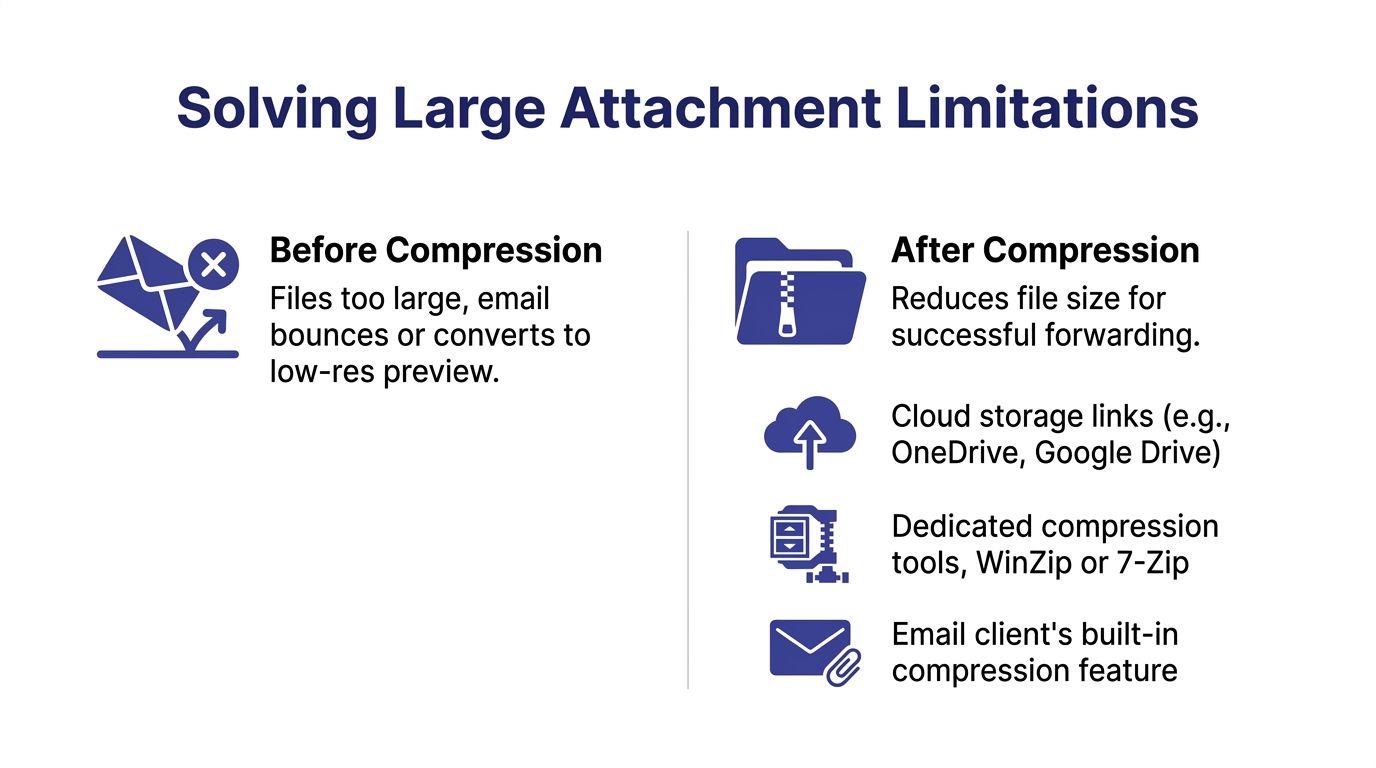
Use the method that matches the recipient’s job.
| Method | Best when | Upside | Trade-off |
|---|---|---|---|
| ZIP or 7-Zip compression | Files are slightly over the limit and the recipient can work with archives | Quick fix, keeps the file attached | Archive files are often blocked, and legal recipients may avoid opening them |
| Split into smaller files | The recipient requires separate attached files in email | Preserves attachment-based delivery | Version mix-ups happen fast, especially with revised exhibits or numbered schedules |
| OneDrive or Google Drive link | The file is large or still being reviewed | Better version control and easier re-sends | Access depends on correct permissions |
| Secure hosted file share | The file contains client records, signed documents, or matter-sensitive material | Centralized access, better control, easier auditing | Staff must follow the same process every time |
Compression works for edge cases. A 27 MB PDF package might compress enough to pass. A scan-heavy production set usually will not. Many PDFs are already compressed, so zipping them changes little and adds friction for the recipient.
For repeated large forwards, use a link-first workflow:
This keeps desktop, web, and mobile users on the same path. It also reduces the common problem where one employee sends a local attachment, another sends a cloud link, and neither can explain later which copy was the final one.
Teams reviewing storage options can compare cloud storage for small business to choose a platform that fits file size, access control, and retention requirements.
Do not compress by default.
Skip it when the recipient is outside your organization, when the document may be reviewed as part of an audit or dispute, when the file is already a scan-heavy PDF, or when you need a clear access trail. In those cases, a controlled link is usually easier to deliver and easier to defend later.
I also avoid split archives for finance and legal teams unless there is no other option. They create support tickets, confuse recipients, and increase the chance that someone works from an incomplete set.
Use an attachment when the recipient needs a copy and the file is small enough to send cleanly.
Use a controlled link when the recipient needs access to a large file, a current version, or a document set that may change.
Use the original email as an attached message when the recipient needs message-level proof, then send the large file through the approved share method separately. Pair that process with documented email security best practices so staff handle large forwards and sensitive content the same way every time.
A partner asks for a signed return, the supporting bank record, and the original approval email. Sending that package is easy. Sending it in a way that preserves confidentiality, limits exposure, and still gives the recipient what they need takes a repeatable process.
Finance and legal teams run into the same risk across Outlook, Gmail, mobile apps, and hosted desktops. The client changes. The control points do not. In Cloudvara-hosted environments, I recommend one rule set across desktop, web, and mobile so staff are not guessing which forwarding method is acceptable on a given device.

Use a standard attachment for low-risk files that the recipient needs to keep, review offline, or add to their own records.
Use a controlled link for large files, document sets, or anything that should stay under your firm's access policy after delivery. That choice usually gives better control over expiration, named-user access, and version changes than email attachments do.
Use the original message as an attached email when the message itself may matter later. That includes approval trails, client instructions, and any exchange that may be reviewed during an audit, dispute, or legal hold.
A quick review catches the mistakes I see most often:
One more point matters for mobile users. Phones make it easy to forward fast and hard to inspect details. If a file contains client financials, tax IDs, settlement terms, or privileged content, review the recipient list and the file from a full desktop or hosted session before sending it out.
Good tools help. Clear rules prevent errors.
A practical standard for accounting and legal teams is: send only the file set the recipient needs, use the least-permissive sharing method that still gets the work done, and preserve message history only when there is a business or legal reason to keep it attached.
Teams that want a formal control framework should document approved forwarding paths, exception handling, and review steps in their data loss prevention best practices. Pair that with written email security best practices so staff handle attachments, links, encryption, and message preservation the same way across desktop, web, and mobile.
A forwarding problem usually shows up at the worst time. A partner says the attachment never arrived, a client receives the email but not the file, or Outlook sends one copy from desktop and a different result from mobile. In practice, the fastest way to fix it is to isolate the failure point first: the message, the attachment, the mail client, or the account session.
For accounting and legal teams, that distinction matters. A missing PDF is one problem. A forwarded message that drops headers, nested attachments, or matter context is a different one, especially inside a hosted environment where staff may switch between desktop, web, and mobile in the same day.
Inline forwarding is a common cause of lost attachments in long conversations. The visible thread may carry over, but one or more files from earlier messages do not.
Use a different method when the recipient needs the full record:
This approach reduces avoidable back-and-forth because the recipient gets the original files and message context in a form that is easier to review and defend later.
If Outlook stalls, sends inconsistently, or keeps prompting for credentials, check the account state before reworking the message.
Start with these checks:
In hosted setups, I see stale credentials and session drift cause more forwarding complaints than the attachment itself. If Outlook is prompting, failing, or leaving mail stuck in Outbox, reauthenticate the account first. If needed, follow these steps to update the password in Outlook and then resend a fresh copy instead of reopening the same broken draft.
Mobile apps trade control for speed. That is useful for quick review, but it creates problems when someone forwards a file from a phone and assumes the sent message matches the preview.
Common symptoms:
The clean fix is simple. Open Sent Items and confirm what left the mailbox. If the message is client-facing, time-sensitive, or tied to a legal or financial record, redo the forward from the desktop client or from the hosted Cloudvara session where the full attachment and message options are visible.
| Symptom | Likely cause | Fastest fix |
|---|---|---|
| Attachment missing after forward | Inline conversation forwarding dropped the file | Forward the original message as .eml or .msg |
| Recipient cannot open the file | Blocked file type or broken sharing settings | Reattach in an accepted format, or resend with corrected access |
| Outlook draft will not send | Authentication, sync, or profile issue | Reauthenticate, check mailbox sync, then create a new message |
| Mobile forward loses context | App simplified the original message | Redo the forward from desktop or hosted session |
Do not keep resending the same failed draft. Change the forwarding method, confirm account health, and send a new copy that you can verify.
The cleanest forwarding workflow is also the safest one. Match the method to the job.
Use a normal forward when the recipient just needs a straightforward file. Use forward as attachment when message integrity matters. Use a cloud link when the file is too large or access control matters more than keeping everything inside the email.
Keep this checklist in front of your team:
If your staff follows those rules consistently, forwarding stops being a recurring support ticket and becomes a dependable part of the workflow.
If your team needs a more controlled way to handle Outlook, Gmail, QuickBooks, document management tools, and remote access in one place, Cloudvara is worth evaluating. It provides hosted application access, remote desktop workflows, backups, and centralized file handling that can make attachment forwarding more predictable for accounting, legal, nonprofit, and small business teams.