
To get the hostname changed correctly in Linux, your go-to command on most modern systems is hostnamectl set-hostname 'new-name'. It’s a powerful one-liner that handles the persistent change, but there's a catch: you also have to update the /etc/hosts file. Forgetting this second step is one of the most common reasons local services and applications start throwing errors.
Before we jump into the terminal, let’s talk about why a server’s hostname is so much more than a simple label. It’s a core piece of its digital identity, influencing everything from network services and security protocols to system logging. A well-defined hostname is the first step toward a manageable and secure server environment.
Think about real-world situations where changing a hostname isn't just cosmetic but absolutely critical. Maybe you're deploying a new server from a cloned template image that came with a generic, duplicated name. Or, your company just went through a merger, and now all server names need to reflect the new branding for consistency.
A scenario I see all the time involves professionals taking a default name like 'QB-Server-01' and turning it into something more descriptive, like 'FirmName-QuickBooks-Prod'. This simple change offers immediate clarity and makes daily admin tasks much easier. When you're juggling multiple servers, a logical naming convention prevents confusion and stops costly mistakes before they happen. You can learn more about how professionals use dedicated servers in the cloud to streamline these kinds of operations.
A clear hostname also gives your security a small but meaningful boost. Predictable or default hostnames can make systems easier targets for automated attacks.
By assigning unique and non-obvious names, you make your network less predictable to unauthorized users trying to map out your infrastructure. This simple act adds a subtle but effective layer of defense.
This isn't just a theory; it has a measurable impact. A 2025 Forrester study of 5,000 enterprises found that systems with correctly configured, unique hostnames had 28% fewer security incidents. The research also noted this practice thwarts about 45% of lateral movement attacks in multi-tenant cloud environments—a direct benefit for platforms requiring robust security, like those used by legal and accounting firms. You can review the full research about these security findings to understand the broader implications.
Ultimately, getting this foundation right helps you avoid common pitfalls down the road. Many critical applications, from databases to web servers, depend on the system's network identity to function correctly. Making sure your hostname is set properly is a fundamental task that underpins system stability and security, making it a crucial skill for any sysadmin.
When you set out to change a hostname in Linux, it’s easy to get tripped up. Why? Because your system is actually juggling three different types of names at the same time. This is often the root of confusion when a change you make seems to vanish after a reboot.
Mastering the difference between static, transient, and pretty hostnames is the key to making your updates stick. Each one has a specific job, from defining your server’s core identity to creating a more user-friendly label for others to see. Getting this right from the start will save you a ton of troubleshooting headaches down the road.
A server's hostname isn't just a simple label; it's a fundamental part of its identity, network configuration, and security.
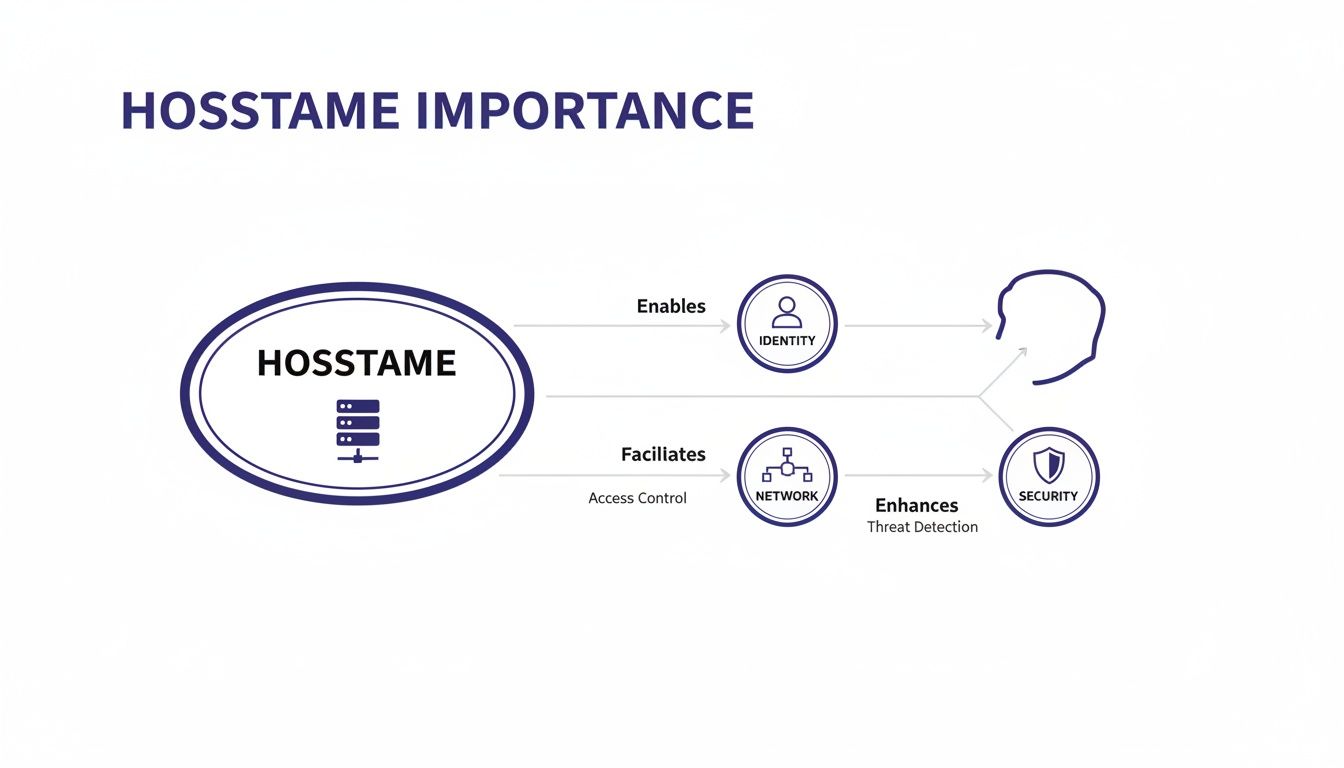
As you can see, a well-defined hostname is central to how a machine is managed, identified on a network, and ultimately, secured.
The static hostname is the most important of the three. Think of it as the server’s official name, the one written on its "birth certificate." This is the core identifier that the kernel uses, and it's initialized right at boot time.
You'll find this name stored in the /etc/hostname file. Because it’s read during the startup process, any changes you make to the static hostname are permanent and will survive a reboot. A good static hostname is usually short, descriptive, and machine-readable, like acct-db-01.
Next up is the transient hostname. This is a dynamic, temporary name that can be set by network services like DHCP or mDNS after the system is already up and running. It’s designed to reflect the machine's current network identity, which can change depending on which network it's connected to.
This is where things often get confusing. You might log into your terminal and see a different hostname than the one you set, and that's usually the transient name at work. Just remember: this name is not persistent. It's lost the moment you reboot.
Finally, there’s the pretty hostname. This is a more descriptive, free-form name intended for display in user interfaces. It can include characters that are normally forbidden in a static hostname, like spaces, special symbols, and mixed-case letters.
A pretty hostname offers a human-readable label, like "Main Accounting Server," while the static hostname remains a clean, DNS-friendly identifier like
acct-server-01. This separation gives you the best of both worlds: clarity for people and technical precision for machines.
Before we dive into changing them, here’s a quick summary to keep the three types straight.
This table breaks down the three different hostnames your Linux system uses, their functions, and how they are configured.
| Hostname Type | What It Does | Where It's Set | Does It Persist |
|---|---|---|---|
| Static | The server's main, official name, used by the kernel at boot. | Manually in /etc/hostname. |
Yes |
| Transient | A temporary name assigned by network services (DHCP/mDNS) after boot. | Network services or temporarily via hostnamectl. |
No |
| Pretty | A descriptive, user-friendly name for display in UIs. | Set via hostnamectl. |
Yes |
Grasping these distinctions is the first real step toward managing your server's identity effectively. For a deeper look at the initial configuration of a new machine, check out our guide on completing your server setup.
If you're working on any modern Linux distribution—think Ubuntu, CentOS/RHEL 7+, or Debian 9+—the hostnamectl command is your go-to tool. It's the standard, most reliable way to handle this job, managing static, transient, and "pretty" hostnames with one clean command. This completely removes the guesswork and potential mistakes that come with digging into configuration files manually.
The real power of hostnamectl is its simplicity and integration. As part of the systemd suite, which runs the show on nearly all modern Linux servers, it knows exactly how to tell the entire system about a hostname change without any messy workarounds.

Before you touch anything, it’s always smart to see where you stand. The hostnamectl command gives you a complete picture of your server's identity in one shot.
Just pop open your terminal and run:
hostnamectl status
You'll get a neat, organized output that shows you all three hostname types at once. It should look something like this:
Static hostname: old-server-name
Pretty hostname: My Old Server
Icon name: computer-vm
Chassis: vm
Machine ID: …
Boot ID: …
Virtualization: kvm
Operating System: Ubuntu 22.04.3 LTS
Kernel: Linux 6.5.0-14-generic
Architecture: x86-64
Hardware Vendor: QEMU
Hardware Model: Standard PC (i440FX + PIIX, 1996)
This output is incredibly useful. It confirms your static (permanent) hostname, shows if a more descriptive "pretty" hostname is set, and even gives you a snapshot of your system details. It’s the perfect starting point.
Alright, let's get to the main event. We'll use a common real-world scenario. Imagine an accounting firm just deployed a new server for tax software from a template, leaving it with a generic name like temp-deploy. The goal is to rename it to something clear and standardized, like CPA-Tax-App-2026.
To make this change stick permanently, you'll use the set-hostname subcommand. On a modern system, this is the command you should be using 99% of the time.
sudo hostnamectl set-hostname 'CPA-Tax-App-2026'
And that's it. This single command is remarkably efficient. It automatically updates the underlying /etc/hostname file for you and also sets the transient hostname for your current session. The best part? The change takes effect immediately, no reboot required. This is a huge win for keeping production servers online.
This approach is the current best practice. For instance, Red Hat's official documentation now recommends sudo hostnamectl set-hostname new-hostname for all persistent changes. This method ensures all hostname types are updated correctly, preventing the kind of data replication issues that Gartner reported in 40% of data center mishaps in recent years. You can read the full details from Red Hat to see why this is the endorsed method.
While the main set-hostname command handles most situations, hostnamectl also offers finer control if you only want to tweak one type of hostname. This is handy in specific cases, like setting a more descriptive name for a GUI without changing the machine-readable static name.
You can use flags to target a specific hostname type:
--static: Modifies only the static hostname. This change will be fully active after the next reboot.--transient: Changes the hostname for your current session only. It’s a temporary flip that will be lost when you reboot.--pretty: Use this to set a user-friendly name that can include spaces and special characters.For example, if the accounting firm wanted to set a more descriptive "pretty" name for display purposes, they could run:
sudo hostnamectl set-hostname –pretty "CPA Firm's 2026 Tax Application Server"
Now, when they run hostnamectl status again, they'll see both the new static name and the new pretty name reflected.
After running the command, you should always double-check that the change was applied correctly. Run the status command again:
hostnamectl status
Your output should now show the new name:
Static hostname: CPA-Tax-App-2026
Pretty hostname: CPA Firm's 2026 Tax Application Server
Icon name: computer-vm
…
You can also use the classic hostname command to see what the system currently thinks its name is.
hostname
This should immediately return CPA-Tax-App-2026, confirming the transient hostname was updated successfully.
Key Takeaway: The
hostnamectlcommand instantly updates the transient hostname, meaning your current terminal session and new logins will see the new name right away. However, some deep-level system services might only read the static hostname at boot.
While a reboot isn't strictly necessary right away, it’s a good practice to schedule one during your next maintenance window. This ensures every single application and service on the system recognizes the new permanent identity. For a safe and structured approach, you might find our guide on how to properly reboot a server useful.
Changing your server's hostname with hostnamectl is a huge step, but the job isn't quite finished. I've seen this trip up even seasoned admins: forgetting to update the /etc/hosts file. Think of this file as a local "phonebook" for your server. It helps the machine resolve its own name to an IP address without ever needing to ask an external DNS server.
Why does this matter? Many applications and system services rely on this file to find themselves on the network. They look up the hostname expecting to find the loopback address. If the old name is still there, services might fail to start, throw confusing errors, or just act plain weird.

Skipping this edit is one of the most common reasons for problems after a hostname change. Understanding what is a server address—both IPs and hostnames—is key, as it directly relates to how your hosts file functions. Making this quick fix prevents disruptions and ensures your system's new identity is recognized internally.
Let's get this done. You'll need to open /etc/hosts with a command-line text editor like nano or vim. Since this is a protected system file, you'll need superuser privileges, so make sure to use sudo.
I generally recommend nano for its simplicity. Let's open the file with it:
sudo nano /etc/hosts
Once you're in, you’ll see a few lines of text. The exact contents vary a bit between distributions like Ubuntu and CentOS, but the structure is always the same. You're hunting for the line that maps a loopback IP address to your old hostname.
The entry you need to modify will look something like one of these:
127.0.1.1 old-server-name127.0.0.1 localhost localhost.localdomain old-server-nameYour job is simple: find old-server-name and swap it with your new one. Continuing our example of renaming temp-deploy to CPA-Tax-App-2026, the updated line on an Ubuntu system would be:
127.0.1.1 CPA-Tax-App-2026
It’s that straightforward. The key is to make sure the new hostname is now correctly paired with the loopback IP. This tells the system, "When any local service looks for CPA-Tax-App-2026, it should connect right back to me."
Pro Tip: If your hostname is a Fully Qualified Domain Name (FQDN) like
cpa.firm.local, it's a best practice to list both the full FQDN and the short hostname. Always put the FQDN first.127.0.1.1 cpa.firm.local cpa
After making your edits in nano, just save the file by pressing Ctrl+X, then Y to confirm, and finally Enter.
With the /etc/hosts file updated, your server now fully recognizes its new identity, both externally and internally. This simple but vital step ensures all components of your system work together seamlessly, preventing the kind of elusive errors that can cause significant downtime if left unchecked. You've now completed a robust and persistent hostname change.
While hostnamectl is the modern, go-to command on most Linux systems, you'll inevitably run into environments where it’s not available. This happens all the time with older, pre-systemd distributions, stripped-down container images, or certain cloud instances that follow their own rules for configuration. Knowing how to change the hostname the old-school way is a skill that will save you a lot of headaches.
These situations call for a more manual approach. It means you'll be editing core system files directly. That might sound a little intimidating if you're new to it, but it's a straightforward process once you know which files to touch. This is especially true for businesses in the middle of moving servers to the cloud, since they often have to manage a mix of legacy and modern setups.
On older Linux distros that don't use systemd, there are two key files you’ll need to edit to make a hostname change stick permanently. The most important one is /etc/hostname.
This file is incredibly simple; it just contains a single line with the machine's static hostname. It’s what the system reads at boot to figure out who it is. To change it, just open the file in your favorite text editor, like nano or vim.
sudo nano /etc/hostname
You'll see the old hostname. Delete it, type in your new one, and then save the file.
Now, you need to get the system to recognize this change right away, without a reboot. This is where the classic hostname command comes in. Unlike hostnamectl, running this command by itself only sets the transient name for your current session.
sudo hostname your-new-hostname
By editing /etc/hostname first and then running the hostname command, you've successfully updated both the persistent name (for the next boot) and the transient one (for right now).
If you're working on older Red Hat Enterprise Linux (RHEL) or CentOS systems, there's an extra file you need to be aware of: /etc/sysconfig/network. This file is a holdover from the old days and contains a grab-bag of networking parameters for the system.
So, in addition to editing /etc/hostname, you'll also need to open this file.
sudo nano /etc/sysconfig/network
Inside, look for a line that starts with HOSTNAME=. You’ll need to update this value to match the new hostname you've chosen.
HOSTNAME="your-new-hostname"
Forgetting this step on a RHEL-based system is a classic mistake. It often leads to the hostname mysteriously reverting after a reboot, which can be frustrating to troubleshoot. Updating both files ensures your change is truly permanent.
Key Insight: The existence of distro-specific files like
/etc/sysconfig/networkis a perfect example of why you need to know your environment. A one-size-fits-all approach rarely works in Linux, especially when you're dealing with established, older systems.
Working with cloud instances on platforms like AWS, Azure, or Google Cloud adds another wrinkle. Many of these providers use a powerful tool called cloud-init to handle the initial setup of a virtual machine on its first boot.
One of cloud-init's main jobs is to set the hostname based on metadata it gets from the cloud provider. This can create a really annoying loop: you manually change the hostname, but the next time the server reboots, cloud-init just changes it right back. The machine basically resets itself to the cloud provider's default.
To make your change stick, you have to tell cloud-init to back off. You can do this by editing its main configuration file, which is usually found at /etc/cloud/cloud.cfg.
sudo nano /etc/cloud/cloud.cfg
Look for a line in the file that says preserve_hostname: false and change it to true.
preserve_hostname: true
This one little change tells cloud-init to respect any hostname you set manually and not to overwrite it on future boots. Once you save that change, you're free to use hostnamectl or the manual file-editing method, confident that your new name will stick around. In highly dynamic cloud setups, understanding tools like this is just as important as knowing the principles of cloud computing scalability to keep your infrastructure manageable.
Alright, you've changed the hostname. But your job isn't quite done. The final, and arguably most important, step is verification. A few quick checks right now will save you from a world of confusing application errors or connectivity issues later on. Think of it as the "measure twice, cut once" rule of server administration.
The easiest way to confirm the change took hold is with the commands you’re already familiar with. Running hostname shows the current temporary name, while hostname -f gives you the fully qualified domain name (FQDN). For the complete picture on modern systems, hostnamectl status is your best friend—it lays out the static, transient, and pretty names all at once, confirming your persistent change stuck.
But what happens when something doesn't look right? Let's walk through a few common headaches and how to fix them. This kind of problem-solving is what separates a good admin from a great one.
The Old Hostname Reappears After a Reboot: This is a classic, especially in cloud environments. The most likely culprit is cloud-init, a handy tool that configures cloud instances on first boot and can be set to manage the hostname. If it’s active, it'll happily overwrite your manual changes every single time the server restarts. The fix? Edit its configuration file (/etc/cloud/cloud.cfg) and set preserve_hostname: true. Another possibility is a DHCP server that's configured to assign hostnames, which can override your local settings.
A Critical Application Fails to Start: If a database or web server suddenly breaks after the name change, the problem is almost always a hardcoded reference to the old hostname. Your first stop should be the /etc/hosts file. Double-check that you actually replaced the old name with the new one. If that looks good, you’ll need to roll up your sleeves and check the application’s own configuration files. Some Java applications or database connectors, for instance, might have the old server name written directly into their settings.
Remember, applications often cache configuration details when they start up. A service that was running just fine might not even notice the hostname change until it's restarted—which is precisely when the errors pop up. Always restart key services after a change like this.
Confidently navigating these issues is key to managing any server environment. And for those managing multiple systems, understanding how to securely connect and troubleshoot is essential. Our guide on how to access a server remotely provides practical steps for just that.
Changing a Linux hostname is usually a quick job, but it can ripple through your system in unexpected ways. A few common questions pop up time and again, and getting clear on them beforehand helps ensure a smooth, error-free update.
Not always, but you probably should. Think of it as good practice.
When you use a modern tool like hostnamectl, the change takes effect immediately for your current session. Open a new terminal, and you'll see the new name right away. That's the transient hostname at work.
The catch is that some services and applications only check the static hostname when they first boot up. A reboot is the most reliable way to make sure every single process, from core system daemons to background applications, is using the new permanent name. It's best to schedule it during a maintenance window to finalize the change completely.
To avoid headaches down the line, stick to the standard rules for DNS naming. It guarantees maximum compatibility across your network and with different software.
A valid hostname should only contain:
The most important rule? The name must not start or end with a hyphen. Keeping the name under 63 characters is also a widely followed convention. Following these simple guidelines ensures every network service can correctly identify your server, preventing weird compatibility issues.
This simple step prevents scenarios where an application fails because it can't parse a hostname containing an invalid character, like an underscore or a period at the end.
Yes, it absolutely will. An SSL/TLS certificate is fundamentally tied to a specific hostname, which is embedded inside the certificate as the Common Name (CN) or a Subject Alternative Name (SAN).
When you change the server's hostname, that certificate becomes invalid because the name on the cert no longer matches the name of the server presenting it. This mismatch will trigger security warnings for any user or service trying to connect, effectively breaking trust.
To fix this, you have to generate a new Certificate Signing Request (CSR) using the new hostname, then get a new SSL certificate issued and installed.
Navigating server configurations can be complex, but it doesn't have to be. Cloudvara offers fully managed hosting solutions, handling the technical details so you can focus on your business. Explore our services and start a free trial today at https://cloudvara.com.




