
In a world where your office can be anywhere from a spare bedroom to a coffee shop, knowing how to securely connect to your work desktop is non-negotiable. It’s all about creating a stable link that lets you control your main computer from another device, giving you full access to your files and software just as if you were sitting right there.
The power to tap into your work computer from home, a client’s office, or even another country is no longer a perk just for IT pros—it’s a core need for modern business. As flexible work becomes the norm, remote desktop solutions have become the bedrock of productivity. This isn't just about convenience; it's about keeping the business running, staying efficient, and maintaining your competitive edge.
This guide is a straightforward walkthrough for setting up secure remote access with Cloudvara. We'll cut through the jargon and give you clear, actionable steps. We’ll start with the basics to make sure your system is ready, then dive into configuring the software, adding two-factor authentication for extra security, and fine-tuning your setup for a smooth workflow.
Truly understanding remote desktop access goes way beyond just logging in from a different location. It’s about fundamentally changing how you work for the better. The benefits of a well-designed virtual desktop setup are huge and can directly boost your day-to-day operations.
Imagine you're an accountant who needs a client's QuickBooks file that's only on your office PC. Instead of a frustrating drive back to the office, you can log in securely from your laptop at home, finish the work, and hit your deadline without missing a beat. That’s the kind of flexibility that turns a technical feature into a game-changing business tool.
The real magic of remote desktop technology is its ability to make physical boundaries disappear. It ensures your most critical software and data are always within reach, turning any internet-connected device into your personal workstation.
The market trends reflect this growing reliance. The global remote desktop software market was valued at around USD 3.33 billion in 2024 and is expected to hit nearly USD 11.98 billion by 2032—that’s a compound annual growth rate of about 17.3%. Businesses are clearly investing heavily in this technology.
To give you a clearer picture, here's a quick summary of what the Cloudvara remote access solution brings to the table.
Here’s a quick look at the core features and benefits of the Cloudvara remote desktop solution discussed in this guide.
| Feature | Description | Primary Benefit |
|---|---|---|
| Secure Connection | Uses advanced encryption to protect your data during every remote session. | Prevents unauthorized access and keeps sensitive business information safe. |
| 2FA Integration | Adds a second layer of security, requiring a code from your phone to log in. | Drastically reduces the risk of stolen passwords leading to a security breach. |
| Cross-Platform Access | Connect from any device, including Windows PCs, Macs, iOS, and Android. | Gives you the freedom to work from whatever device you have on hand. |
| Full Desktop Access | Provides a complete virtual replica of your office desktop environment. | Ensures you have access to all your files, applications, and network drives. |
| High Performance | Optimized for a smooth, responsive experience with minimal lag. | Keeps you productive without the frustration of a slow or choppy connection. |
This combination of security, accessibility, and performance is what makes a professional remote desktop solution so valuable.
Whether you're an entrepreneur who needs constant access to business files or a creative professional using demanding software from home, this guide will show you how to build a secure and efficient remote setup. We’ll cover:
By the end of this guide, you’ll have the confidence to work effectively from anywhere, knowing your connection is both reliable and secure.
Before you can jump into your remote desktop, a little prep work goes a long way. Taking a few minutes for these pre-flight checks on both your main desktop (the host) and the device you're connecting from (the client) is the secret to a stable, secure, and frustration-free session. Think of it as setting the stage for a successful remote connection, every single time.
First, let's tackle the basics on your host machine. One of the most common reasons a remote connection fails is surprisingly simple: the host computer went to sleep. To keep your session from dropping out of nowhere, pop into your power settings and make sure the machine won't enter sleep or hibernate mode while you might need it.
You'll also want to be sure your operating system and all critical software are fully updated. Running outdated software can cause weird compatibility issues or, worse, leave security holes wide open. A quick check for updates on both the host and client devices prevents a lot of common connection headaches before they even start.
With the basic system checks done, your network is the next critical checkpoint. Firewalls, both on your computer and your network router, are designed to block unexpected connections—which is great for security but can sometimes interfere with remote desktop software. You may need to create a specific rule or exception for your remote access app to let it communicate freely.
This prep work isn't just about making the connection work; it's about making it secure from the start. A properly configured system is your first and best line of defense against unwanted access.
Setting up a private, encrypted channel for your connection is another smart move. To do this right, it helps to understand why remote work employers need VPN, as a VPN adds a powerful layer of security to all your remote desktop activities.
For a deeper dive into protecting your entire remote work setup, our guide on remote access security best practices covers more advanced strategies. Following these initial steps builds a reliable foundation, letting you focus on your work without worrying about the stability or security of your connection. This groundwork is essential for anyone looking to master how to access a desktop remotely and efficiently.
Now that your system is prepped, it's time to actually forge the connection. This is where we bring your remote workstation to life by configuring the host computer and the client device you’ll use to access it. The process itself is straightforward, but the details really matter—especially when you’re fine-tuning the setup for your specific work.
For instance, a video editor wrestling with high-res footage needs a configuration that prioritizes silky-smooth graphics and low latency. An accountant accessing QuickBooks, on the other hand, just needs a rock-solid, secure link to their software; graphical fidelity isn't the main event. Cloudvara’s platform is built to handle these specific adjustments.
Getting this initial setup right is the core of learning how to access a desktop remotely. The whole point is to create a seamless experience that feels just like sitting at your main desk.
The graphic below recaps those crucial pre-configuration checks we covered, which are designed to head off any setup headaches.
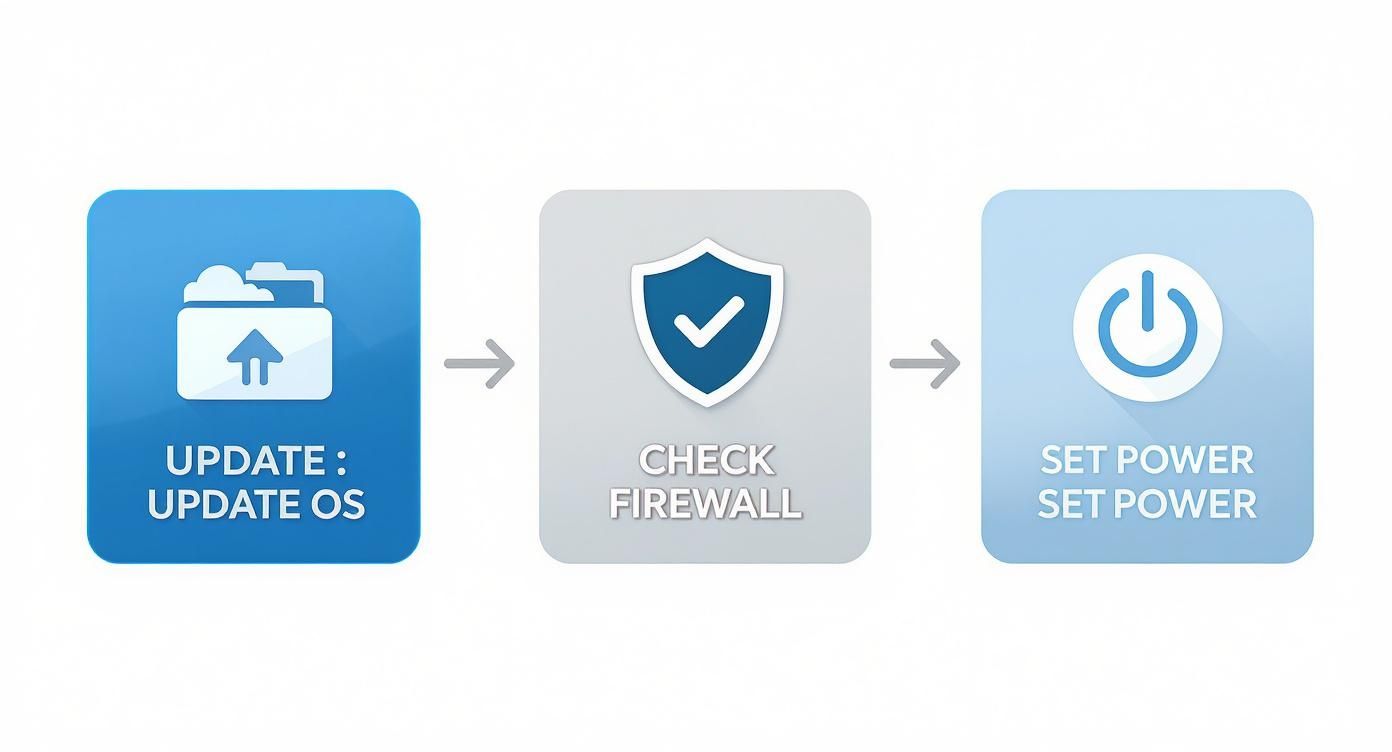
Honestly, this simple flow—updating your OS, checking firewalls, and tweaking power options—prevents over 90% of the common connection problems I see people run into.
First things first, you need to enable remote connections on your host machine. This is usually just a simple toggle inside your operating system's settings. Once that's switched on, you’ll install the Cloudvara host agent, a small bit of software that runs quietly in the background and makes your computer securely discoverable.
During this install, the agent will generate a unique set of access credentials for that specific computer.
Pro Tip: Immediately store these credentials in a secure password manager. Think of them as the digital keys to your office—you wouldn’t just leave those lying around on a sticky note.
This step is critical because it officially registers your computer with the Cloudvara network, getting it ready to accept incoming connection requests from your authorized devices.
Now, over to the client side. Whether you’re on a laptop, tablet, or even your smartphone, the process kicks off by downloading the Cloudvara app from your device's app store. The app itself has a clean, simple interface for managing all your remote connections.
Once it's installed, open the app, and you'll be prompted to add a new connection. This is where you’ll need those unique access credentials generated by the host agent.
It’s just three quick inputs:
After you save it, your host computer will pop up in your list of available connections. Just tap on it. The app will initiate a secure handshake, and within seconds, your host desktop will appear right on your client device's screen, giving you full control.
For Mac users, the process has a few unique twists. We've put together a detailed walkthrough in our guide on how to connect to a remote desktop on a Mac.
This kind of technology is a major force behind the remote working tools and software market, a sector valued at a whopping USD 30.5 billion globally in 2024. The market's explosive growth, projected at a CAGR of 21.8% through 2034, really underscores how essential these tools have become for modern businesses. You can read more about the remote work market's expansion to see just how fast things are moving.
Opening a door for remote desktop access is a huge productivity win, but that door needs a serious lock. While a strong password is a good start, it’s just not enough on its own anymore. This is where Two-Factor Authentication (2FA) comes in, adding a critical second layer of defense to keep your remote connection truly secure.
Think of it this way: your password is the key to your house, but 2FA is the security guard who asks for ID before letting you in. Even if a thief manages to steal your key, they still get stopped cold at the door. It’s an exceptionally effective method—security studies show that using an authenticator app can block nearly 100% of automated bot attacks.
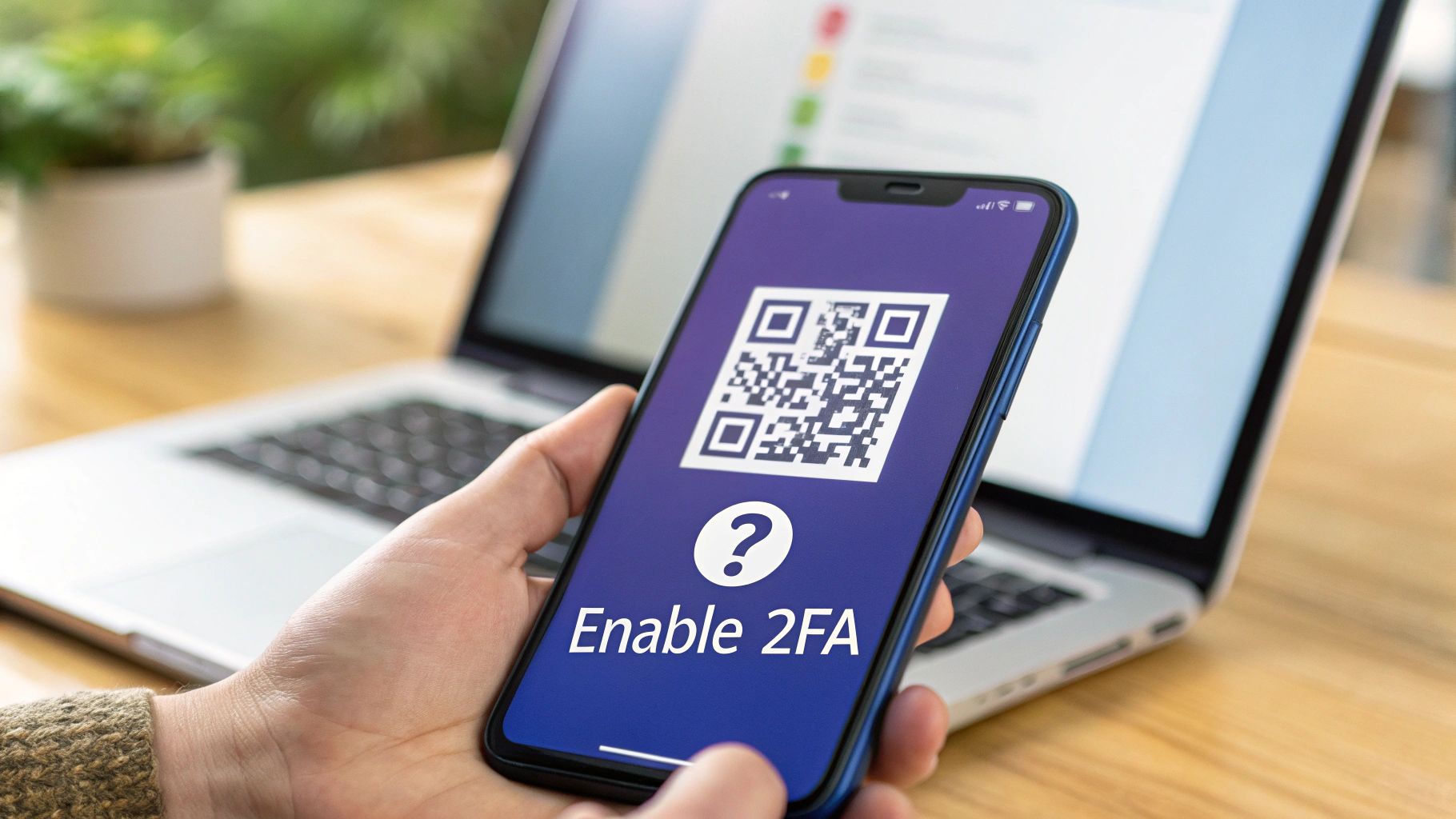
Getting 2FA up and running in your Cloudvara account is a quick process that pays massive dividends in security. It works by linking your account to an authenticator app on your smartphone, like Google Authenticator, Microsoft Authenticator, or Authy.
After you enter your password during login, you’ll be prompted for a temporary six-digit code generated by the app. This code refreshes every 30 seconds, making it nearly impossible for an unauthorized user to guess it in time. For a deeper dive into the mechanics, check out our guide explaining what is two-factor authentication.
Here’s how to get it set up inside your Cloudvara security settings:
By taking these few simple steps, you've massively upgraded your security. A compromised password is no longer an instant disaster; it's just a failed attempt, blocked by that second factor only you can provide.
While 2FA provides a strong shield, adopting a broader strategy like implementing Zero Trust security can fortify your remote desktop environment even further by ensuring continuous verification for all access. Protecting every login with 2FA is a non-negotiable first step toward accessing your desktop remotely with complete peace of mind.
Getting connected is just the first step. The real win is having a smooth, responsive session that feels like you’re sitting right in front of the machine. A laggy connection or a random error can stop your workflow cold, so knowing how to tune performance and fix common hiccups is a must.
Even with a great internet connection, you can still fine-tune your remote session. Think of it like adjusting the graphics settings in a video game—you’re finding the right balance between visual quality and pure speed. These tweaks become absolute lifesavers when you're working from a spot with weak Wi-Fi, like a hotel or a coffee shop.
Right inside your remote desktop client settings, you have direct control over how much data gets pushed between your devices. Dialing these back can make a huge difference in reducing lag, especially on slower networks.
Another big optimization is managing your screens. If you’re used to a dual-monitor setup at the office, getting that same experience remotely is a massive productivity boost. We have a guide that walks you through using a remote desktop with two monitors that lays out the exact steps.
Even with everything set up perfectly, you'll probably run into an issue now and then. Instead of getting frustrated, a few quick troubleshooting steps can get you back to work in minutes.
A "black screen" or a "connection timed out" error usually isn’t a sign of a major disaster. More often than not, it's just a simple configuration hiccup you can fix with a quick check.
Here are the most common culprits I see and how to fix them fast:
| Problem Symptom | Likely Cause | Quick Solution |
|---|---|---|
| Black Screen on Connect | A service on the host PC is stuck. | Restart the Remote Desktop service on the host computer. |
| Constant Disconnections | Unstable network or firewall interference. | Check firewall rules and make sure the host's power settings prevent it from going to sleep. |
| "Could Not Connect" Error | Incorrect credentials or the host is offline. | Double-check the computer ID and password. Then, verify the host machine is on and connected to the internet. |
This growing reliance on remote access is why the market is expanding so quickly around the globe. Forecasts actually point to the Asia Pacific region as the fastest-growing market, with businesses of all sizes jumping on board to improve how they work. By mastering these simple optimization and troubleshooting tricks, you can make sure your remote connection is always a reliable tool instead of a source of frustration.
Even with a step-by-step guide, it's natural to have a few questions when you're setting up remote access for the first time. Getting these details right is what makes the difference between a frustrating afternoon and a smooth, reliable connection you can count on.
Let's walk through some of the most common questions we hear.
Absolutely, as long as it’s set up correctly. Modern remote desktop solutions like Cloudvara don’t just open a door to your computer; they build a secure tunnel.
This is done with end-to-end encryption, typically 256-bit AES, which is the same security standard that banks use. It scrambles all the information passing between your devices, making it completely unreadable to anyone trying to snoop.
But encryption is just one layer. Real security comes from combining it with strong passwords and, most importantly, Two-Factor Authentication (2FA). Think of it this way: even if a thief somehow gets your password, they still can't get in without the unique code from your phone. It’s a simple step that blocks the vast majority of unauthorized access attempts.
No, a remote desktop connection can't be made to a machine that's completely shut down. The host computer—the one you want to connect to—needs to be powered on, running, and connected to the internet. It has to be "awake" to listen for your connection request.
Some advanced IT environments use a trick called "Wake-on-LAN" to power on a sleeping computer remotely, but it's complex and not a standard feature for most setups.
For reliable, everyday access, the best practice is simple: go into your host computer's power settings and disable sleep and hibernate modes. This guarantees the machine is always online and ready for you to connect whenever you need it.
It can, but the impact really depends on what you're doing. A remote desktop session uses bandwidth, but how much is the key question.
Most professional remote tools, including Cloudvara, give you ways to manage this. You can often adjust performance settings, like lowering the screen resolution or color depth of the remote session. These small tweaks dramatically reduce the amount of data being sent, giving you a much smoother experience even on a less-than-perfect network.
Ready to unlock seamless and secure remote access for your business? With Cloudvara, you get a dedicated cloud environment tailored to your needs, backed by 24/7 support and a 99.5% uptime guarantee. Start your free 15-day trial today and experience the freedom of working from anywhere. Learn more at Cloudvara.




