
In a world where flexibility is paramount, the ability to access your work desktop from anywhere isn't a luxury; it's a core operational necessity. For accounting firms managing sensitive client data, legal practices needing secure access to case files, or small businesses coordinating remote teams, the right tool is critical for maintaining productivity and security. Choosing from the vast array of options can be overwhelming, as each platform offers a unique blend of features, security protocols, and pricing structures. This guide is designed to cut through the noise.
We’ve compiled a detailed comparison of the best remote desktop software solutions tailored for professionals. Our goal is to move beyond simple feature lists and provide practical insights to help you make an informed decision. You will find a side-by-side analysis of leading tools like Cloudvara, Splashtop, and TeamViewer, complete with screenshots, direct links, and clear explanations of their ideal use cases. We will explore specific scenarios, from a CPA needing to run tax software on a home laptop to a law firm requiring compliant access to its server. This article provides the actionable information you need to select a remote access solution that truly fits your workflow, budget, and security requirements.
Cloudvara offers a unique spin on remote access, positioning itself not just as remote desktop software but as a managed application hosting service. Instead of providing a generic virtual machine, its core strength lies in hosting specific, resource-intensive desktop applications like QuickBooks, Sage, and various legal or tax software in the cloud. This approach allows small and medium-sized businesses, particularly in accounting and law, to maintain their existing workflows and familiar software while gaining the flexibility of remote access from any device, anywhere.
The service is built on commercial-grade dedicated servers, ensuring performance and stability for applications that were never designed for the cloud. This makes it an ideal solution for firms that want to avoid the high costs and complexities of migrating to purely web-based alternatives. Cloudvara essentially transforms your legacy desktop programs into secure, cloud-accessible assets.
What truly sets Cloudvara apart is its comprehensive, hands-on service model, which greatly reduces the in-house IT burden. The platform is less of a DIY tool and more of a fully managed solution.
Practical Tip: Take full advantage of the no-risk, 15-day free trial. Since pricing is customized, this trial is the best way to test performance with your specific software suite (e.g., QuickBooks Enterprise with add-ons) and evaluate if the service model fits your firm's operational needs before committing.
Cloudvara's pricing model is not publicly listed. You must contact their sales team for a custom quote based on your specific application needs, user count, and data storage requirements. While this requires an extra step, it ensures you only pay for the resources you need.
| Pros | Cons |
|---|---|
| App-first hosting keeps familiar desktop software intact. | Pricing is not transparent; requires a sales inquiry. |
| 24×7 live support and managed migration reduce IT workload. | Lacks published compliance certifications (SOC 2, HIPAA) which may be a concern for highly regulated industries. |
| Simple billing with a no-risk 15-day free trial (no credit card needed). | The 99.5% uptime guarantee is slightly lower than some competitors who promise 99.9% or higher. |
| Strong security with two-factor authentication and centralized access controls. | Best suited for application hosting, not for general-purpose virtual desktops. |
Splashtop offers a versatile suite of remote desktop software known for its high-performance streaming and straightforward, tiered pricing. It caters to a wide audience, from individual professionals to large enterprises, by providing fast, secure, and reliable remote access across a vast range of devices. Its core appeal lies in its ability to deliver a smooth, low-latency experience, making it a strong choice for creative professionals, IT support teams, and businesses that need a responsive connection for demanding applications.
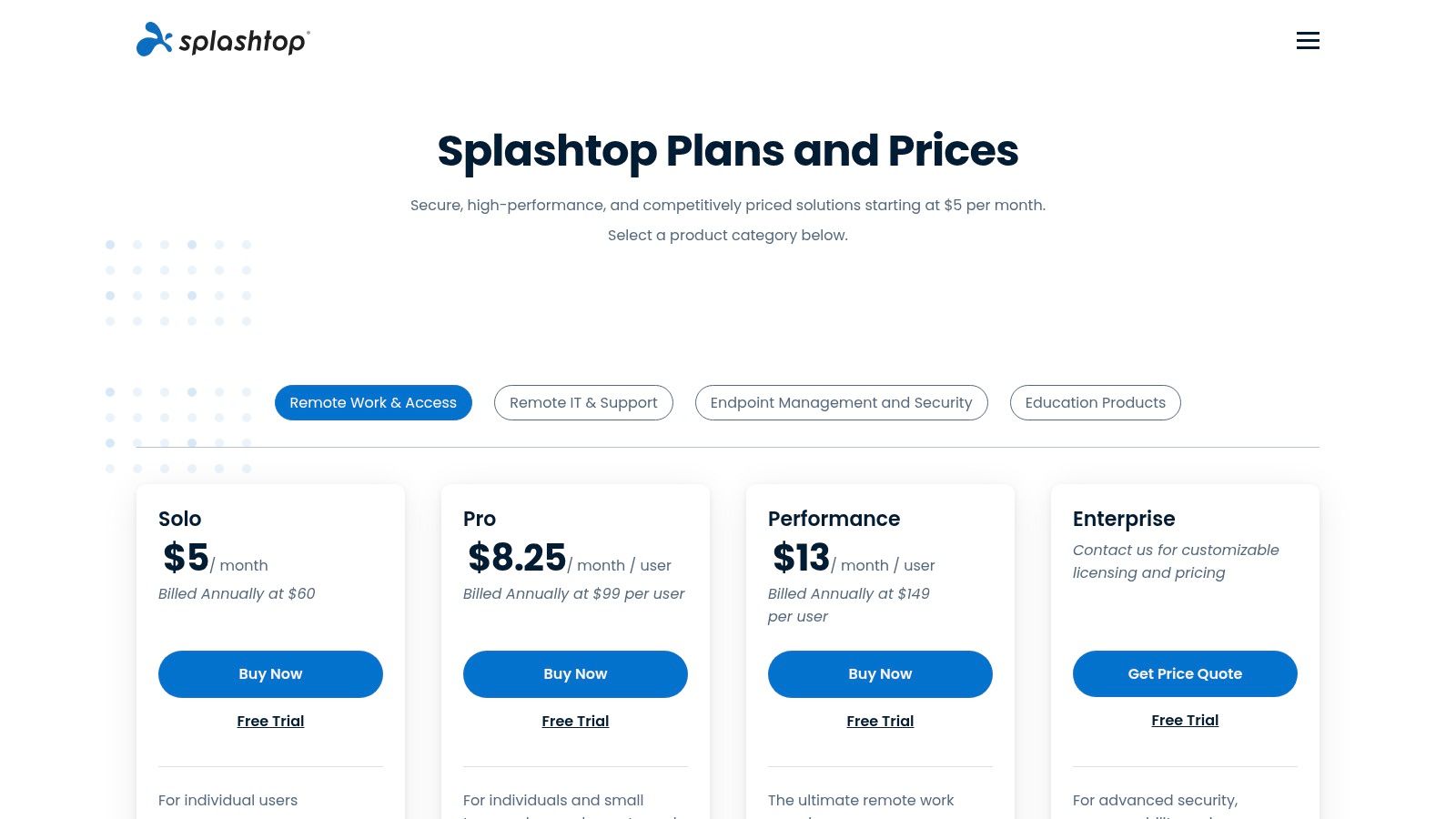
Unlike solutions focused purely on application hosting, Splashtop provides direct remote control over your existing physical or virtual machines. This makes it an excellent tool for organizations wanting to enable remote work without altering their current IT infrastructure. The platform’s reputation for speed is backed by a Performance plan that offers features like 4:4:4 color accuracy and up to 240 FPS streaming, ensuring a near-native user experience.
Splashtop is designed for ease of use, with a quick setup process and an intuitive interface that simplifies remote connections. Its feature set scales effectively from basic remote access to comprehensive enterprise-level management.
Practical Tip: Start with the "Business Access Pro" plan. It includes most of the essential features like multi-monitor support and session recording at a very competitive price point. You can easily upgrade later if you need specialized features like remote stylus support or microphone passthrough.
Splashtop’s pricing is transparent and publicly available on its website. It offers several tiers tailored to different use cases, such as "Business Access" for individuals and teams, and "SOS" for on-demand IT support. This clarity allows businesses to easily calculate costs and choose the plan that best fits their budget and feature requirements.
| Pros | Cons |
|---|---|
| Very competitive pricing with clearly defined tiers. | Advanced features (240 FPS, USB passthrough, stylus) are locked behind higher-tier plans. |
| Excellent cross-platform support and a simple, fast setup process. | Some granular controls and integrations (SSO, SIEM) are reserved for the more expensive Enterprise license. |
| High-performance streaming creates a smooth, responsive user experience. | The user interface, while functional, is less modern than some newer competitors. |
| Scales effectively from a single user to a large enterprise deployment. | Support is primarily ticket-based on lower plans, lacking the instant live support offered by managed service providers. |
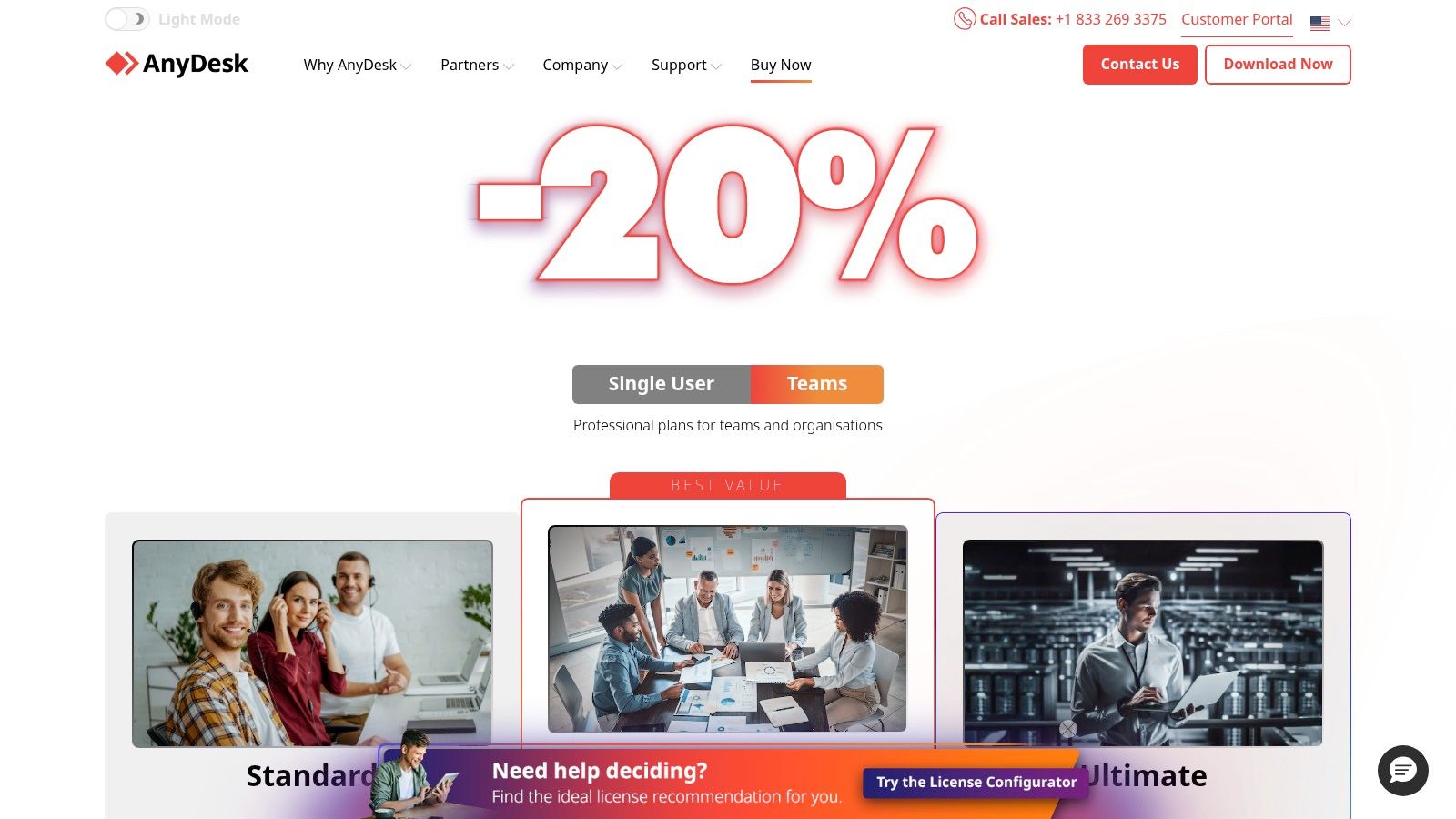
AnyDesk has earned its reputation as a leading remote desktop software by delivering exceptional performance, even over low-bandwidth connections. It is engineered for speed and low latency, making it a powerful choice for tasks ranging from quick IT support sessions to managing remote workstations for graphic-intensive work. Its lightweight client and cross-platform compatibility (Windows, macOS, Linux, and mobile) ensure a smooth user experience for individuals, small businesses, and large enterprises alike.
The platform is built on a proprietary DeskRT codec, which efficiently compresses and transfers image data, resulting in a responsive feel that often mimics local interaction. This focus on performance makes AnyDesk particularly suitable for firms that need reliable, high-speed access to remote machines without the frustration of lag. It provides a robust foundation for a modern, distributed workforce.
AnyDesk offers a clean interface and a set of features that scales from a single user to a full enterprise deployment, providing flexibility for growing businesses.
Practical Tip: When choosing a plan, carefully evaluate your need for concurrent connections. The Solo plan is limited to one outgoing session at a time. If your team members frequently need to access multiple remote machines simultaneously, investing in the Advanced plan or higher will prevent workflow bottlenecks.
AnyDesk offers several pricing tiers, all billed annually. The "Solo" plan starts at $14.90/month for a single user with one concurrent connection and up to 3 managed devices. The "Standard" plan at $29.90/month is designed for small teams, and the "Advanced" plan at $79.90/month adds more advanced features and phone support. A custom Enterprise plan is also available.
| Pros | Cons |
|---|---|
| Excellent performance and low latency, even on poor connections. | Pricing is billed annually, offering limited flexibility for those who prefer monthly subscriptions. |
| Clear upgrade path from individual to business tiers with robust management tools. | The Solo plan's limit of one concurrent outgoing connection can be restrictive for power users. |
| Strong cross-platform support, including mobile devices. | Phone support is only available on the more expensive Advanced and Enterprise plans. |
| Mass deployment options (MSI, custom client) simplify IT administration. | Some advanced security and management features are locked behind the highest-tier plans. |
TeamViewer is a titan in the remote access industry, offering a comprehensive and mature platform designed for large-scale IT support and device management. While it provides excellent remote desktop capabilities for individuals and small teams, its true strength lies in its enterprise-grade tooling. It offers a robust, cross-platform solution that allows IT departments to manage, support, and control a vast network of devices, from desktops in the office to mobile devices in the field, all from a centralized console.
This suite is built for organizations that require more than simple screen sharing. With features like mass deployment, user and policy management, and detailed session reporting, TeamViewer empowers IT teams to enforce security protocols, streamline support workflows, and maintain oversight across the entire organization. It's one of the best remote desktop software options for businesses prioritizing control, security, and scalability.
TeamViewer's platform is rich with features that cater specifically to the needs of IT professionals, making it a powerful tool for managed service providers (MSPs) and internal support teams.
Practical Tip: For businesses evaluating TeamViewer, start with the "Business" license to understand the core functionality. Pay close attention to the number of "concurrent channels" you need, as this determines how many simultaneous remote sessions your team can run. This is a critical factor that often requires upgrading to a Premium or Corporate plan.
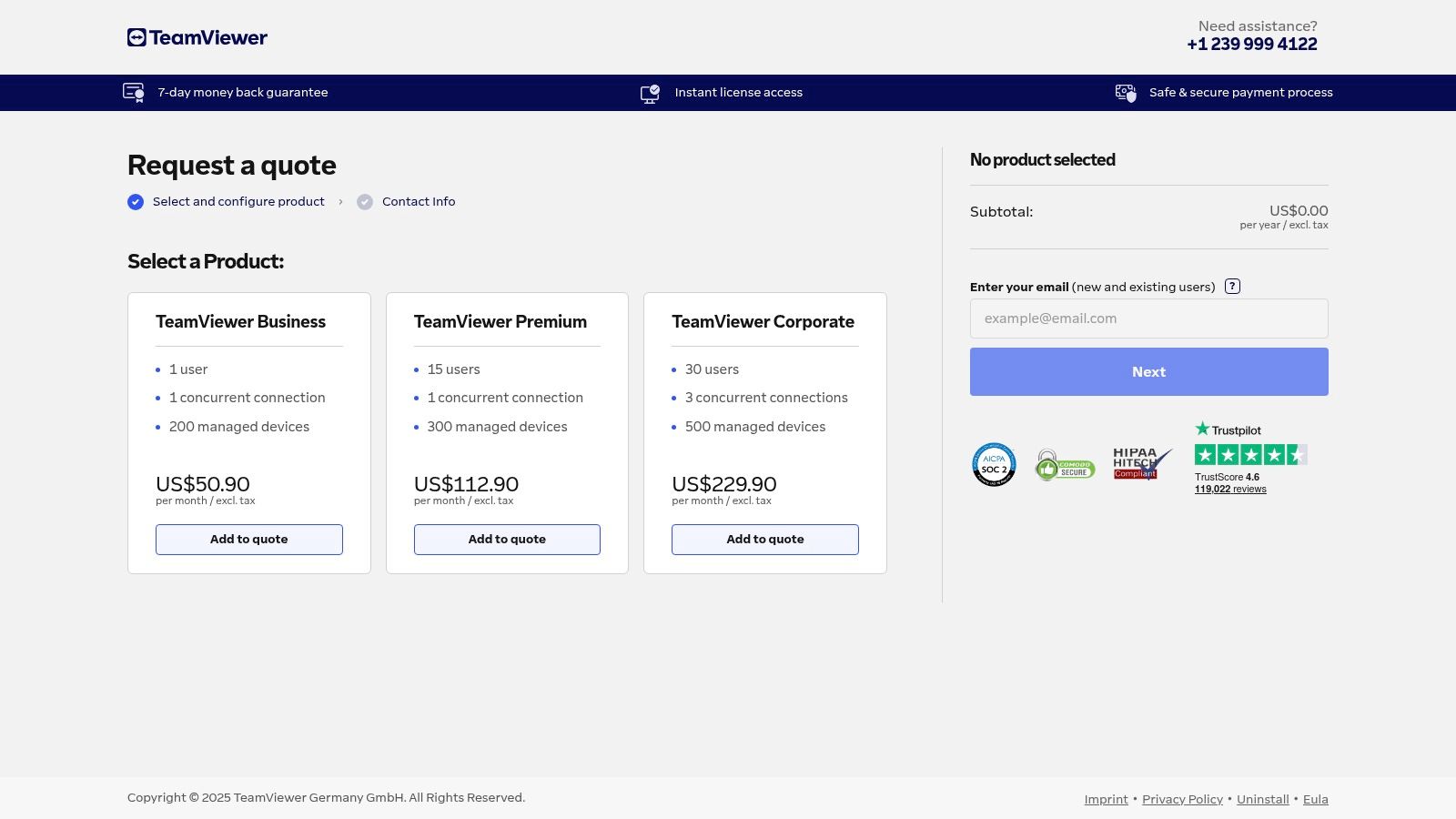
TeamViewer offers tiered pricing primarily billed annually, starting with a single-user Business license and scaling up to multi-user Premium and Corporate plans. While pricing for basic plans is listed online, larger or more complex deployments typically require contacting their sales team for a custom quote.
| Pros | Cons |
|---|---|
| Rich feature set and ecosystem for IT and support teams. | Higher pricing than many SMB-focused competitors; mostly annual billing. |
| Mature security posture and device management scale. | SKU and feature complexity; best pricing often requires sales engagement. |
| Widely adopted with abundant guides and vendor resources. | Concurrent connection limits on lower-tier plans can be restrictive for growing teams. |
| Excellent cross-platform compatibility across all major OS. | Can be overly complex for individuals or small businesses needing simple remote access. |
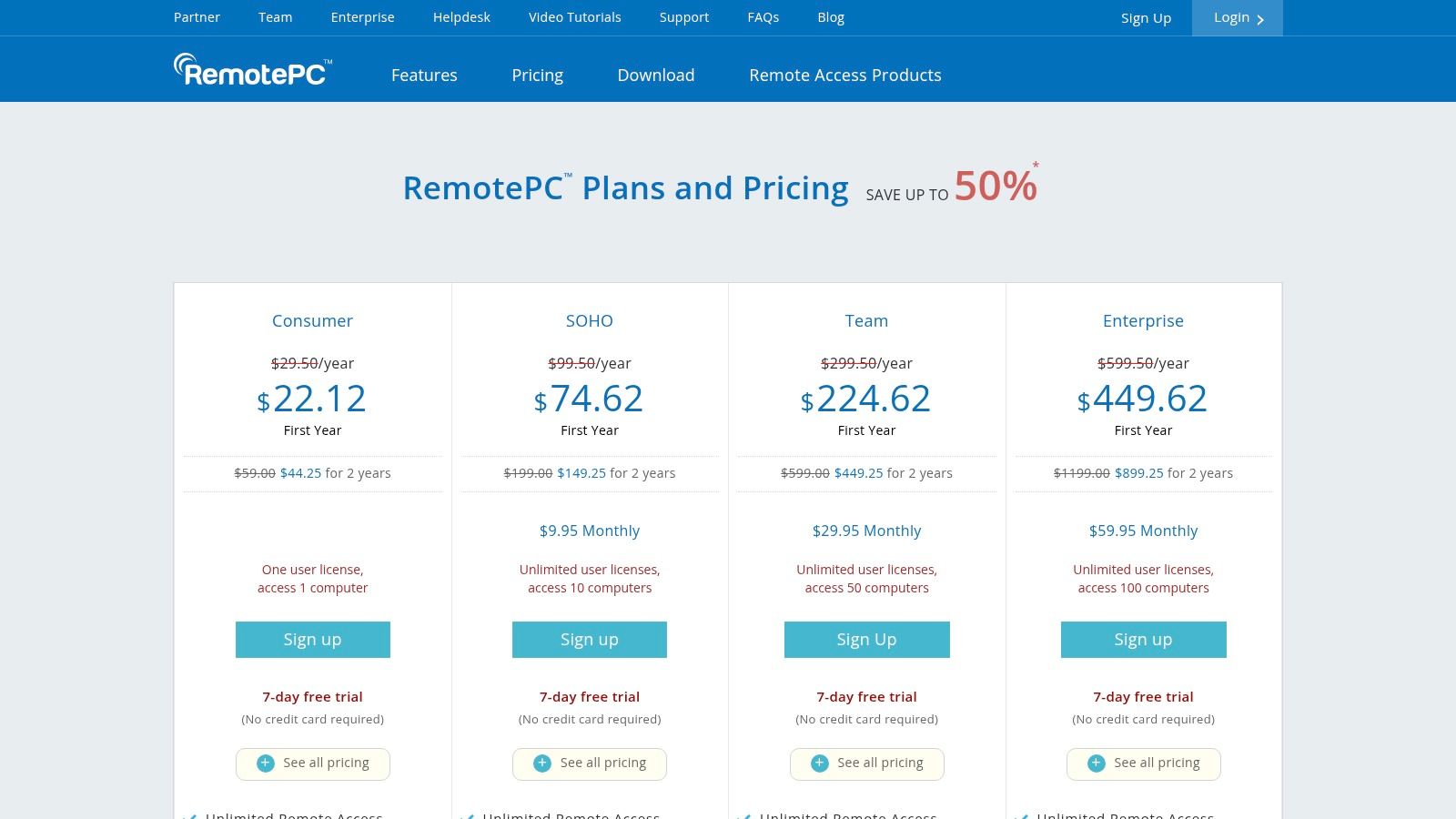
RemotePC by IDrive carves out its niche as one of the most cost-effective and straightforward remote desktop software solutions, particularly for individuals and small businesses managing multiple computers. Rather than complex per-user pricing, its model is based on the number of computers you need to access, often with aggressive introductory pricing that makes it highly accessible. It provides reliable, always-on remote access, allowing users to connect to their work or home computers from anywhere.
This platform-agnostic tool supports connections between PC, Mac, and Linux machines, and offers mobile apps for iOS and Android. Its simplicity and focus on core remote access functionality make it a strong contender for users who don't need the extensive IT management features of more enterprise-focused products but still require dependable performance for daily tasks.
RemotePC emphasizes ease of use and quick setup, ensuring users can get connected with minimal friction. The interface is clean and functional, prioritizing essential remote work features.
Practical Tip: When signing up, pay close attention to the introductory offer versus the standard renewal rate. While the first-year discounts are excellent, factoring the full price into your long-term budget ensures there are no surprises when the subscription renews.
RemotePC’s pricing is transparent and highly competitive, making it one of the best remote desktop software options for budget-conscious users. You can find their plans on the RemotePC pricing page. They offer a 7-day free trial that does not require a credit card, allowing for a risk-free evaluation.
| Pros | Cons |
|---|---|
| Aggressive pricing makes it one of the most affordable options for multi-computer access. | Introductory discounts renew at significantly higher standard rates. |
| 7-day free trial with no credit card required for easy evaluation. | Advanced features like the RDP Connector and endpoint backup are paid add-ons. |
| Web client access provides connection flexibility without software installation. | The feature set may be less comprehensive than more expensive, enterprise-grade solutions. |
| Simple and easy to scale device counts as your needs grow. | Support options are more limited on lower-tier consumer plans. |
The Microsoft Windows App is the official, modern client for macOS users looking to connect to various Microsoft-powered remote environments. It serves as a unified hub for accessing Windows 365 Cloud PCs, Azure Virtual Desktop (AVD), Microsoft Dev Box, and traditional Remote Desktop Services (RDS). This first-party solution is specifically engineered for seamless integration with Microsoft’s cloud infrastructure, making it the top choice for organizations heavily invested in the Azure or Microsoft 365 ecosystem.
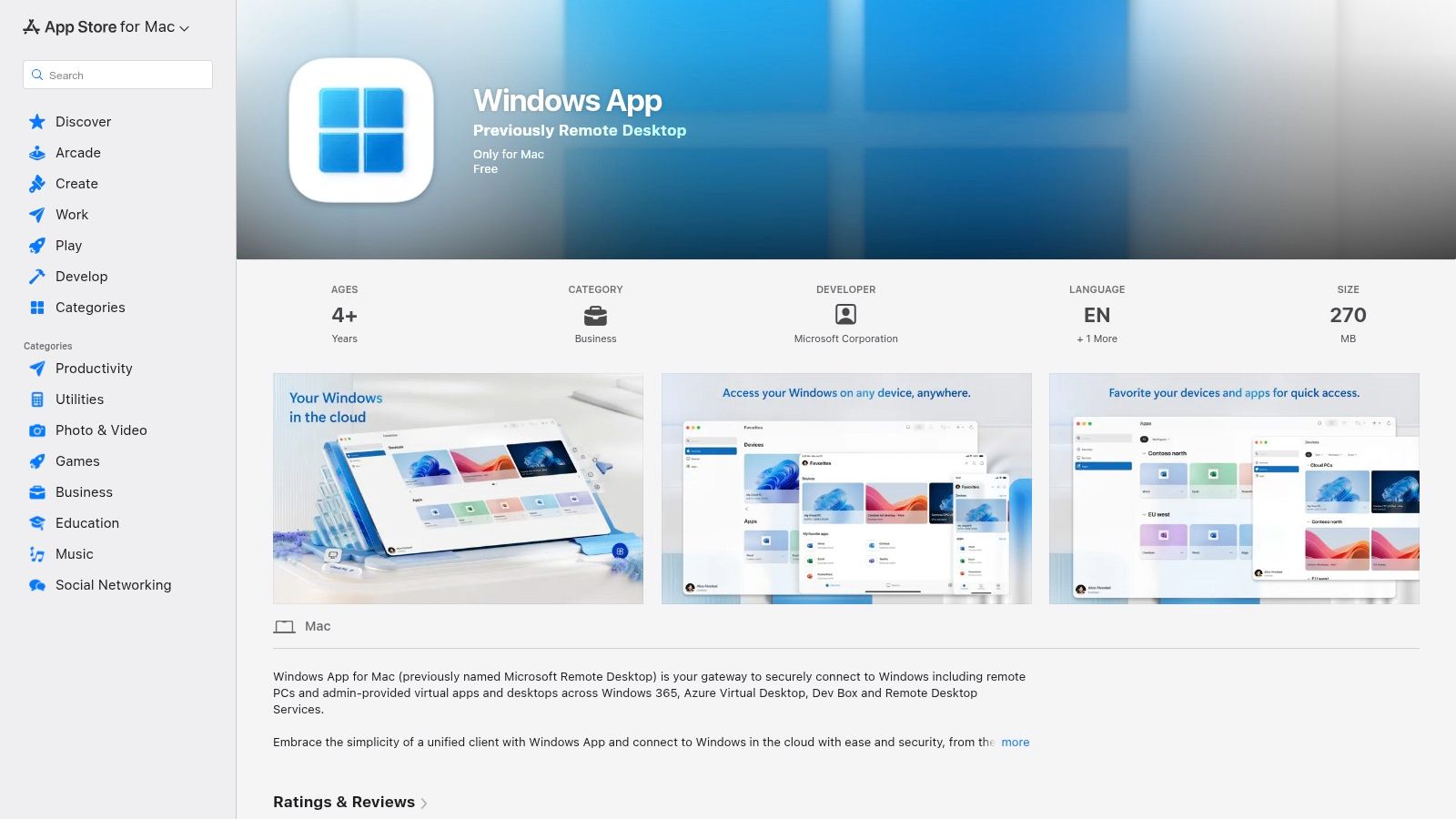
Unlike general-purpose remote desktop tools, the Windows App is not designed for simple peer-to-peer connections between personal computers. Instead, its strength lies in providing a secure, streamlined, and actively developed portal for business users to connect to their managed corporate desktops and applications. It replaces the older Microsoft Remote Desktop client, offering a cleaner interface and better performance optimized for modern workflows.
The app prioritizes a simple, login-based experience, where users sign in with their work or school account to automatically see their assigned virtual desktops and apps. This eliminates complex configuration for the end-user.
Practical Tip: If your organization uses Azure Virtual Desktop or Windows 365, standardize on this app for your Mac users. Its direct integration with work accounts simplifies deployment and support, as it automatically populates available resources upon login without manual setup.
The Windows App client is completely free to download and use. However, the cost is associated with the backend services it connects to. Accessing Windows 365, Azure Virtual Desktop, or Microsoft Dev Box requires separate, paid subscriptions and licensing that must be provisioned by your organization’s IT department.
| Pros | Cons |
|---|---|
| Official Microsoft client ensures best compatibility with AVD and Windows 365. | Focused on work/school (organizational) accounts; not for personal or consumer use. |
| No cost for the client software itself. | Requires separate, paid subscriptions for the cloud services it connects to. |
| Actively developed and intended as the future-proof replacement for the legacy app. | Lacks direct peer-to-peer connection features found in other remote desktop software. |
| Simplified user experience with automatic resource discovery. | Setup and management of the backend services (like AVD) can be complex for IT teams. |
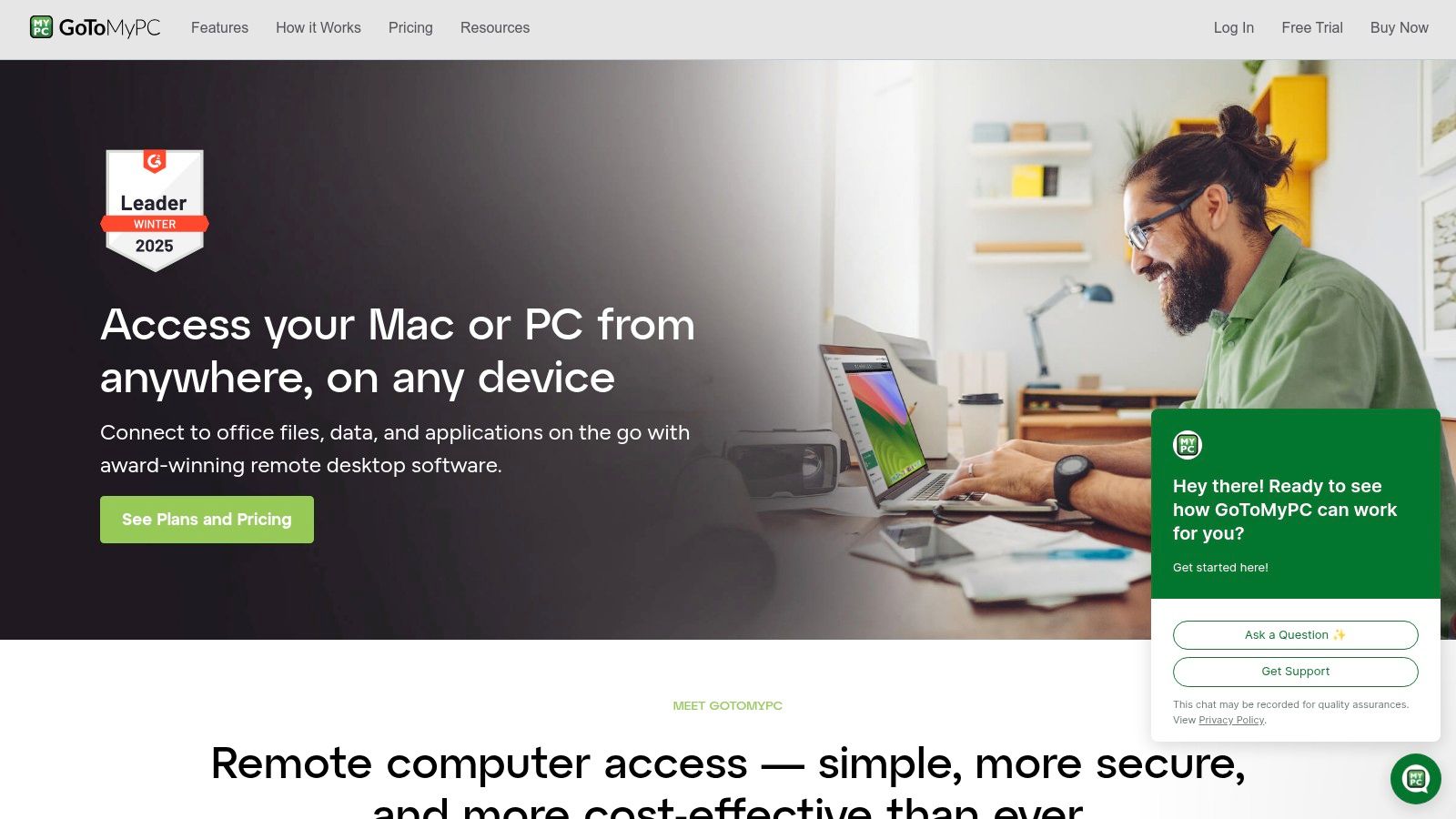
GoToMyPC is a classic remote desktop solution that excels at one specific task: providing simple, secure, and persistent access to a designated office or home computer. Unlike complex enterprise platforms, its primary focus is on an easy-to-use workflow for individuals and small teams who need to connect to their primary work machine from anywhere. It's an ideal choice for professionals who want a reliable, no-fuss way to access their files, applications, and network resources without a steep learning curve or extensive IT setup.
The platform’s strength lies in its simplicity and security-first approach. It’s designed for users who don’t need advanced administrative tools but prioritize privacy and ease of use. This makes it one of the best remote desktop software options for solo practitioners, small law firms, or accountants who simply need to get back to their main desktop. The service from GoToMyPC also includes complimentary Bitdefender antivirus for subscribers, adding an extra layer of security.
GoToMyPC is engineered for a straightforward and secure user experience, with features that protect the host computer's privacy while it's being accessed remotely. The guided onboarding process makes installation and initial connection quick and intuitive.
Practical Tip: During your 7-day free trial, test the "Blank Screen" feature extensively. This is critical if your work computer is in an open office or shared space. Confirming that it reliably hides your remote session from view ensures your sensitive client or financial data remains confidential.
GoToMyPC offers a 7-day free trial without requiring a credit card, allowing for a no-risk evaluation. While specific pricing isn't advertised on the main page, it is available once you enter the purchase or quote flow. Plans are typically billed annually per computer, with different tiers available for individuals, small businesses (Pro), and larger teams (Corporate).
| Pros | Cons |
|---|---|
| Extremely simple setup and intuitive workflow. | Public pricing details are not immediately visible on the homepage. |
| Strong security-minded defaults like screen blanking and auto-lock. | Fewer advanced IT administration features compared to enterprise-focused solutions. |
| No-risk 7-day free trial without needing a credit card. | Primarily designed for 1-to-1 computer access, not for managing large pools of virtual machines. |
| Includes Bitdefender antivirus at no extra cost for subscribers. | Per-computer pricing model can become expensive for larger teams needing access to multiple machines. |
| Product | Implementation complexity | Resource requirements | Expected outcomes | Ideal use cases | Key advantages |
|---|---|---|---|---|---|
| Cloudvara | Moderate (provider-managed migration; configured environments) | Commercial-grade dedicated servers via provider; minimal in-house IT | Preserve desktop apps, improved uptime, reduced IT overhead | Accountants, law firms, tax pros, SMBs needing desktop apps in cloud | App-first hosting, 24×7 support, daily backups, 15‑day trial, 99.5% uptime |
| Splashtop | Low–Moderate (easy client setup; advanced tiers add config) | Client installs; optional SSO/enterprise integrations for scale | High‑performance remote sessions with predictable cost tiers | Remote work, creative/graphics, IT support and small-to-large teams | High‑performance streaming, clear pricing, broad cross‑platform support |
| AnyDesk | Low–Moderate (simple client; MSI/custom client for mass deploys) | Lightweight client; management tools/MDM on higher tiers | Low‑latency access, scalable concurrency and unattended devices | SMBs to enterprises needing low‑bandwidth performance and mass deployment | Strong low‑bandwidth performance, deployment tooling, clear upgrade path |
| TeamViewer | Moderate–High (enterprise deployment and integrations) | Robust licensing, deployment tooling, enterprise add‑ons | Comprehensive IT/support workflows and reporting at scale | Large enterprises, IT/service desks, regulated environments | Rich feature ecosystem, mature security, extensive integrations |
| RemotePC (IDrive) | Low (straightforward install and web client) | Per‑computer licensing; optional add‑ons for advanced features | Cost‑effective, always‑on access across many devices | Budget‑conscious teams and multi‑device environments | Aggressive per‑device pricing, web access, easy scaling |
| Microsoft Windows App | Low (client install) | Requires Windows 365/AVD/RDS subscriptions for cloud PCs; free client | Best compatibility with Microsoft cloud PCs and AVD | Organizations using Windows 365, Azure Virtual Desktop, RDS | First‑party compatibility, free client, active development |
| GoToMyPC | Low (simple host setup, one‑click access) | Host PC must remain on; subscription per user/host | Persistent, secure single‑host access with privacy controls | Individuals and small offices needing direct host access | Very simple workflow, screen blanking/lock, trial without credit card |
Navigating the landscape of remote desktop solutions can feel complex, but as we've explored, the right choice ultimately hinges on your unique operational needs, security requirements, and budget. We've detailed a range of powerful options, from the all-in-one managed hosting of Cloudvara to the high-performance streaming of Splashtop and the lightweight speed of AnyDesk. Each tool offers a distinct pathway to achieving seamless remote connectivity.
The key takeaway is that selecting the best remote desktop software is not just a technical decision; it's a strategic one. For a law firm, end-to-end encryption and compliance certifications are non-negotiable. For an accounting practice managing large QuickBooks files, performance and multi-monitor support are paramount. A small business, on the other hand, might prioritize affordability and ease of deployment to get its team running quickly. The decision-making process should be a direct reflection of these core business priorities.
Before committing to a solution, it's crucial to move from comparison to practical evaluation. A features list is a great starting point, but real-world performance is what truly matters.
Here are three concrete steps to take now:
Choosing the right remote access tool is an investment in your organization's agility, security, and future growth. By moving beyond a simple feature-for-feature comparison and focusing on your specific operational context, you can implement a solution that not only solves today's challenges but also empowers a more flexible and productive remote strategy for years to come.
If your goal is to move beyond simple remote access and embrace a fully managed, secure, and high-performance cloud environment for your critical applications, consider Cloudvara. We specialize in hosting accounting and business software, providing a seamless "remote desktop" experience without the IT overhead. Visit Cloudvara to see how our tailored hosting solutions can elevate your remote capabilities.




