
You're probably here because Outlook keeps suggesting the wrong person at exactly the wrong moment. You type “Jo,” expecting your controller or your client, and Outlook offers a former employee, an old vendor alias, or a typo you sent once months ago. That's annoying on a busy day. It's also a real business risk when a rushed reply goes to the wrong address.
Most guides stop at “click the X” or “clear the list.” That helps, but it doesn't explain why auto complete in Outlook behaves the way it does. If you understand the logic behind it, you can manage it without wiping out a useful workflow or creating a bigger support issue for yourself later.
You send a message to a client, type the first few letters of their name, and Outlook suggests three old addresses before the right one shows up. That behavior makes more sense once you know what Outlook is reading from.
Outlook Auto-Complete uses a learned suggestion list, often called the nickname cache. It builds that list from addresses you have used, not from a clean directory that you organized by hand. In practice, that means the feature reflects sending history, cached data, and search behavior more than your Contacts folder.

That distinction matters. Business owners often assume Outlook is pulling from saved contacts in alphabetical order. It usually is not. The suggestion list is designed to help you send faster based on prior behavior, so the results can look inconsistent if your team has changed vendors, staff, domains, or shared mailbox usage over time.
Two things usually catch users off guard.
First, the list is not a normal address book. A name can appear because someone was emailed before, even if that person was never saved as a contact.
Second, the order is not strictly alphabetical. Outlook tends to favor recent or relevant matches from its cached suggestions and search tools, so a less useful address may appear above the one you want. From a support standpoint, this is one of the biggest reasons people think Auto-Complete is broken when it is really behaving as designed.
There is another practical limit that explains why entries sometimes disappear. The Auto-Complete list does not grow forever. Older entries can drop off as newer ones are added, so a contact you used months ago may stop appearing even though nothing is wrong with the mailbox.
Treat Auto-Complete as a convenience layer, not a source of truth. It is helpful for repeat communication, but it is not a reliable record of who should receive sensitive messages.
That also changes how you troubleshoot. If Outlook suggests the wrong recipient, the problem is often in the learned list rather than in contacts, Exchange, or the mailbox itself. I see small businesses lose time chasing the wrong fix because they assume the address book is damaged.
If you are also sorting through older Outlook data, imported archives, or legacy mail files, keep those issues separate from Auto-Complete behavior. This guide on how to open a PST file in Outlook can help with the mailbox side of that work.
The practical takeaway is simple. Auto-Complete follows usage patterns, not business intent. Once you understand that, the odd sorting, stale addresses, and disappearing entries stop looking random and start looking manageable.
The first management decision is whether you need a cleanup or a full reset. Those are not the same thing.
If the list mostly works and only a few entries are wrong, don't clear everything. If the suggestions are broadly unreliable, outdated, or creating privacy concerns, a reset may be the better move. Microsoft states that when users type in the To, Cc, or Bcc fields, Outlook suggests recipients from the Auto-Complete List, and users can remove individual entries or clear the entire list through Outlook settings. Microsoft also notes that, for work or school accounts, contact search behavior can be managed through the Privacy tab in supported environments. That guidance appears in Microsoft's article on managing suggested recipients in Outlook.
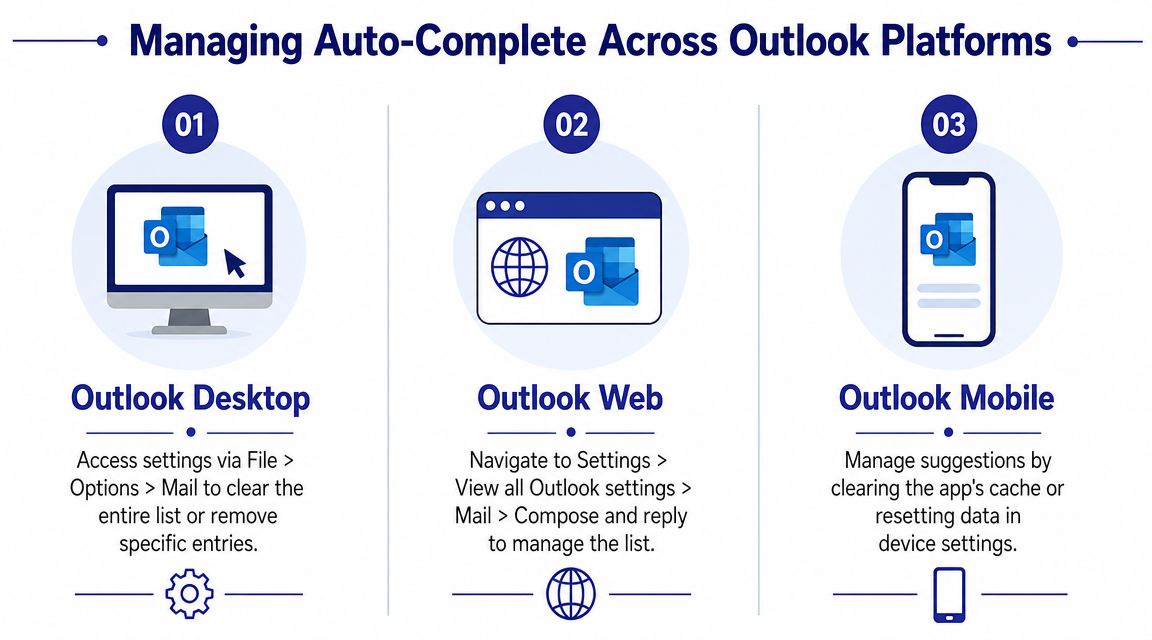
In the desktop app, you have the clearest controls.
Use this path:
This is the right move when the list is filled with stale names, old vendors, or addresses that create repeated mistakes.
A full clear has a cost. You lose convenience until Outlook relearns your normal recipients. For a solo user, that may be fine. For an executive assistant or a finance team that sends to the same people all day, it can be disruptive for a while.
Outlook on the web uses a different settings path, which is where many users get tripped up. The web version doesn't mirror the desktop menus exactly, so don't waste time hunting through File menus that don't exist there.
Look under the web settings area, then the mail composition controls. The exact labels can vary by account type and interface version, but the principle is the same. You're managing suggested recipients tied to your mailbox experience, not editing a traditional contact list.
Practical rule: If you're trying to solve a web Outlook problem, fix it in web Outlook first. Don't assume the desktop client is the right place to change every behavior.
Outlook Mobile is the least transparent of the three. In many cases, users manage suggestion problems indirectly by clearing app cache, resetting app data, or signing out and back in on the device.
That's not elegant, but it's reality. Mobile apps prioritize speed and a simplified interface, not deep list management. If a business relies heavily on mobile email, standardize expectations. Mobile is great for triage and quick replies. It's not always the best place for detailed cleanup of learned address behavior.
If your team is moving between desktop, web, and remote sessions regularly, hosted access to the same Microsoft environment usually reduces confusion. That's one reason many firms prefer Office 365 cloud hosting when they want a more consistent working experience across locations and devices.
Most of the time, you don't need a scorched-earth reset. You need one bad suggestion gone.
That's where Outlook's per-entry removal is useful. Outlook's Auto-Complete List is generated from recipients you've emailed, and independent guidance notes it is capped at 1,000 total entries in the list, which is one reason stale or mistyped entries deserve regular cleanup. Catalyit's guidance on managing Outlook autocomplete is helpful on that point.

Start typing the name or address in the To field. When the wrong suggestion appears, hover over it and click the X next to that entry.
That removes the cached suggestion. It's the right fix when:
This small cleanup habit keeps the list useful without destroying the good entries your team relies on every day.
This trips people up. They want to “edit” the saved suggestion as if it were a contact card. In practice, that's not how this feature works.
Remove the wrong entry first. Then send a new message to the correct address so Outlook can learn the right behavior going forward. That's the clean approach.
If your team often sends documents and attachments to recurring recipients, the pattern matters. A wrong cached address can send sensitive files to the wrong person. If attachment handling is part of your workflow, this article on how to forward email attachments is a useful companion process check.
Here's a quick walkthrough if you want to see the interaction in action:
Remove bad entries early. The longer they stay in circulation, the more likely someone on your team accepts the suggestion without noticing.
A common support ticket goes like this: a user swears Outlook "forgot" people they email all the time, yet outdated suggestions still appear first. That behavior usually makes more sense once you treat Auto-Complete as a limited cache, not a clean address book.
For heavier senders, the list can fill up and start dropping older entries. Outlook also does not sort suggestions in a simple A to Z order, so users often assume the feature is broken when it is really ranking from recent and learned behavior. That difference matters if you support finance staff, case managers, project coordinators, or anyone working across many clients and shared mailboxes.
Classic Outlook also allows admins to raise the Auto-Complete storage limit through the MaxNickNames registry value. That setting has a place, but it is not a general fix.
Use a higher limit when the user has a real business case for a larger working set of recipients and the current cache is being pushed out by normal activity. I have seen this help in firms where one person regularly sends to hundreds of legitimate external contacts every month.
Use caution first. A larger cache also preserves more bad data, including misspellings, retired aliases, and one-off addresses that should never have been learned in the first place.
| Situation | Better move |
|---|---|
| User regularly emails a large pool of valid repeat recipients | Consider MaxNickNames |
| User keeps seeing stale or incorrect suggestions | Clean up the list before raising the limit |
| Suggestions disappear, behave oddly, or stop learning | Troubleshoot Outlook and the mailbox state first |
A lot of outdated forum advice assumes Auto-Complete still revolves around the old .nk2 file approach. In current Microsoft 365 and Exchange setups, that mental model leads admins in the wrong direction.
The practical consequence is simple. Copying old cache files, forcing profile swaps, or applying legacy repair steps may not solve what is now tied more closely to the mailbox and client behavior. If a workstation has broader Office problems, a clean app repair is often faster than repeated cache experiments. This guide on how to reinstall Office 365 is a useful reference for that scenario.
Power users who send announcements, event notices, or larger recipient batches should also keep Auto-Complete in its proper role. It is a convenience feature, not a send-control system. Before relying on Outlook for higher-volume sends, review this essential guide to bulk emailing via Outlook, especially if deliverability and recipient management matter to the business.
The admin takeaway is straightforward. Increase the limit only for users with a clear need, keep the cache clean, and do not mistake learned suggestions for a managed directory. That is how you reduce bad addressing, avoid user confusion, and keep convenience from turning into a data handling risk.
When Auto-Complete stops working, the biggest mistake is changing too many things at once. Start with the basic repair path first.
Microsoft's documented workflow is straightforward: verify that Use Auto-Complete List is enabled, clear the cache with Empty Auto-Complete List, and then send a few test emails so Outlook can rebuild suggestions. Microsoft presents that as the primary fix before deeper troubleshooting in its support answer on Outlook autocomplete troubleshooting.
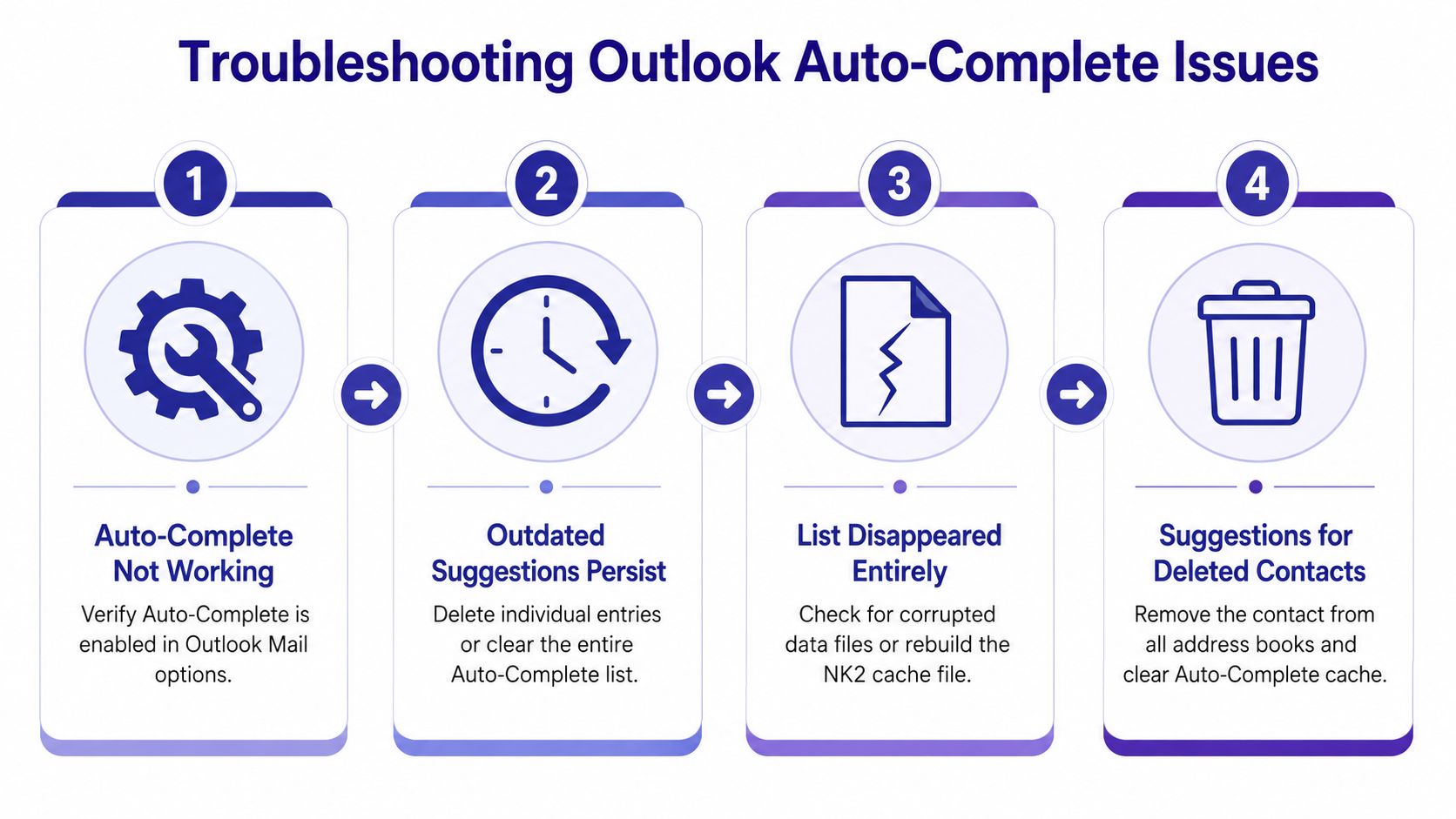
Run this sequence in order:
Check the setting first
Make sure Auto-Complete is enabled in Outlook's Mail options.
Clear the list intentionally
If the cache is damaged or acting strangely, clear it.
Rebuild with test emails
Send a few messages to known recipients and see whether Outlook starts learning again.
Users often jump straight to profile rebuilds or reinstalls, even though a simpler fix could have resolved the issue.
This problem usually means the bad suggestion wasn't fully removed from the places Outlook can still draw from. Deleting the Auto-Complete entry may not be enough if the address still exists in saved contacts, shared contacts, or organizational directories.
Use a layered check:
The recurring bad suggestion is often a data hygiene issue, not a software failure.
This is common in mixed environments. A user may say, “It works in the browser but not on my laptop,” or the reverse.
That points you toward client-specific causes such as a damaged Outlook profile, local client data issues, or add-ins interfering with normal behavior. It can also happen when account types and sync expectations differ. The practical move is to isolate the problem. Test the same mailbox in another client, then decide whether the issue follows the mailbox or stays with one app installation.
If Outlook starts acting oddly after password resets, account prompts, or sign-in loops, fix the account side before chasing autocomplete symptoms. This walkthrough on how to update the password in Outlook can help rule that out quickly.
The smartest way to handle auto complete in Outlook is to stop treating it like a permanent address book. It's a learned convenience layer. When it's clean, it saves time. When it's neglected, it increases the chance of misdirected email.
For most businesses, the right approach is simple and disciplined.
Best practices
Prune bad entries regularly. Don't let old staff, typos, and obsolete aliases sit in the suggestion list.
Keep contacts and Auto-Complete separate in your mind. They aren't the same system, and they don't behave the same way.
Use the full reset carefully. Emptying the list works, but it also removes the good habits Outlook has learned.
If Outlook feels random, there's usually a reason. The order isn't purely alphabetical, the list isn't unlimited, and the feature reflects actual sending behavior more than people expect. Once you understand those trade-offs, the fixes become more logical and less frustrating.
Reliable email depends on more than one checkbox. It depends on a stable Outlook setup, clean user habits, and an environment that doesn't introduce avoidable sync or profile issues.
If your team depends on Outlook every day and you want a more reliable, secure place to run Microsoft applications, Cloudvara provides hosted environments built for business use. It's a practical option for firms that want consistent access, fewer workstation headaches, and support when Outlook problems affect real work.




