
Server capacity planning is the art and science of making sure you have exactly the right amount of computing power—CPU, memory, storage—to keep your business running smoothly, both today and tomorrow. It’s the secret sauce that prevents system crashes during crunch time while keeping you from wasting money on resources you simply don’t need.
Let's be honest, "server capacity planning" sounds like a dry, technical chore. But for a growing business, especially a professional firm like a law office or accounting practice, getting it right is the difference between seamless operations and a system-wide meltdown during your busiest season.
Think of it as the foundation of your digital office. When it's solid, your applications are snappy, your team is productive, and clients are happy. When it’s shaky, you’re stuck with frustrating slowdowns, unexpected downtime, and emergency IT bills that can wreck your budget.

Without a solid plan, businesses almost always fall into one of two expensive traps: over-provisioning or under-provisioning.
Over-provisioning is when you pay for server power you never actually use. It’s like renting a 10-bedroom house for a family of three. You feel safe, but you're bleeding cash every single month.
Under-provisioning, on the other hand, is even more dangerous. It means your server can’t keep up with the workload, causing critical apps like QuickBooks or your document management system to crawl. During a peak period, this can snowball into a complete system failure, bringing your entire business to a grinding halt.
The core goal of effective server capacity planning is to find that sweet spot—enough power to handle your peak demand with a reasonable buffer for growth, but not so much that you're pouring money down the drain.
The days of making expensive guesses about server needs are long gone. The shift happened when IT budgets got tighter and just throwing more powerful hardware at the problem became unsustainable.
Today’s best practice is to analyze your past usage to project future needs. A good rule of thumb is to plan for 10-20% annual organic growth and build in a 20-30% safety buffer for unexpected spikes. For firms with seasonal peaks, like accountants in April, factoring in those crunch times is absolutely essential. By forecasting usage this way, businesses can often cut their server investments by a surprising 25-40%. As the experts at SolarWinds point out, this makes planning a direct contributor to your bottom line.
This proactive strategy lets you make informed decisions and maintain predictable costs. The flexibility of cloud hosting makes this even easier. A key part of this is understanding what is cloud scalability and how it allows you to adjust resources on the fly. By adopting this mindset, you turn IT from a reactive cost center into a strategic asset that fuels reliable business growth.
Before you can even think about the future, you need a crystal-clear picture of your server’s performance right now. Solid capacity planning always starts with establishing a baseline. This isn’t about running a bunch of complicated commands; it's simply about observing how your system behaves under the pressure of a normal workday.
This means gathering data on the four metrics that truly matter. Think of them as the four vital signs of your server's health. Understanding them is the first step toward making smart, data-driven decisions that will save you money and prevent frustrating downtime later on.

Your server juggles countless tasks, but its performance really hinges on four primary resources. If you can measure these, you'll know almost everything you need to about your current workload.
CPU (Central Processing Unit) Utilization: This is the server's brainpower. It shows how hard the processor is working to run your applications and handle requests. High utilization isn't always a bad thing, but if it stays maxed out for too long, you'll see significant slowdowns.
RAM (Random Access Memory) Usage: Think of RAM as the server's short-term memory, holding all the data your applications need to access quickly. When you run out of RAM, the server is forced to use slower disk storage, which is why applications like QuickBooks or your CRM can suddenly feel sluggish.
Storage I/O (Input/Output): This measures how fast your server can read data from and write data to its hard drives. For a law firm accessing thousands of large documents daily, slow storage I/O can be a major productivity killer.
Network Throughput: This is simply the amount of data moving in and out of your server. It’s absolutely crucial for ensuring smooth remote access and keeping data flowing efficiently between your team and your applications.
Tracking these four metrics gives you a complete, holistic view of your server's performance. For a deeper dive into this, it’s worth exploring some application performance monitoring best practices, which can offer even more granular insights.
The key to a reliable baseline is measuring performance during different levels of activity. A server that hums along perfectly on a quiet Tuesday morning might start to buckle under the pressure of a month-end reporting rush.
Let's imagine a 10-person accounting firm. To get an accurate picture, they should collect data during two distinct windows:
By comparing the data from these two periods, the firm can see exactly how much extra capacity is needed to handle its busiest times. This peak usage number—not the average—becomes the foundation for all future server capacity planning.
You don't need fancy, expensive software to get started. Most server operating systems come with built-in tools that provide all the information you need.
For Windows Server, the Performance Monitor is your go-to. You can use it to track hundreds of different performance counters in real-time or log the data over several days to analyze later. It gives you a detailed look at everything from % Processor Time (CPU utilization) to Memory\Available MBytes (RAM usage).
On Linux-based systems, commands like top, htop, and iostat provide instant insight into system performance. These tools display a live, updating list of processes and their resource consumption, making it easy to spot what's eating up the most CPU or memory at any given moment.
The goal isn't to become an expert overnight. It's to start collecting consistent data. Once you have a week or two of performance logs from both normal and peak periods, you'll have the raw material you need to move on to the next crucial step: forecasting your future growth.
Now that you have a solid baseline of your current server workload, it's time to look ahead. Forecasting isn't about gazing into a crystal ball; it's a calculated look at where your business is headed. Getting this right is the key to smart server capacity planning, making sure you're ready for tomorrow's demands without overspending today.
This process is less technical than you might think. It really boils down to blending insights from your past performance with your future business goals. By looking at it from both angles, you can build a reliable 12 to 18-month forecast that keeps everything running smoothly.
The easiest place to start is with your own history. Your baseline data is a snapshot, but if you have performance records from the last 6-12 months, you can spot clear patterns.
Did your CPU usage creep up by 5% last quarter? Have your storage needs grown by 15% over the past year? That's your organic growth rate—the natural increase in resource use as your business operates day-to-day.
Projecting this trend forward gives you a foundational forecast. If your storage usage grew by a steady 10GB per month for the last six months, it's safe to assume you'll need at least another 120GB over the next year, plus a little extra. This simple method gives you a realistic starting point for your capacity plan.
Trend analysis is great for what you know, but it can't predict your next big move. That’s where business-driven forecasting comes in. It's all about translating specific operational plans into tangible server resource requirements.
This is more straightforward than it sounds. Just think about your goals for the next 12-18 months and what they'll demand from your server.
Quantifying these business goals adds a critical layer of accuracy to your forecast. Understanding the principles of scaling IT for business growth is essential for making sure your infrastructure is an asset, not a bottleneck.
For many businesses, demand isn’t a straight line—it comes in waves. An accounting firm is the classic example. Their server workload from January to April is a world away from a quiet month like July. Ignoring these seasonal spikes is a recipe for disaster.
Peak demand has always been a tough nut to crack in server planning because average usage numbers hide these crippling surges. A quick look at historical data often shows that end-of-month processing or tax season can push usage to 2x or more of the average.
Your forecast must be built around your busiest period, not your average one. Use the peak performance data you gathered as your true baseline, and then apply your growth projections to that number.
No forecast is perfect. An unexpected opportunity, like landing a massive new client, could change your resource needs overnight. This is why every solid capacity plan includes a safety buffer of 20-30%.
This buffer isn't wasted capacity; it's your insurance policy. It gives you the breathing room to handle unexpected surges without any performance hits. It also buys you time to add more resources when your monitoring shows you're starting to dip into that buffer. This proactive approach helps improve your firm's operational efficiency metrics by preventing slowdowns that hurt productivity.
By combining trend analysis, business goals, and a healthy safety margin, you can create a robust forecast that aligns your IT infrastructure directly with your business's strategic direction.
With a solid forecast in hand, it’s time to translate those projections into a concrete action plan. This is where capacity planning gets tangible, as you decide on the specific CPU, RAM, and storage your server will need to deliver reliable performance day in and day out. The key is to match resources to the actual work your team does.
This process isn't about picking the most powerful options; it's about picking the right options. Different applications put stress on different parts of the server, and understanding this relationship is crucial for building a cost-effective and efficient system.
Think about the primary software your business runs on. A CRM with dozens of concurrent users constantly querying a database demands a lot of RAM to keep data readily accessible. On the other hand, a law firm's file server, where paralegals are opening and saving large documents all day, needs faster storage I/O to prevent bottlenecks and frustrating load times.
Let's break down how to approach this for each core component:
Once you’ve sized your resources, the next step is to define your expectations for performance and uptime. This is formalized in a Service Level Agreement (SLA), a document that outlines the performance standards you expect from your IT environment.
An SLA isn't just for large corporations. For a small firm, it provides a clear benchmark for what "good performance" actually means. It should specify critical metrics like:
These agreements ensure business continuity and set clear expectations for everyone involved. It's also helpful to understand the difference between SLAs and OLAs (Operational Level Agreements), as they work together to ensure service quality. For a closer look, you can learn more about the specifics of OLA vs SLA and how they impact your operations.
The real power of an SLA is that it transforms vague frustrations like "the server feels slow today" into measurable targets. If response times drop below the agreed-upon threshold, you have a clear, data-backed reason to investigate and scale resources.
The final piece of the puzzle is moving from a reactive to a proactive management model. Instead of waiting for a server crash to tell you you're out of capacity, you set automated alerts that warn you long before a problem ever occurs. This is a core tenet of modern server management.
A simple but effective strategy is to set two thresholds for each key metric: a "yellow alert" to trigger a review and a "red alert" to prompt an upgrade.
This table provides a great starting point for setting those tripwires.
| Metric | Review Threshold (Yellow Alert) | Upgrade Threshold (Red Alert) | Common Applications Affected |
|---|---|---|---|
| CPU Usage | Consistently above 75% | Consistently above 90% | QuickBooks, Reporting Tools, Sage |
| RAM Usage | Consistently above 80% | Consistently above 95% | CRMs, Document Management Systems |
| Storage | 80% of total capacity used | 90% of total capacity used | All applications, especially file servers |
When a metric hits the "Yellow Alert," it doesn't mean there's a crisis. It's simply a trigger to review your forecast and start planning for an upgrade. This gives you plenty of time to act before performance is ever impacted.
After sizing your resources, it's vital to consider robust support and hosting services that can help you monitor these thresholds and maintain your defined service levels without adding to your team's workload.
This is where all your careful server capacity planning truly pays off. Moving from an on-premise server to the cloud is the moment your forecasts and resource calculations become a live, high-performing reality. But a successful migration isn’t about flipping a switch; it's a strategic process that demands a clear plan to ensure your business doesn't skip a beat.
Think of it like moving your office. You wouldn’t just throw everything in boxes and hope for the best. You’d label, plan, and coordinate to make sure you’re open for business on Monday morning without a hitch. A cloud migration works on the same principle, requiring a thoughtful approach to your data, software, and user access.
The process boils down to a few core ideas: forecasting what you need, sizing the environment correctly, and staying ahead of future demand.
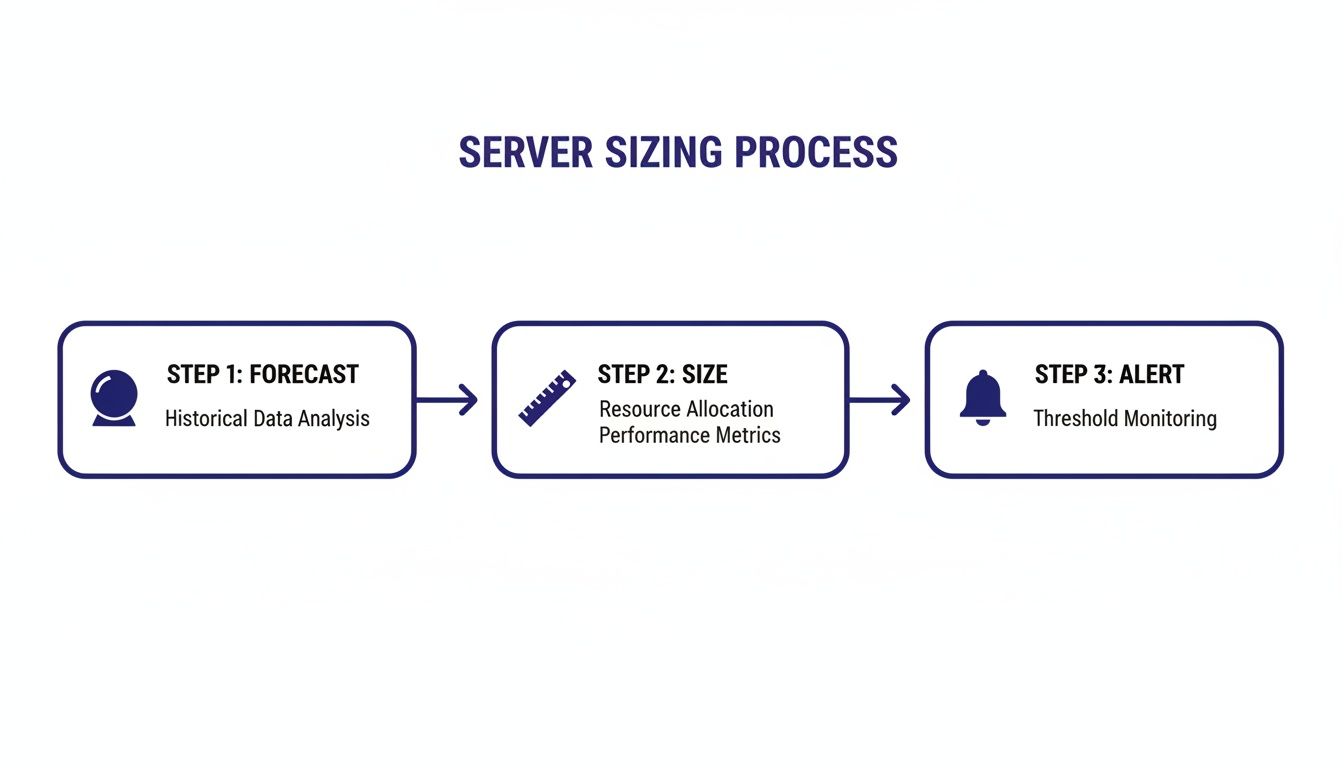
This simple flow is validated right before the migration to ensure everything goes smoothly from day one.
Before you move a single file, give your capacity plan one last look. Does it still line up with your current business reality? A migration is the perfect time to confirm your projected CPU, RAM, and storage needs are still on the mark. This final check helps you move into a cloud environment that’s perfectly sized for today and ready for tomorrow.
This isn’t just a formality—it prevents expensive mistakes. I've seen businesses over-provision servers and end up with sky-high disaster recovery costs because they skipped this step. The smart move is to analyze 6-12 months of historical data to project growth, which often runs 10-20% annually. By building in a 20-30% safety buffer and setting alert thresholds at 70-75% utilization, you can avoid downtime that might otherwise cost a small business up to $5,600 per minute.
One of the most common migration roadblocks is the software license audit. Your on-premise licenses for critical tools like QuickBooks, Microsoft Office, or your industry-specific document management system may not simply transfer to a cloud environment.
Getting this sorted out early prevents that awful moment when your team can't access essential tools right after the move.
With your plan validated and licenses cleared, it's time to map out the technical logistics. This really comes down to two things: getting your data transferred securely and setting up how your team will access it.
Data transfer needs careful timing to minimize downtime. For most businesses, this means scheduling the final data sync over a weekend or after hours. A managed migration service handles this heavy lifting, using proven methods to move everything efficiently and securely.
Configuring user access is just as critical. In a cloud environment like Cloudvara, your team will likely connect via Remote Desktop Protocol (RDP). You'll need to make sure every user account is set up with the right permissions, giving them access to the exact applications and files they need—and nothing more.
A well-executed migration feels almost invisible to your team. They log off from the old server on Friday and log into the new, faster cloud environment on Monday, with all their familiar applications and data ready to go.
This seamless experience is the hallmark of a professionally managed process. If you’re getting ready for this move, our detailed cloud migration checklist breaks down every single step involved.
I remember a small nonprofit we worked with that was struggling with an aging on-premise server for its donor CRM. Constant maintenance was draining their limited resources, and remote access for the fundraising team was clunky and unreliable. By moving to a managed cloud solution, they eliminated their IT headaches completely. Their team gained secure, reliable access from anywhere, and the nonprofit could finally focus its energy on its mission instead of on server upkeep. Their success story shows the real benefit of a well-planned move to the cloud: it frees your organization to do what it does best.
Even with a clear roadmap, a few questions always pop up during the server capacity planning process. Let's tackle some of the most common ones we hear from businesses, so you can make confident decisions about your IT infrastructure.
For most small and mid-sized businesses, a deep-dive review once a year is a solid baseline. But to stay ahead of the curve, we strongly recommend quick quarterly check-ins. Business doesn’t stand still, and neither should your capacity plan.
These shorter reviews help you stay aligned with real-world changes like a hiring spree, landing a major new client, or rolling out new software. Think of it as a tune-up to ensure your resources still match your actual needs.
If your business has predictable busy seasons—like an accounting firm during tax time—it’s smart to review performance right after that peak period ends. This lets you analyze what worked, spot any new bottlenecks, and fine-tune your forecast for next year with fresh, relevant data.
The most common and costly mistake we see is relying on guesswork instead of data. Too often, businesses either over-provision resources "just in case," wasting money on server power they’ll never touch, or they under-provision, leading to sluggish performance and crashes right when they need the system most.
Another major pitfall is the "set it and forget it" mindset. Your business is constantly evolving, and the server setup that worked last year could easily become today's biggest bottleneck. Without active monitoring and forecasting, you’re flying blind.
The core of effective server capacity planning is replacing assumptions with data. Use your historical performance to create a baseline, then actively forecast future needs. It's the single best way to avoid these expensive traps.
Moving to the cloud radically simplifies capacity planning, but it doesn't get rid of it entirely. The job just shifts from managing physical boxes to managing a virtual service. You no longer have to worry about buying or maintaining servers, but you still need to understand your resource needs (CPU, RAM, and storage) to pick the right hosting plan.
The huge advantage of the cloud is its flexibility. If you know you'll need more power during tax season, you can easily scale up your resources for a few months and then scale right back down. This elasticity stops you from paying for peak-level capacity all year round.
A good cloud partner helps you monitor your usage and make informed adjustments, giving you all the benefits of smart planning without the classic hardware headaches.
Applications like QuickBooks and Sage are incredibly sensitive to server resources. If you don't give them enough power, you're looking at a direct hit to your team's productivity and a workflow that slows to a crawl.
Here’s how it usually breaks down:
Proper server capacity planning makes sure these critical business tools get the dedicated resources they need to run smoothly. It prevents the frustrating lags that kill your firm's efficiency and lets your team focus on their work—not on waiting for their software to catch up.
Ready to take the guesswork out of server management? The experts at Cloudvara can help you design a perfectly sized cloud environment that scales with your business, ensuring you always have the power you need without overspending. Start your free 15-day trial today.




