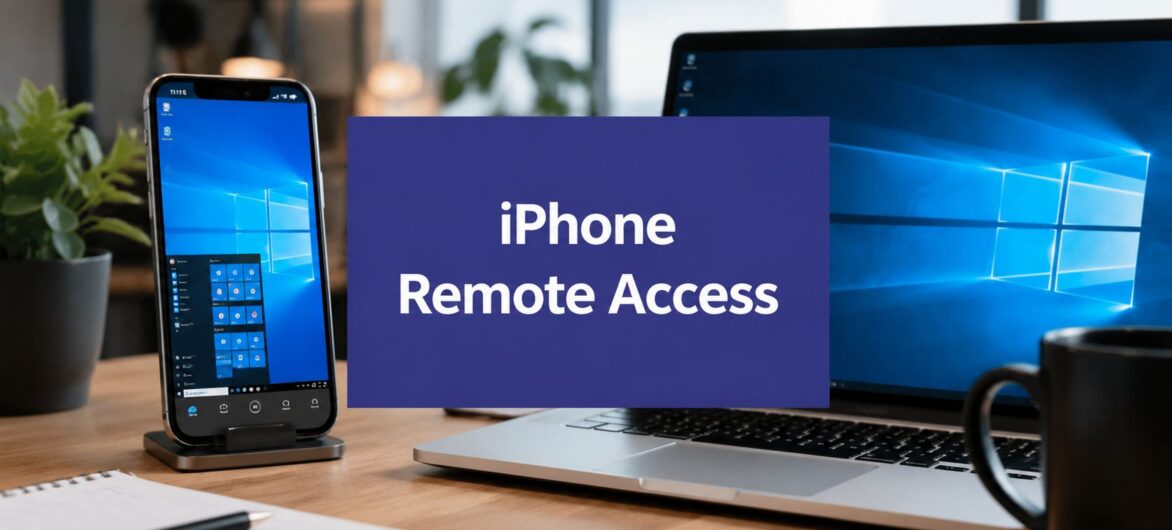
You're probably trying to do one of two things right now, and the difference matters a lot. Either you need help with an iPhone itself, or you want your iPhone to become the screen you use to reach a work computer, file server, or cloud desktop while you're away from the office.
Those are not the same problem. A remote desktop connection to iPhone is heavily limited when the goal is to control the iPhone, but it becomes genuinely useful when the goal is to control a PC from an iPhone. For business users, that second path is usually the one that delivers real productivity, because it lets you reach the tools you already use without trying to turn iOS into something it was never built to be.
A small business owner usually runs into this topic in a hurry. Maybe you're traveling and need a file that's sitting on an office PC. Maybe a staff member is calling because an app on their iPhone is behaving strangely and they want you to “remote in” and fix it. The keyword sounds simple, but the intent splits immediately into two very different jobs.
The first job is controlling an iPhone from another device. This presents a common hurdle, because iPhone remote access is not designed to work like a Windows desktop session. The second job is using an iPhone as the access point to reach a computer, and that's the route that fits most business workflows. For a general primer on what remote desktop means in practice, see this overview of remote desktop connection basics.
The confusion usually comes from wording. People say “remote desktop to iPhone” when they really mean one of these:
Those are different because the underlying operating systems are different. iPhone support is usually session-based and consent-driven, while PC access from iPhone can be persistent, repeatable, and much closer to a normal desktop experience.
Practical rule: if your goal is to fix what's happening on the iPhone, expect viewing and guided help. If your goal is to work from the iPhone, expect a far better result by connecting to a Windows PC or hosted desktop.
The distinction matters for purchasing, training, and support planning. It also prevents a lot of wasted time chasing a setup that Apple never intended to support in the first place.
Apple built iOS as a locked-down mobile operating system, not as a remote host platform. That design choice changes what is possible. iPhones don't include a built-in RDP or VNC/RFB server, and Apple's sandboxing model blocks one app from freely reading the screen output of another app, which is why standard desktop-style host control doesn't exist on iPhone as explained in this technical discussion.
Think of iOS like an office building with separate rooms, each room with its own key. An app can work inside its own room, but it can't wander into every other room and inspect what's on the desks. That separation is what keeps personal data and app data isolated, and it also prevents a remote desktop client from taking over the whole device the way it can on Windows.
The result is straightforward. You can use an iPhone as a client to reach a Windows PC, but you can't use standard desktop protocols to turn the iPhone into a remotely controlled desktop endpoint. Microsoft's own Remote Desktop client for iOS and iPadOS reflects that one-way model, it's for using Windows apps, resources, and desktops from an iPhone or iPad, not for exposing the iPhone as a desktop host.

That doesn't mean support is impossible. It means the support model has to change. On iPhone, the realistic options are screen viewing, guided troubleshooting, and attended sessions where the user consents before the technician connects. For business teams, that's a useful distinction because it keeps expectations aligned with iOS security rather than fighting it.
There's another important business implication here. If you're buying tools for help desk work, don't shop for “full control” language and assume it will behave like a Windows host. On iPhone, the promise is usually assisted access, not unrestricted administration.
When someone needs help with an iPhone, the goal is usually visibility, not ownership. You want to see the screen, confirm what the user sees, and walk them through the fix without asking them to describe every tap. That's where attended support tools and built-in screen sharing come in.
For quick, informal help, Apple's own screen sharing path through FaceTime is often enough if both people are already in the Apple ecosystem. It's a practical choice for a manager helping a staff member, or for a contractor doing a brief walkthrough. The upside is convenience. The downside is that it's not a full remote admin workflow, and it's not built for persistent support operations.
For more structured business support, third-party tools are the standard. The workflow is usually consent-based, which keeps the user in control and makes the session easier to approve in a support setting. In Splashtop's model, the iPhone user opens an SOS app and generates a 9-digit session code for the technician, then the technician uses that code to begin the session as described here. That code-based process is a good example of how modern iPhone support works, identity and consent first, access second.
The cleaner your support workflow, the less time your team spends explaining permissions, prompts, and reconnects.
A typical session works like this. The user opens the support app, shares the code, and then approves the screen-sharing prompt on the iPhone. The technician can then view the live screen and talk the user through the next steps. That's ideal for app setup, MFA enrollment, menu navigation, and troubleshooting where you need visual confirmation more than direct control.
These tools are useful, but they still respect iOS boundaries. You're getting remote viewing and guided assistance, not the kind of deep control you'd expect on a Windows endpoint. That makes them a strong fit for help desks, trainers, and MSPs that need to support users without taking over the device.
For teams formalizing that process, remote desktop security practices matter just as much as the tool choice. Ask users to close unrelated apps, verify the session before approving access, and end the session cleanly once the issue is fixed.

If you're supporting staff in the field, this is also where service design matters. The support call should be short, the identity check should be clear, and the user should know exactly when the session starts and ends. That keeps the process professional without making it slow.
Business value emerges when the iPhone becomes the doorway to your Windows environment. Instead of trying to manage iPhone as a host, you use it to reach a PC, and that opens access to accounting software, document systems, internal apps, and the desktop you already rely on. Microsoft's iOS and iPadOS guidance lays out a practical setup pattern, enable remote desktop on the host PC, make the PC reachable through LAN, VPN, or a relay service, then create the connection profile on the iPhone with the PC name or address, credentials, and display or bandwidth settings Microsoft documentation.
The host computer has to be ready before the phone can connect. Remote Desktop needs to be enabled on the PC, and the machine needs a path that the iPhone can reach from outside the office. In a simple office environment, that might be a LAN connection or VPN. In a more flexible setup, it may involve a relay or gateway service.
Once that's done, the iPhone client becomes the remote workstation. You can save connection profiles, reuse gateway settings, and keep the process repeatable for everyday use. That's the difference between “trying remote access once” and building an actual mobile workflow.
If you want the workflow in a more detailed step-by-step format, this guide to accessing a desktop remotely is a useful companion.
This is also where mobile work gets practical for distributed teams. A manager can review a file, a bookkeeper can open accounting software, and a lawyer can reach a case document without asking someone to email it from the office machine. If you need a broader communications stack for remote staff, Hosted PBX for distributed workforces is a relevant parallel, because desktop access and voice access usually have to work together.
The important point is that the iPhone is doing client work, not host work. That role is stable, supported, and useful, which is why it's the direction most businesses should lean into.

If your team keeps relying on one office PC, the setup eventually becomes fragile. Someone leaves the office without access, a machine needs maintenance, or a file lives on the wrong computer. A hosted desktop model solves that by moving the work environment itself into the cloud, so the iPhone is only the entry point, not the thing carrying the business load.
Cloudvara fits that model by centralizing existing applications on a secure cloud platform that can be reached from any device, including an iPhone. For businesses that run QuickBooks, Sage, tax tools, document systems, or Microsoft applications, that means the software sits in one managed environment instead of being tied to a single local machine. You can read more about that approach on Cloudvara hosted virtual desktops.
A hosted desktop removes a lot of the chores that come with a self-managed remote PC. There's no need to keep one workstation alive as a permanent access point, no need to coordinate ad hoc remote setup each time someone needs access, and no need to treat a local office computer like a critical infrastructure dependency. The business gets a consistent workspace, and the user gets the same desktop no matter where they sign in from.
That matters in regulated and document-heavy environments. Accounting firms, law offices, and small businesses tend to care less about whether the desktop is physically in the office and more about whether the software opens reliably, the data stays centralized, and access works from the field or from home.
Hosted desktops are a strong fit when:

The practical difference is simple. A self-managed remote PC gives you access to one machine. A hosted desktop gives you an environment built for business continuity, and the iPhone becomes just another secure way to reach it.
Remote access works best when it's treated like core infrastructure, not a casual convenience. The same habits protect an iPhone support session, a remote Windows desktop, and a hosted environment. For a useful security checklist, see remote access security best practices.
Performance matters too, especially on a phone screen. Use stable Wi-Fi when you can, because mobile connections can make the session feel jumpy. Trim display settings so the remote desktop fits the iPhone better, and close unnecessary apps on the host machine before you connect so the remote session doesn't compete with background clutter.
Operational habit: the best remote desktop experience usually comes from a clean host, a clear permission model, and a short list of approved users.
If you support multiple employees, document the setup once and reuse it. Save profiles, note which apps need special access, and make sure users know the exact path for starting and ending a session. That's how remote desktop stops being a one-off fix and becomes a dependable part of the business workflow.
If you want a cleaner way to give your team secure access from iPhone without managing a fragile office PC, take a look at Cloudvara. It centralizes business applications in a hosted desktop environment, which makes remote access simpler for your staff and easier to manage for your business.




