
Securing remote access to QuickBooks is a non-negotiable for modern businesses, allowing teams to manage finances from literally anywhere. The most reliable method I've seen is using a dedicated cloud hosting provider, which places your familiar QuickBooks Desktop software on a secure, accessible server.
This approach gives you the best of both worlds: you keep the full, robust functionality of the desktop version you already know, while gaining the flexibility of the cloud.
In today's fast-moving business world, waiting until you're back at your desk to get critical financial data is a serious handicap. Accounting is no longer a static, office-bound task. It’s become a dynamic tool that supports agility, empowers distributed teams, and gives you a real competitive advantage.
The shift toward remote work and real-time decision-making has made immediate access to financial information a fundamental need. Your operations can't just stop because the bookkeeper is out of the office or a manager is traveling.
Real-world scenarios pop up every day that highlight the urgent need for remote QuickBooks access.
Picture a project manager on a construction site who needs immediate job costing data to stop a budget from spiraling. With remote access, they can pull up the latest numbers on a tablet and make an informed decision on the spot, potentially saving thousands.
Or think about a consultant finalizing a proposal from a hotel room. They need to check a client's payment history to confirm the terms. Instead of delaying the proposal, they can securely log into QuickBooks, get the info they need, and send the document off, speeding up the entire sales cycle.
The ability to instantly access and update financial records from anywhere transforms accounting from a historical record-keeping function into a proactive business management tool.
This level of operational agility is what separates successful businesses from the rest. Let's quickly compare the old way with the new.
This table breaks down the key differences between being tied to a single office computer versus having the freedom of a remote solution.
| Feature | On-Premise Access | Remote Access Solution |
|---|---|---|
| Accessibility | Limited to a specific office computer or local network. | Access from any device with an internet connection, anywhere. |
| Team Collaboration | Difficult; requires users to be in the same physical location. | Seamless; multiple users can collaborate on the same file in real-time. |
| Decision-Making | Delayed until someone can get to the office computer. | Immediate; stakeholders get real-time data on the spot. |
| Hardware Dependency | High; relies on a single, dedicated machine. | Low; access through a secure cloud server, not tied to one device. |
| Operational Agility | Low; business processes are tied to a physical location. | High; enables faster responses to opportunities and challenges. |
As you can see, the flexibility offered by remote access is a game-changer for how teams work and make decisions.
This trend is especially crucial in industries like construction and manufacturing where timely data is everything. It mirrors the broader business migration to cloud solutions for better efficiency. As of 2025, QuickBooks' dominance in the small business accounting software market, with a staggering 62.23% share, highlights its widespread adoption and the growing demand for flexible access.
Ultimately, providing remote access to QuickBooks does more than just offer convenience. It enables:
By breaking down the physical barriers to your financial data, you unlock a much more responsive and efficient way of doing business. You can explore our guide on the benefits of cloud hosting for small businesses to see how this approach can help you grow.
Picking the best way to get into remote access to QuickBooks can feel like a chore, but it really just comes down to what your business actually needs. The right choice hinges on your must-have features, how tech-savvy your team is, and of course, your budget. Let’s walk through the three main options to figure out which one fits you best.
The big contenders are QuickBooks Online (QBO), QuickBooks Desktop with cloud hosting, and setting up your own Virtual Private Network (VPN). Each one is built for a different kind of business and a different set of priorities.
QuickBooks Online is Intuit’s answer to the cloud. It was designed from the ground up to run in a web browser, which makes it a no-brainer for startups and small businesses that need to work from anywhere. If your accounting is pretty straightforward and you like a simple subscription model, QBO is a fantastic place to start.
But—and this is a big but—many long-time QuickBooks Desktop users find QBO is missing the heavy-duty, industry-specific features they depend on. Think about things like build assemblies for advanced inventory or the granular job costing tools the desktop version is known for. If you’ve built complex workflows around those features, you might find QBO feels a bit restrictive.
The core decision often comes down to this: are you willing to trade the advanced functionality of QuickBooks Desktop for the streamlined, browser-based convenience of QuickBooks Online?
For businesses that can’t afford to give up the powerful features of QuickBooks Desktop but still need that work-from-anywhere access, cloud hosting is the perfect middle ground. This approach takes your familiar desktop software and puts it on a secure, remote server. You just log in through a remote desktop connection and use QuickBooks exactly like you would at the office, but from any device you want.
Honestly, this approach gives you the best of both worlds.
This setup is ideal for established firms in fields like construction, manufacturing, and accounting that have spent years perfecting their processes on the desktop version. It’s a serious upgrade from basic remote access, often delivered through a hosted virtual desktop that can centralize all your business apps, not just QuickBooks.
A Virtual Private Network (VPN) creates a secure, encrypted tunnel from a remote computer directly to your office network. This lets someone access an office PC that has QuickBooks installed. It sounds simple enough on the surface, but this method is really best for businesses that have their own dedicated IT department.
Why? Because setting up and maintaining a business-grade VPN isn’t trivial. It requires real technical expertise to handle security, manage who gets access, and keep the network running smoothly. On top of that, you’re still tied to a physical computer in the office that has to be left on 24/7. If that machine goes down, so does your remote access. For most small and mid-sized businesses, the technical headache and reliability risks make cloud hosting a far more practical and secure choice.
Choosing the right cloud hosting provider is the first and most critical step. This isn't just about picking a service; it's about choosing a partner for your financial operations. The decision you make here will directly affect your team's day-to-day experience, the security of your data, and the overall performance of QuickBooks. Don't just shop on price—look for providers who specialize in application hosting, especially for demanding software like QuickBooks.
A few things I always tell clients to look for are non-negotiable. Your provider must guarantee high uptime (aim for 99.5% or better), offer 24/7 technical support from actual people, and have a transparent data ownership policy. You should always be able to grab a full backup of your company file, no questions asked.
Once you have a provider, it's time to move your company file into its new home. This part can feel intimidating, but a good hosting partner will make it surprisingly simple. In fact, most reputable providers offer a free, assisted migration, where their technical team handles the entire transfer for you. It’s a huge time-saver.
If you decide to tackle it yourself, the standard method is to create a portable company file right from your QuickBooks Desktop. It’s a compact, secure version of your data designed specifically for this kind of transfer.
Here’s how that typically works:
.qbp extension) somewhere handy, like your desktop..qbw) on their end.With your company file settled in the cloud, the next step is to give your team access. This is more than just creating a list of usernames and passwords. It's your chance to implement the principle of least privilege—giving each person access only to the information and features they absolutely need to do their job.
For instance, a salesperson might only need permissions to create invoices and check customer balances. Your controller, on the other hand, will need the keys to the kingdom: full access to financial reports, payroll, and banking. This granular control is managed through a combination of your provider's control panel and QuickBooks's own built-in user roles.
This infographic breaks down the common ways businesses get remote access to QuickBooks, highlighting why hosting is such a popular middle ground.
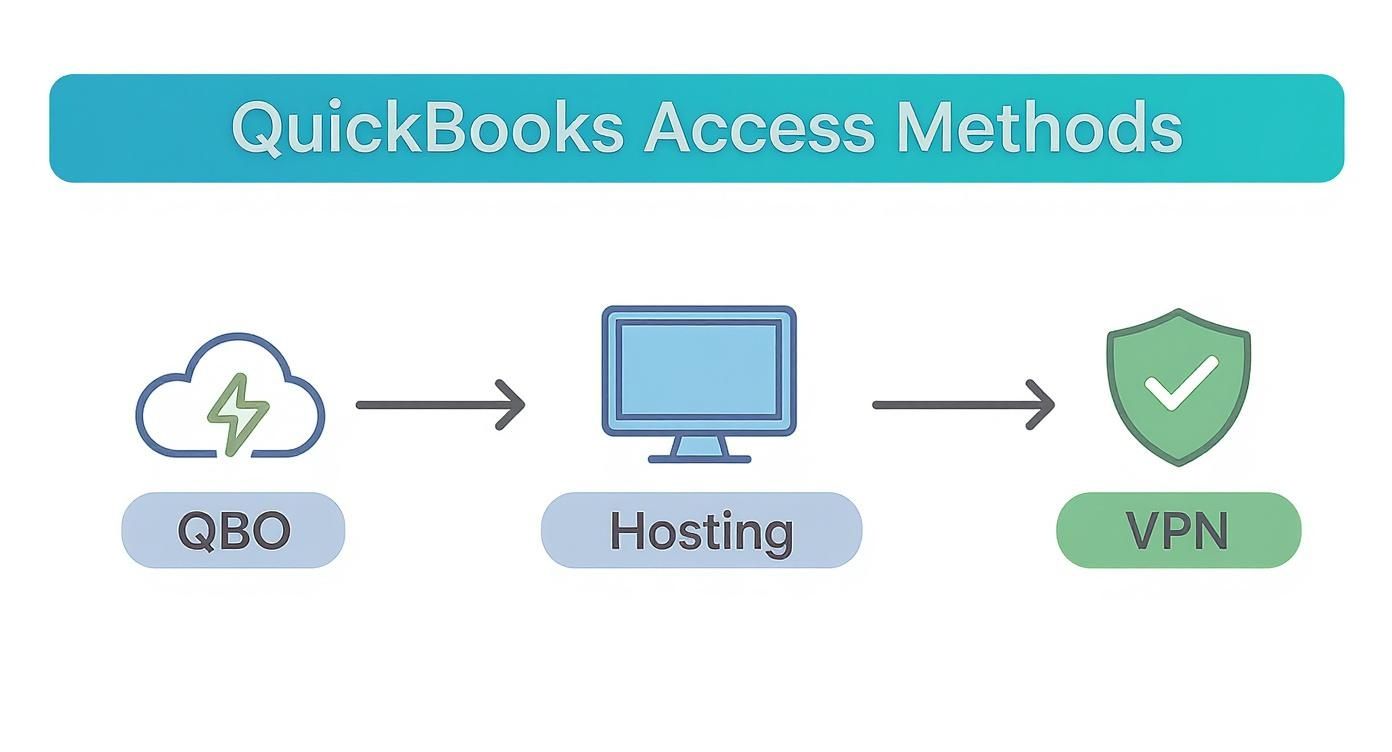
As you can see, hosting preserves all the powerful features of the desktop version while giving you the anywhere-access of the cloud. It’s a balanced approach that works for most teams.
If you want to dig deeper into setting this up, our guide on cloud hosting for QuickBooks covers these features in much more detail.
A critical part of setup is enforcing strong security policies from day one. Mandate multi-factor authentication (MFA) for all users and establish a strict password complexity policy.
The whole industry is moving this way. Think about it: Intuit is phasing out support for older QuickBooks Desktop versions between May 2025 and May 2027, pushing users toward more modern, secure solutions. Cloud hosting is a natural and powerful step forward.
The final piece of the puzzle is making the remote environment feel like it's running right on your local machine. That means mapping network drives and connecting peripherals like your office printer.
Most remote desktop clients make this easy. In the connection settings, you can choose to automatically connect your local drives and printers to the remote session. This is a game-changer. It means you can save a PDF report from your hosted QuickBooks directly to your local computer's "My Documents" folder. Or you can print an invoice to the physical printer sitting right next to you.
It's these small integrations that create a seamless workflow for your team, removing the friction that can sometimes come with remote setups.
And as a final housekeeping tip: when you’ve fully transitioned to the cloud, don’t forget about the old hardware that once held your sensitive financial data. Proper data destruction is crucial. Services offering secure hard drive shredding ensure that your old information is completely unrecoverable, closing the loop on your security.
When you set up remote access to QuickBooks, your financial data is no longer confined to a single office. This flexibility is a game-changer for productivity, but it also means robust security isn't just a good idea—it's non-negotiable. Your security protocols are the digital equivalent of locking the company vault.
Think about a common but stressful scenario: a team member loses their company laptop at an airport. Without the right protections in place, this could be a catastrophic data breach. With layered security, however, it becomes a manageable inconvenience instead of a full-blown disaster.
Your first line of defense is controlling who can get in and what they can do once they're there. This has to start with enforcing multi-factor authentication (MFA) for every single user, no exceptions. MFA adds a second layer of verification, like a code from a smartphone app, which makes stolen passwords far less dangerous.
Next up is establishing granular user permissions. Not everyone on your team needs the keys to the entire kingdom. This is the principle of least privilege in action, and it's your best friend in a remote environment.
By tailoring permissions to each role, you dramatically shrink your attack surface. If one account ever gets compromised, the potential damage is contained.
The goal is simple: ensure that even if a device is lost or a password is stolen, unauthorized individuals are stopped dead in their tracks before they can ever reach your sensitive financial data.
Beyond controlling who gets in, you need a rock-solid plan for data protection and recovery. Your hosting provider should be handling automated, daily backups of your entire QuickBooks company file. This is your safety net. If data corruption or an accidental mass deletion ever happens, you can quickly restore a clean version from the previous day.
Don't just assume the backups work—test them. Regularly run through your recovery process to verify everything functions as expected. It’s a proactive step that ensures your disaster recovery plan actually works when you need it most. You can dive deeper into these protections in our guide on remote access security best practices.
To further protect your data, it's also critical to implement strong internal controls. For a closer look at this, consider resources on proactive strategies for preventing insider threats to round out your security posture.
To help you stay on track, we've put together a simple checklist. Use this table to monitor your progress and make sure no critical security measures fall through the cracks.
| Security Measure | Implementation Status (To Do / In Progress / Complete) | Key Action |
|---|---|---|
| Multi-Factor Authentication (MFA) | To Do | Enforce MFA for all users logging into the remote environment. |
| Role-Based Access Controls | To Do | Define and assign permissions based on the principle of least privilege. |
| Automated Daily Backups | To Do | Confirm your provider has automated backups scheduled and running. |
| Disaster Recovery Testing | To Do | Schedule a quarterly test to restore a file from backup. |
| Insider Threat Policy | To Do | Develop and communicate clear internal controls and policies. |
| Regular User Audits | To Do | Review user access and permissions at least twice a year. |
Treating this checklist as a living document will help you maintain a strong security posture as your team and business evolve. It's not about a one-time setup; it's about ongoing diligence.
Even the most reliable remote setup can hit a snag. Performance hiccups are frustrating, but the good news is that most are surprisingly easy to fix yourself. This is your go-to guide for sorting out the usual suspects when your remote access to QuickBooks acts up.
When things like sluggish performance, sudden connection drops, or printing failures bring your work to a halt, the first step is to figure out if the problem is on your end or with the hosting environment. By checking a few key areas, you can usually get back on track without needing to call for help.
Lag is, by far, the most common complaint we hear. Before you pick up the phone to your hosting provider, the first thing you should always check is your local internet connection. A quick speed test online will tell you if your own network is the bottleneck.
If your internet speed looks fine, the issue might be with your remote display settings. Many remote desktop clients let you adjust the visual quality of your session. Try reducing the color depth or turning off fancy visual effects—this one simple tweak can dramatically improve how responsive the connection feels, especially if your internet is a bit slow.
For a deeper dive into getting the best experience, check out our guide on using remote desktop for QuickBooks for peak performance.
A sluggish remote session doesn't always mean there's a problem with the server. More often than not, the root cause lies in the connection quality between your local machine and the cloud environment.
Sudden disconnections can be alarming, but they often point right back to network instability. If your session keeps dropping, try connecting from a different network (like your phone's hotspot) to see if the problem follows you. This is a great way to isolate whether the issue is with your office Wi-Fi or something bigger.
Printing is another classic trouble spot. If your local printer isn't showing up in your remote QuickBooks session, the fix is usually in your remote desktop client settings. Make sure you've enabled the "Printers" or "Local Resources" option before you connect. This tells the remote server to pass the print job through to your physical printer.
It’s no surprise these issues come up, as the move to cloud-based systems has made remote access a business necessity. In fact, by 2023, QuickBooks Online had grown to 6.5 million subscribers, which is about 65% of their total customer base. This shift just underscores how much businesses now depend on having access to their financial data from anywhere. You can find more details on this cloud adoption trend at fitsmallbusiness.com.
Ultimately, good troubleshooting is just a process of elimination. Start with the simplest potential causes—your local internet, your client settings, and your printer—and you’ll solve most common issues on your own. If the problem is more complex, a quality hosting provider's support team will be ready to help you dig deeper.
When you're thinking about moving QuickBooks to the cloud, a few questions always come up. It's smart to get these sorted out before making a move. Here are the straightforward answers to the things people ask us most often.
Yes, absolutely. This is one of the biggest reasons businesses make the switch. A professional cloud hosting environment is built from the ground up to handle QuickBooks Desktop's multi-user functionality without a hitch.
Your entire team—your accountant, bookkeeper, and project managers—can all log in and work in the same company file simultaneously, from wherever they happen to be. The hosting platform manages all the technical details like file locking and user permissions behind the scenes. It works just like it would if you were all in the same office.
That really depends on what your business needs. QuickBooks Online (QBO) has simple subscription tiers, but the cost for hosting QuickBooks Desktop is based on things like how many users you have and the server power you require.
For businesses that can't live without the advanced desktop features—like complex inventory assemblies, industry-specific reports, or critical third-party apps that don't work with QBO—hosting the desktop version is often the better value. It can easily be more cost-effective than paying for the highest-tier QBO plans while letting you keep the tools you already rely on.
When you're comparing costs, look past the monthly fee. Think about the value of keeping the powerful features and established workflows your business was built on.
Your QuickBooks company file (.QBW) always belongs to you. Any reputable hosting provider will make it easy for you to download a complete backup of your data whenever you want, no questions asked.
Switching from one host to another is pretty simple:
It’s a smart move to confirm this data portability policy before you sign up with any cloud hosting service.
Ready to unlock the full power and flexibility of your QuickBooks Desktop from anywhere? Cloudvara provides secure, reliable, and fully managed cloud hosting that keeps your team connected and productive. Get a free 15-day trial and see the difference for yourself at https://cloudvara.com.




